Table of Contents
This updated guide explores summary of ways to block ads on iPhone with practical details, clear explanations, and useful takeaways. Advertising helps you learn more about products you may be interested in, and also generates revenue for related websites and service providers.
Still, if you feel these ads are inappropriate and too annoying, you can block ads when browsing the web. Below are some applications that help you block ads on iPhone and iPad quite effectively. Let's take a look.
How to Enable Ad Blocker on iPhone/iPad
First, you need to note that ad blockers will not work immediately after you download and install it on your device, but you have to enable them in the operating system's installer. Here's how:
1. First, open Settings on your iPhone/iPad and tap Safari .
2. Scroll down a bit and tap Content Blockers.
3. You will now see the ad blockers you have installed listed on the screen. Tap the corresponding switches on the right to enable each ad blocker you want to use.
Also, note that ad blockers come as standalone apps. Still, once you enable them, they integrate with Safari (like a web browser extension). Also, do not forget to go into your ad blocker app and see if there are any other tweaks you can make.
Ad Guard
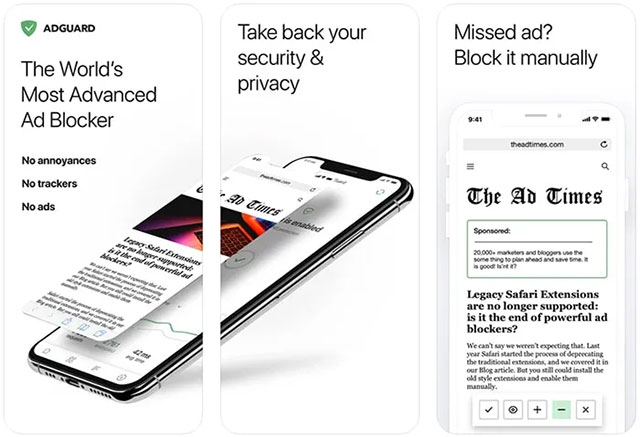
Ad Guard is a great choice to block ads in Safari. It offers up to 50 different ad filters. Some of the premium filters will cost you a fee. Still, Ad Guard's default ad blocking filters work extremely well and can meet most of the needs of regular Safari users.
In particular, this application also provides a fake VPN configuration that helps block ads across the entire system - not just in Safari. Ad Guard's incognito mode is a big plus, supporting blocking cookies from third parties that want to collect information, supporting hiding IP addresses to protect your data.
1Blocker
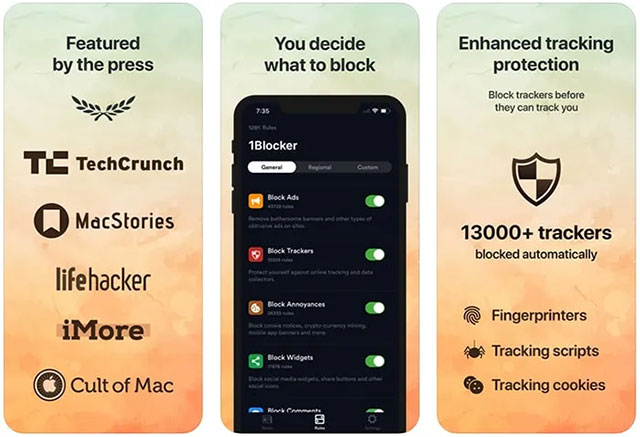
1Blocker claims to have a 'lightning-fast native content blocking API' and 'not slow down Safari'. Based on user feedback, both of those claims are true. 1Blocker is non-invasive, stable, and a great option for quickly blocking ads.
1Blocker is extremely lightweight, making it suitable for even low-end devices. On the other hand, it comes with a highly comprehensive feature set. You can block ads, trackers, pop-ups, social media widgets, adult websites, trackers, etc. You can decide which categories of content you no longer want to see.
AdBlock Pro
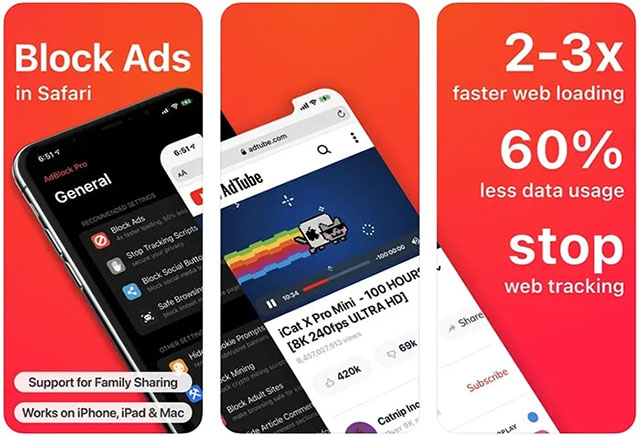
AdBlock Pro is one of the oldest ad blockers that is still popular today. AdBlock Pro is quite complex to work with on iPhone, iPad, and Mac. But it comes with an incredibly comprehensive feature set.
When it comes to blocking web content, AdBlock Pro supports a wide range of categories. You can block ads, banners, and pop-ups, as well as redirects to other websites. The app can block autoplay videos, embedded YouTube ads, and more. AdBlock Pro claims to help you browse the web twice as fast, use up to 50% less data, and significantly improve your device's battery life.
Also, being well integrated and compatible with Safari is a big plus for AdBlock Pro.
Wipr
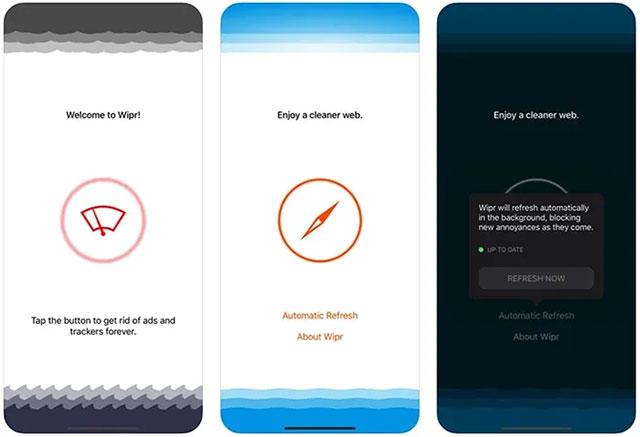
If you're looking for a simple, no-frills ad blocker that still gets the job done, Wipr is worth considering.
This is one of the most popular ad blockers for iOS today, largely because of its ease of use. Setting up Wipr takes just a few seconds, and you hardly need to spend any time learning how to use the app. Once Wipr is set up, you can rest assured that Safari will remove ads, trackers, annoying banners, cookie-related pop-ups, and more. All of this happens automatically in the background without you having to do anything.
Along with blocking ads, Wipr can serve as a great privacy-oriented solution. Wipr also has the ability to block trackers and comes with an always-updated blacklist.
Ka - Block!
Ads not only hinder your learning, working and entertainment; they also unintentionally make websites run slowly and lag because ads consume too much browsing data. With Ka-Block!, you can 'kill two birds with one stone', eliminating annoying ads while increasing your web surfing speed to the maximum.
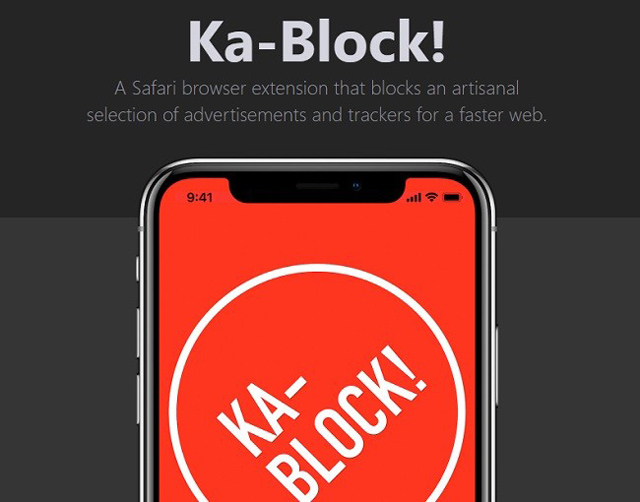
Ka-Block! is a trustworthy choice because this application fully meets the requirements you need for an effective ad blocking app: fast, does not take up much space, is free and is always updated to optimize the user experience.
Customize Wi - Fi Configuration to Block Ads on iPhone/iPad
Along with using the above ad blockers, you can refer to the tips for customizing wifi configuration. It will also help you limit the number of ads appearing on your device.
Still, before doing so, you need to note these points:
- This method can only be applied to wifi networks, it will not be effective with 3G/4G mobile networks.
- Each wifi network you use needs to be set up with these operations at least once.
- If you forget the network, when you log back into the wifi network, you will have to perform the wifi configuration customization again.
Now, follow these steps to customize your wifi configuration again.
Step 1: open the settings of the wifi you want to customize, select configure proxy and select automatic mode.
Step 2: In the URL section, copy these and paste it in.
https://newapp.vn/blockads.jsStep 3: Click Save.
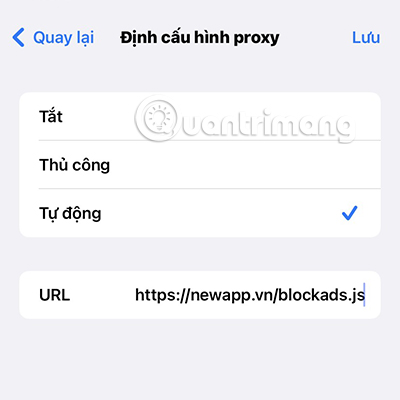
So you have completed the operation of customizing wifi configuration to block ads easily.
Nowadays, it can be said that advertising is an essential part of the internet world. Ads exist on almost every website you visit, even appearing on the online videos you watch. If you find them too annoying, try the above methods.
Check out this guide if you're looking for a way to block YouTube ads on iPhone.
FAQ
What is the main takeaway about Summary of Ways to Block Ads on iPhone?
The key is to understand the core idea, compare the available options, and apply the practical guidance that matches your situation.
What should beginners know about Summary of Ways to Block Ads on iPhone?
Start with the essential steps and terminology. Avoid changing advanced settings until you understand how they affect performance, privacy, cost, or compatibility.
How can I use this information in practice?
Follow the relevant section in order, test one change at a time, and confirm the result before moving to the next step or recommendation.
Related Articles
 How to Block Spam Phone Numbers on iPhone5 minutes read
 Summary of Errors on the iPhone 12 Series4 minutes read
 How to Block Ads on iPhone, iPad6 minutes read
 How to Block Random App Installations on iPhone3 minutes read
 Block Iphone Ads: Block Ads on Iphone with Adguard3 minutes read
 6 Ways to Block YouTube Ads on iPhone8 minutes read
Reader Comments 0
Sign in with email or Google to join the discussion.