Table of Contents
This guide provides a clear, practical overview of steps to activate Windows sandbox on Windows 11, with useful context, important details, and straightforward takeaways for everyday readers.
In this article, this guide will guide you how to activate Windows Sandbox on Windows 11. If you are using Windows 10, please refer to the article: How to Activate Windows Sandbox on Windows 10.
Some conditions to be able to use Windows Sandbox
- Windows 11 Pro or Enterprise, does not support Windows 11 Home
- AMD64 . Architecture
- Virtualization has been enabled in the BIOS. How to enable virtualization in BIOS
- Have at least 4GB of RAM (8GB of RAM recommended)
- At least 1GB of free storage space (SSD recommended)
- CPU with at least 2 cores (4 cores recommended with hyperthreading
How to Activate Windows Sandbox Using Windows Features
The simplest way to enable Windows Sandbox is to use Windows Sandbox. You follow these steps:
Step 1: Press the Win button on the keyboard or click the Start button and then enter Windows Features. In the search results box, click Turn Windows features on or off.

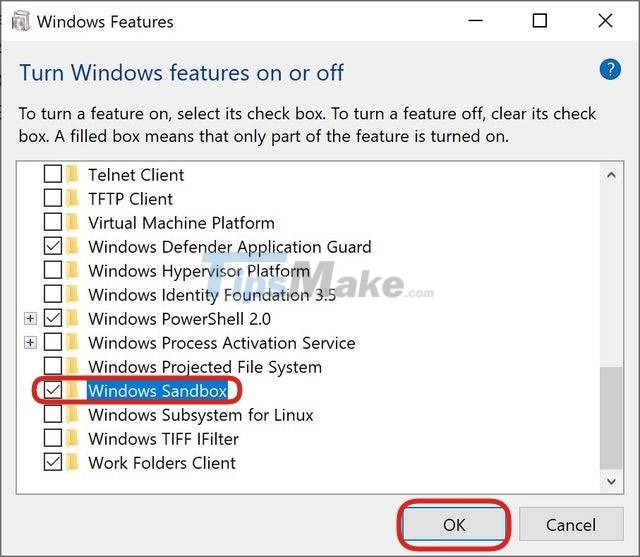
Step 2: In the newly opened Windows Features window, scroll down to find Windows Sandbox. Click the check box next to the Windows Sandbox feature and then click OK to confirm the activation.
Step 3: Your computer may need to restart to install and update more necessary software. Please press the confirmation buttons for the machine to restart.
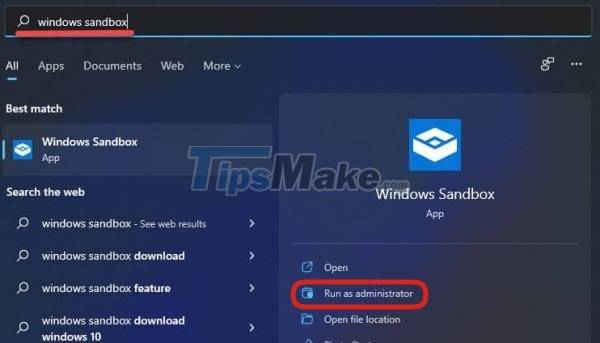
Step 4: After booting is complete, press the Win button on your keyboard or click the Start button and then enter Windows Sandbox. On the search results, right-click Windows Sandbox and then select Run as administrator to start.
That's it, now you can freely play around without fear of ruining the main version of Windows 11 on your machine.
Enable or disable Windows Sandbox on Windows 11 using PowerShell
To control Windows Sandbox with PowerShell, follow these instructions:
Step 1: Press the Win button on the keyboard or click the Start button and enter PowerShell and then select Run as administrator to start.

Step 2: To enable Windows Sandbox, copy and paste the following command into PowerShell then press Enter:
Enable-WindowsOptionalFeature –FeatureName "Containers-DisposableClientVM" -All -Online

Step 3: To turn off Windows Sandbox, use the following command:
Disable-WindowsOptionalFeature –FeatureName "Containers-DisposableClientVM" -Online

Step 4: If asked to reboot, press Y and then Enter to confirm.
Enable or disable Windows Sandbox on Windows 11 with Command Prompt
To enable or disable Windows Sandbox with Command Prompt on Windows 11, follow these instructions:
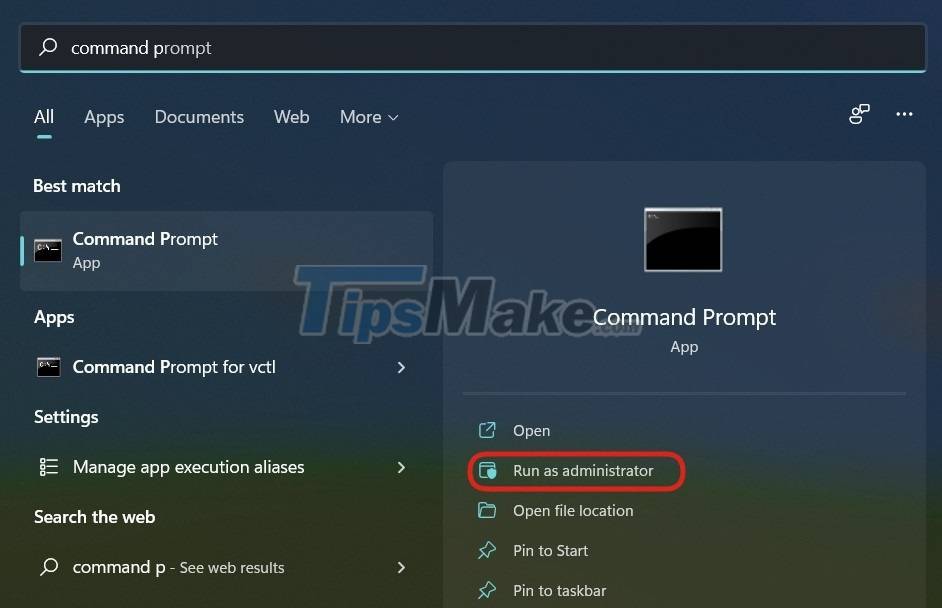
Step 1: Press the Win button on the keyboard or click the Start button and then enter Command Prompt and then select Run as administrator to start.
Step 2: To enable Windows Sandbox, copy and paste the following command into Command Prompt and then press Enter:
Dism /online /Enable-Feature /FeatureName:"Containers-DisposableClientVM" -All

Step 3: To turn off Windows Sandbox, use the following command:
Dism /online /Disable-Feature /FeatureName:"Containers-DisposableClientVM"

Step 4: If asked to reboot, press Y and then Enter to confirm.
So this guide has guided you through how to enable Windows Sandbox on Windows 11. Good luck!
Key Takeaways
Use the information above as a practical reference for steps to activate Windows sandbox on Windows 11. Review each step carefully, confirm any requirements, and choose the option that best fits your situation.
FAQ
What does this guide explain about Steps to Activate Windows Sandbox on Windows 11?
It explains the main concepts, practical considerations, and useful steps related to steps to activate Windows sandbox on Windows 11 without requiring advanced knowledge.
Who can benefit from learning about Steps to Activate Windows Sandbox on Windows 11?
This information is useful for readers who want a clear overview, practical guidance, and reliable steps related to steps to activate Windows sandbox on Windows 11.
What should I check before applying this information?
Review the requirements, confirm that your device, software, or situation matches the instructions, and back up important data before making major changes.
Related Articles
 Activate Windows Sandbox on Windows 10 to Run the Unreliable .Exe8 minutes read
 Windows Sandbox: What It Is and How to Use It to Run the Application5 minutes read
 How to Configure Windows Sandbox on Windows 108 minutes read
 How to Turn on / Off Windows Sandbox on Windows 104 minutes read
 What Is a Sandbox and How Does It Sandbox a Program?17 minutes read
 What Is a Sandbox? the Best Sandbox Software6 minutes read
Reader Comments 0
Sign in with email or Google to join the discussion.