Table of Contents
This guide provides a clear, practical overview of "Settings to Tweak for Better Gaming on Smart TV". It organizes the most useful details, explains important considerations, and highlights the steps or choices that matter most.
6. Turn on Game Mode
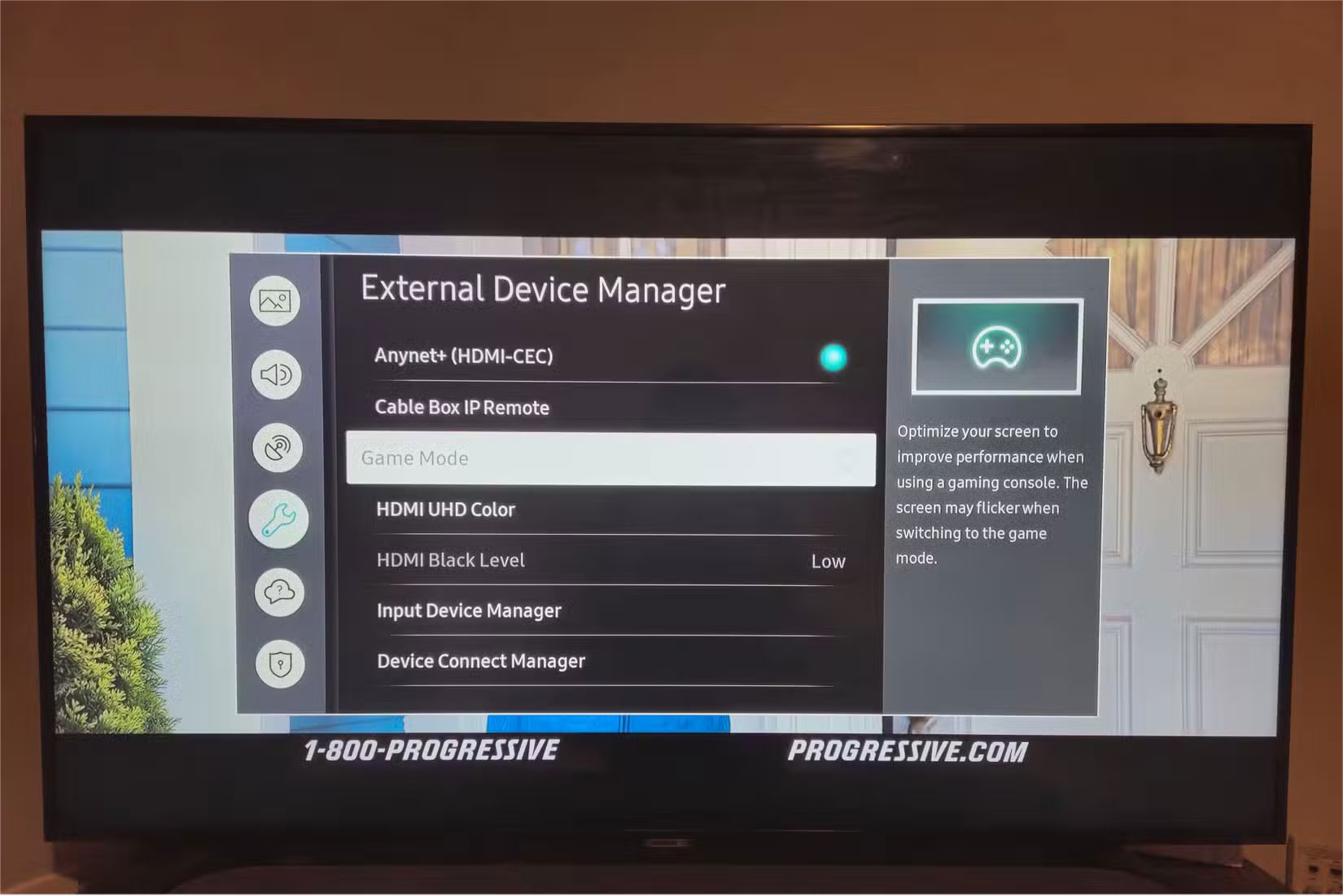
If there's one tweak that will instantly improve your gaming experience, it's this one. When you press a button on your controller, your TV typically runs that image through multiple processing steps like noise reduction, color enhancement, motion smoothing, and edge sharpening. Each of these steps adds up to precious milliseconds.
That's where Game Mode (also known as Auto Low Latency Mode) comes in. You can turn on Game Mode in your TV's General , Picture , or Display settings, although on some models it may be in the Advanced or Expert menu.
5. Turn off Motion Smoothing
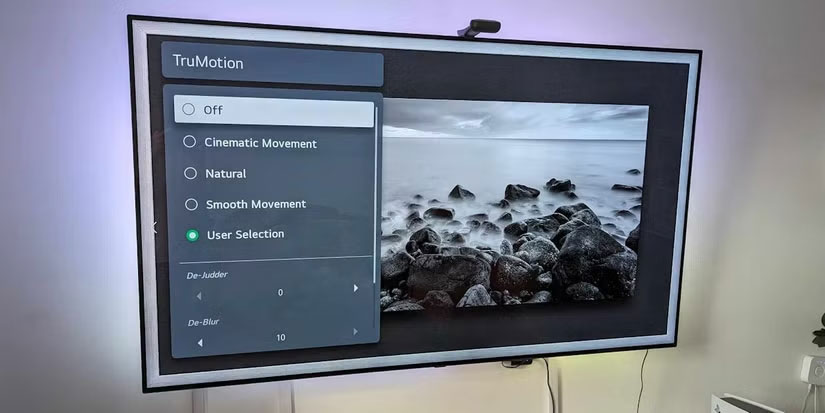
Motion smoothing goes by different names depending on your TV brand: Auto Motion Plus (Samsung), MotionFlow (Sony), TruMotion (LG), Clear Action (Vizio), or Action Smoothing (Roku TV and TLC). Whatever your TV calls it, the feature creates what's known as the "TV soap opera effect" by artificially speeding up the frame rate of content, making motion look unnaturally smooth.
To turn off motion smoothing on your Smart TV, look in the picture menu or advanced settings to find and turn it off.
4. Adjust your TV's picture settings for gaming
Even with Game Mode turned on, your TV's picture settings may not be optimized for gaming. The goal isn't necessarily to make games look better, but to make them easier to play and reduce eye strain during long sessions.
Start with your TV's contrast and brightness settings. Set the contrast high enough to distinguish between different shades of white, but not so high that bright areas lose detail. For brightness, adjust until you can just make out a little detail in the darkest areas of the game's shadows. This balance helps you spot enemies lurking in dark corners without obliterating the entire image.
3. Turn on HDR (but only if the game supports it)
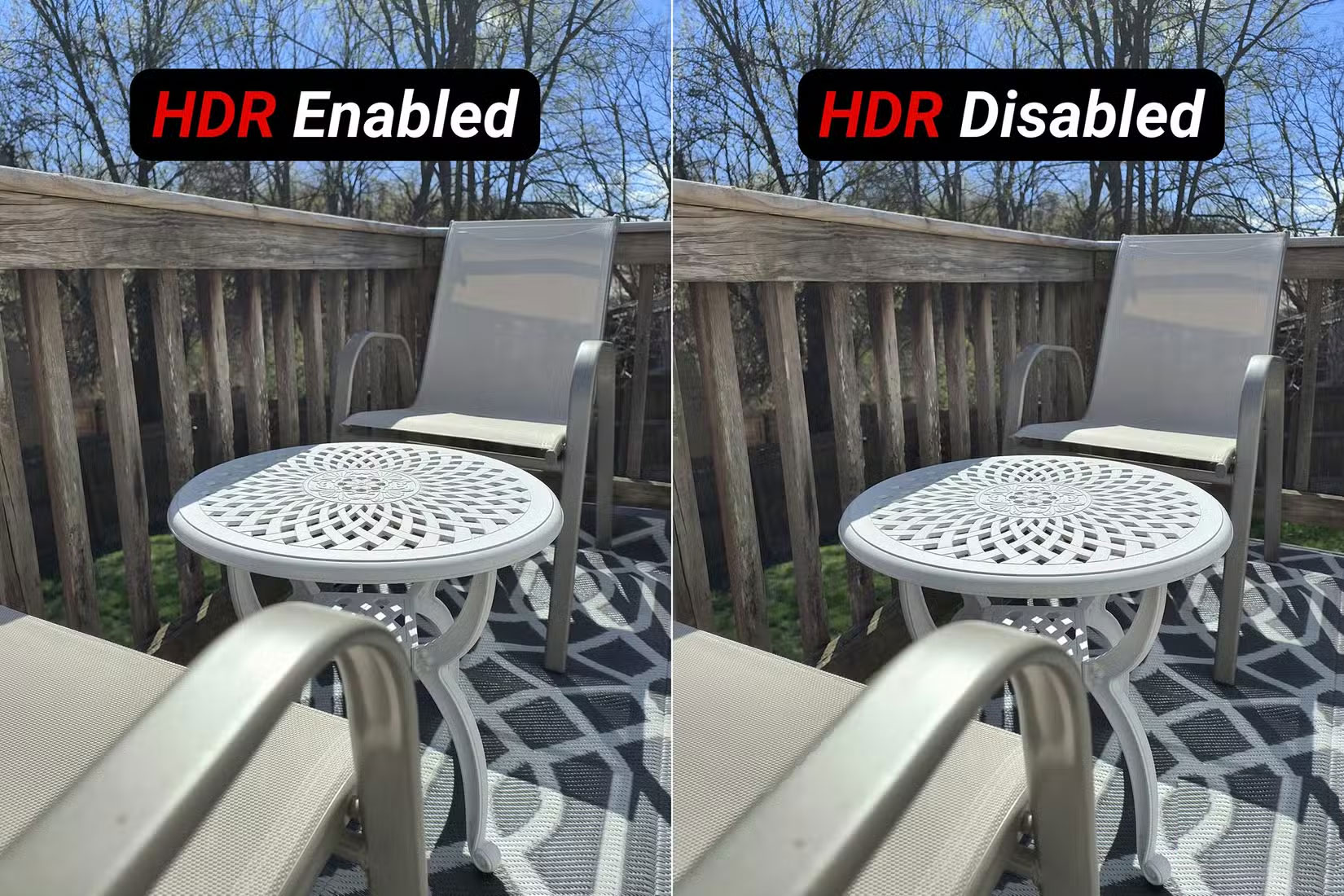
Most modern consoles—like the PS4, PS5, Xbox Series X/S—and gaming PCs can output HDR, but you'll want to double-check your settings. For example, on the PlayStation 5, go to Settings > Screen and Video > Video Output and set HDR to On When Supported or Always On . For the Xbox, go to Settings > General > TV & display options > Video modes and check the Allow HDR10 box.
Next, head into your TV's settings. The menu will vary depending on the brand (and how much the manufacturer likes to hide important information), but you'll usually find the HDR toggle in the general, picture, or display settings.
2. Check and adjust audio delay
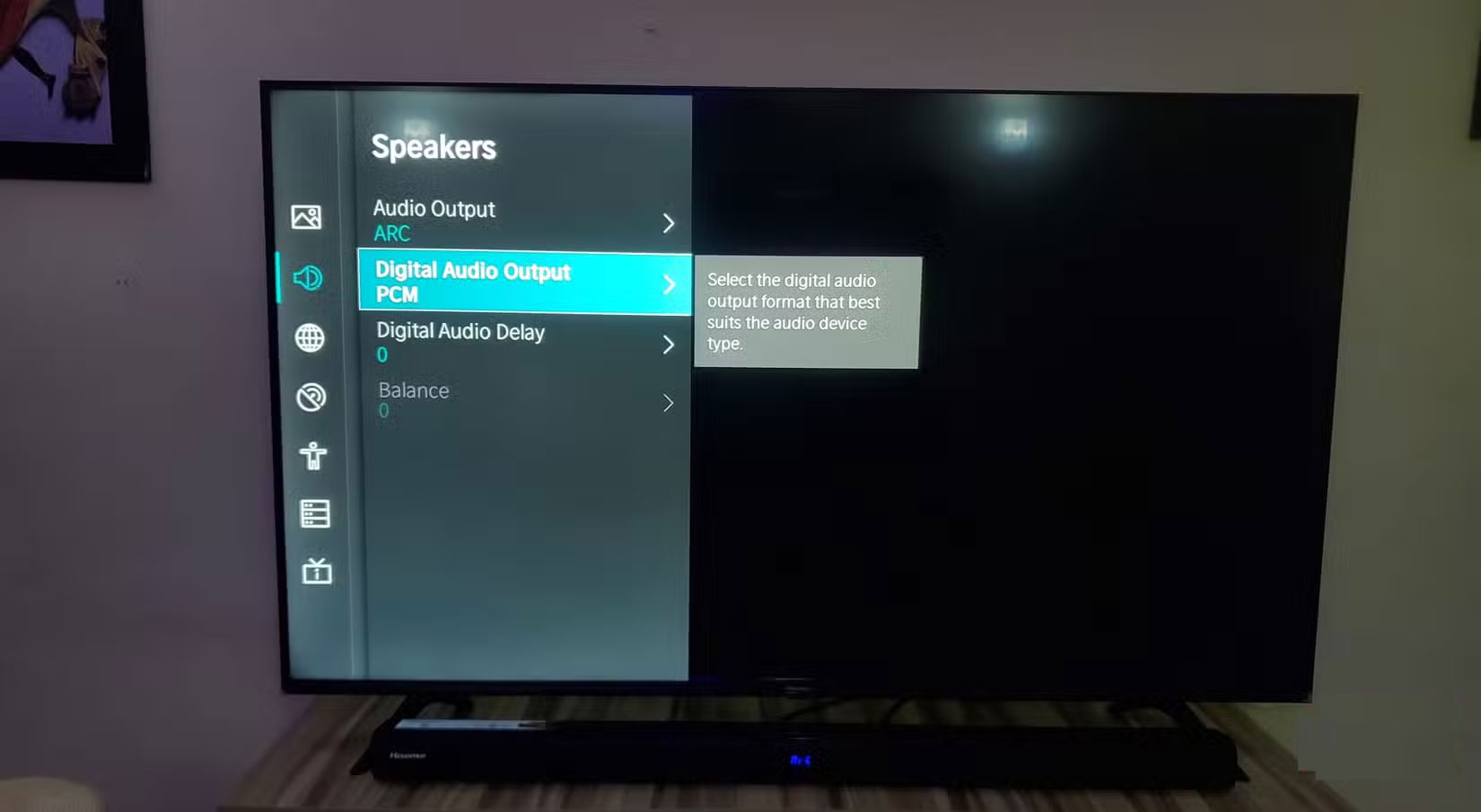
Audio lag might not seem like a big deal at first—after all, we're just focusing on the visuals, right? But in games, audio is just as important (if not more important) than the visuals. When audio is out of sync with what's happening on screen, it can completely ruin your time. Rhythm games feel off, cutscenes lose their impact, and the whole experience starts to feel off in ways you can't quite put your finger on.
This issue is especially common when using an external audio system, soundbar, or when the TV processes audio in multiple stages. The audio has to travel from the console to the TV, then potentially to another device, with each step introducing a small delay that can add up.
1. Turn off energy saving features
Energy-saving features are great for the environment and your energy bill, but they can have a serious impact on gaming performance. These features work by dimming the backlight, reducing processing power, or even throttling the TV's performance during times when the TV perceives it as "low activity."
The problem is that your TV may interpret a static loading screen or pause menu as low activity, dimming the screen or reducing responsiveness just when you need it most. Some power-saving modes also introduce variable refresh rates or processing delays that can make games feel inconsistent.
Look for settings labeled Eco Mode , Power Saving , Energy Star , or similar terms in your TV's system or picture menu. There, turn off any automatic brightness adjustments that respond to room lighting. These features constantly adjust the screen's brightness based on ambient light sensors, which can be distracting while gaming if you want consistent picture conditions.
FAQ
What should you know about 6. Turn on Game Mode?
If there's one tweak that will instantly improve your gaming experience, it's this one. When you press a button on your controller, your TV typically runs that image through multiple processing steps like noise reduction, color enhancement, motion smoothing, and edge sharpening. Each of these steps adds up to precious.
What should you know about 5. Turn off Motion Smoothing?
Motion smoothing goes by different names depending on your TV brand: Auto Motion Plus (Samsung), MotionFlow (Sony), TruMotion (LG), Clear Action (Vizio), or Action Smoothing (Roku TV and TLC). Whatever your TV calls it, the feature creates what's known as the "TV soap opera effect" by artificially speeding up the frame rate of.
What should you know about 4. Adjust your TV's picture settings for gaming?
Even with Game Mode turned on, your TV's picture settings may not be optimized for gaming. The goal isn't necessarily to make games look better, but to make them easier to play and reduce eye strain during long sessions.
What should you know about 3. Turn on HDR (but only if the game supports it)?
Most modern consoles—like the PS4, PS5, Xbox Series X/S—and gaming PCs can output HDR, but you'll want to double-check your settings. For example, on the PlayStation 5, go to Settings > Screen and Video > Video Output and set HDR to On When Supported or Always On. For the Xbox, go to Settings > General > TV & display options >.
Related Articles
 How to Change HDR Settings on Smart TV for Better Picture Quality7 minutes read
 5 Wrong Settings on Smart TV That Need to Be Adjusted8 minutes read
 AMD Radeon: Complete Guide9 minutes read
 How to Change DNS Settings on Smart TV6 minutes read
 Change These 5 Settings to Make Your Smart TV More Private Instantly!6 minutes read
 How to Play PC Games on Smart TV?4 minutes read
Reader Comments 0
Sign in with email or Google to join the discussion.