Table of Contents
4 Favorite Features on Samsung Smart TV brings together practical options worth considering. Below, you'll find clear explanations, useful context, and tips for deciding which choices best match your needs.
Key Takeaways
- Review universal guide.
- Explore samsung TV plus.
- Understand game mode.
4. Universal Guide
With so many specialized streaming services out there, it can be difficult to keep track of all the content on these platforms. With platforms like Prime and Hulu, this isn't a huge problem since most of the content is available on-demand. On the other hand, if you're already subscribed to streaming platforms to watch live TV, you can easily miss out on a long-awaited show or event because you weren't tuned to the right platform at the right time.
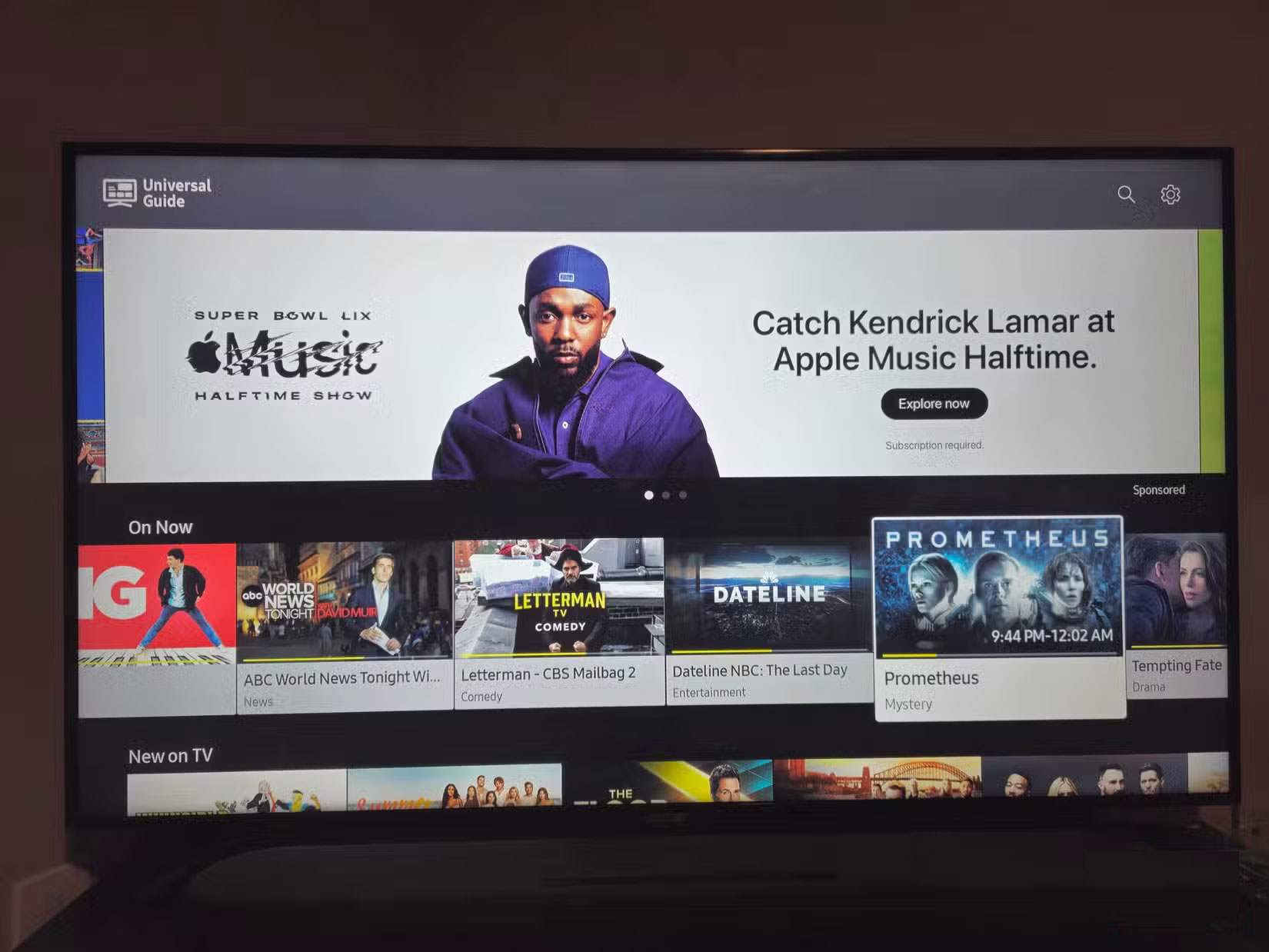
Samsung's Universal Guide solves this problem by organizing all your content in one place, making it easy to see what's streaming without having to manually check each app.
Note: You can usually access Universal Guide by pressing the Home button on your remote. You must have a Samsung account set up and a stable Internet connection to access this feature.
3. Samsung TV Plus
You know how expensive they've become lately if you subscribe to streaming platforms. Of course, there are ways to cut the cost of streaming subscriptions, but not everyone wants to watch ads or share their account to save money. That's why Samsung TV Plus, a built-in streaming service that comes with most Samsung TVs, is so popular.
The service allows you to watch over 100 live channels, including sports and news, without requiring a separate subscription, additional equipment, or downloads. Best of all, you get all of this for free. Keep in mind, though, that the library isn't as extensive as Netflix and Prime, but there's still plenty of content worth exploring.
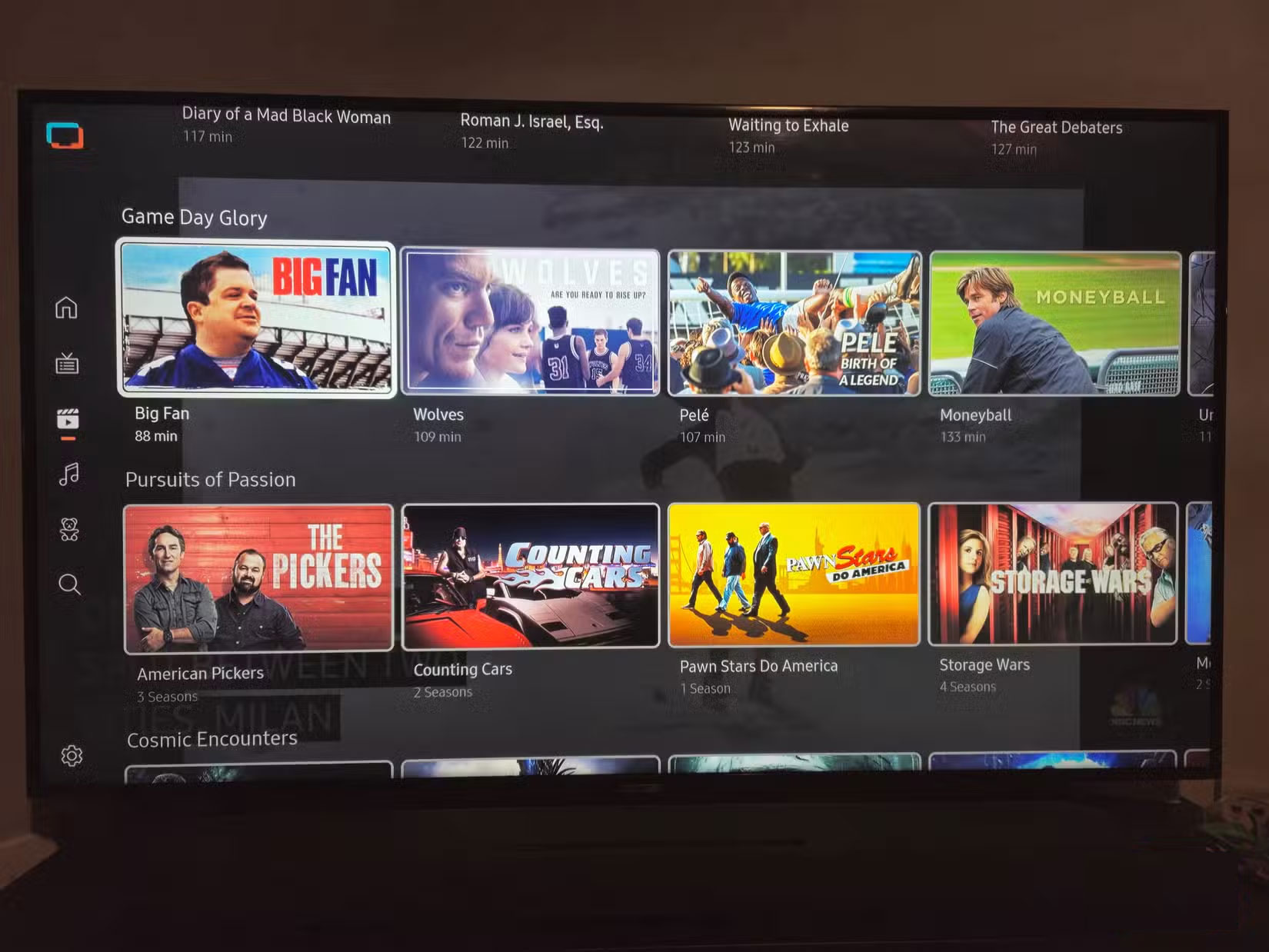
You're not limited to watching this content at home on your Samsung TV. Downloading the Samsung TV Plus app will give you access to all your on-demand movies and shows, as well as live content, on your smartphone or tablet. You can download the Samsung TV Plus mobile app through the Play Store or Galaxy Store.
2. Game Mode
Many people own gaming consoles. Enable Game Mode on your Samsung Smart TV if you're one of them. This setting often improves your gaming experience by reducing lag and motion blur.
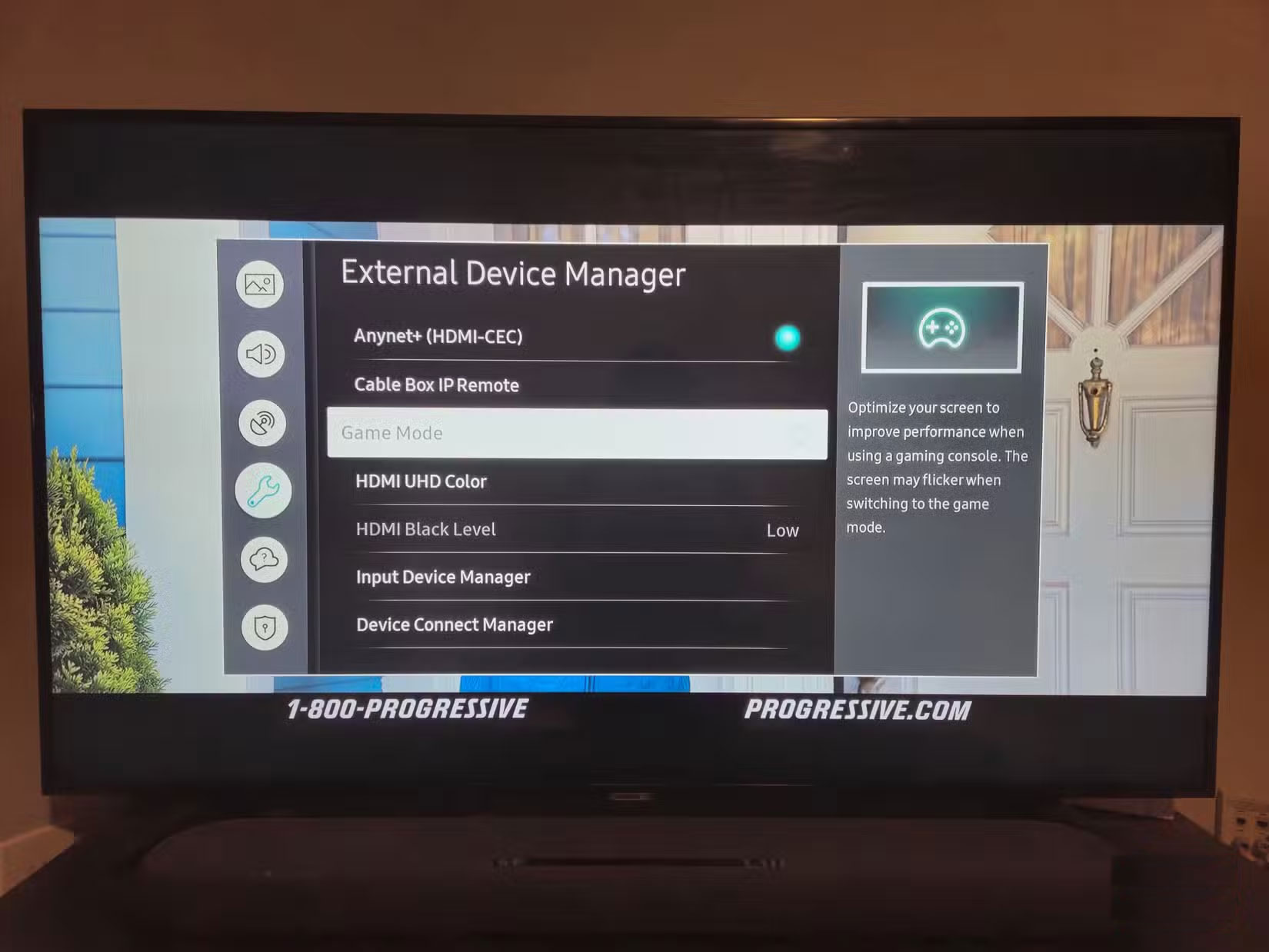
You'll find that this setting is automatically enabled the first time you connect your game console to your TV if you have a new Samsung smart TV. You'll have to manually turn it back on if you have an older TV or have turned it off at some point. Either way, once you do, you'll have a better gaming experience.
1. Screen Mirroring via SmartThings App
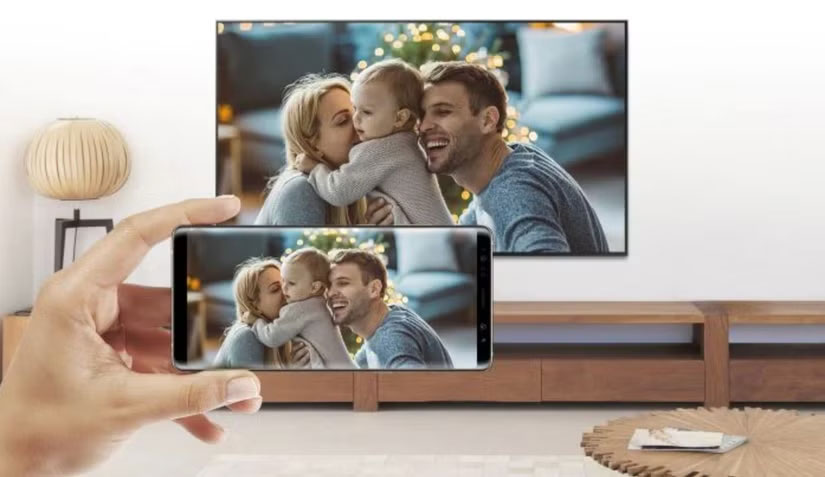
The SmartThings app can be useful if you want to share content directly from your Samsung phone to your Samsung smart TV. This feature is especially useful if you don't want to use external hardware like a Google Chromecast or an HDMI cable to connect your devices.
As long as you have a Samsung smartphone with the SmartThings app, you can wirelessly stream content from your phone to your TV screen by touching the back of your phone to the TV. A light tap will activate the feature. You can also use AirPlay to mirror content if you have an iPhone.
These are just a few of the many features you might stumble upon while using a Samsung TV. Some other Samsung smart TV features worth checking out include multi-view, which allows you to watch multiple content sources at once, ambient mode settings that help your TV blend in with its surroundings (a big benefit as lifestyle TVs become more popular), and Bixby (Samsung's voice assistant) for hands-free TV control.
Final Thoughts
The most reliable way to handle favorite features on samsung smart TV is to follow the process in order, verify each important setting, and test the result before moving on. Use the guidance above as a practical reference, then adjust the details for your device, software version, or specific goal.
FAQ
What should I know first about Favorite Features on Samsung Smart TV?
TVs have more tricks up their sleeves than you might realize.
How do I get the best results with Favorite Features on Samsung Smart TV?
Use current software or equipment, follow the steps in order, review the recommended settings, and test one change at a time so you can identify what improves the result.
What should I do if Favorite Features on Samsung Smart TV doesn't work as expected?
Check compatibility, permissions, connectivity, and version-specific settings. Restart the relevant device or app, then repeat the process carefully before trying a more advanced fix.
Related Articles
 5 Extremely Useful Features on Samsung Smart TV You May Not Know Yet9 minutes read
 Manual Samsung TV Remote Most Detailed11 minutes read
 Things to Know About Samsung Smart View Application6 minutes read
 Samsung Features That Make People Wonder Why Other Phones Exist9 minutes read
 Learn Smart Features on Samsung Addwash Washing Machine7 minutes read
 Samsung OLED 4K S90F Smart TV: Review, Features & Should You Buy It?9 minutes read
Reader Comments 0
Sign in with email or Google to join the discussion.