Table of Contents
This updated guide examines Select the Connection to Use Through the Routing Table and organizes the essential facts, background, and practical takeaways in clear American English.
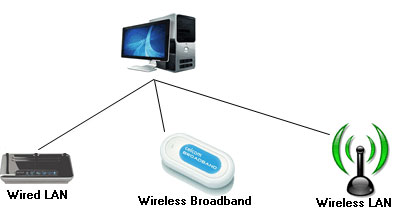
We have discovered that we can do that with the Windows Routing Table. You can switch between connections by changing the route and setting the lowest metric value for the default route. To do this, Windows has a command line utility called route.exe, which is a utility that is not easy to use for most people, especially those who don't understand IP routing tables.
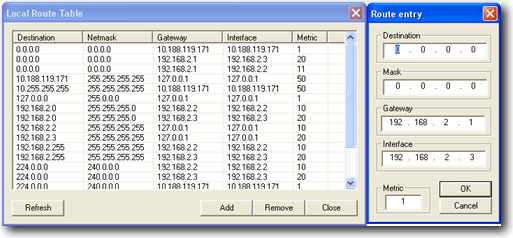
Recently released a network routing utility for Windows called NetRouteView, this is really a good GUI option for the standard routing utility (Route.exe) of the Windows operating system. It displays a list of all routes on your current network, including the Destination, mask, gateway, IP interface address, value metric, type, protocol, time (in seconds), interface name and address. MAC only. NetRouteView also allows you to easily add new routes, as well as remove or change existing static routes.
Using NetRouteView, we only need to search for the default route with the lowest metric, the lowest metric here means that the preferred connection is being used. The routes with the destination and mask 0.0.0.0 are the default routes so by clicking on the Destination column, the program will sort and automatically place the entire range of 0.0.0.0 at the top of the column. Next see which metric is the lowest. The IP interface (IP interface) will distinguish which connection it is.

Run by pressing WIN + R and typing cmd to open the command prompt. Type ipconfig , and you'll see all the IP addresses connected. As you can see, the default route with a metric of 1 is the 3G connection, followed by the 11 metric with the IP address of 192.168.2.2, which is the wired LAN connection and finally the 20 metric, wireless LAN connection. (WIFI). If I cancel the 3G broadband connection, the next connection will automatically be used as a wired LAN.

If you want all three to be connected and want to use wireless LAN, you can double click on the route and change the metric so that it has a lower value. Metric 1 is the lowest, so if there is a connection with Metric equal to 1, the simplest way to convert metric values is to press and hold the CTRL key while clicking on the connections. Then press F9 or right click and select ' Switch Metric Values '.
If for some reason you have adjusted the routing table, perform a reboot to 'fix' this problem because the changes you make to NetRouteView are temporary and not permanent. Cain & Able, a password recovery tool for Microsoft operating systems, also has a GUI for editing routing tables called Route Table Manager. You can launch the program from the Tools menu and select Route Table or you can use the shortcut Alt + R.
Download NetRouteView and Cain & Able
FAQ
What is Select the Connection to Use Through the Routing Table about?
It provides a structured overview of Routing table, explains the main context, and highlights practical takeaways for readers.
Why does this topic matter?
Understanding the main concepts helps readers evaluate the issue, avoid common mistakes, and make better-informed decisions.
How should readers use this information?
Use the guidance as a practical starting point, confirm details that may have changed, and follow current product, safety, or security recommendations.
Related Articles
 Windows Server 2008: Configure Windows 2008 Server IP Routing9 minutes read
 How to Enable IP Routing: Step-by-Step Guide5 minutes read
 Anonymous Browsing: How to Browse Anonymously with Garlic Routing6 minutes read
 Part 2 -- Troubleshooting Tcp // IP: Structure Method13 minutes read
 Set Up Static Routing Between the Router and Another Network Explained6 minutes read
 Navigate Directly from Table to Table in Word 20133 minutes read
Reader Comments 0
Sign in with email or Google to join the discussion.