Table of Contents
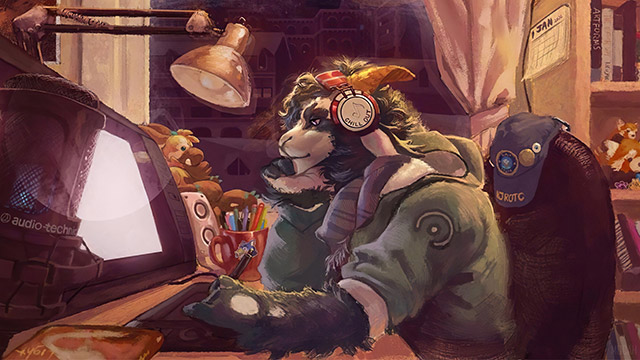
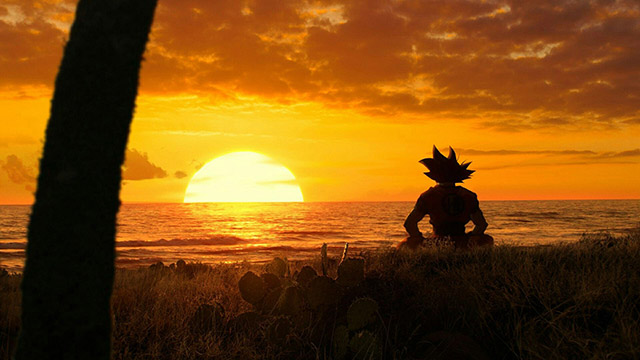
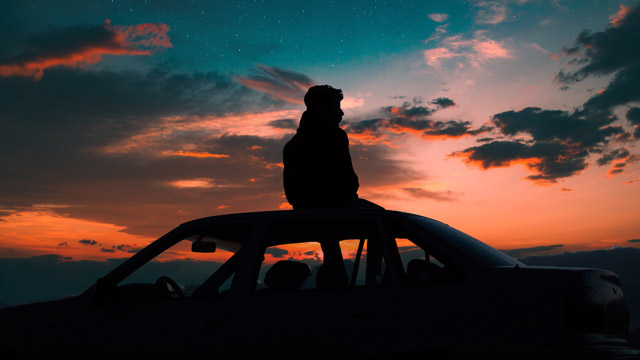
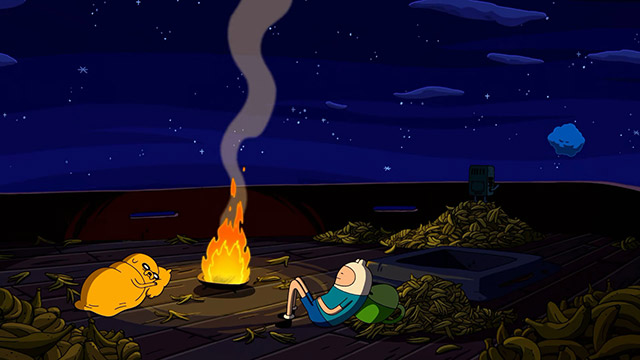
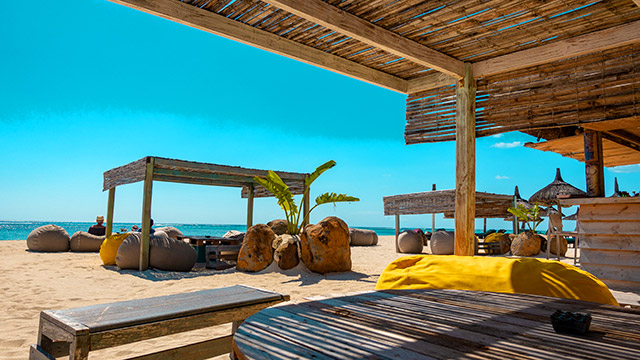
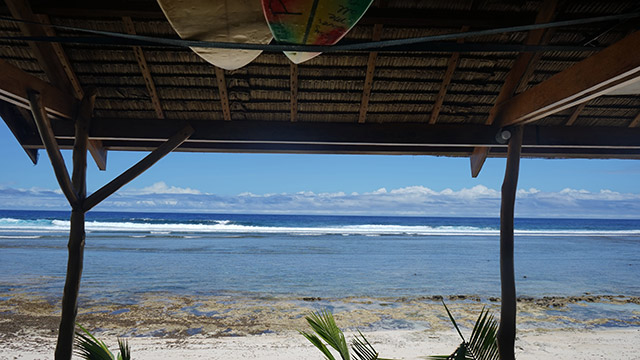
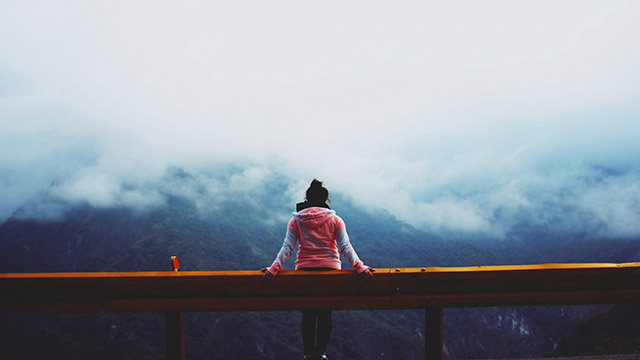
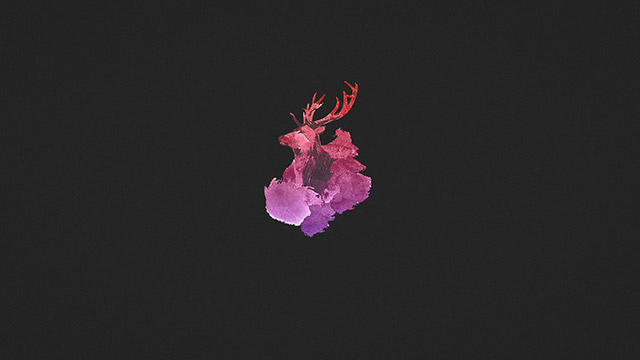
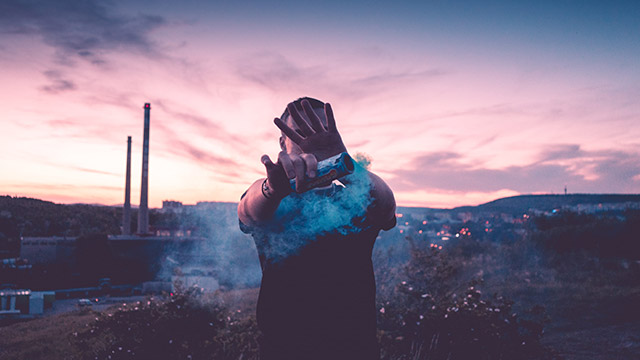
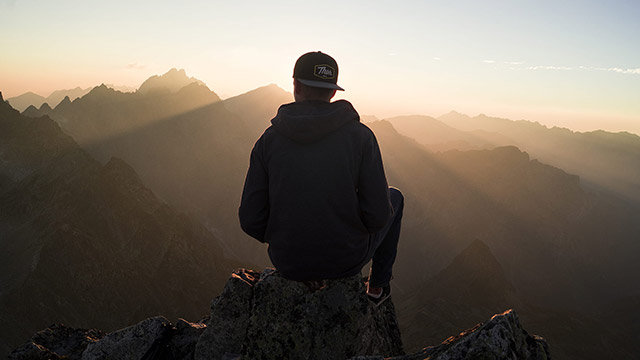
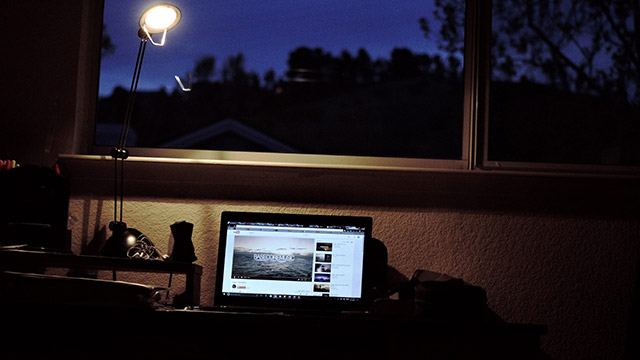
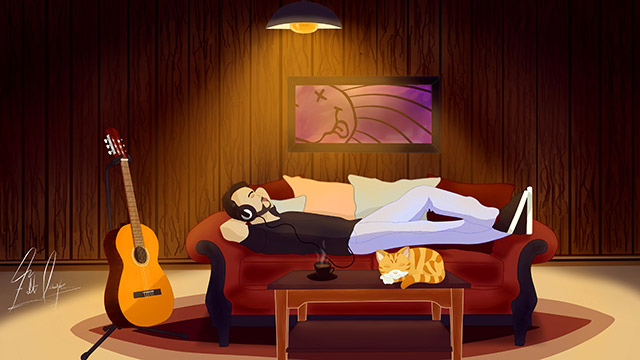
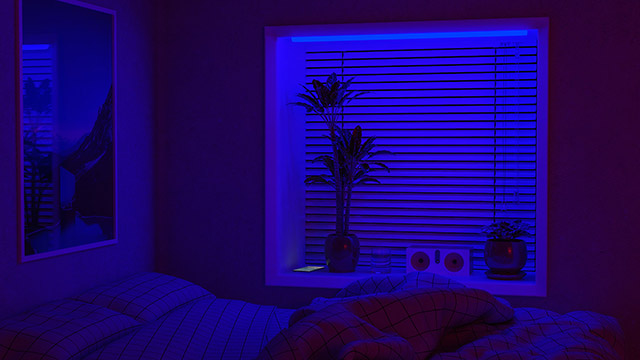
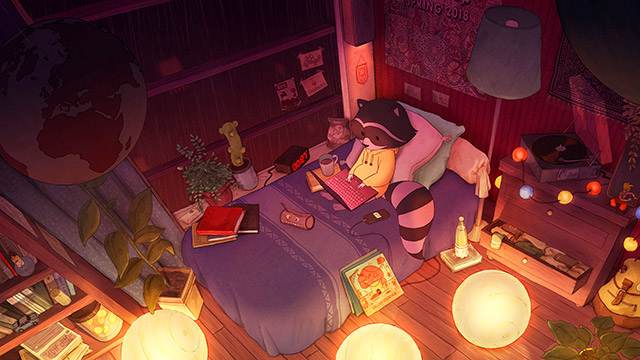
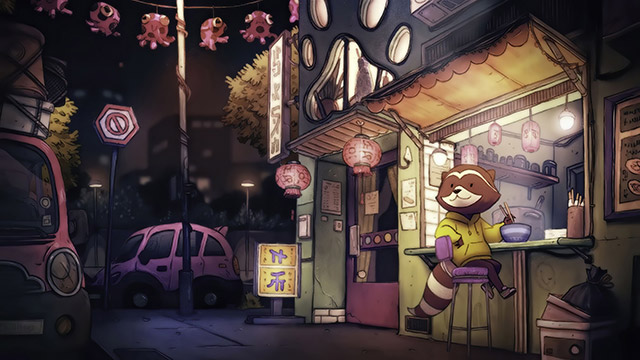
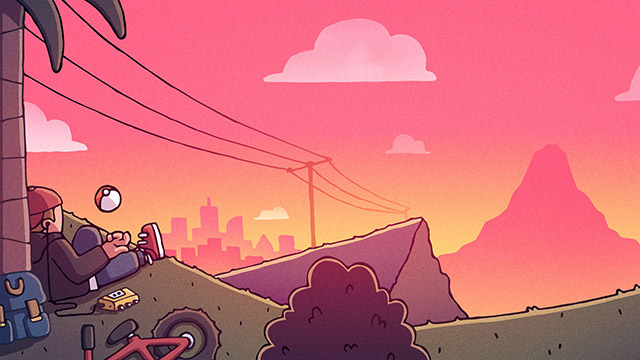
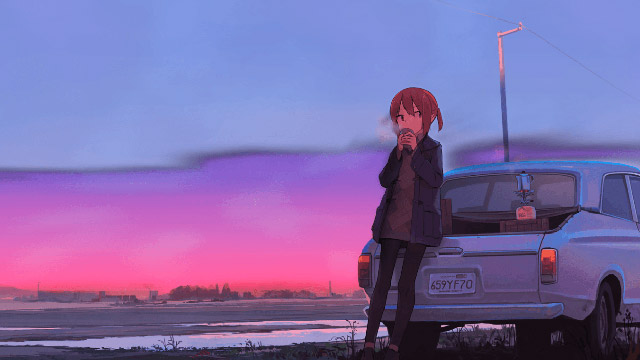
This collection contains 24 chill wallpapers for desktop and laptop screens. The gallery mixes quiet landscapes, lo-fi and anime-inspired scenes, minimalist illustrations, and subdued color palettes that can sit behind icons without making the desktop feel crowded.
Choose the image for how you use the screen, not only for how it looks in the gallery. A wallpaper with open space on the left may suit a desktop whose icons are arranged there, while a centered subject works better when the desktop is mostly clear.
Chill desktop wallpaper gallery
Open the image you want before saving it so you can use the largest available version. The page may show smaller previews to reduce loading time.







Choose the right resolution and aspect ratio
- 16:9 monitors: common resolutions include 1920×1080 and 2560×1440.
- 16:10 laptops: a 16:9 image may be cropped at the sides or leave less vertical room.
- Ultrawide monitors: use a wide source or expect substantial top and bottom cropping.
- High-density displays: start with an image at least as large as the screen's pixel dimensions when possible.
- Multiple monitors: use one sufficiently wide panorama or assign a separate image to each screen.
The exact pixel count is not the only factor. Matching the monitor's aspect ratio prevents stretching and preserves the composition. If a source is smaller than the display, enlarging it may make it look soft.
Save the wallpaper
- Open the selected image at full size.
- Use the browser's save-image command rather than taking a screenshot.
- Keep the original aspect ratio if you resize it.
- Store an untouched copy so you can create different crops for another display later.
Set the wallpaper on Windows
- Right-click an empty area of the desktop and choose Personalize.
- Open Background and select Picture.
- Browse to the saved image.
- Compare the fit options. Fill avoids empty borders but can crop the image; Fit preserves the whole image but may add borders.
For multiple monitors, Windows can assign different backgrounds through the wallpaper thumbnail's context menu in Personalization.
Set the wallpaper on a Mac
- Open System Settings and select Wallpaper.
- Add or choose the folder that contains the saved image.
- Select the wallpaper and check its scaling on each display.
Menu names can vary slightly by macOS release. If the main subject is cropped, prepare a version that matches the display ratio instead of stretching the original.
Keep the desktop readable
- Place icons over a calm, high-contrast part of the image.
- Avoid detailed artwork directly behind file names.
- Choose a darker or less saturated image for long work sessions if a bright background feels distracting.
- Check the taskbar, menu bar, widgets, and dock against the final image.
- If needed, create a slightly blurred copy for work and keep the detailed original for the lock screen.
For more understated designs, browse these minimalist wallpapers. Ultrawide users can compare the ultrawide wallpaper collection, while another option is this set of cute desktop wallpapers.
Related Articles
 Diablo 4 Wallpapers, Beautiful Diablo 4 Wallpapers for Phones and3 minutes read
 Collection of Beautiful Wallpapers, Beautiful Wallpapers with2 minutes read
 What Is Netflix and Chill? Features, Uses, and Key Details8 minutes read
 Download a Set of Desktop Wallpapers with a 2k Quality Theme2 minutes read
 Invite to Download 200 Full Hd Themes Wallpapers for Your2 minutes read
 Download 3D Wallpapers for Your Phone with a Wide Variety of Themes3 minutes read
Reader Comments 0
Sign in with email or Google to join the discussion.