Table of Contents
This guide provides a practical overview of iOS 14 Lets Users Tap on the iPhone Back to Lock the Device, Take, including its main features, benefits, limitations, and important considerations.
To be able to activate the "Touch the back" feature, iOS 14 users just need to follow the steps as follows:
- Open Settings
- Access Accessibility> Touch> Touch the back
- Customize action settings with each action (double tap or triple tap)
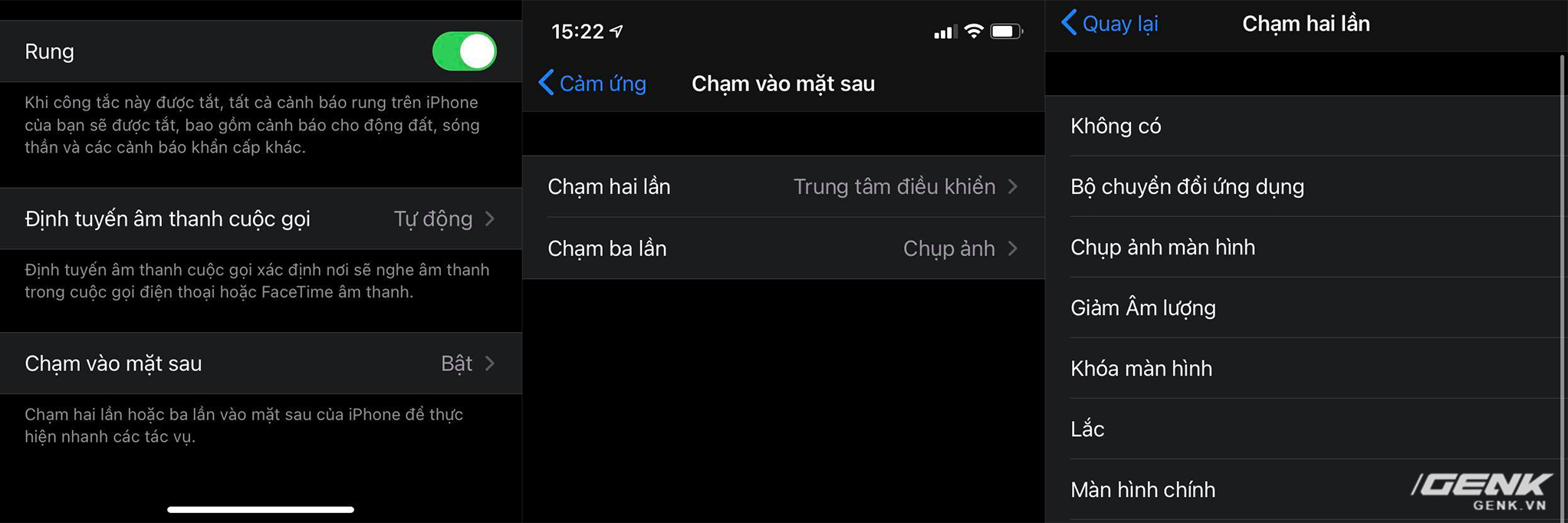
Go to Settings> Accessibility> Touch> Touch the back
At the moment, with the first iOS 14 beta, it seems that this "Touch the back" feature will only be available on iPhone X and older models (iPhone X, iPhone XS / XS Max, iPhone 11 / 11 Pro / 11 Pro Max), probably due to certain hardware limitations, we will need to wait until iOS 14 is officially released to know specifically which devices will support support the most complete way. This feature is also not compatible with iPad.
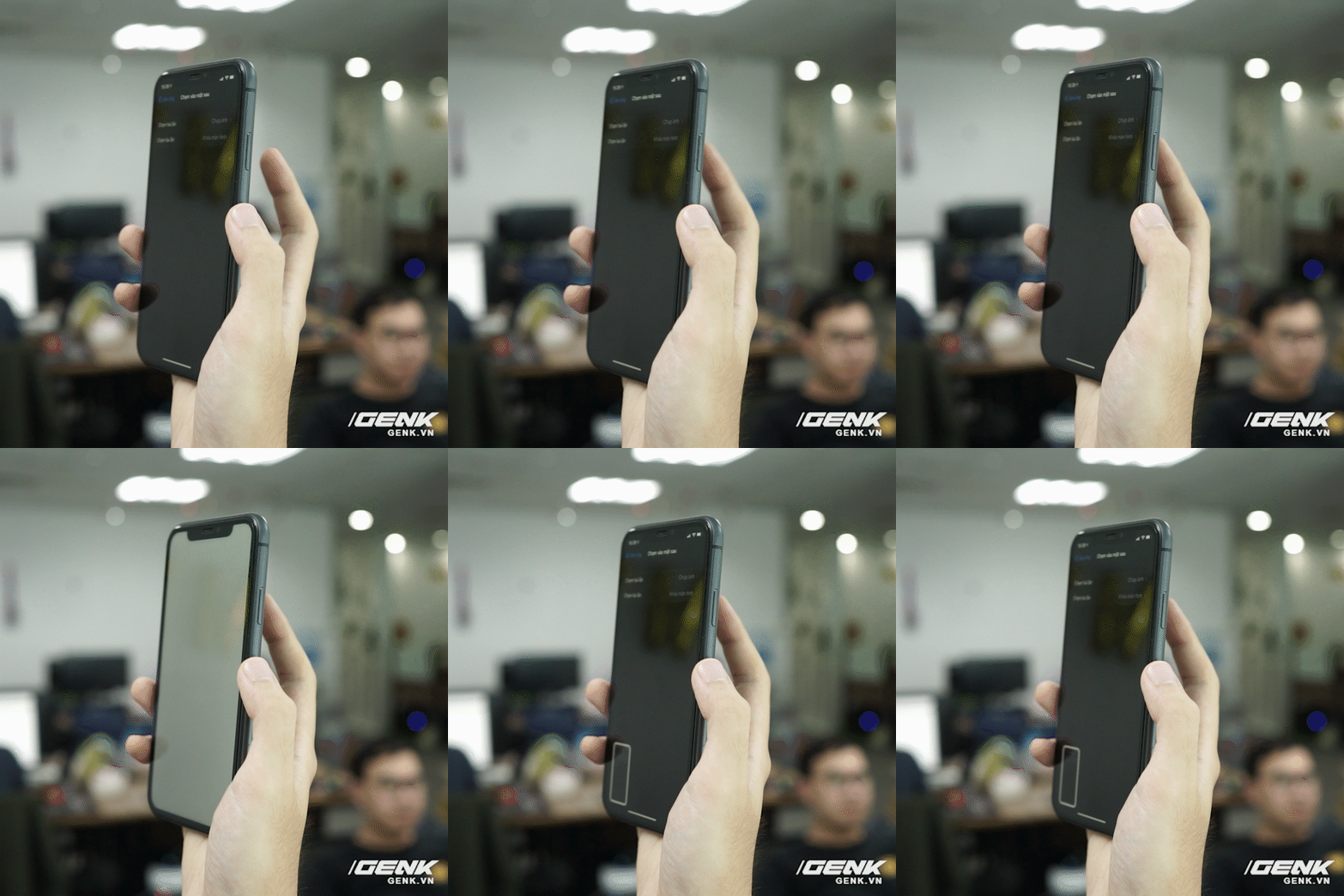
Double-tap to take a screenshot
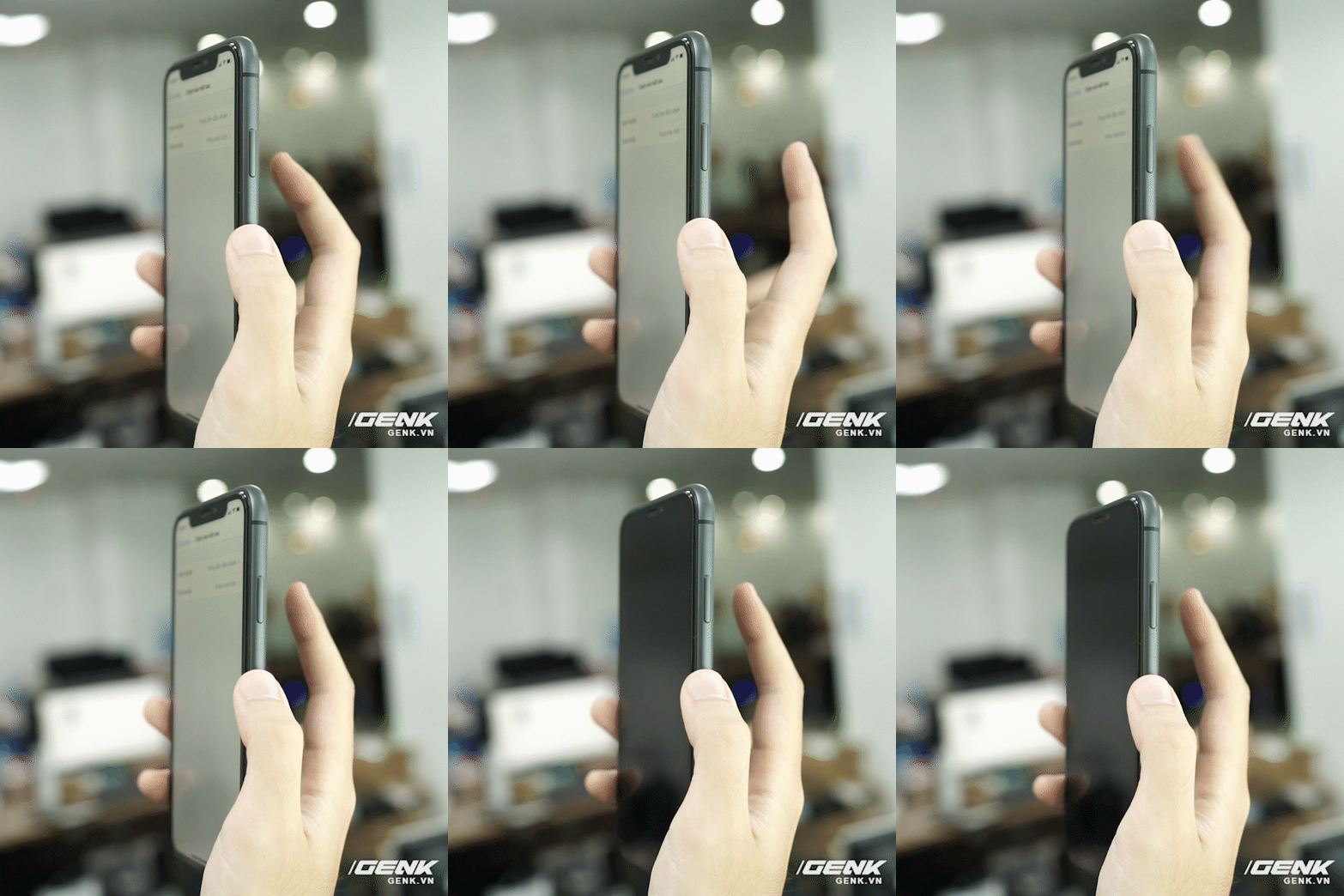
Tap three times to lock the screen
The "Touch the back" feature is quite useful when iOS now lets users set themselves according to a range of available actions, saving a lot of time during use. This is also just one of the many interesting features available on the new iOS 14.
FAQ
What should I know about iOS 14 Lets Users Tap on the iPhone Back to Lock the Device, Take?
Focus on the key features, requirements, limitations, and practical use cases explained in this guide.
How do I get the best results with iOS 14 Lets Users Tap on the iPhone Back to Lock the Device, Take?
Follow the recommended steps, use current software or information, confirm compatibility, and review settings before major changes.
Are there any risks or limitations?
Potential limitations depend on compatibility, data quality, cost, privacy, support, and how the product or method is used.
Related Articles
 Lock iPhone, iPad, Mac Devices Remotely When You Lose Your Device8 minutes read
 How to Turn on Touch ID Fingerprint Lock on iPhone6 minutes read
 How to Set up the Back Tap Gesture on iPhone5 minutes read
 How to Turn Off Callback Right from iPhone Lock Screen: Step-by-Step Guide3 minutes read
 How to Check Which iPhone Lock Belongs to the Network6 minutes read
 How to Get into the House When the Electronic Lock Is Broken?8 minutes read
Reader Comments 0
Sign in with email or Google to join the discussion.