Table of Contents
Explore instructions on disabling the split start menu in Windows 11.
How to disable the split Start menu in Windows 11
The split Start menu interface on Windows 11 is shown below.
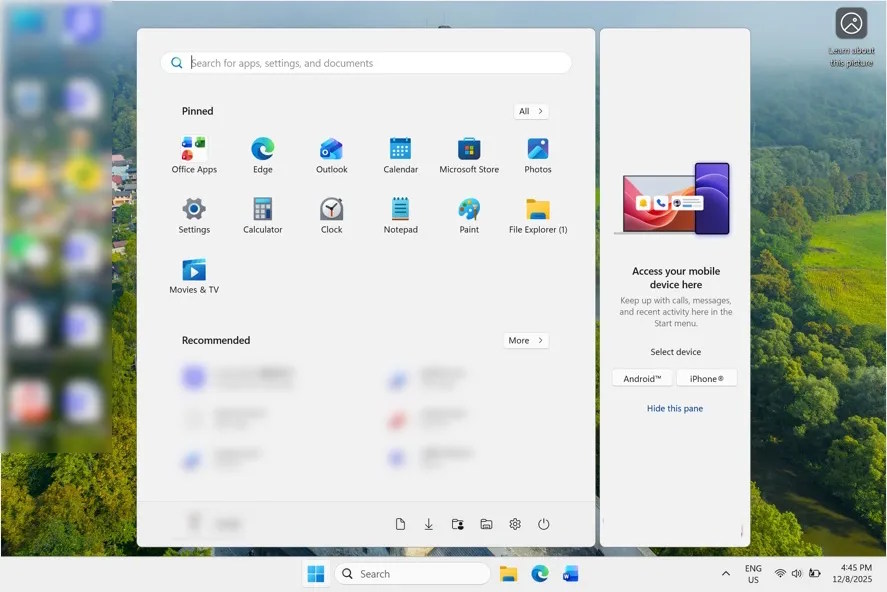
Step 1
Open Settings on your computer, then select Personalization , and then click Start to adjust the Start menu settings .
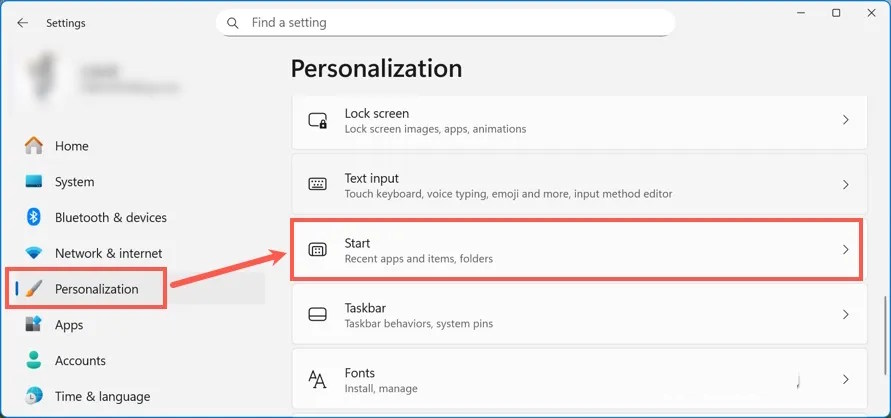
Step 2
In the user settings interface, scroll down and turn off the "Show mobile device in Start" setting to prevent connected phones from appearing in the Start menu on your computer.
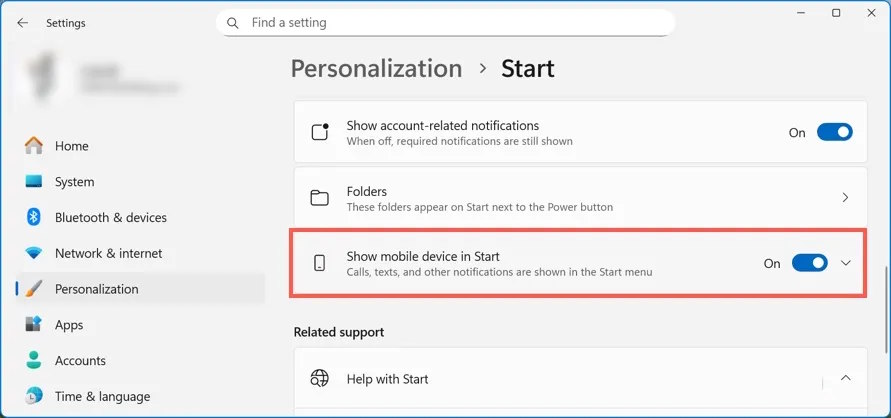
As a result, you will see that the Start menu has returned to its previous state. This feature was already available through the Phone Link app, and Microsoft integrated it directly into the Start menu so you can access it whenever needed.
Final Thoughts
Understanding instructions on disabling the split start menu in windows 11 makes it easier to evaluate the information and apply the most relevant recommendations. Focus on the key points above and verify details that may change over time.
FAQ
What is instructions on disabling the split start menu in windows 11?
Explore instructions on disabling the split start menu in Windows 11.
What key points does this article cover?
The article focuses on How to disable the split Start menu in Windows 11, Step 1, Step 2, with practical explanations and examples.
How can you use this information in practice?
Use the explanations to compare options, verify important details, and make a more informed decision. Apply the recommendations that best match your goals and situation.
Related Articles
 Instructions to Customize Your Start Menu Bar on Windows 104 minutes read
 3 Ways to Fix Start Menu on Windows 10 Stopped Working5 minutes read
 Windows 11 Is Hiding a Second Start Menu: Why Should You Use It?8 minutes read
 Instructions to Pin Web Pages to Start Menu in Windows 104 minutes read
 How to Turn Off Web Search Start Menu Windows 113 minutes read
 How to Pin Any File to Start Menu on Windows 103 minutes read
Reader Comments 0
Sign in with email or Google to join the discussion.