Table of Contents
This guide provides a clear, practical overview of "Instructions to Enlarge iPhone Lock Screen Clock". It organizes the most useful details, explains important considerations, and highlights the steps or choices that matter most.
How to Enlarge iPhone Lock Screen Clock
Step 1:
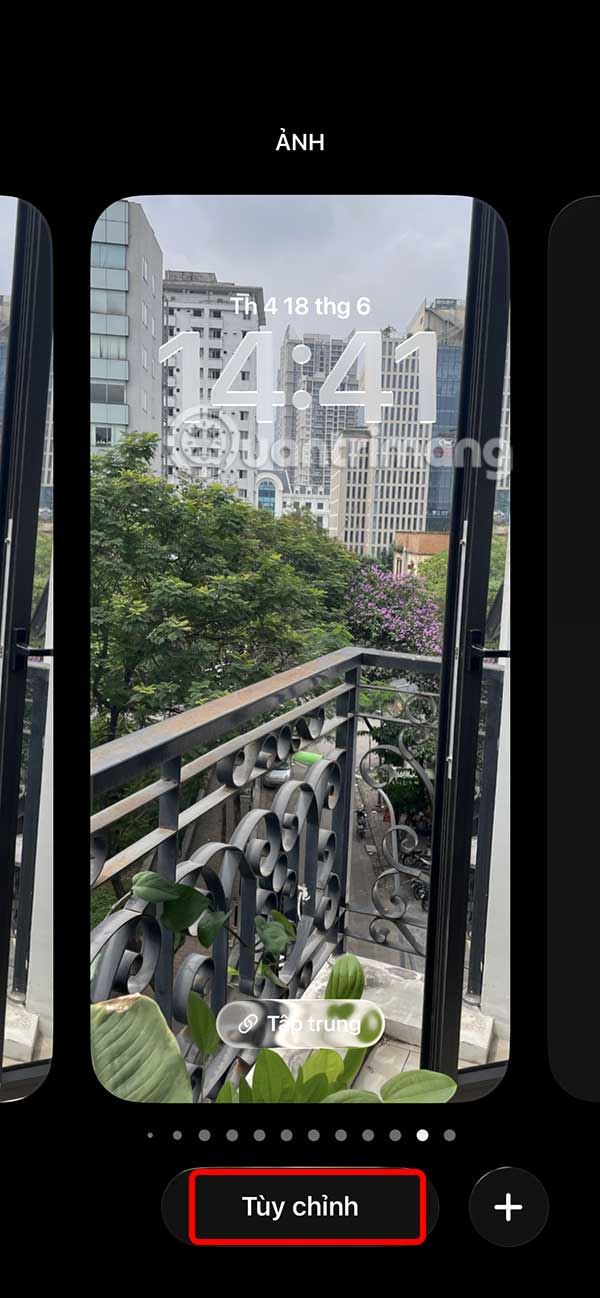
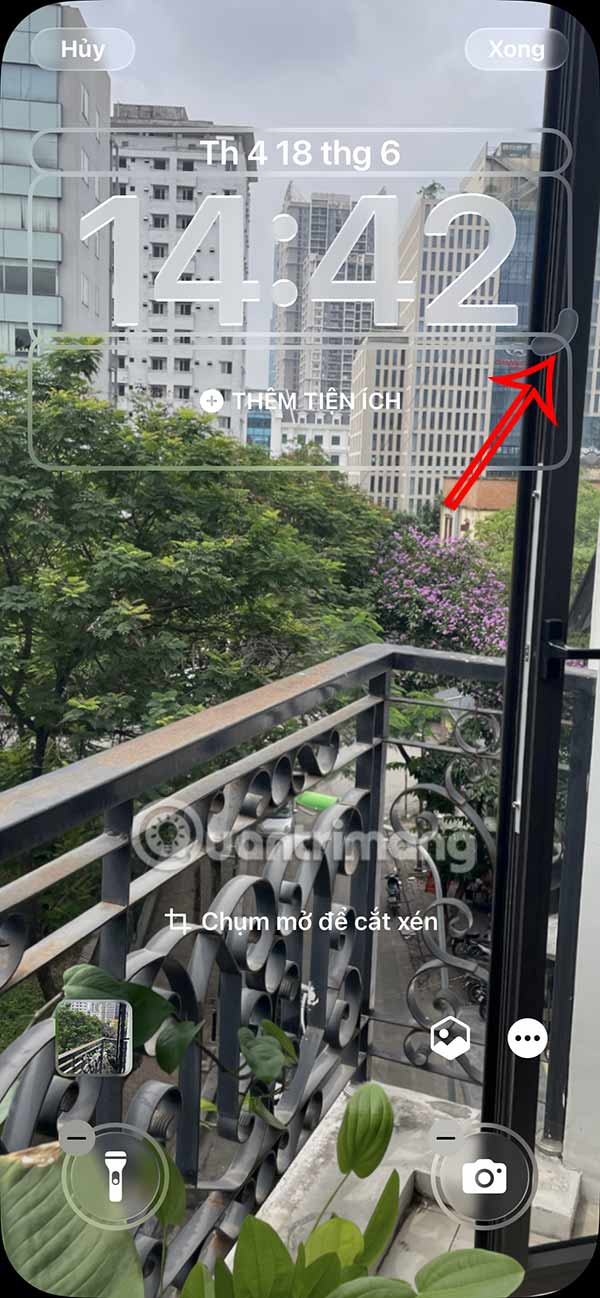
We press and hold on the iPhone lock screen then press the Customize button below to change the iPhone lock screen. Switch to the lock screen for us to adjust. At the clock frame, you drag to zoom in on the clock.
Step 2:
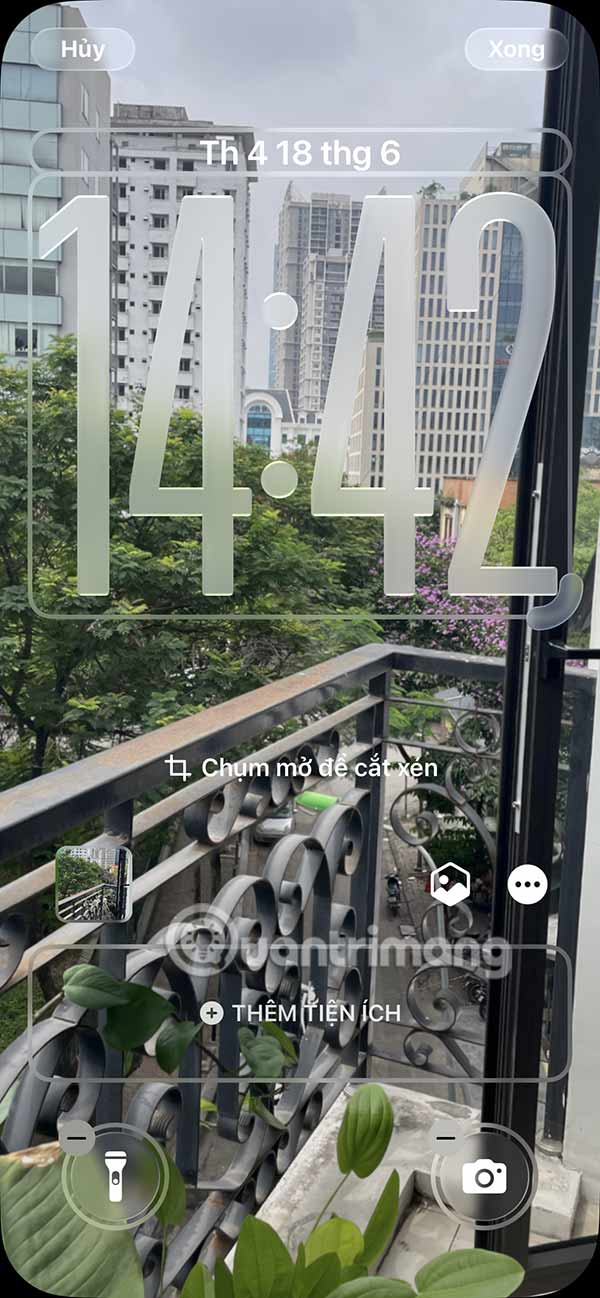
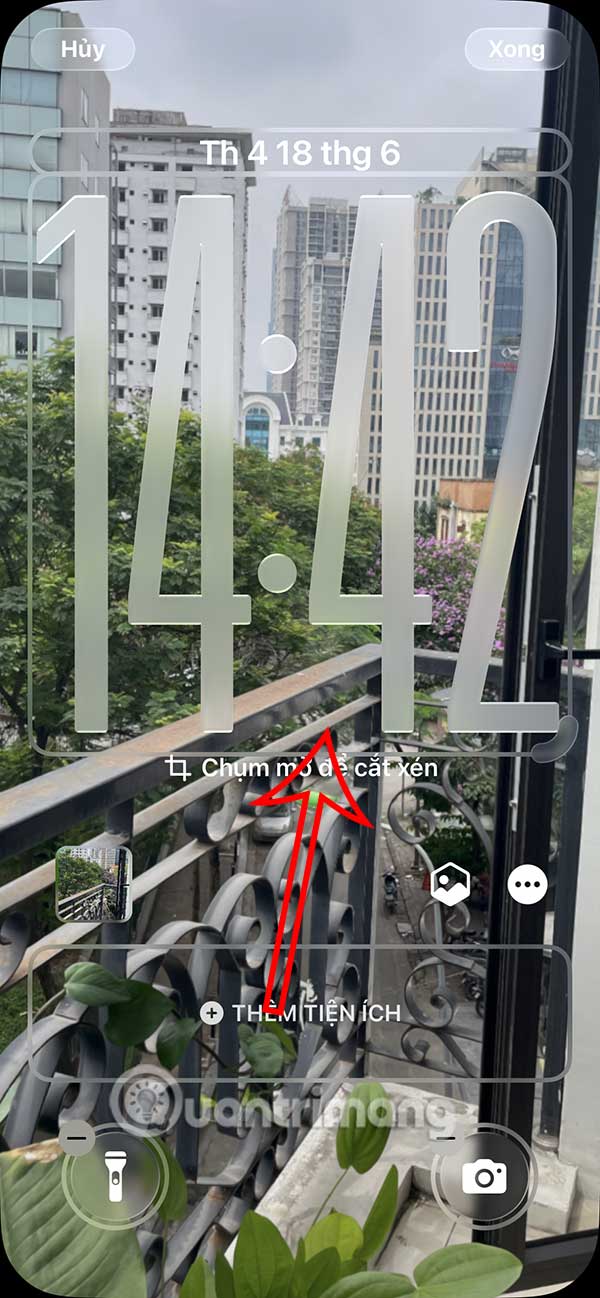
Now you will see the lock screen clock enlarged as shown below. If you want, you can also enlarge the clock to half of the lock screen if needed. Just drag out, the clock size will be adjusted larger, drag in to shrink the clock.
Step 3:
Next , select the clock to edit the color , thickness or thinness of the clock as you like.
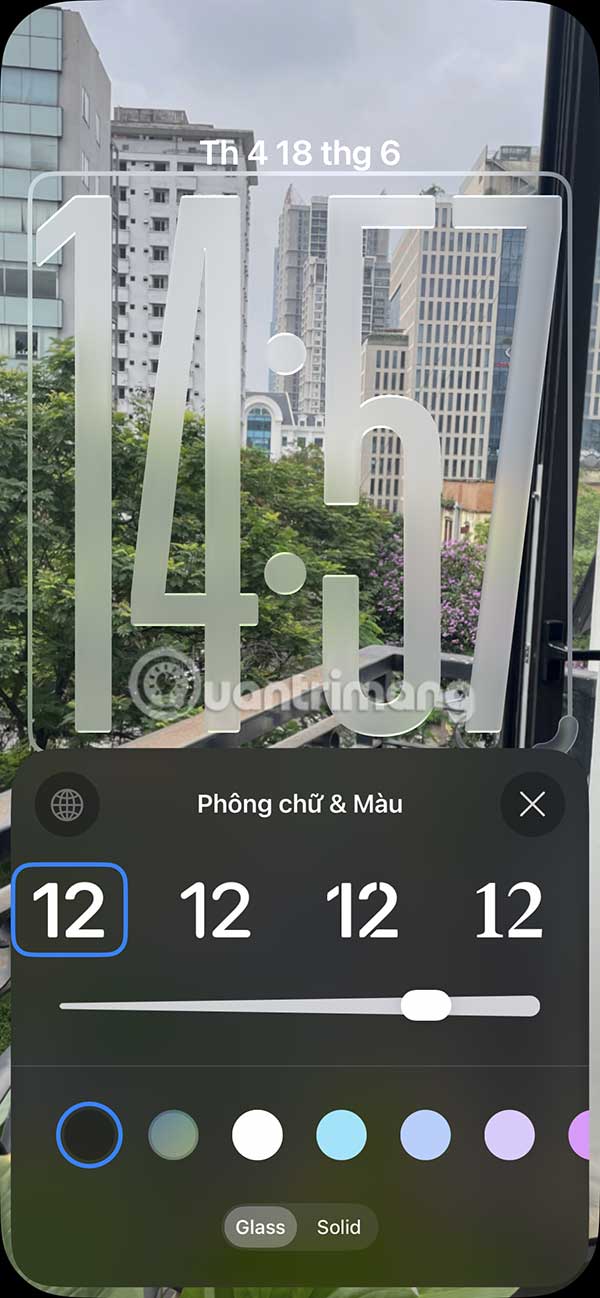
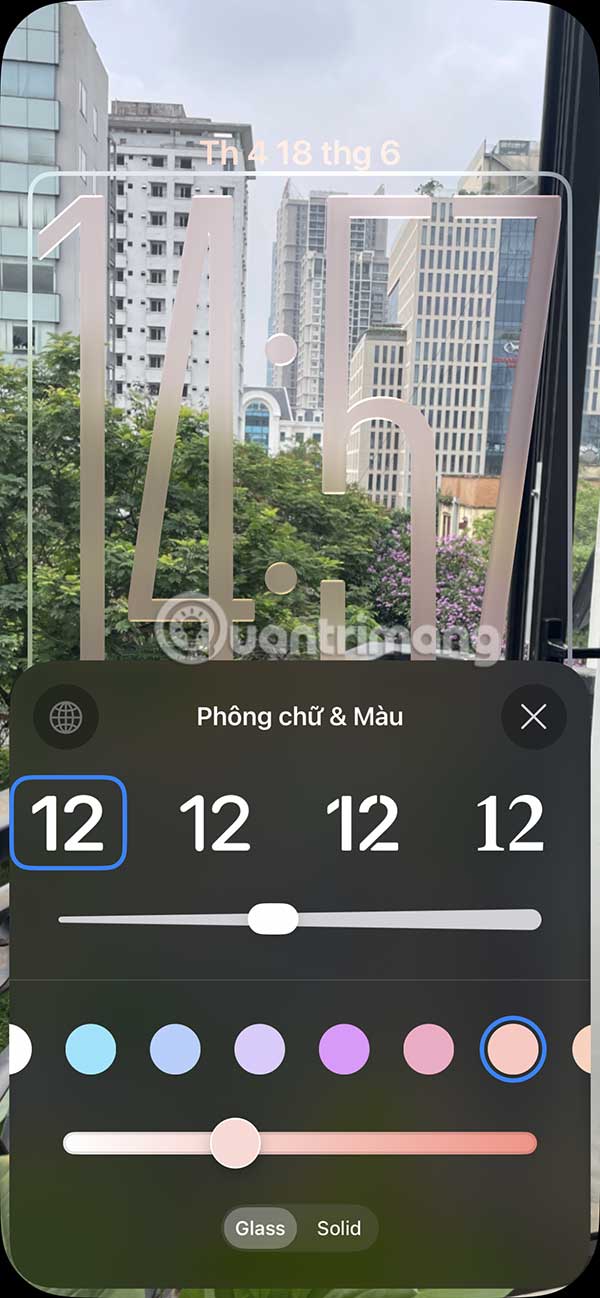
Finally, after editing, click Done in the top right corner to save the changes.
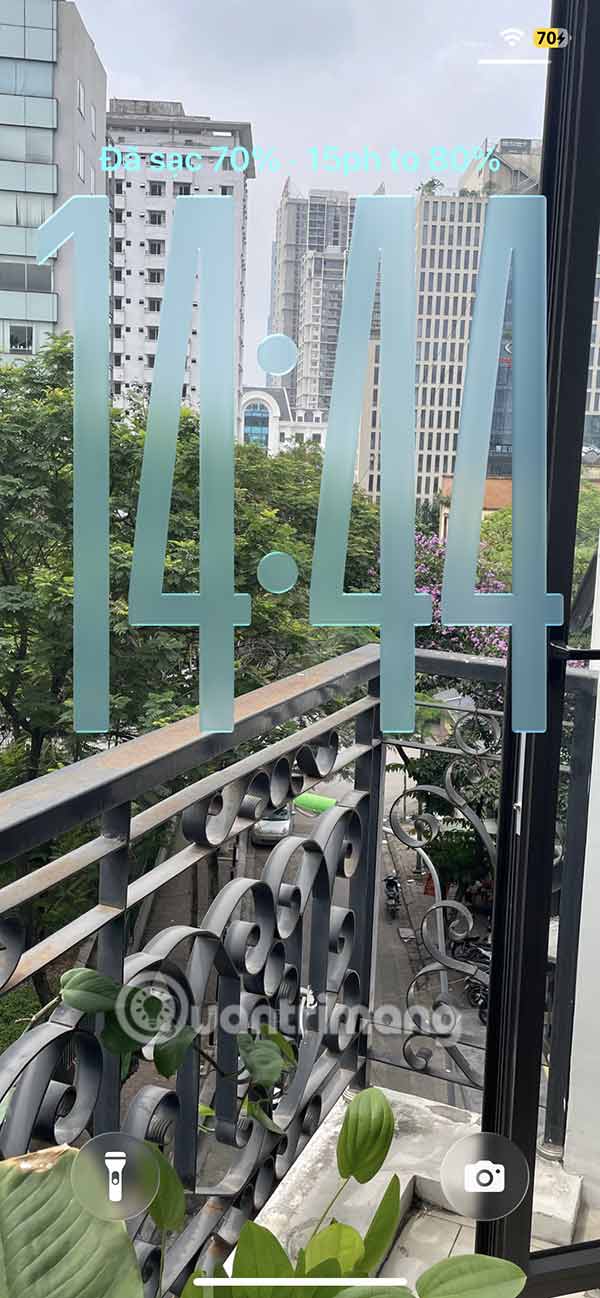
As a result, we get a larger clock on the iPhone lock screen as shown below.
FAQ
How to Enlarge iPhone Lock Screen Clock?
We press and hold on the iPhone lock screen then press the Customize button below to change the iPhone lock screen. Switch to the lock screen for us to adjust. At the clock frame, you drag to zoom in on the clock.
What does this guide cover?
This guide explains instructions to enlarge iPhone lock screen clock, including the main steps, important details, and practical considerations.
Who is this guide for?
It is designed for readers who want a clear, practical overview and a reliable process they can follow without unnecessary complexity.
Related Articles
 Is It Possible to Move the Clock Position on the iPhone Lock Screen? Options to8 minutes read
 How to Move Widgets Below iPhone Lock Screen: Step-by-Step Guide3 minutes read
 How to Customize the Liquid Glass Lock Screen Clock on iPhone4 minutes read
 How to Display the Weather on the iPhone Lock Screen5 minutes read
 iOS 18 Adds Live Activities to Stopwatch: Features, Uses, and4 minutes read
 How to Customize iPhone Lock Screen4 minutes read
Reader Comments 0
Sign in with email or Google to join the discussion.