Table of Contents
Learning how to creating labels and mailing labels on word 2013 quickly doesn't have to be complicated. This updated guide presents a clear workflow, practical checks, and troubleshooting advice you can use while completing the process.
Key Takeaways
- Review benefits of creating mailing labels using mail merge.
- Explore steps to create label in word 2013.
- Follow the recommended steps in order to avoid common mistakes with creating labels and mailing labels on word 2013 quickly.
Benefits of Creating Mailing Labels Using Mail Merge
- Save time when sending mass mail. - Ensure accuracy when importing data from Excel. - Easily edit and format labels as desired.
Steps to Create Label in Word 2013
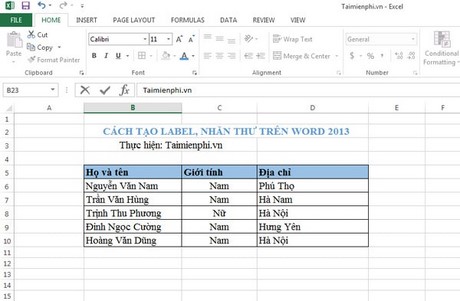
Step 1: Create an Excel data file containing the information to be entered into the mailing label, for instance as shown below.
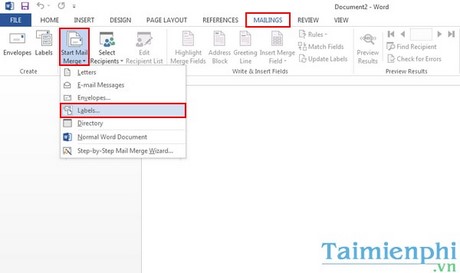
Step 2: Open a new Word file, select Mailings > Start Mail Merge > Labels ….
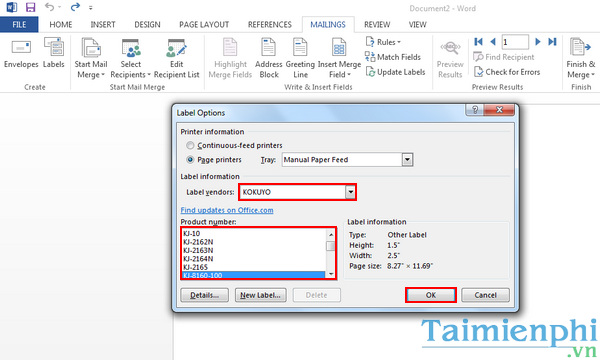
Step 3: The Label Option dialog box appears. Depending on your work purpose, you can select the table according to the available items in Label vendors and Product number, then click OK.
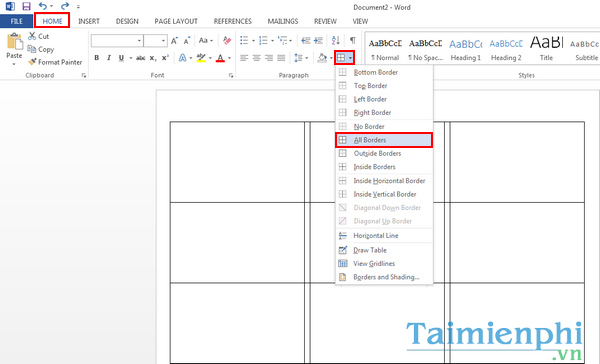
Step 4: Highlight the entire table by pressing Ctrl + A and select the Home tab > Borders > All Borders to create a frame for the mailing label as shown below.
Step 5: Next, select Mailings > Select Recipients > User an Existing List ….
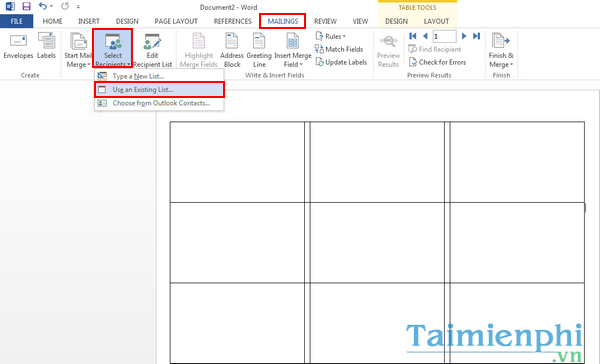
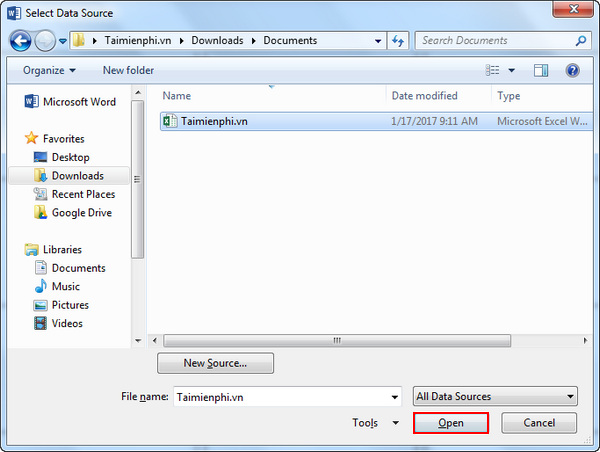
In the dialog box, point to the newly created Excel data file and click Open.
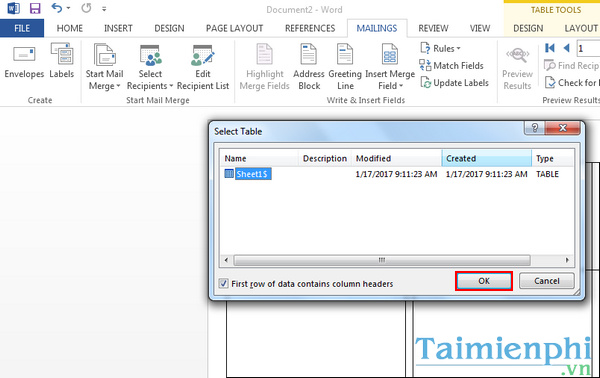
The Select Table dialog box appears, click OK to confirm.
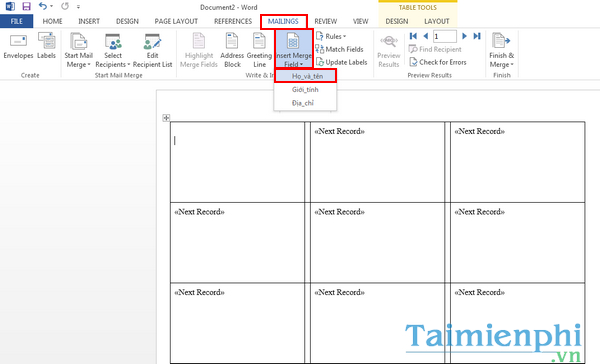
Step 6: Select the first white box, select Mailings > Insert Merger Filed > Full_name > Enter to open the next line and continue to select the Gender and Address fields.
Step 7: From Mailings, select Update Labels to update information on the remaining labels.
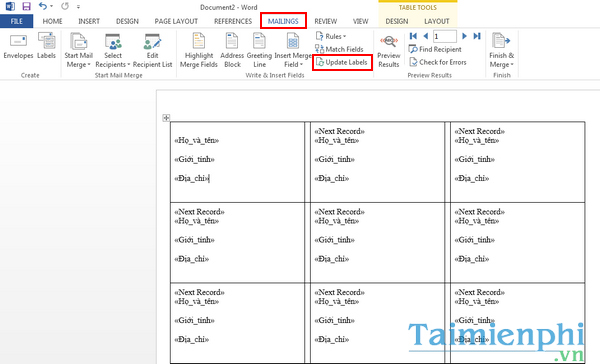
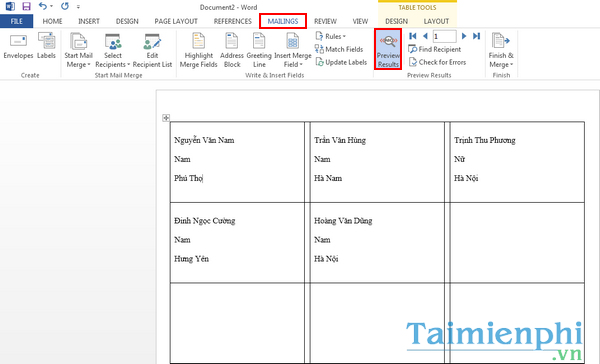
Step 8: Select Preview Results to display the results.
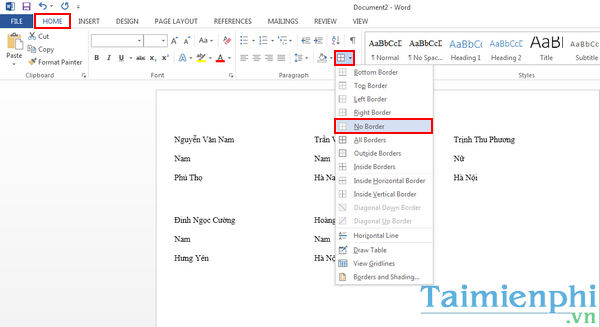
Step 9: Now you highlight everything by pressing Ctrl + A and then select Home > Borders > No Borders to remove the frame for the label.
With the instructions on how to create Labels in Word 2013 that Free Download introduced above, hopefully you can easily apply it to your work. Depending on your needs, you can customize the font, font size or color to make the mail label look more professional and suitable.
In addition, if you are interested in creating labels for learning, you can refer to the instructions on how to make labels for students and teachers on Word. The list of beautiful and cute label templates will also help you have more suitable options for the new school year.
Final Thoughts
The most reliable way to handle creating labels and mailing labels on word 2013 quickly is to follow the process in order, verify each important setting, and test the result before moving on. Use the guidance above as a practical reference, then adjust the details for your device, software version, or specific goal.
FAQ
What should I check before I creating labels and mailing labels on word 2013 quickly?
Use the latest available software, confirm that your device meets the requirements, and make sure you have the necessary permissions, account access, or backup before changing anything.
Why might I be unable to creating labels and mailing labels on word 2013 quickly?
Common causes include outdated software, missing permissions, incompatible settings, incomplete setup steps, or a temporary network problem. Recheck the process from the beginning and restart the app or device if needed.
Is it safe to creating labels and mailing labels on word 2013 quickly?
It is generally safe when you use official tools, review every permission, and back up important data before making system-level or account-level changes.
Related Articles
 How to How to Create Labels, Mailing Labels in Word 20104 minutes read
 How to Create Labels, Mailing Labels in Word 2007 Simply4 minutes read
 MS Access 2003 - Lesson 33: Creating Mailing Labels (Mailing Labels)9 minutes read
 How to Create Labels in Microsoft Word7 minutes read
 Customize Bulk Messages in Gmail: Mass Mail3 minutes read
 How to Make Your Own Baby Stickers on Microsoft Word5 minutes read
Reader Comments 0
Sign in with email or Google to join the discussion.