Table of Contents
This guide provides a clear, practical overview of "Instructions to Change the Font Color of Icons on Windows". It organizes the most useful details, explains important considerations, and highlights the steps or choices that matter most.
How to change font color on Windows icons via Background
Windows will automatically adjust the font of your desktop icons to match your wallpaper. However, you can only choose black or white fonts.
Step 1:
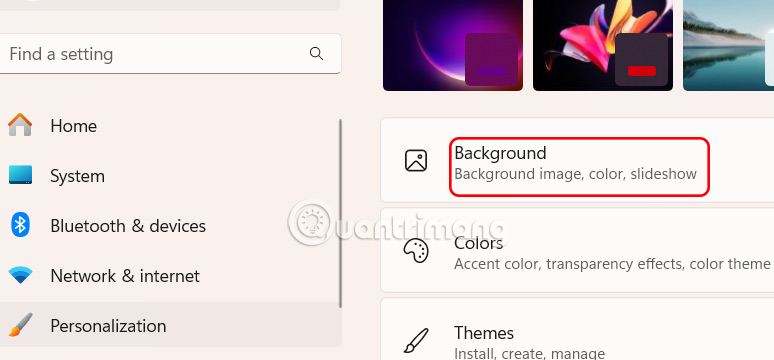
Press Windows + I to open Settings, select Personalization , then look to the right and select Background .
Step 2:
Switch to the new interface, users scroll down to Personalize your background and select Solid color .
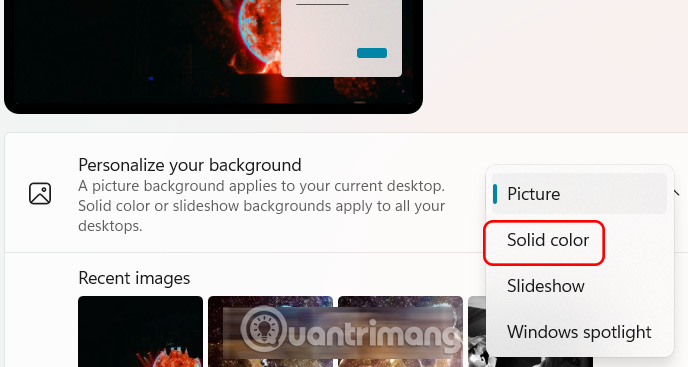
If you want the icon font on your desktop to be black, choose a light color. If you want the font to be white, choose a dark color.

Change Windows icon font color via Contrast Themes
Contrast Themes on Windows allows you to create a custom theme, setting the desired colors for text, backgrounds, and other elements of the Windows 11 interface.
Step 1:
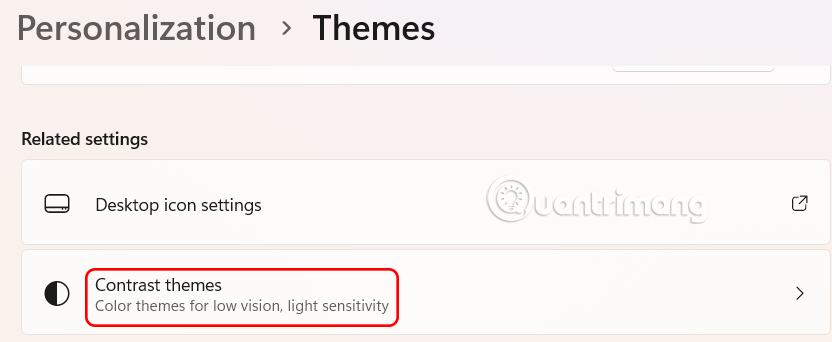
In the Personalization interface, we select Themes to adjust.

Now you select Contrast themes .
Step 2:
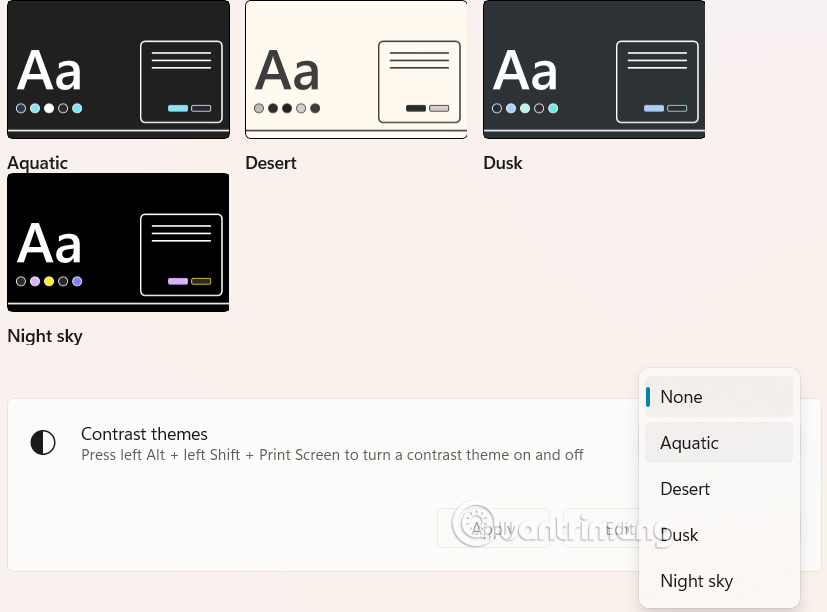
Displays the interface for you to choose the default contrast theme for the interface on Windows. After selecting the theme, click Edit below to edit the theme.
Step 3:
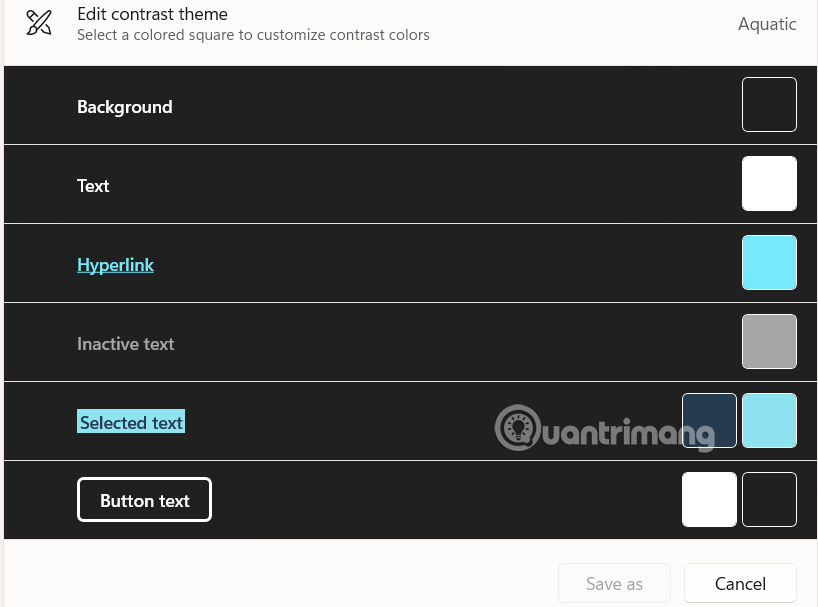
Here the user chooses the color for the text, link text, inactive text, background,. Finally, click Save as to save this new theme.
FAQ
How to change font color on Windows icons via Background?
Windows will automatically adjust the font of your desktop icons to match your wallpaper. However, you can only choose black or white fonts.
What should you know about change Windows icon font color via Contrast Themes?
Contrast Themes on Windows allows you to create a custom theme, setting the desired colors for text, backgrounds, and other elements of the Windows 11 interface.
What does this guide cover?
This guide explains instructions to change the font color of icons on Windows, including the main steps, important details, and practical considerations.
Related Articles
 Change the Font Color of Icons on the Desktop4 minutes read
 How to Change Fonts in Windows 11: Step-by-Step Guide9 minutes read
 Instructions to Change the Color of Xiaomi Phone Application Icons3 minutes read
 How to Change the Font Color in Photoshop3 minutes read
 Looking Back at Icons in Windows: from Windows 1 to 119 minutes read
 Font Windows 10: How to Change the Default Windows 10 Font6 minutes read
Reader Comments 0
Sign in with email or Google to join the discussion.