Table of Contents
You can install Claude Code on Windows 11 with WinGet, then run it from a terminal in your project folder. The package ID is Anthropic.ClaudeCode. You need a supported account or API access to authenticate after installation; WinGet itself does not sign you in.
Install Claude Code with WinGet
- Open Windows Terminal or PowerShell. An administrator window is generally unnecessary for this installation. Check that WinGet is available:
winget --versionIf Windows cannot find WinGet, update or install Microsoft’s App Installer before continuing. TipsMake’s WinGet not recognized guide walks through that problem.
- Install the exact package and follow any agreement prompts:
winget install --id Anthropic.ClaudeCode -e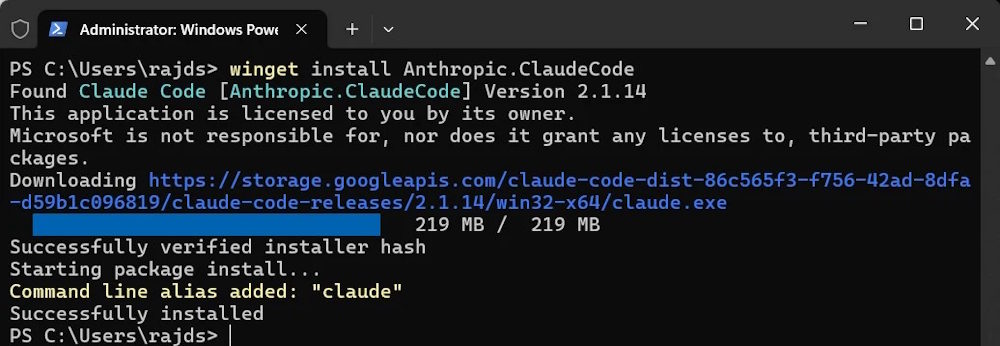
If WinGet reports that it cannot find the package, refresh its source and search again:
winget source update
winget search --id Anthropic.ClaudeCode- Open a new terminal window so the updated PATH is loaded, then check the installed CLI:
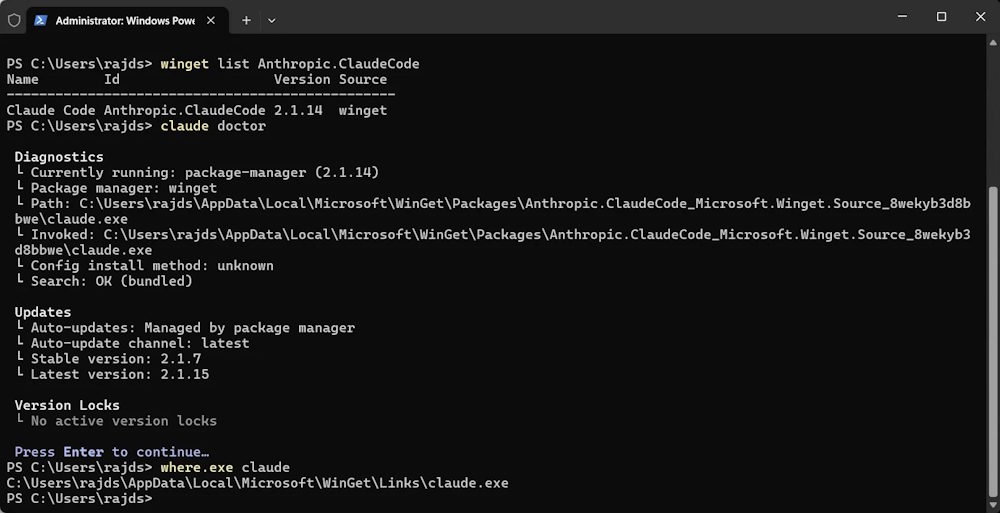
claude --versionIf claude is not recognized, try where.exe claude in PowerShell or Command Prompt and winget list --id Anthropic.ClaudeCode to distinguish a PATH problem from a missing package. Restart the terminal first; if the package is listed but the command remains unavailable, consult Anthropic’s installation troubleshooting. Once claude runs, claude doctor can inspect its configuration.
Sign in and open a project
Change to the folder you intend to work in before launching the tool. Review what files are present and use a project copy or version control if you are trying it for the first time.
cd C:pathtoyourproject
claude
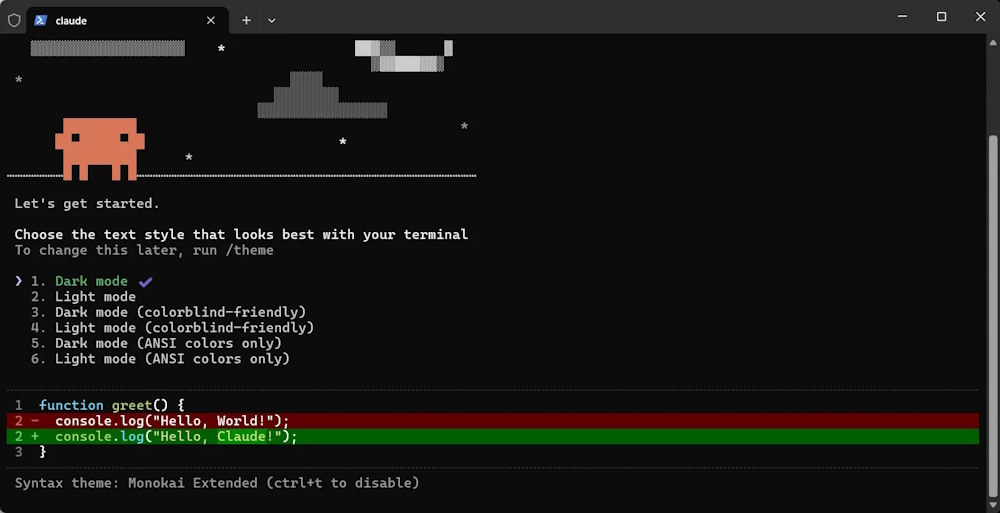
The first run may ask you to select a display theme.
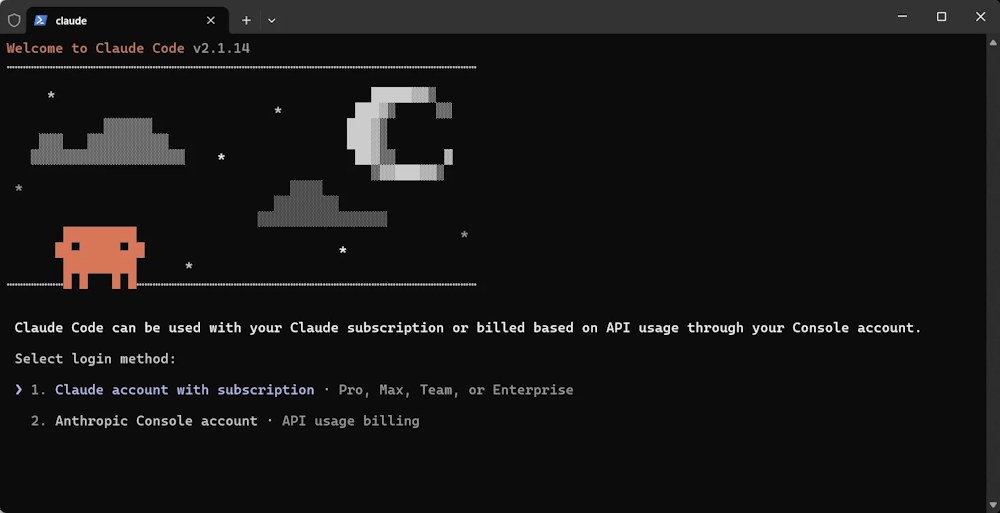
Choose the sign-in method offered for your Claude account or Anthropic Console/API setup. Follow the browser authorization flow and check which account and billing arrangement you are using.
Return to the terminal after authorizing access.
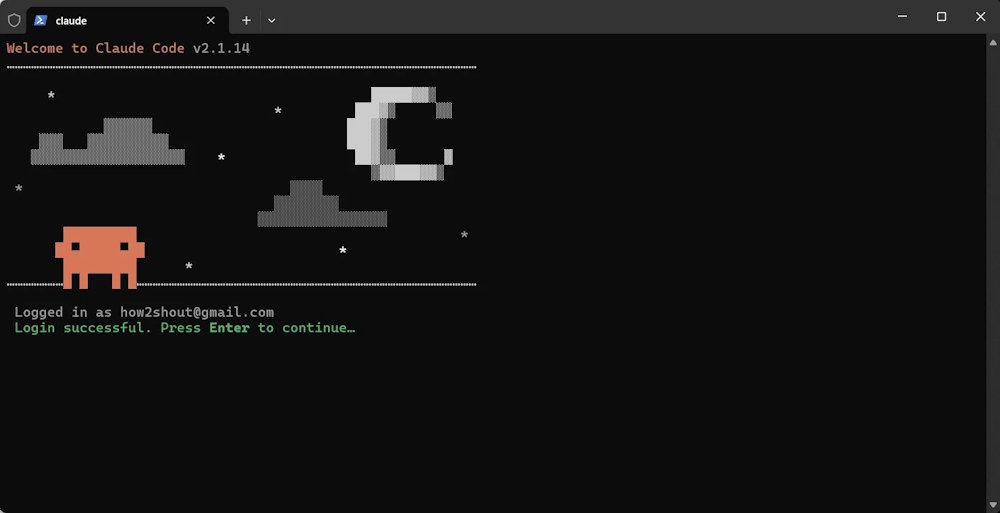
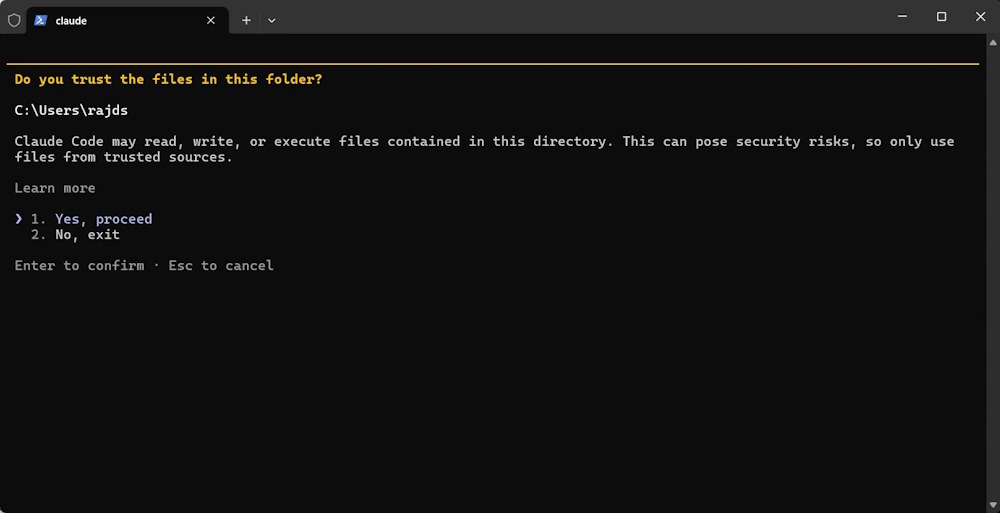
Claude Code may ask for permission to read, write, or run commands in the current workspace. Read the requested action before allowing it, especially in a folder with important files.
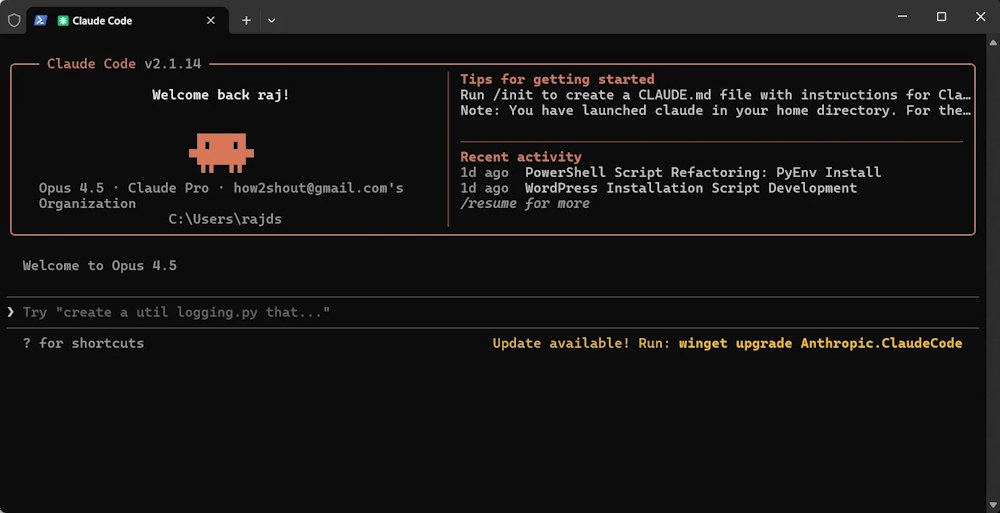
Once the session starts, ask a small question about the project and review its response. For more on working with a repository, see effective Claude Code workflows.
Update or uninstall
WinGet installations do not update automatically by default. Run this periodically:
winget upgrade --id Anthropic.ClaudeCode -eTo remove the WinGet package:
winget uninstall --id Anthropic.ClaudeCode -eUninstalling the app is different from deleting its settings or session data. Do not run the source article’s malformed removal command; inspect your own user profile and back up anything you want to retain before clearing configuration. Anthropic’s current setup guide also explains native Windows and WSL options. Git for Windows is optional for native installation and enables the Bash tool; Claude Code can use PowerShell when Git Bash is absent.
Related Articles
 What Is the Claude Code: Clear Explanation7 minutes read
 How to Use Claude to Code and Debug Code6 minutes read
 When Should You Not Use Claude Code?10 minutes read
 Things You Need to Know About Claude Code5 minutes read
 This Claude Code Mode Is a Worthy Competitor to Other Ides8 minutes read
 How to Use Claude Code Safely: a Guide to Risk Management12 minutes read
Reader Comments 0
Sign in with email or Google to join the discussion.