Table of Contents
This guide provides a clear, practical overview of "Mistakes That Are Silently Reducing the Life of Your SSD". It organizes the most useful details, explains important considerations, and highlights the steps or choices that matter most.
9. Fill up SSD
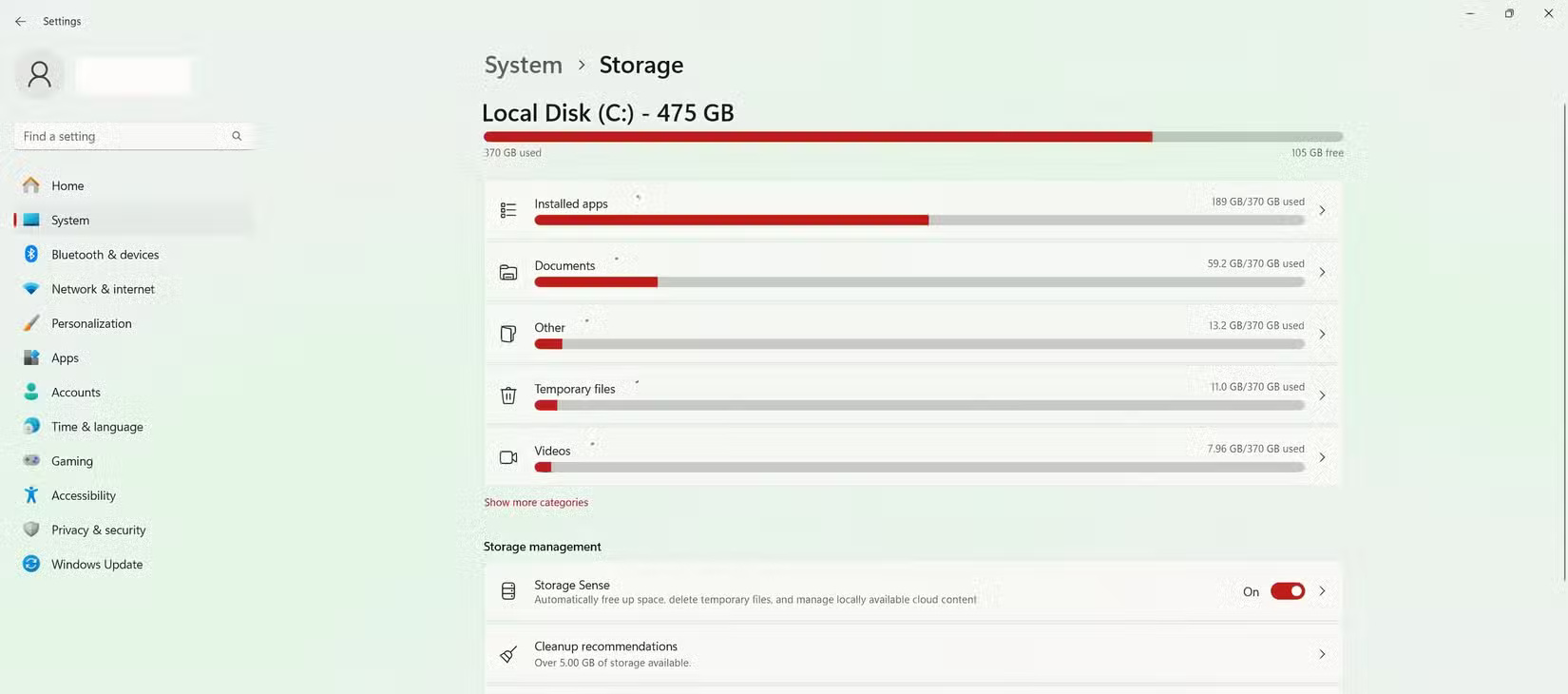
Think of your SSD as a highway. When traffic is distributed, things move smoothly. When every lane is packed, progress slows and stress increases.
To keep your drive healthy, try to keep at least 10-20% free. Many SSDs have built-in overprovisioning to help with this, but adding more free space is a smart way to extend the life of your drive.
8. Defragment SSD
If you're used to mechanical hard drives, defragmentation may seem like standard maintenance. But with SSDs, it's not only unnecessary, it's harmful.
Defragmentation rearranges files into contiguous blocks to reduce mechanical read times. But SSDs have no moving parts. They can access any bit of data instantly, regardless of its location. Running a defragmentation process just results in thousands of pointless writes, prematurely wearing out the memory cells.
7. Continuously record and re-record large files
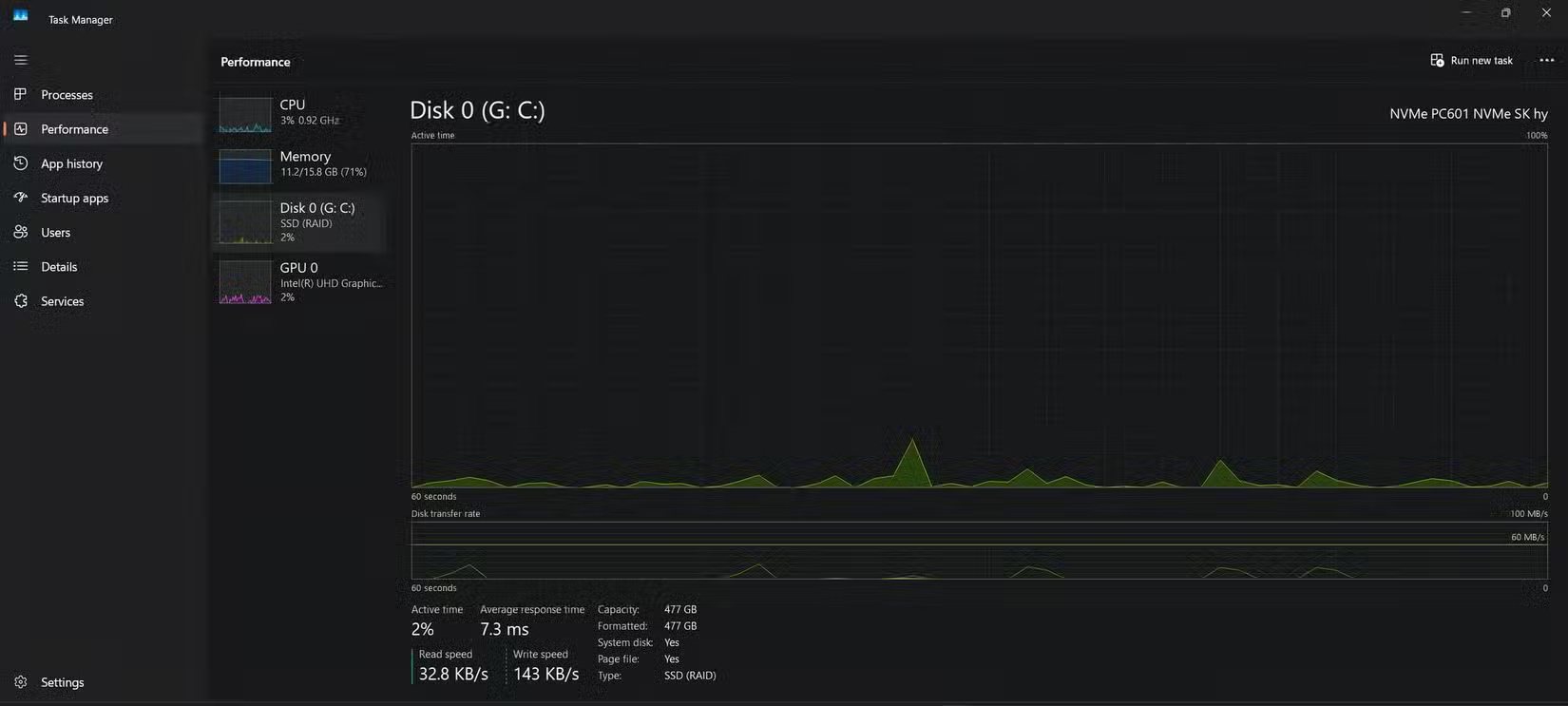
Every SSD has a limited number of write cycles. While modern drives are very durable, constantly writing and rewriting large files still takes its toll.
This type of stress is common in tasks like video editing, managing large databases, or using an SSD as a cache drive. Each save, move, or write consumes more write cycles.
6. Skip firmware updates
Firmware is the internal software that controls how an SSD operates. It manages processes like data allocation, wear leveling, and performance tuning.
Manufacturers occasionally release firmware updates to fix bugs, improve performance, or extend the life of the drive. Skipping these updates can lead to compatibility issues or miss out on improvements that can extend the life of the drive.
Checking every few months is a small effort that can prevent major data loss in the future.
5. Let the drive run in a hot state for too long
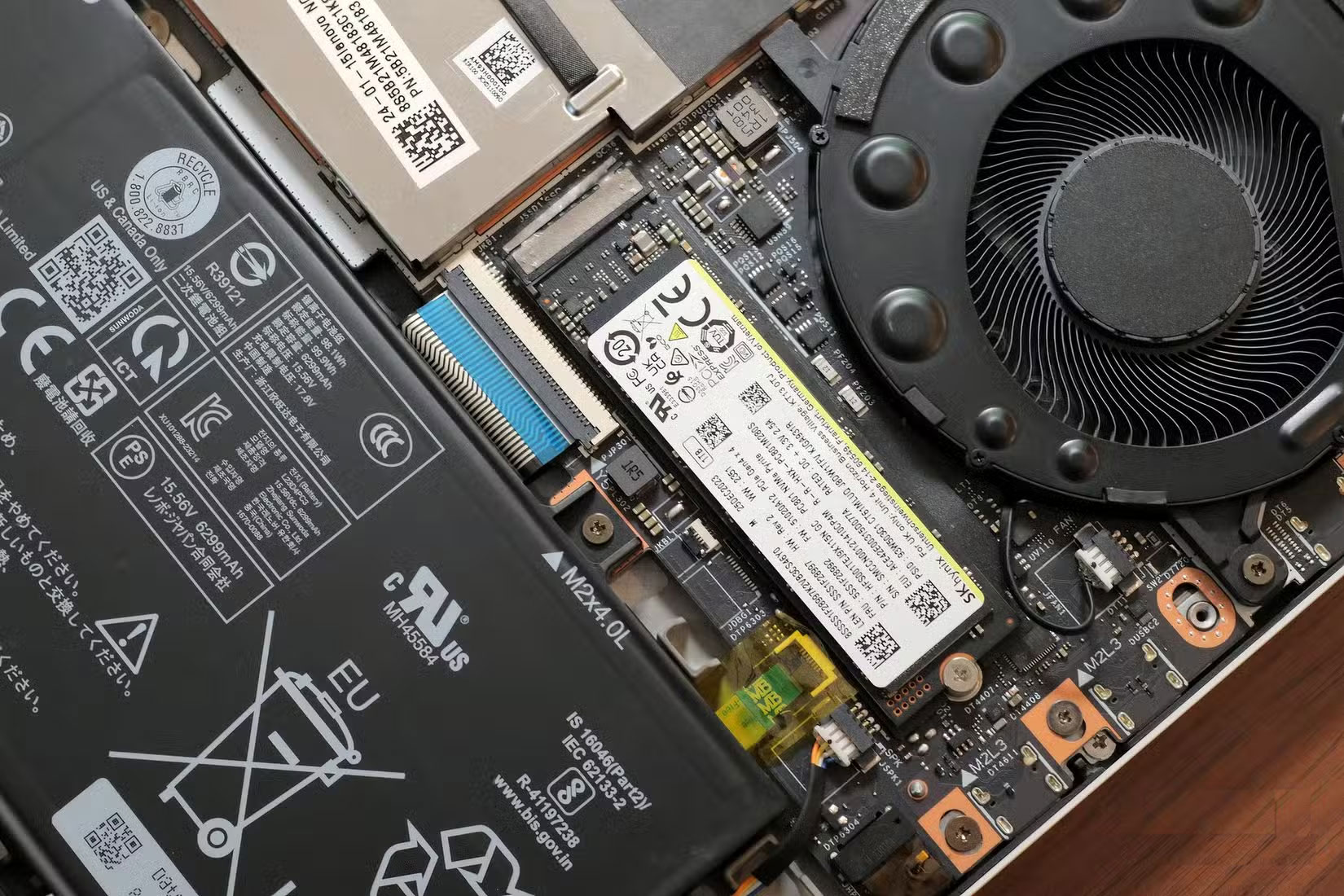
SSDs are generally efficient and durable, but heat is their enemy. If your drive is regularly operating at temperatures above 70°C, it will fail faster than normal.
High temperatures affect the memory cells and controller chips that manage the flow of data. This can cause performance degradation, malfunction, or eventual failure.
Laptops often have poor cooling, while desktops with poor airflow can overheat under heavy use. If your system becomes sluggish under load, monitor the SSD temperature using tools like CrystalDiskInfo or the drive manufacturer's software.
4. Power failure and improper shutdown
Sudden power outages may seem harmless, but they can cause significant damage to an SSD. Traditional hard drives will stop the read head when the power is lost. However, SSDs often rely on capacitors and software processes that take time to complete writes properly.
Improper shutdowns—such as forcing a power off or letting the battery run out of power—can disrupt important processes, including garbage collection and wear leveling. This increases the likelihood of file corruption or operating system failure.
3. Never check SMART stats or drive status
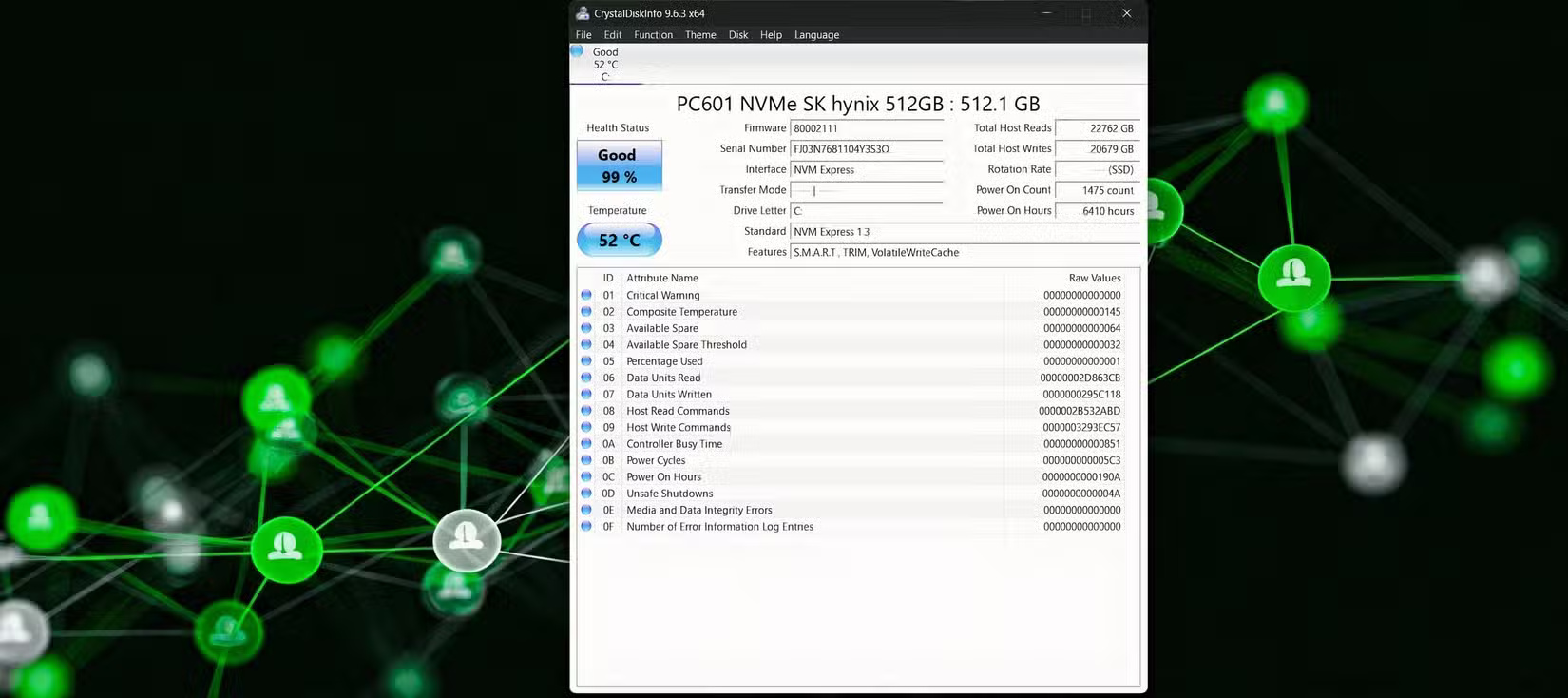
SSDs don't make a sound when they fail, but they do silently monitor their health using SMART (Self-Monitoring, Analysis, and Reporting Technology), which is the digital equivalent of a warning light on a car's dashboard.
SMART statistics can alert you to rising temperatures, bad sectors, and deteriorating health indicators - sometimes before catastrophic failures occur.
Make it a habit to check the health of your SSD every few months or whenever performance drops. If your SSD starts to show signs of failure, back up your data and prepare to replace it.
2. Store SSD for long periods of time without power
SSDs are not ideal for long-term, unplugged storage. Unlike hard drives, SSDs use electricity to store data, and that charge can slowly dissipate over time when there is no power source.
If you leave an SSD in a drawer for a year or two, especially in a warm environment, you may find corrupted data when you plug the SSD in. This risk is higher with cheap SSDs and in high temperature environments.
1. Using cheap PSU or unstable power supply
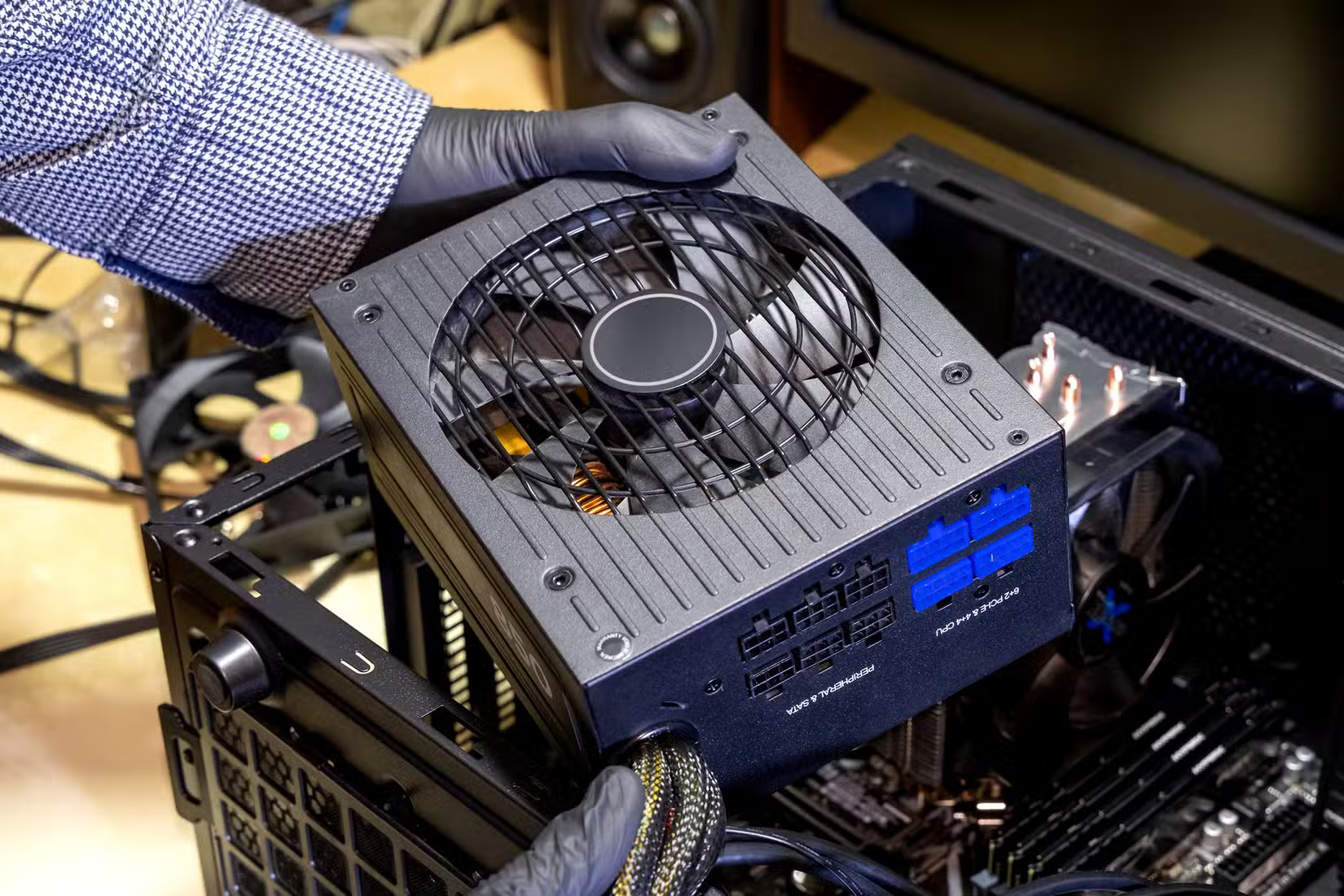
SSDs are only as reliable as the power they receive. Cheap or unstable power supplies can cause power spikes, brownouts, or noise that can damage components.
Low-end PSUs may lack features like overvoltage protection or stable output regulation, resulting in data corruption, performance issues, or in some cases, complete hardware failure.
Always choose a quality PSU from a reputable brand. Stability is more important than power.
FAQ
What should you know about 9. Fill up SSD?
Think of your SSD as a highway. When traffic is distributed, things move smoothly. When every lane is packed, progress slows and stress increases.
What should you know about 8. Defragment SSD?
If you're used to mechanical hard drives, defragmentation may seem like standard maintenance. But with SSDs, it's not only unnecessary, it's harmful.
What should you know about 7. Continuously record and re-record large files?
Every SSD has a limited number of write cycles. While modern drives are very durable, constantly writing and rewriting large files still takes its toll.
What should you know about 6. Skip firmware updates?
Firmware is the internal software that controls how an SSD operates. It manages processes like data allocation, wear leveling, and performance tuning.
Related Articles
 5 Mistakes in the Past Can Be Corrected from Today7 minutes read
 These Are 7 Common Mistakes That Prevent You from Achieving Your6 minutes read
 7 Reasons Why Never Making Mistakes Is the Biggest Mistake8 minutes read
 Top 5 Most Common Errors When We Learn a New Skill8 minutes read
 Stt Sentences or Moods Silently Look at Life: Stt Reflect on Life8 minutes read
 Mistakes When Using Smartphones: Best Options and Key Tips6 minutes read
Reader Comments 0
Sign in with email or Google to join the discussion.