Table of Contents
Overview
This guide explains how to use type to Siri to eliminate public embarrassment in clear, practical terms. It covers the key concepts, recommended steps, common limitations, and useful checks so you can make a better-informed decision.
Using voice commands to interact with Siri allows you to perform tasks and get answers to queries hands-free, which is great for multitasking. However, talking to Siri can be awkward in public. Luckily, you can use Type to Siri to skip awkward phone conversations and still get the answers you need.
What Is Type to Siri?
Type to Siri lets you interact with Siri by typing commands and queries instead of speaking. While this feature is especially useful for people with speech disabilities, it's valuable for everyone.
Not only does this help eliminate the awkwardness of talking to Siri in public, it also allows you to interact effectively with Siri in noisy environments where Siri may have difficulty hearing and understanding you.
Type to Siri was first introduced in iOS 11 as an accessibility feature. However, Apple realized that more people could benefit from the feature and released an improved version of Type to Siri with iOS 18.1. The latest update gives Type to Siri a new user interface, introduces a new activation method, and makes the feature more context-aware with Apple Intelligence integration. You can even enable the ChatGPT extension to get help with advanced queries.
Which iPhones support Type to Siri?
Type to Siri is available on all iPhones running iOS 11 or later. However, you need an iPhone that supports Apple Intelligence to use the updated version. Here's a list of iPhone models that get the update:
How to enable and use Type to Siri on iPhone
Enabling and using Type to Siri on iPhone is simple. However, the process is different for older and newer iPhone models due to the relocation of the power button and trigger button.
Enable and use Type to Siri on iPhone with Apple Intelligence
On iPhones supported by Apple Intelligence:
- Open Settings.
- Tap Apple Intelligence & Siri > Talk & Type to Siri.
- Turn on the button next to Type to Siri.
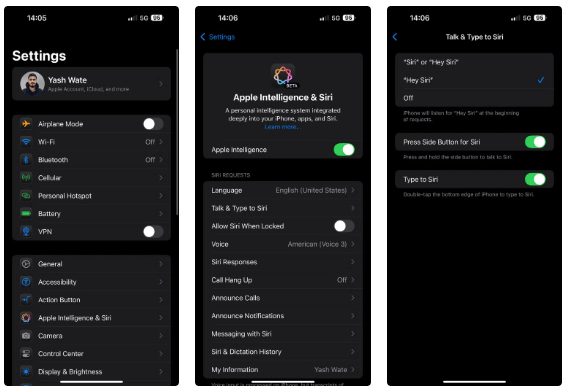
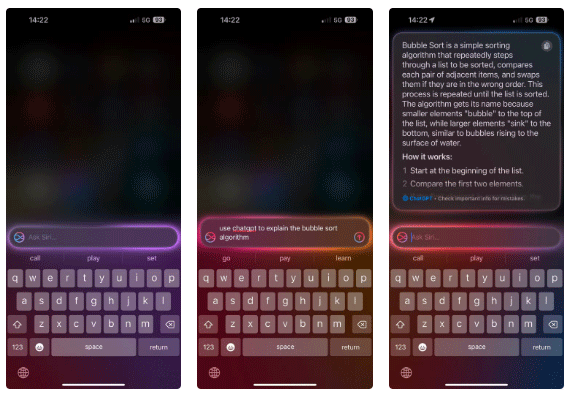
Once enabled, all you have to do is double-tap the horizontal App Switcher bar along the bottom edge of your screen to activate Type to Siri. Then, start typing your query or command and hit the Send button to send your request. Siri will then respond to that request.
If tapping the App Switcher bar feels awkward, you can customize your iPhone's Action Button to invoke Type to Siri instead. Just open Settings and select Action Button. Then scroll down to Controls and tap Choose a Control. Finally, find Type to Siri and tap it.
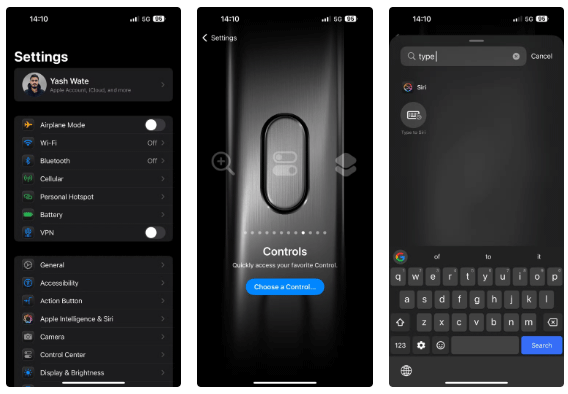
Now, press and hold the Action button to enable Type to Siri.
Enable and use Type to Siri on older iPhones
To enable Type to Siri on an iPhone that doesn't support Apple Intelligence, follow these steps:
- Open Settings.
- Go to Accessibility > Siri.
- Turn on the Type to Siri option.
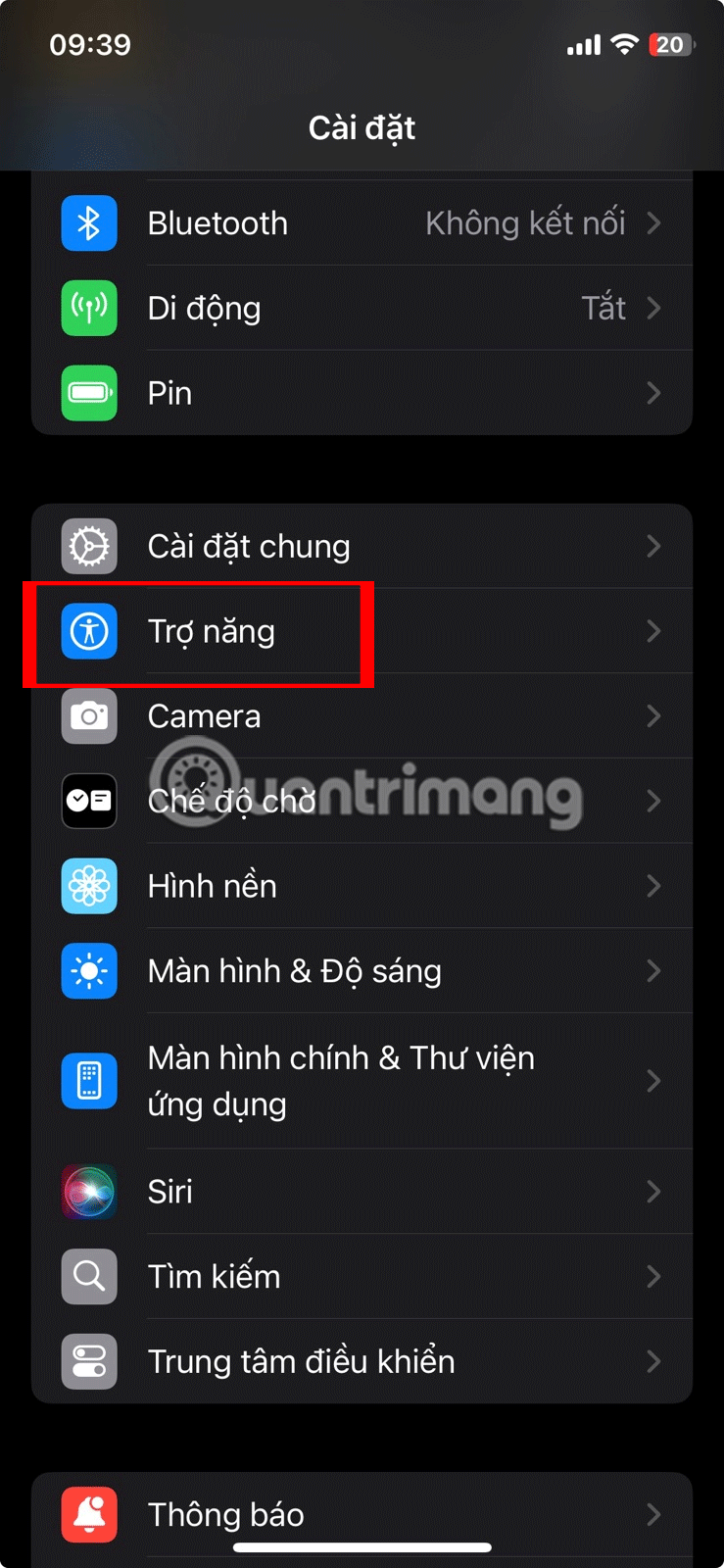
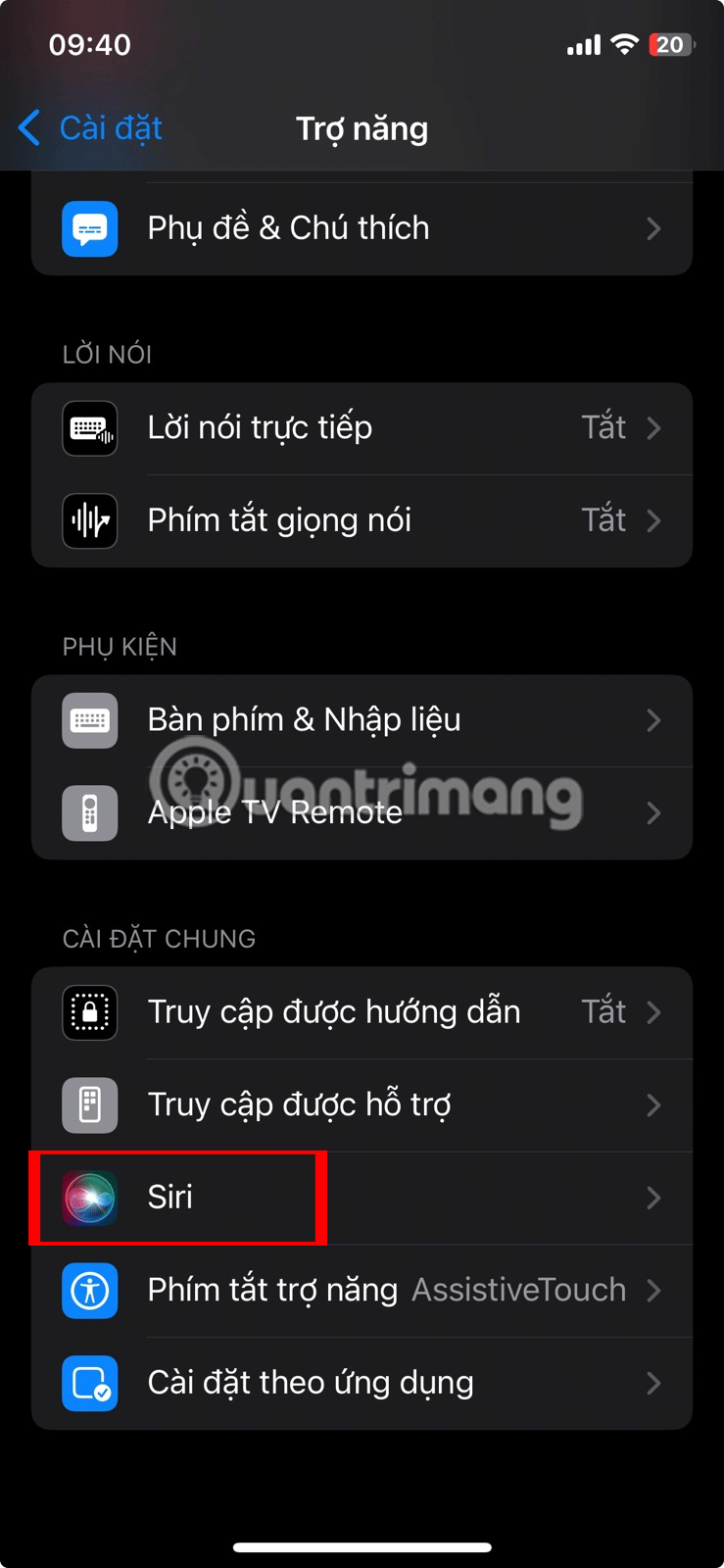
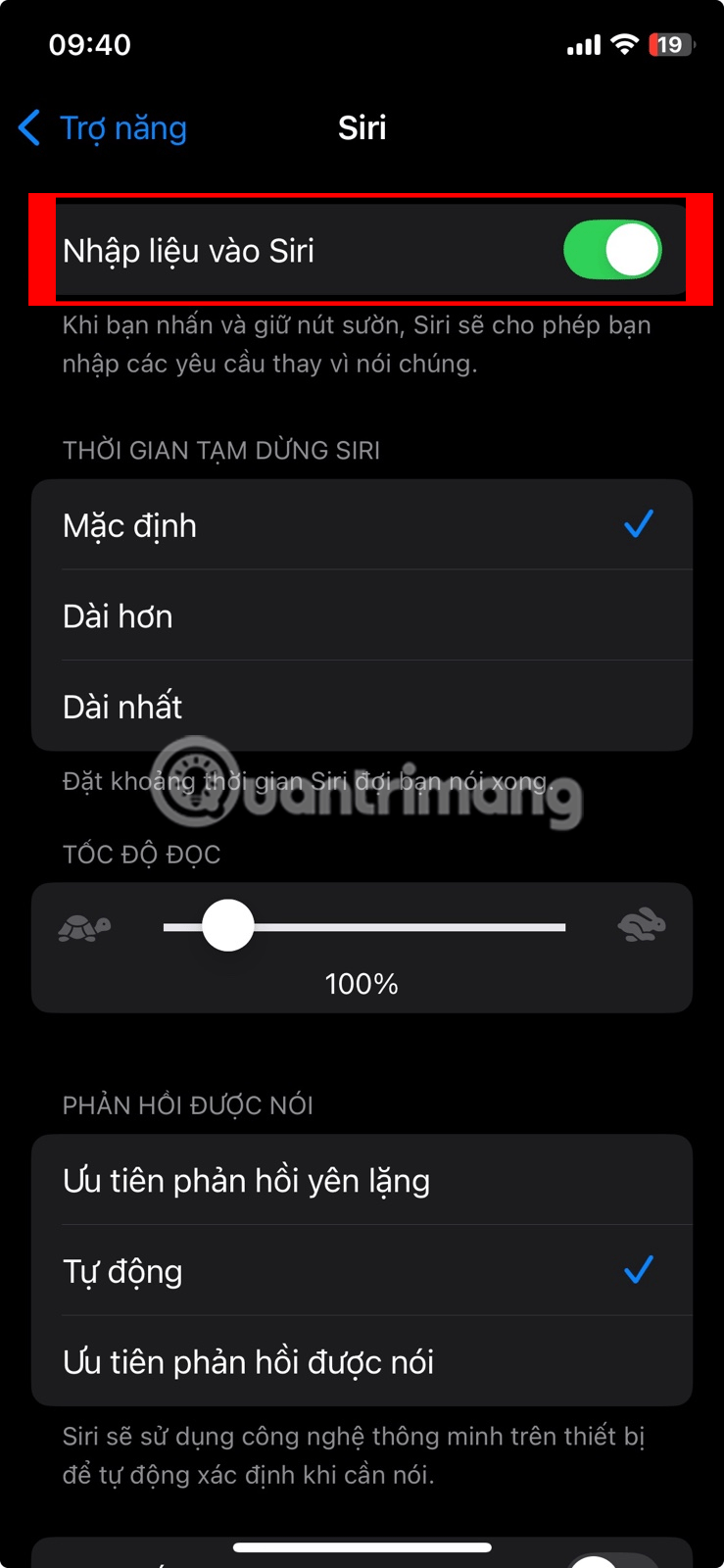
Once you turn on Type to Siri, press the side button on your iPhone to invoke the feature. When this brings up the keyboard, type any command or query you have for Siri and Siri will respond.

Unlike in iOS 18.1, Siri may not always be able to tell when you're making a text query and will respond with a spoken response. If you think you'll be using Type to Siri most of the time, you can have Siri respond silently. On the Siri settings page, go to Spoken Responses and select the Prefer Silent Responses option.

Type to Siri is a handy feature when you want to interact with Siri discreetly, so make sure to enable it on your iPhone, especially if you use Apple Intelligence or Siri a lot. Doing so won't disable the voice functionality, so you can choose your preferred method of seeking help from Siri based on the situation.
In addition to iPhone, you can also use Type to Siri on your Mac. Type to Siri is available on Macs running macOS High Sierra or later, though you need an Apple Intelligence-compatible Mac running macOS Sequoia to use the latest version of the feature.
Key Takeaways
Use the guidance above as a practical reference for how to use type to Siri. Check compatibility, follow the steps carefully, and verify important details with official documentation when software, security, accounts, health, or purchases are involved.
FAQ
How do I use type to Siri to eliminate public embarrassment?
Follow the steps in this guide in order, confirm each setting before continuing, and save, restart, or reconnect the device when the instructions require it.
What should I check before I begin?
Confirm the correct device, account access, software version, compatibility, and a current backup whenever the process could affect files, settings, or security.
What should I do if the process does not work?
Repeat the steps carefully, check for model or version differences, install available updates, and consult the manufacturer's official support documentation.
Related Articles
 The 'Critical' Answers of Siri, the Funny Assistant on iOS9 minutes read
 Good Features with Siri on Mac5 minutes read
 What's New in Siri on iOS 158 minutes read
 How to Turn Off Siri on iPhone, iPad, Mac, and Apple Watch5 minutes read
 How to Use 'Hey Siri' on an Old Mac5 minutes read
 How to Translate Many Languages on Siri iOS 116 minutes read
Reader Comments 0
Sign in with email or Google to join the discussion.