Table of Contents
Learning how to use iCloud photos on iPhone, iPad, and mac doesn't have to be complicated. This updated guide presents a clear workflow, practical checks, and troubleshooting advice you can use while completing the process.
Key Takeaways
- Follow the steps to use iCloud photos iPhone.
- Follow the steps to enable iCloud photos on mac.
- Follow the steps to enable iCloud photos on the web.
How to Use iCloud Photos iPhone
Step 1:
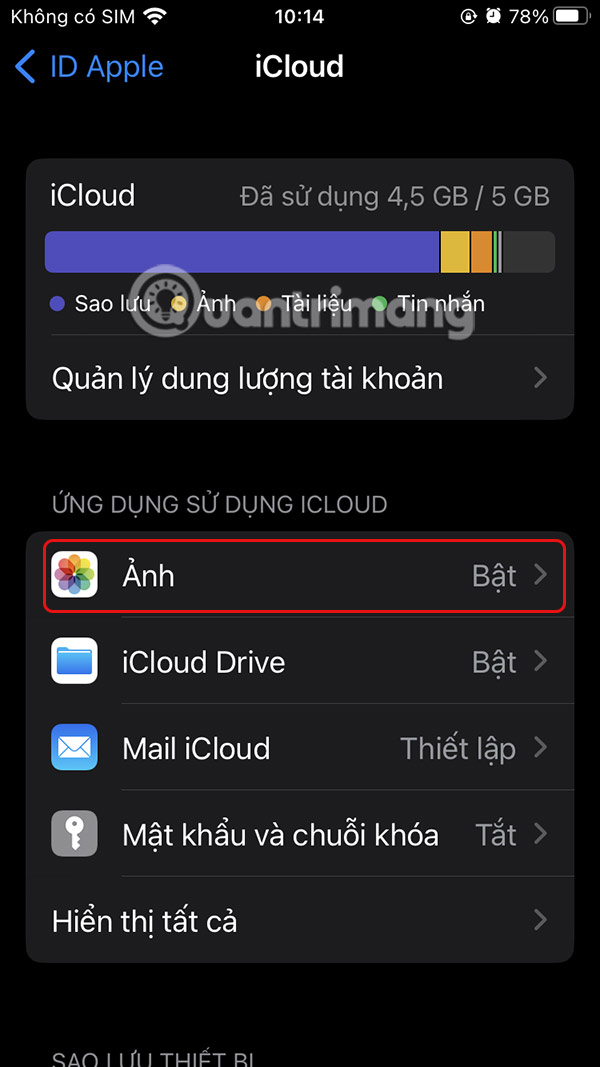
You open Settings and then select your Apple account. Next, we select iCloud at the bottom of the interface.


Step 2:
Switch to the new interface, users scroll down to see the Photos section and turn on Sync this iPhone to enable iCloud Photos on iPhone.

How to Enable iCloud Photos on Mac
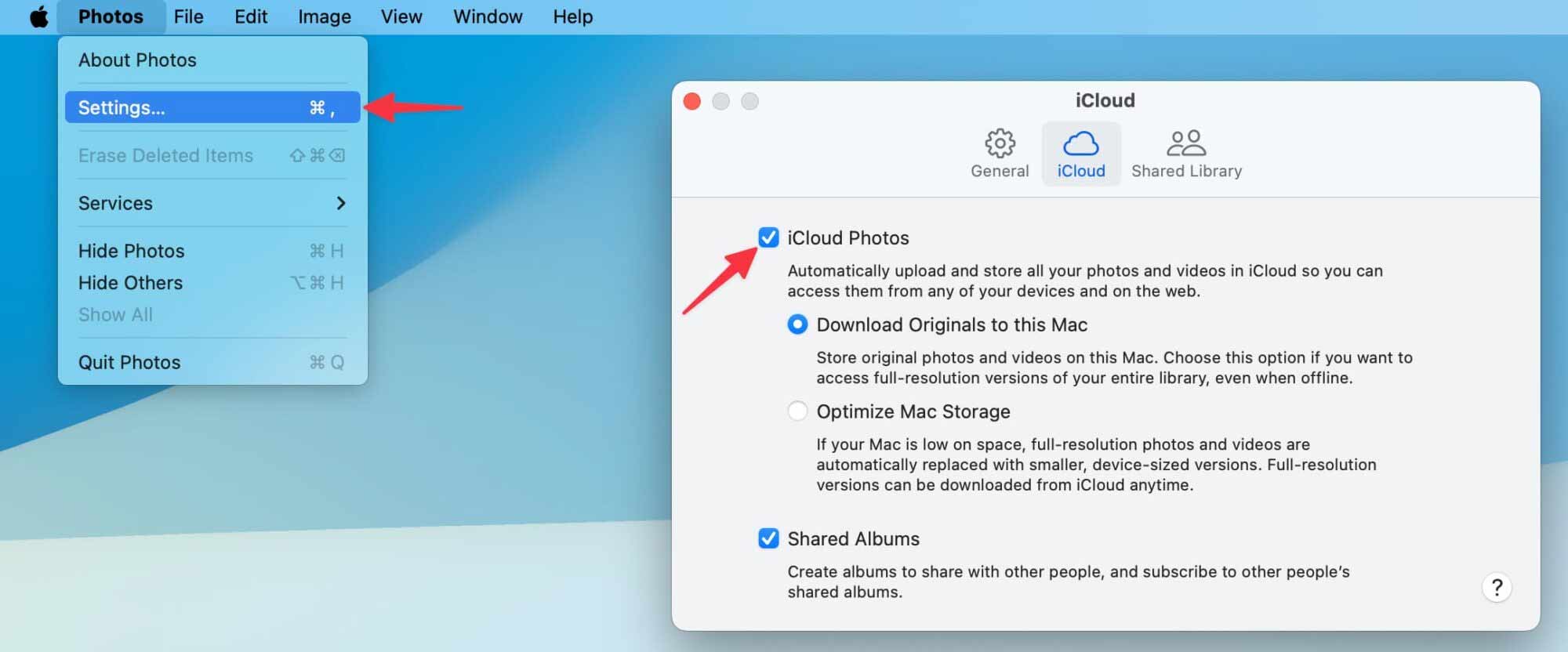
We open the Photos app then select Photos > Settings displayed at the top. Next, select the iCloud tab and check iCloud Photos to activate on Mac.
How to Enable iCloud Photos on the Web
We access the iCloud website via the link below, then log in to our Apple account.
- Access iCloud Photos on the web.
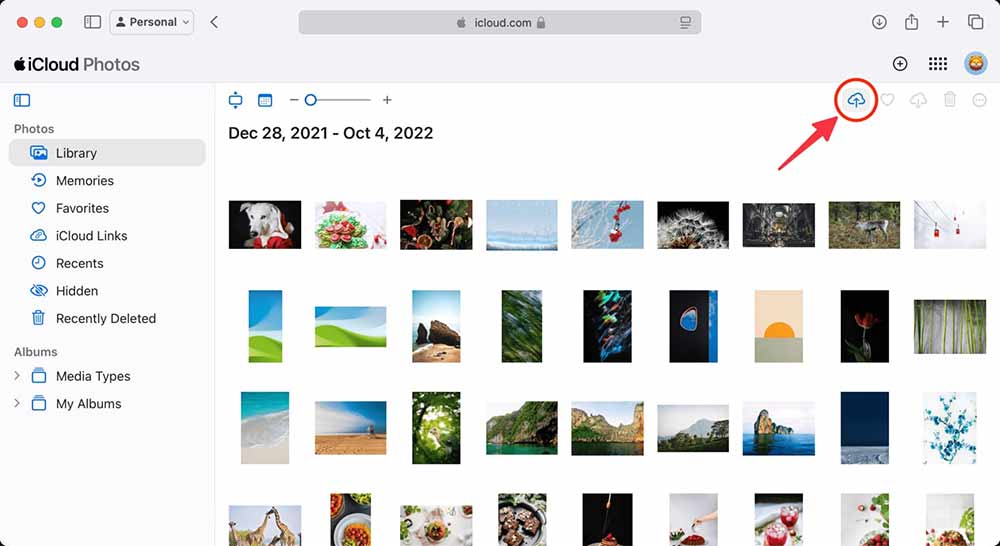
In the Library interface, simply select the cloud icon and select images from your computer or drag and drop them into the iCloud web interface to sync.
What to Do If iCloud Photos Won't Turn on?
There are two main reasons why you can't turn on iCloud Photos: low iCloud storage or system errors.
If iCloud storage is low:
- Delete unnecessary photos, videos, and screenshots from the Photos app. Delete all data in the Recently Deleted album and clear the iPhone/iPad cache.
- Delete files and backups to free up your iCloud storage.
- Sign up for iCloud+ or Apple One for more cloud storage.
If the reason for the system error:
- Check WiFi connection on device.
- Quit and reopen the Settings app or the Photos app.
- Restart iPhone, iPad, Mac
- Update your device to the latest operating system version.
- Sign out of your Apple account, then sign back in.
- Reset all settings and try again.
Final Thoughts
The most reliable way to handle use iCloud photos on iPhone, iPad, and mac is to follow the process in order, verify each important setting, and test the result before moving on. Use the guidance above as a practical reference, then adjust the details for your device, software version, or specific goal.
FAQ
What should I check before I use iCloud photos on iPhone, iPad, and mac?
Use the latest available software, confirm that your device meets the requirements, and make sure you have the necessary permissions, account access, or backup before changing anything.
Why might I be unable to use iCloud photos on iPhone, iPad, and mac?
Common causes include outdated software, missing permissions, incompatible settings, incomplete setup steps, or a temporary network problem. Recheck the process from the beginning and restart the app or device if needed.
Is it safe to use iCloud photos on iPhone, iPad, and mac?
It is generally safe when you use official tools, review every permission, and back up important data before making system-level or account-level changes.
Related Articles
 How to Share Photos with Temporary Icloud Links on iPhone and iPad6 minutes read
 6 Best Icloud Drive Alternatives for iPhone/iPad8 minutes read
 How to Download Photos from ICloud7 minutes read
 How to Share Icloud Folder on Iphone and Ipad3 minutes read
 Why Is Google Photos Better Than iCloud on iPhone: Explained7 minutes read
 How to Set up Icloud Email, Contacts and Calendar on iPhone or iPad4 minutes read
Reader Comments 0
Sign in with email or Google to join the discussion.