Table of Contents
Losing your phone is extremely dangerous because thieves can steal your information. However, the publisher has anticipated this and allows you to use Google Find My Device to locate your phone remotely without any difficulty.
Instructions on using Find My Device to locate your phone remotely.
Conditions for using Find My Device effectively
For this application to work 100%, users need to meet the following requirements:
- A phone running Android 5.0 or higher. - GPS
must be enabled on Android and connected to a 3G/4G or Wi-Fi internet network. - The device must be logged into a Google account.
How to use Find My Device to locate a lost phone on Android
Normally, when a phone is lost, the chances of finding it again are very low. But with the Find My Device app, you still have a better chance of getting it back.
Step 1
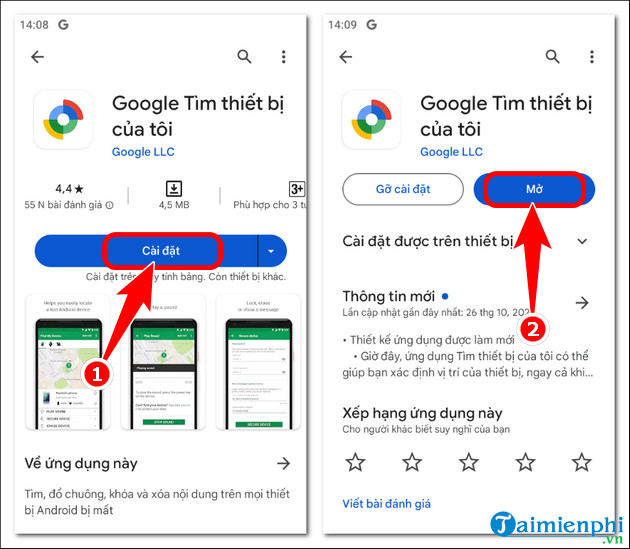
Access the Google Find My Device download link for Android here.
- Click Install => press Open .
Step 2
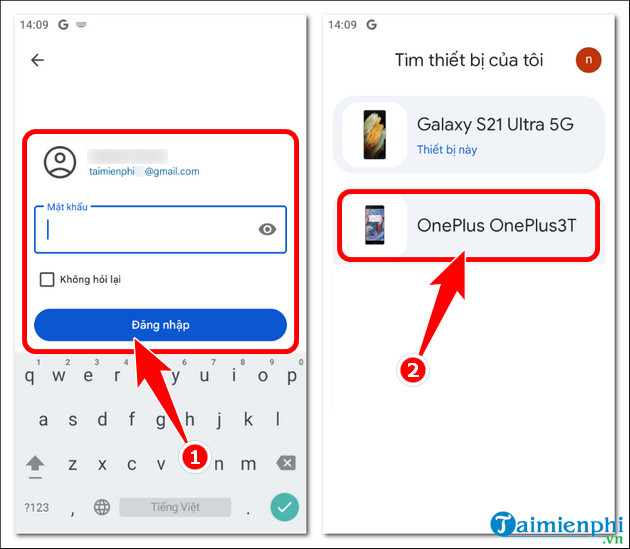
Log in to your Google account => select the device you want to find .
Step 3
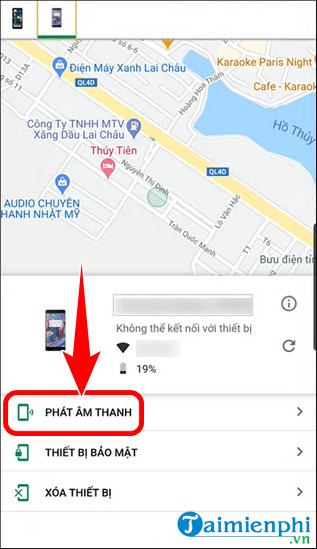
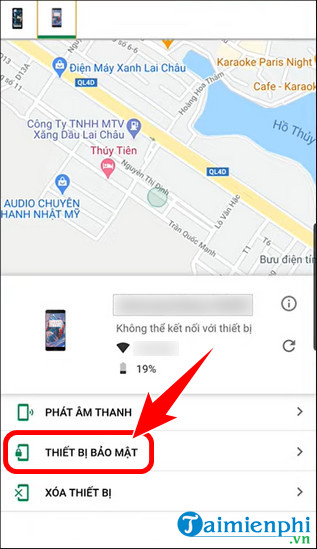
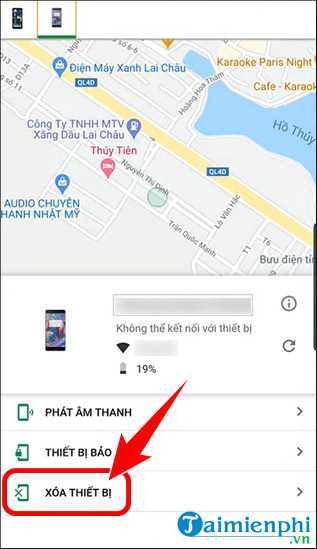
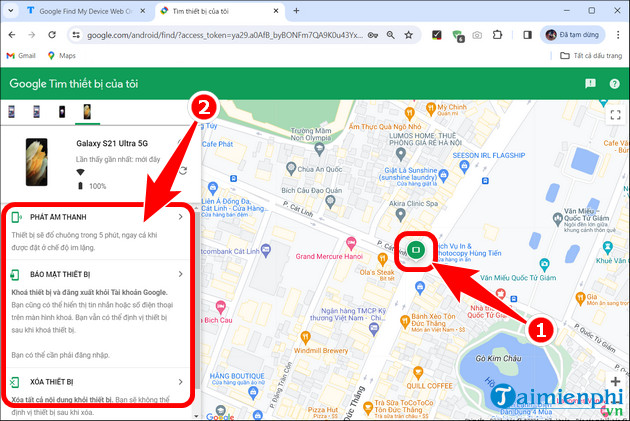
Immediately, the phone's location will be displayed as shown below. Here you can choose from 3 different options.
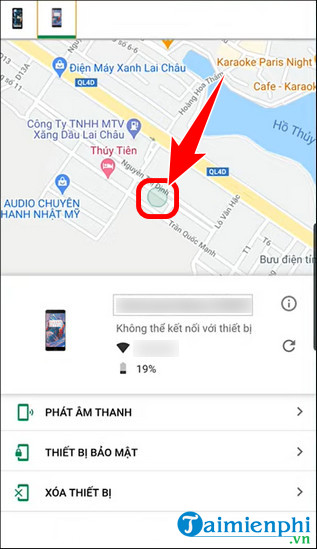
- Sound Playback: When this feature is activated, the phone will automatically play at maximum volume for 5 minutes.
- Device security: For those who want to lock their Android device so that no one can access personal data while trying to recover a lost phone.
- Erase device: Only use this option if you are certain your phone is lost and you want to completely erase all personal data on it.
How to use Find My Device to locate your phone on a PC.
Compared to the Android web version on computers, the process is similar; readers simply access the Find My Device website and log in with their Google account to quickly locate their lost phone.
Step 1
Open Google Find My Device Web Online here.
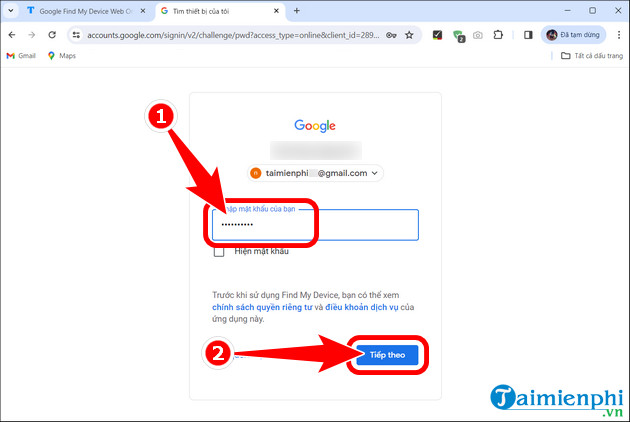
Step 2: Enter your email address or phone number => press Next .
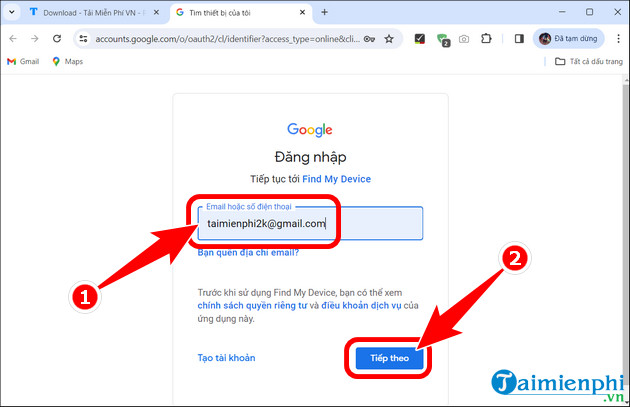
- Enter password => Next .
Step 3
The phone's location will be displayed on the screen as shown below. Similar to the Android version, users also have 3 options including play sound , secure device , and erase device .
Notes on using Find My Device to locate a lost phone.
- Users should set a password to unlock their phone to prevent thieves from disabling GPS location services.
- The location displayed on the map is not 100% accurate and may appear to be in the surrounding area.
The above is a detailed guide to help you use Find My Device to locate your lost phone and pinpoint its location remotely. Additionally, readers using iOS devices can also find their lost iPhones with Find My iPhone very effectively and accurately.
Related Articles
 Find Samsung Phone, How to Locate Samsung When Lost5 minutes read
 How to Locate a Samsung Phone When Lost6 minutes read
 How to Find Lost Android Devices Using Android Device Manager9 minutes read
 5 Ways to Locate a Lost Samsung Phone8 minutes read
 How to Use Find My Device for Android Devices: Complete Guide8 minutes read
 How to Measure Phone Charging Speed5 minutes read
Reader Comments 0
Sign in with email or Google to join the discussion.