Table of Contents
Besides using the Find My Mobile feature , you can install and use specialized apps to locate your lost Samsung phone.
 How to locate a lost Samsung phone
Table of Contents:
Method 1: Using the Find My Mobile feature .
Method 2: Using the Find My Device feature .
Method 3: Using the Spydialer service to locate a lost Samsung phone .
Method 4: Locating a lost Samsung phone using the Spyic app .
Method 5: Locating a lost Samsung phone using Cocospy .
Method 1: Using the Find My Mobile feature
The Find My Mobile feature on Samsung phones allows you to locate your lost phone. Once you've located your phone, you can back up your data to cloud services, lock your phone, and even block access to the device.
Set up the Find My Mobile feature.
Follow the steps below to set up the Find My Mobile feature on your Samsung phone:
Step 1
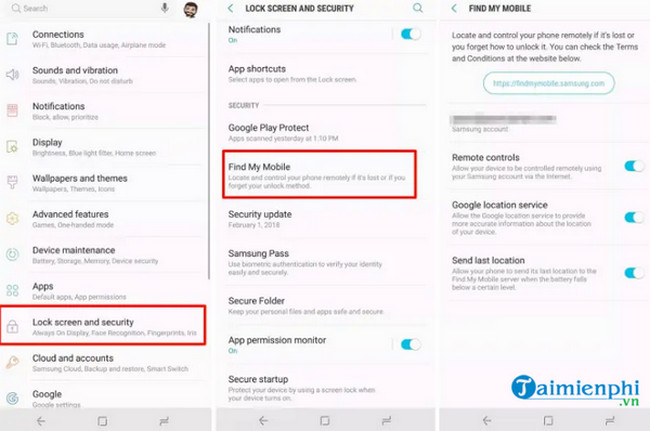
Go to Settings => Lock Screen and Security => Find My Mobile .
Step 2 : If prompted to log in, sign in with your Samsung account information.
Step 3 : Next, activate the Remote Controls option to back up your data, and the Google location service option to pinpoint the exact location of your lost Samsung phone.
Finally, the "Send last location" option retrieves information and locates the Samsung phone's position before it was turned off.
Locate a lost Samsung phone.
Follow the steps below to locate and find your lost Samsung phone:
Step 1
Open any browser on your computer and go to the Find My Mobile website.
Step 2: Enter your Samsung account information and click the Sign in button.
Step 3: If prompted, check the box next to the " I'm not a robot " option to continue.
Step 4 : After logging in, access your list of Samsung phones.
Step 5: Select the phone you want to access and continue.
Step 6 : If your phone is turned on, the feature will load the device's current location. A map will be displayed on the screen.
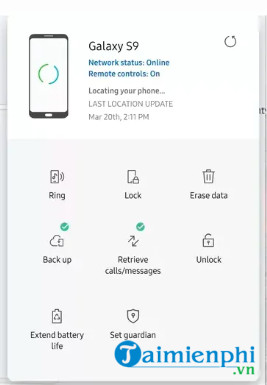
Additionally, the screen displays a window with options allowing users to remotely lock their phone, ring it, erase data, back up stored files, retrieve call and SMS messages, and unlock the phone.
Method 2: Using the Find My Device feature
The Find My Device feature on Android works similarly to the Find My Mobile feature on Samsung phones, allowing users to locate their lost phone.
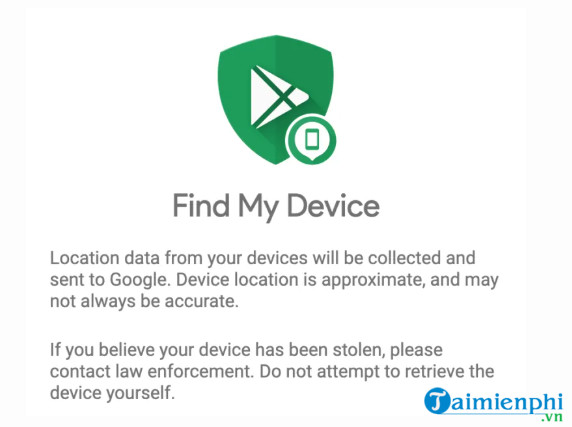
Note: This method only applies to Samsung devices running Android, not to devices running the Tizen operating system.
Step 1
Open any browser and access the Find My Device website.
Step 2: Log in using the Google account information you use on your Android phone.
Step 3: A list of your phones will appear under the Account section . Click on the Samsung phone you want to locate and track.
Step 4: If your phone is turned on, its location will be displayed on the screen.
After locating and accessing your phone, you can lock your device to protect your data. Follow the steps below:
Step 1
Click on the lock icon.
Step 2 : Enter your password.
Step 3: Your Samsung phone will now be locked.
Method 3: Use Spydialer service to locate a lost Samsung phone.
Another way to locate a lost or misplaced Samsung phone is to use the Spydialer service. This web-based service is designed to allow users to check and find detailed information about unknown users or contacts.
Additionally, you can use Spydialer to find out the user's location details via their email address. This way, you can also locate and recover your lost Samsung phone.
Follow the steps below:
Step 1
Assuming your Samsung phone is lost and you have activated the Find My Device feature, you can use it to locate and track the device's position.
Step 2: After locating the position, note down the detailed address including the street name, city, etc.
Step 3: Next, access the Spydialer homepage and use the information you have gathered to search for details about the person holding your device.
Step 4: Click on Address and fill in all the information, then click Search to search.
Step 5: The screen will display all the information about the user living at that address.
Method 4: Locate a lost Samsung phone using the Spyic app.
Spyic is a monitoring application designed to track and locate Android devices. After downloading and installing, the application will secretly load all data from your device and synchronize it with the Spyic cloud service.

Download and install Spyic here.
Method 5: Locate a lost Samsung phone using Cocospy
Besides Spyic, Cocospy is also a reliable phone tracking app to monitor and locate your lost or misplaced device. The app does not require root access and operates in stealth mode.
Request:
- A Samsung phone running Android 4.0 or higher.
- An active email address.
- A stable internet connection.
Follow the steps below to set up and locate your Samsung phone:
Step 1
Open any browser and access the Cocospy website. Create a new account if you don't already have one.
Step 2: Select the Android icon to continue.
Step 3 : Choose any package and proceed with payment.
Step 4: You will receive a confirmation email with payment details, login information, and a download link for the application.
Step 5: Download and install Cocospy on your Samsung phone. Make sure you select Stealth Mode during installation .
Step 6: If your Samsung phone is lost and you have Cocospy installed, log in to your Cocospy account on another device.
Step 7: Wait for a while for the synchronization with your Samsung phone.
Step 8 : A control panel will appear on the screen, showing your phone's information in the left-hand frame, including location information.
Step 9 : Click on the corresponding options to access messages, calls, location, web browsing, etc., on your lost Samsung phone.
Above, TipsMake has introduced 5 simple and easy ways to locate a lost Samsung phone. If you're using an Android phone, you can also refer to methods for finding a lost Android phone to increase the effectiveness of your search. Additionally, if you have any further questions or need clarification, such as how to find a lost iPhone when location services are not enabled, please leave your comments in the section below the article.
Related Articles
 Find Samsung Phone, How to Locate Samsung When Lost5 minutes read
 How to Locate a Samsung Phone When Lost6 minutes read
 How to Use Find My Mobile to Find Lost Samsung Galaxy Phones6 minutes read
 How to Use Find My Device to Locate a Lost Phone on Android or PC5 minutes read
 How to Find a Lost Samsung Phone3 minutes read
 How to Measure Phone Charging Speed5 minutes read
Reader Comments 0
Sign in with email or Google to join the discussion.