Table of Contents
This updated guide explains how to upgrade old photos with ultra HDR on Google photos with clear steps, practical tips, and useful context. Google Photos has an additional option to upgrade old photos with Ultra HDR, improving the quality of old images using the available tools on the application. Old photos after converting to Ultra HDR will have more colors, much more vivid.
How to Upgrade Old Photos with Ultra HDR Google Photos
Note, this feature is said to be coming in version 7.24.0.747539053 for some users.
Open the image on Google Photos, then tap Edit at the bottom of the screen, then scroll to the adjustments tab and tap Ultra HDR.
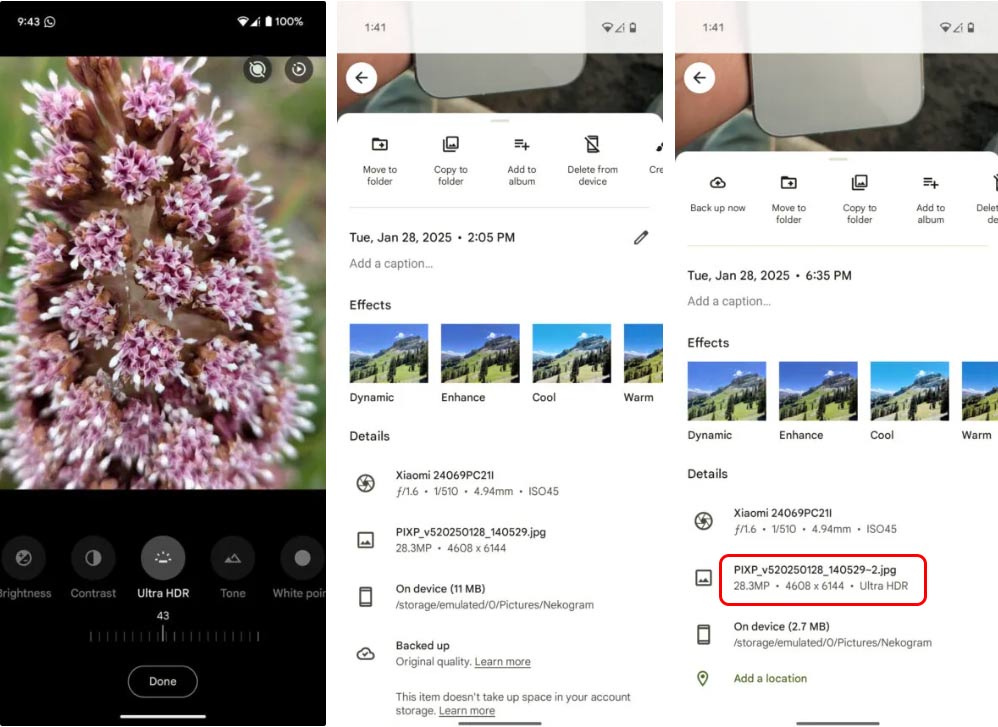
In the screenshot above, you can clearly see the difference between the standard photo and the new Ultra HDR-enhanced photo in Google Photos. The converted photo is labeled 'Ultra HDR' in the details, and its file size is significantly smaller. that is because Ultra HDR photos use a smaller gain map than the original photo. This gain map stores information about brightness, allowing your device to display brighter, more colorful photos without having to store as much data as a full-resolution photo.
FAQ
What should I prepare before I upgrade old photos with ultra hdr on google photos?
Review the requirements and options in the guide first. Having the correct device, app version, account access, or materials ready helps prevent avoidable errors.
How long does it take to upgrade old photos with ultra hdr on google photos?
The time depends on the task and your setup. Most basic steps can be completed quickly, while downloads, updates, scans, or troubleshooting may take longer.
What should I do if the steps do not work?
Repeat the instructions in order, confirm that your software or device is supported, and check permissions, connectivity, and available updates before trying again.
Related Articles
 Instructions for Using Google Photos on Windows 105 minutes read
 Use Google Photos to Store Unlimited Photos6 minutes read
 5 Annoying Features on Google Photos You Should Turn Off Immediately6 minutes read
 5 Settings That Make Using Google Photos Easier: Explained8 minutes read
 5 Main Differences Between Galaxy S24 Ultra and S23 Ultra: Recommended Choices8 minutes read
 22 Tips to Help You Master Google Photos23 minutes read
Reader Comments 0
Sign in with email or Google to join the discussion.