Table of Contents
This practical guide explains how to unlock digital markets act (dma) features in Windows. Follow the steps in order, review the requirements first, and use the troubleshooting notes when a setting or option does not work as expected.
What are the DMA features in Windows?
The main goal of the DMA is to ensure that the digital marketplace remains fair and competitive. Since Microsoft has several features in Windows that favor its products over those of its competitors, they have had to make changes to comply with the DMA. Here are some of the notable changes that EEA users will have exclusive access to.
- Uninstall default Windows apps : Core Windows apps like Microsoft Edge, Photos App, Windows Store, etc. can be uninstalled using the regular Uninstall function.
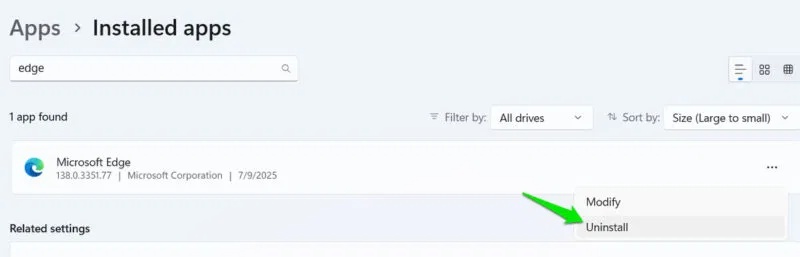
- Manage default browser : The "Set default" option will set the selected browser to all supported link and file types. Windows will also not show pop-ups/banners to switch back to Edge.
- Third-party providers for Windows Search : You can add third-party search providers to Windows Search to see results.
- Don't automatically sign in to Microsoft apps : Unless you sign in yourself, Windows won't sign you into all apps like Bing, Edge, Start feed, etc. when you sign in with a Microsoft account.
- Clearly mark apps : Windows will clearly mark system apps and third-party apps in Windows Search to differentiate.
If you want these and many other Windows features that are limited to the EEA, here are two ways to enable them.
Manually enable DMA features in Windows
For the best control, you should manually enable these features by editing the "IntegratedServicesRegionPolicySet" JSON file in Windows. This file controls the deployment of region-based features. You can add your PC's region to it to enable region-restricted features. Here's how:
First, you need to get your hands on the JSON file you want to edit. While you can do this yourself, I'll use a PowerShell command to make it easier. Search for "powershell" in Windows Search, right-select Windows PowerShell , and select Run as administrator . Here, run the following command:
takeown /f "C:WindowsSystem32IntegratedServicesRegionPolicySet.json" icacls "C:WindowsSystem32IntegratedServicesRegionPolicySet.json" /grant "Username:(F)"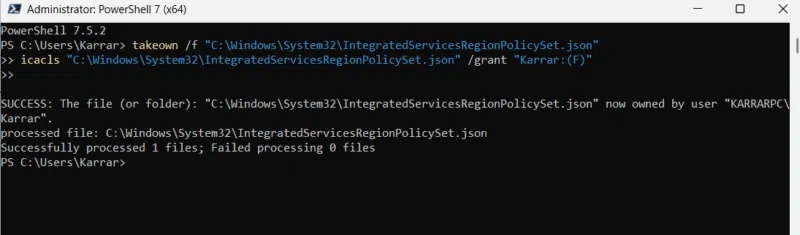
Change the "Username" part to your actual username in Windows, for example "Karrar:(F)". If Windows is installed on a drive other than C, change the letter C in the command to the drive letter where Windows is installed.
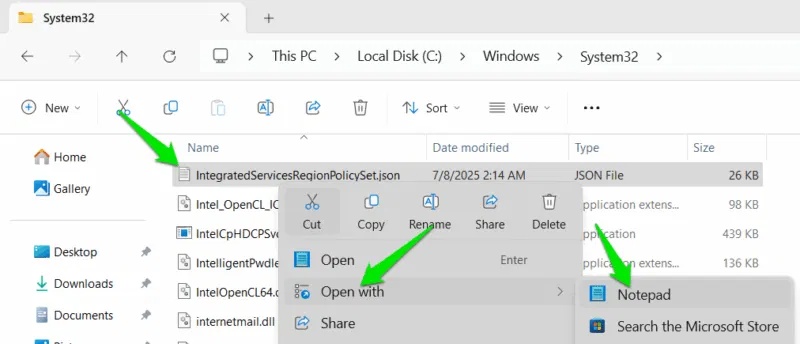
Now go to "C:WindowsSystem32" , find the file "IntegratedServicesRegionPolicySet.json" , right select the file and select Open with -> Notepad .
Here you will find the features listed with their name, default state, and region. In the enabled/disabled region section of each feature, you will need to add your computer's 2-letter region code in quotation marks and separate it with a comma. For example, if your computer's region is the United States, add "US" to the beginning or end of the region, separated by a comma. Similarly, India or Singapore, would be "IN" or "SG".
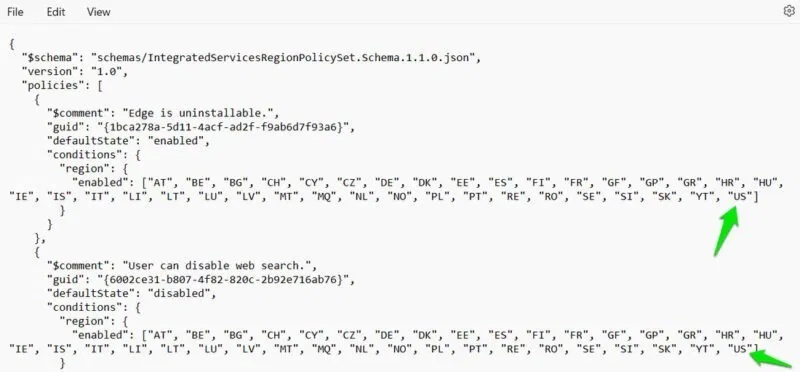
Features with multiple EU countries are EEA-specific. Some features are enabled/disabled for other countries, such as China or Russia. Be careful not to add your region to those features (unless you want them too).
When done, click File -> Save and restart your computer for the changes to take effect.
Use Wintoys app to automatically enable DMA features
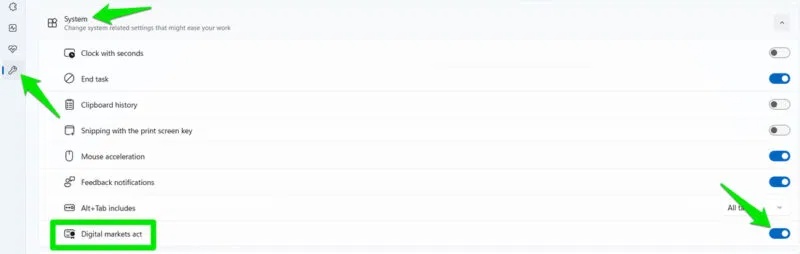
If you want to automate the process, you can also use the popular Wintoys app that enables Digital Markets Act features with a single toggle. This app does the same thing by adding the PC region to all DMA features in the IntegratedServicesRegionPolicySet file. However, unlike the manual method, you cannot control which features are enabled/disabled because it applies to all of them.
Launch the Wintoys application, select the Tweaks tab in the left panel and expand the System section. Here, enable the Digital Markets Act toggle. You will have to restart your PC for the changes to take effect.
It is possible that these changes will be reset if a new Windows update resets the IntegratedServicesRegionPolicySet file or if you reset Windows. It is recommended that you make a copy of this file and back it up locally or in the cloud for easy replacement later.
FAQ
What are the DMA features in Windows?
The main goal of the DMA is to ensure that the digital marketplace remains fair and competitive. Since Microsoft has several features in Windows that favor its products over those of its competitors, they have had to make changes to comply with the DMA. Here are some of the notable changes that EEA users will have exclusive.
What should you know about manually enable DMA features in Windows?
For the best control, you should manually enable these features by editing the "IntegratedServicesRegionPolicySet" JSON file in Windows. This file controls the deployment of region-based features. You can add your PC's region to it to enable region-restricted features. Here's how:
What should you know about use Wintoys app to automatically enable DMA features?
If you want to automate the process, you can also use the popular Wintoys app that enables Digital Markets Act features with a single toggle. This app does the same thing by adding the PC region to all DMA features in the IntegratedServicesRegionPolicySet file. However, unlike the manual method, you cannot control which.
Related Articles
 Instructions for Enabling 'Slide to Unlock' Feature on iOS 104 minutes read
 Unlock iOS 10 Screen Is Much Simpler with 3 Ways6 minutes read
 Smartphone Will Replace the Car Keys in the Future4 minutes read
 More Than 30 Large and Small Technology Companies Wrote a Letter Criticizing6 minutes read
 How to Unlock Windows Laptop with Mi Band 3 / Mi Band 45 minutes read
 Unlock Hidden Features on Windows 10 with Some Registry Tricks18 minutes read
Reader Comments 0
Sign in with email or Google to join the discussion.