Table of Contents
After reinstalling the operating system, many of us have to reinstall drivers because not all operating systems support them. Even on Windows 10, missing drivers is common. Users often install driver search software for their laptops to resolve this issue.

Fixing the issue of headphones not being recognized on a laptop after installing Windows 10.
To fix the issue of headphones not being recognized on a laptop after installing Windows 10, you can't just use driver-finding software . Sometimes, it's not necessarily due to missing drivers; it could be because a component has been disabled. To delve deeper into this issue and guide readers through various ways to fix the headphone not being recognized on a laptop, TipsMake will now provide you with a guide on how to fix this problem after installing Windows 10.
How to fix the problem of headphones not being recognized on a laptop.
Step 1
The first thing you should do is check if any applications are 'accidentally' turned off by opening the Start menu , typing ' Sound ', and accessing the search result.
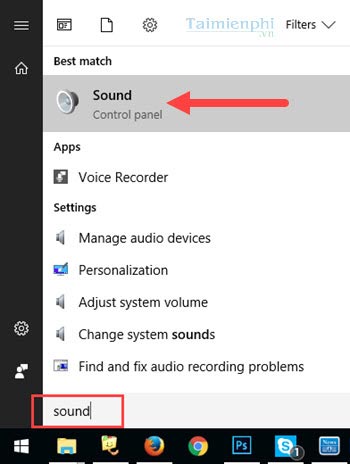
Step 2
In the Playback section , right-click on the blank space and select Show Disabled Devices to open the list of disabled devices.
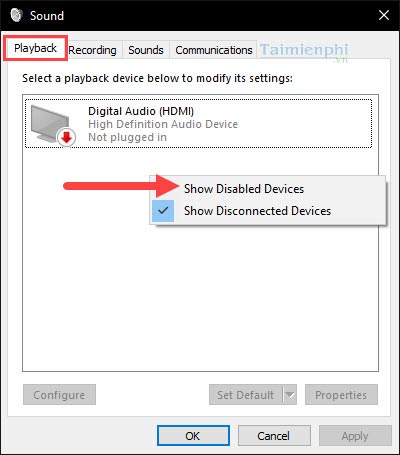
Step 3
If any device is currently turned off, simply select Enable to turn it on.
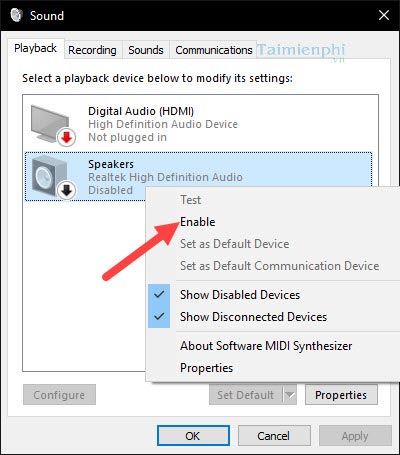
Step 4
To see if they work, select Test .
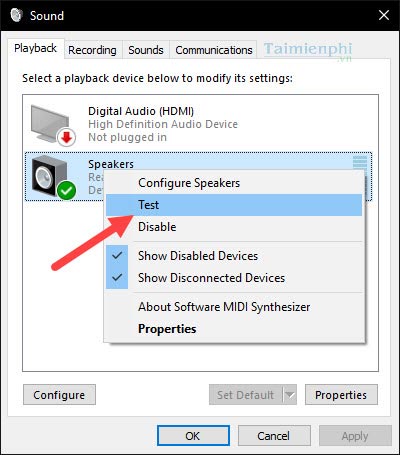
Step 5
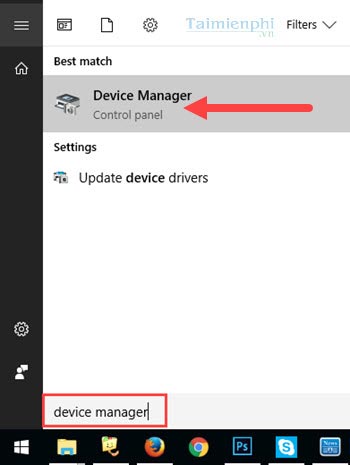
If you have followed the instructions above and the laptop still doesn't recognize the headphones, proceed to the next step. Reopen the Start Menu and type ' device manager ' to access the device management section.
Step 6
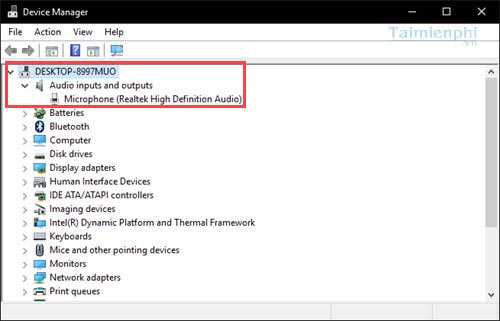
Right in the Audio section, you will see the input and output devices in the machine, called Audio inputs and outputs .
Step 7
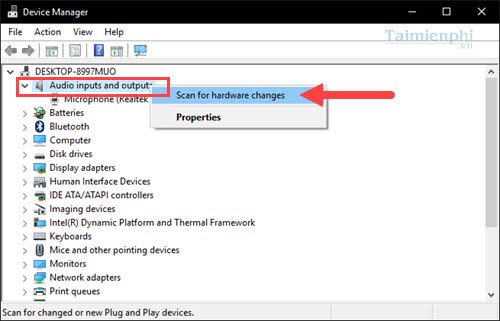
Right-click on Audio inputs and outputs and select Scan for hardware changes to search for missing drivers on your computer.
Step 8
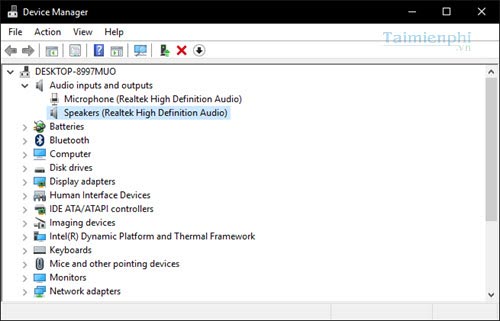
Right after this step, you will see the Speakers driver ; this is the driver that your laptop is missing.
Fix the problem of headphones not being recognized on your laptop using software that automatically searches for drivers.
In addition to the method above, TipsMake introduces another great way: using the iobit Driver Booster software for automatic driver searching. Driver Booster not only helps you find drivers but also manages and updates the latest drivers on your computer.
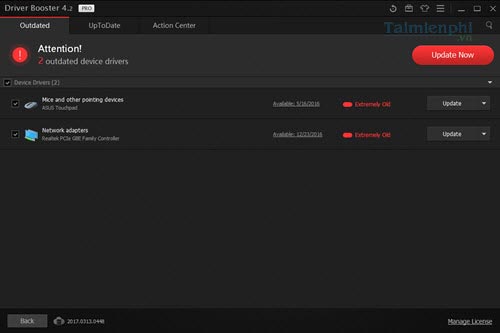
Using Driver Booster also helps minimize the risk of accidentally installing or uninstalling drivers that cause errors on your computer or laptop, unlike some other unofficial software. In addition, installing Driver Booster helps you identify which drivers are old, new, or need updating to a higher version.
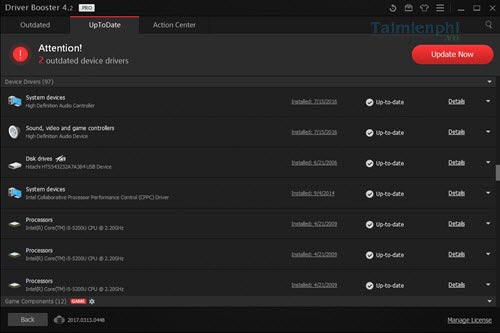
With the two methods provided by TipsMake, you can effectively and safely fix the problem of your laptop not recognizing headphones after reinstalling Windows 10. Besides Driver Booster, Driver Easy is also a good software, a strong competitor you can consider. Updating drivers using Driver Easy has long been trusted; if you're unfamiliar with this software, you can refer to TipsMake's guide on updating drivers using Driver Easy .
Additionally, if your headphones crackle or produce interference when plugged into a laptop or computer, it can be frustrating. If you encounter this problem, please refer to the tips for fixing crackling headphones on Tipsmake.com.
Related Articles
 Summary of Some Ways to Fix USB Device Not Recognized on Windows9 minutes read
 Standard Procedure for Installing Computer and Laptop Drivers6 minutes read
![[BUG FIXED] Laptop Without Headphones Loses Sound on Windows Explained](/data6/thumbs_200x120/[bug-fixed]-laptop-without-headphones-loses-sound-on-windows_thumbs_200x120_do6P5nxjY.jpg) [BUG FIXED] Laptop Without Headphones Loses Sound on Windows Explained7 minutes read
[BUG FIXED] Laptop Without Headphones Loses Sound on Windows Explained7 minutes read 6 Ways to Fix the Error of Not Recognizing SSD Drive in8 minutes read
 How to Fix Laptop Not Receiving Headphones5 minutes read
 Top 7 Best Wired Headphones: What You Need to Know8 minutes read
Reader Comments 0
Sign in with email or Google to join the discussion.