This guide explains how to turn on / Off Xiaomi (No Need Power Button and Have Power Button), with clear steps, practical tips, and important checks before you begin.
I. How to turn on / off xiaomi power with power button
Firstly for first-time users of Xiaomi phones, I will show you the steps to turn off and turn off Xiaomi phones as follows:
Step 1: To turn off the phone, press and hold the power button on the phone located on the right side of the device that is located below 2 volume keys.

Step 2: On the screen this time will display different options, click the box Power Off - Power off.

Step 3: Click once more on this icon, immediately the phone will proceed to power off.

Step 4: To turn on the phone, simply press and hold the power button as in step 1 and wait for the screen to light up.

II. How to turn off Xiaomi power by shortcut key
In case the power button is damaged, you can fix and replace them by using the shortcuts set on the main screen of your Xiaomi device to turn off the power without having to use the very convenient physical key.
The steps are as follows:
Step 1: On the main screen of your phone, hold down any space on the screen until the interface options appear.
Step 2: Now, you click on the Widgets box > Quick functions.
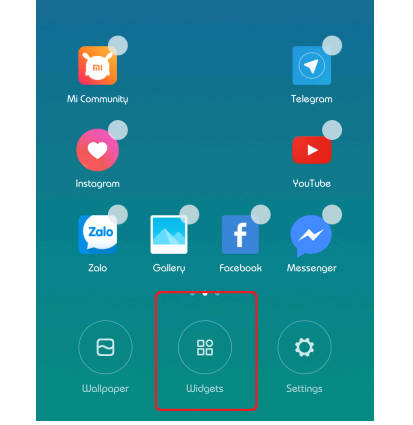
Step 3: Here you will see a shortcut named Lock (Lock), hold down the shortcut and move them to the main screen and place in the most easily accessible position.
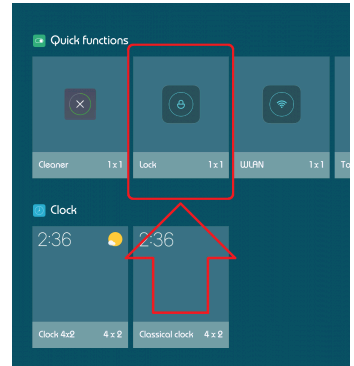
Step 4: So from now on when you want to turn off the phone, you just need to press this shortcut and the phone will automatically shutdown without having to use the power button anymore.
If you do not want to use this utility anymore, you just need to press and hold the Lock shortcut and delete them.
III. How to turn on the screen of Xiaomi phones without power key
In addition to how to turn off the Xiaomi phone screen as simple as above, in this section, I will give you more instructions on how to turn on the Xiaomi phone screen without using the power button very conveniently.
The steps are as follows:
Step 1: In the main screen, you access the Settings

Step 2: Select the Display section

Step 3: In the System section, turn on the Touch Screen feature twice to wake the device by pressing the slider to turn blue.

Step 4: Now when the phone screen is off, you can double-tap the screen to turn on the screen without using the power key.
If you do not want to use this feature anymore, you just need to follow step 3 and return the slider to the off state is done.
So, I have shown you the easiest ways to turn off and turn on the Xiaomi phone. Hopefully through this article, you have gained some useful tips when using Xiaomi phones. I wish you successful implementation!






Reader Comments 0
Sign in with email or Google to join the discussion.