Table of Contents
Learn how to enable pedestrian collision warning on Android with clear steps, practical tips, and troubleshooting guidance for a reliable result.
How to enable pedestrian collision warning on Android
Step 1
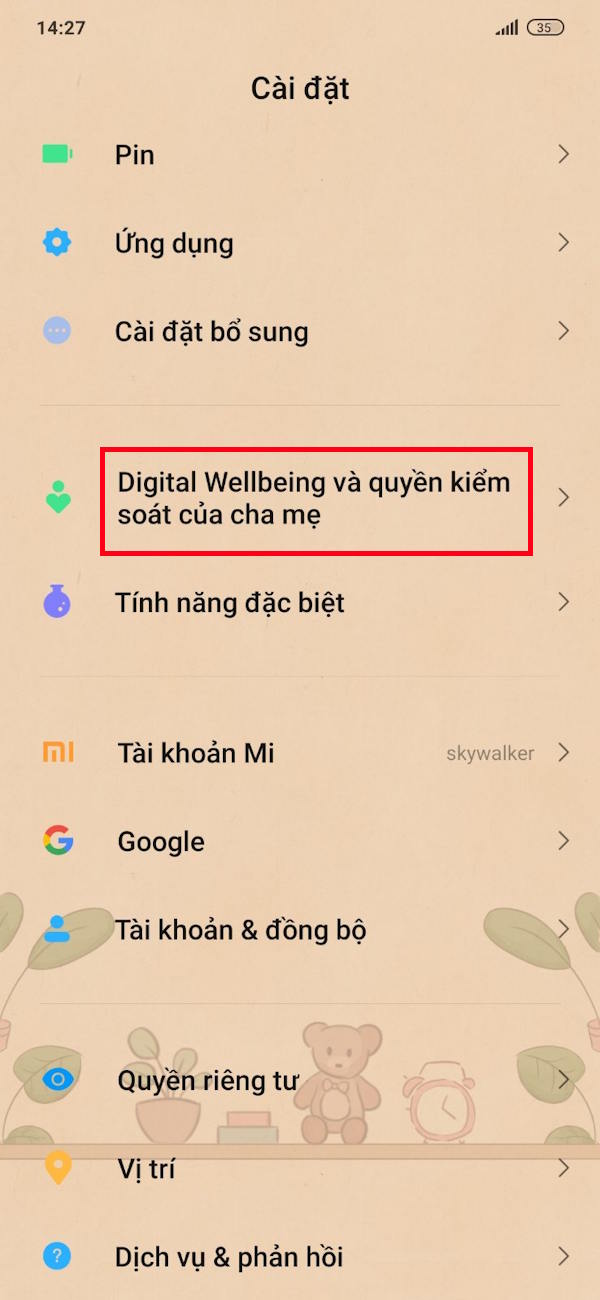
Access your Android phone's settings and then select Digital Wellbeing to begin the setup process.
Step 2
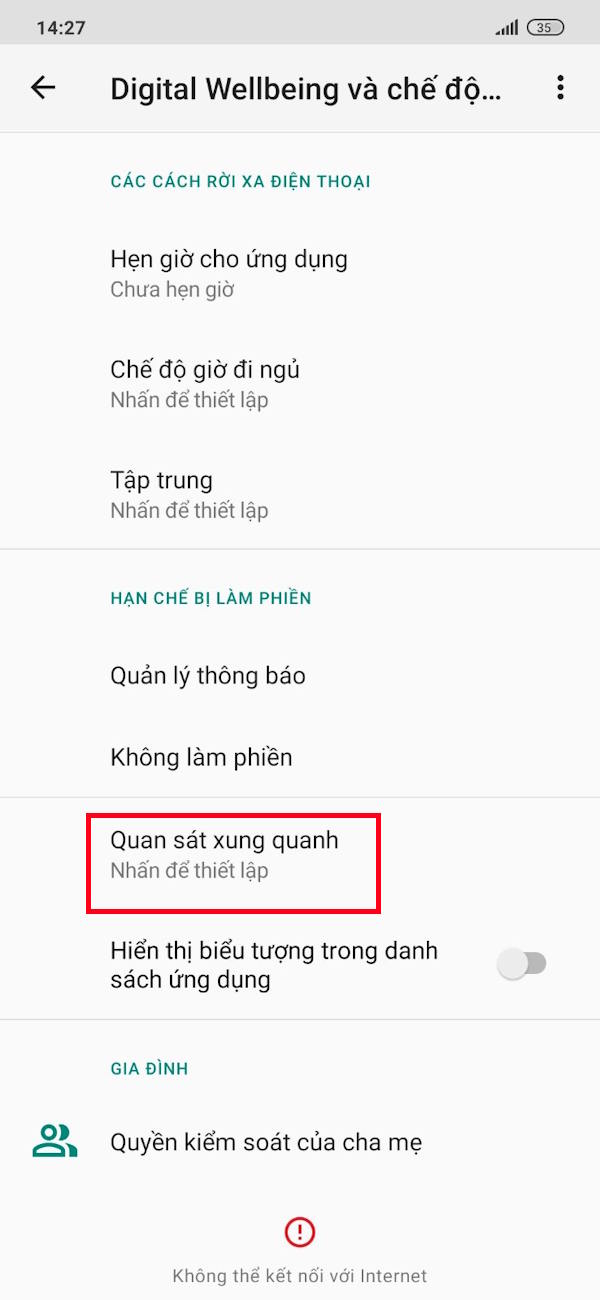
On the next screen, the user selects the "Observe Surroundings" option to enable the collision warning feature. We then click " Next" to proceed.

Step 3
Here you can select Location if needed , or skip it if you don't want to, then click Next below.

If you enable location services, you will be asked to allow Digital Wellbeing to always use your phone's location.


Step 4
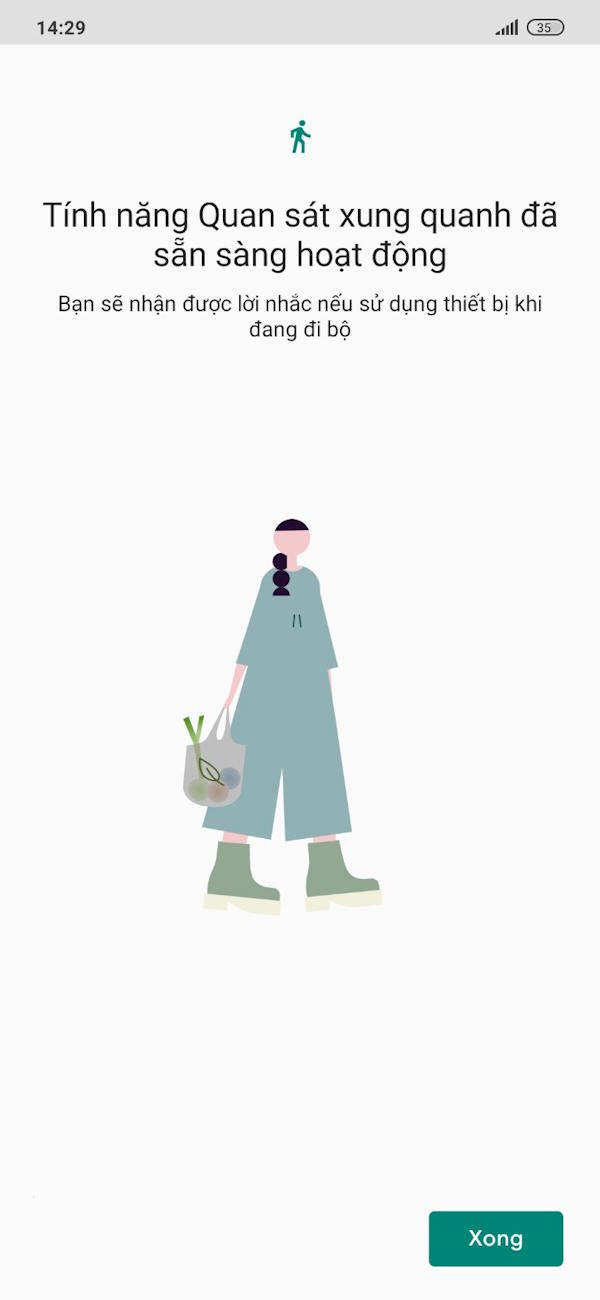
After you have finished setting up collision warnings while walking on Android, you will see a notification interface like the one shown in the image.
Final Thoughts
Use this guide as a practical checklist for how to enable pedestrian collision warning on android. Work through the steps in order, verify each result, and adjust the options to match your needs.
FAQ
What do you need before following this How to Enable Pedestrian Collision Warning on Android guide?
Review the required tools, accounts, settings, or materials mentioned in the article. Learn how to enable pedestrian collision warning on Android with clear steps, practical tips, and troubleshooting guidance for a reliable result.
What are the main steps for how to enable pedestrian collision warning on android?
Follow the sections in order, especially How to enable pedestrian collision warning on Android, Step 1, Step 2. Complete each step before continuing and verify the result as you go.
What should you do if the process does not work as expected?
Recheck the prerequisites, update the relevant app or service, review the settings, and repeat the step that caused the issue. Use any troubleshooting notes included in the guide.
Related Articles
 Why Are There so Many Planes in the Sky at the Same Time but They5 minutes read
 How to Turn Sensitive Content Alerts on and Off on iPhone7 minutes read
 How to Survive a Car Accident as a Pedestrian6 minutes read
 How to Enable Low Battery Warning on Windows 115 minutes read
 Enable Multi Window on Android 6.04 minutes read
 How to Enable Android System WebView: Step-by-Step Guide3 minutes read
Reader Comments 0
Sign in with email or Google to join the discussion.