Table of Contents
You can control Instagram notifications inside the app or block them at the iPhone or Android system level. Use Instagram's settings when you still want important alerts but not every like or follow. Use the phone's settings when you want to silence Instagram completely or change sounds, badges, lock-screen previews, and notification categories.
Pause all Instagram notifications temporarily
- Open Instagram and go to your profile.
- Tap the three-line menu.
- Open Settings and activity, then Notifications.
- Enable Pause all and choose the duration offered by the app.
This pauses Instagram's push alerts without changing every category individually. Messages and activity still exist inside the app when you return.
Use Quiet mode when available
Quiet mode can pause notifications on a schedule and may show other people that you are not receiving immediate alerts. In Instagram's notification settings, open Quiet mode, enable it, and set the days and hours.
Availability and labels can differ by account and region. If Quiet mode is missing, use Pause all, your phone's Do Not Disturb or Focus feature, or an operating-system notification schedule.
Turn off selected Instagram notification types
Open Instagram > Profile > Menu > Settings and activity > Notifications. Review categories such as:
- posts, Stories, and comments;
- following and followers;
- messages and calls;
- Live and Reels;
- fundraisers, shopping, or creator tools when applicable;
- email and other notification methods; and
- notifications from Instagram about support or account activity.
Choose Off, From people I follow, or another available audience for each category. Keep security, login, and account-status alerts enabled unless you have another reliable way to monitor them.
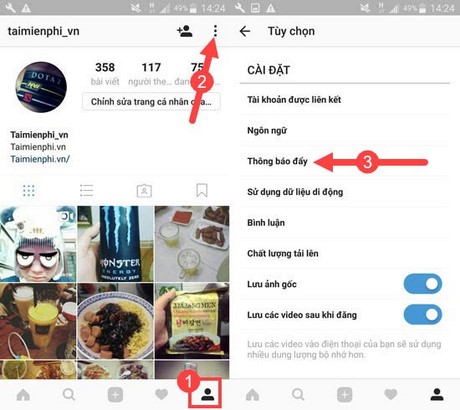
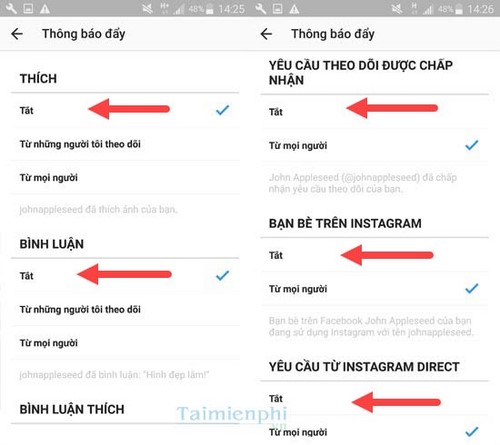
Turn off Instagram notifications on Android
- Open the phone's Settings.
- Select Apps, Applications, or App management.
- Choose Instagram.
- Tap Notifications.
- Turn off all Instagram notifications, or adjust the categories the phone provides.
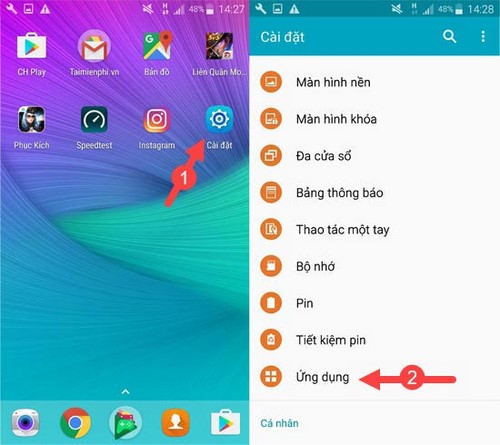
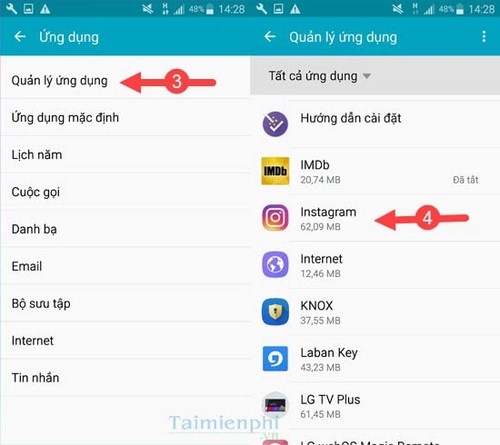
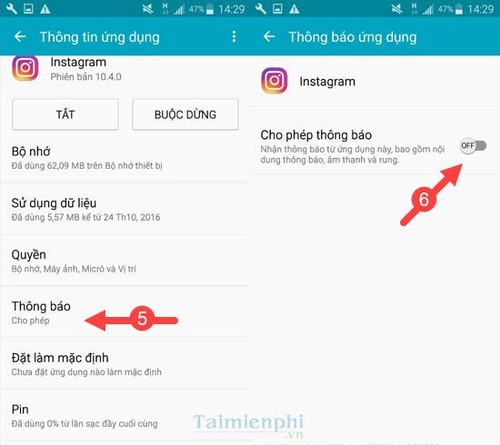
Samsung, Oppo, Pixel, Xiaomi, Motorola, and other Android devices use different menu names. You can usually press and hold an Instagram notification, then open its settings directly. Android may also expose separate channels for Direct messages, Live video, reminders, or other alert types.
Turn off Instagram notifications on iPhone
- Open the iPhone Settings app.
- Tap Notifications.
- Select Instagram.
- Turn off Allow Notifications to stop every Instagram alert.
To keep alerts but make them less disruptive, leave notifications allowed and disable selected delivery locations such as Lock Screen, Notification Center, or Banners. You can also change sounds, badges, banner style, grouping, and preview behavior when iOS offers those controls.
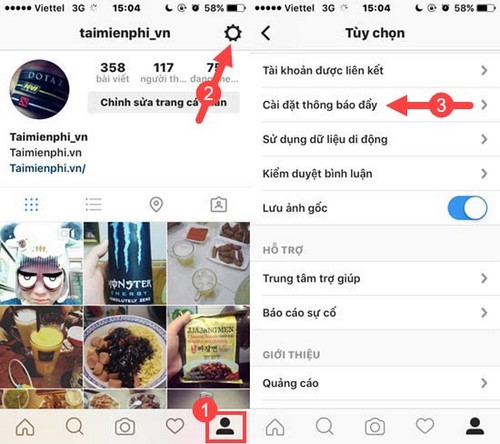
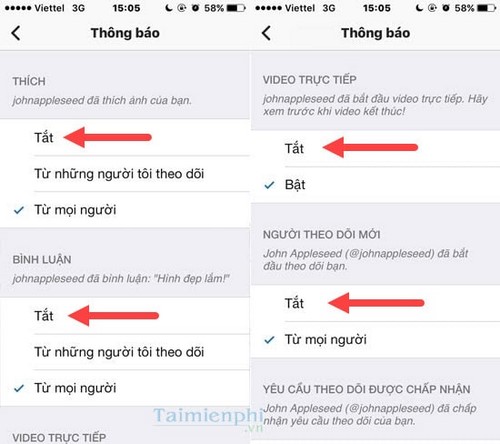
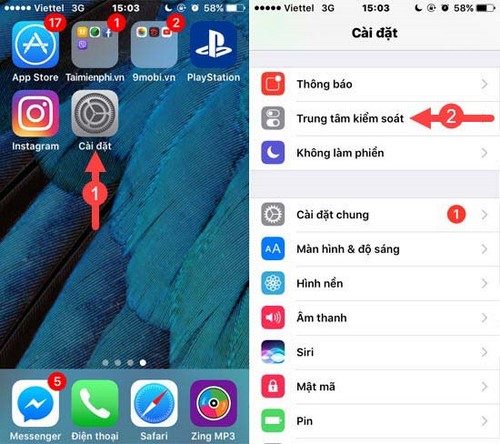
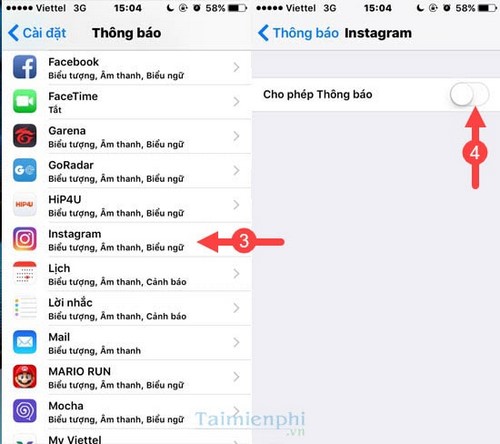
The screenshots use older iOS and Android interfaces. Current system settings may look different, but the app-specific notification page performs the same task.
Hide Instagram message previews on the lock screen
If you want to know that a notification arrived without displaying its content, change preview settings instead of turning alerts off. On iPhone, open the system notification settings and adjust Show Previews. TipsMake's guide to hiding message content on the iPhone lock screen explains the privacy choice.
On Android, open Instagram's notification settings or the phone's lock-screen notification settings and choose whether sensitive content is shown.
Mute one chat, account, or Live notification
You do not need to silence the entire app when one conversation or account is noisy.
- Open an Instagram chat, tap the conversation name, and adjust message or call notifications.
- Open an account's profile and use its Following or notification controls to change post, Story, Reel, or Live alerts.
- Press and hold a current notification to open the most specific category offered by the phone.
If Instagram notifications continue after being turned off
- Confirm whether the alert came from Instagram, Facebook, Threads, email, or a browser.
- Check both Instagram's in-app settings and the phone's system settings.
- Restart Instagram and the phone after changing the controls.
- Remove Instagram browser notification permission if the alerts come from a web browser.
- Update the app and operating system if categories behave incorrectly.
For more account and mobile settings, browse TipsMake's social-network guides.
Related Articles
 3 Ways to Turn Off Instagram Notifications to Avoid Being Disturbed: Top Picks6 minutes read
 How to Turn Instagram Notifications on and Off: Complete Guide10 minutes read
 Instructions to Turn Off Instagram Notifications Via Email3 minutes read
 How to Turn Off Notifications When Recording Oppo Screen: Step-by-Step Guide2 minutes read
 Instructions to Turn Off YouTube Notifications on Phones3 minutes read
 Review Oppo F15: Is It Only on the Outside?10 minutes read
Reader Comments 0
Sign in with email or Google to join the discussion.