Table of Contents
This updated guide explains how to transfer music library from spotify to Apple music with clear steps, practical tips, and useful context. Apple has launched a new tool for transferring songs, albums, and playlists from Spotify, Amazon Music, and other supported services. You can transfer music from Spotify or other music services to Apple Music on your iPhone, iPad, Android phone, or browser.
How to Transfer Music from Spotify to Apple Music
The transfer feature is accessible in the Music app on iPhone, iPad, and on Apple Music web. Before you do this, check to ensure Sync Library is turned on in the Music app settings on all your devices.
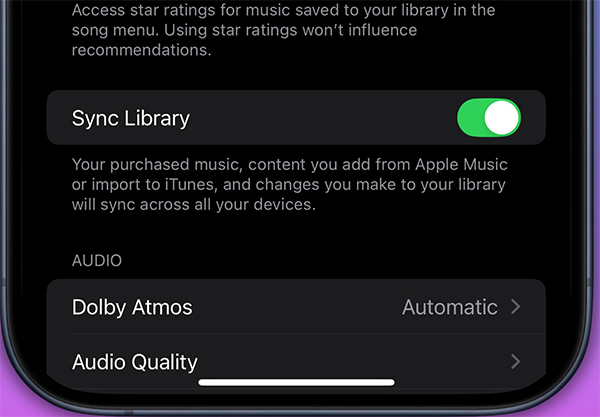
On iPhone, open Settings > Apps > Music and tap Transfer Music from Other Music Services . If you're using Apple web, tap your profile picture in the upper right corner and select Transfer Music.
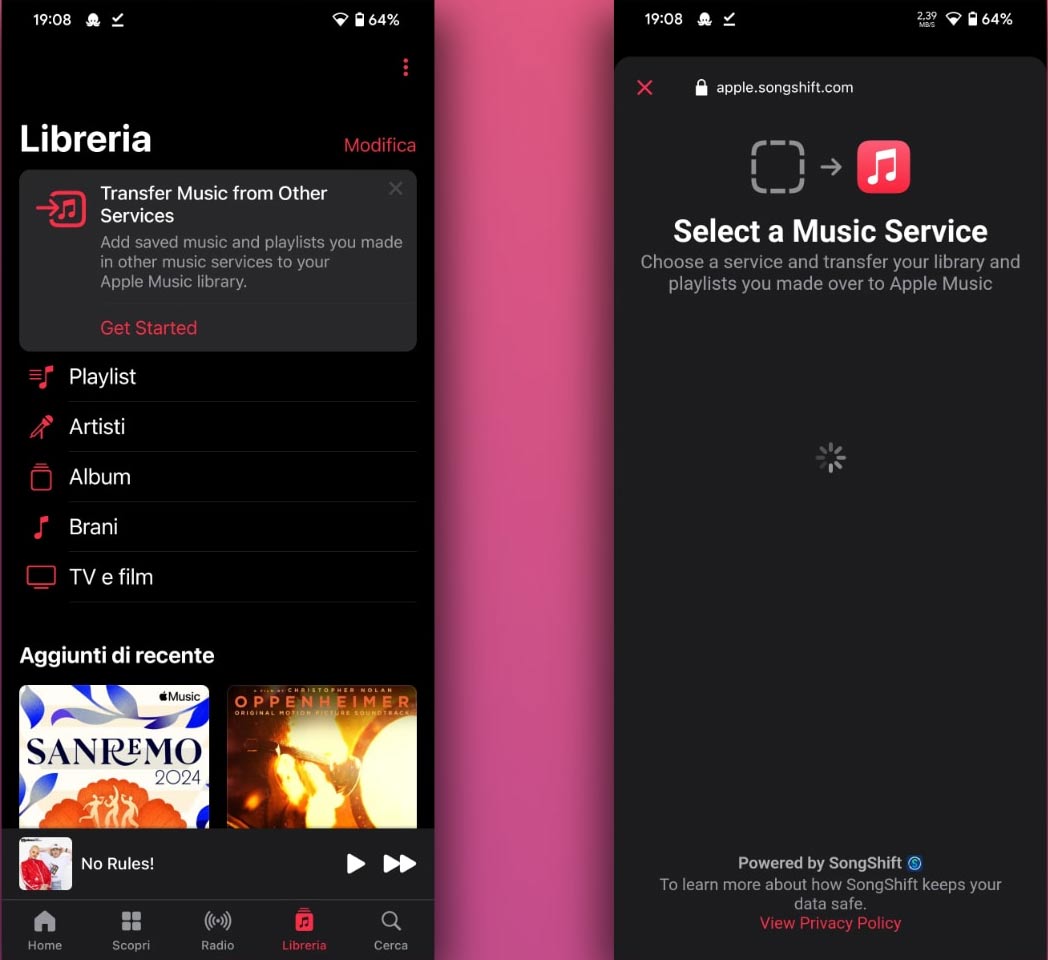
Now choose from the list of supported music services, like Spotify or Amazon Music. You need to sign in to the selected service. Next, select the songs and playlists to transfer and tap Add to Library. The playlist transfer will then be done.
Move Playlists with SongShift
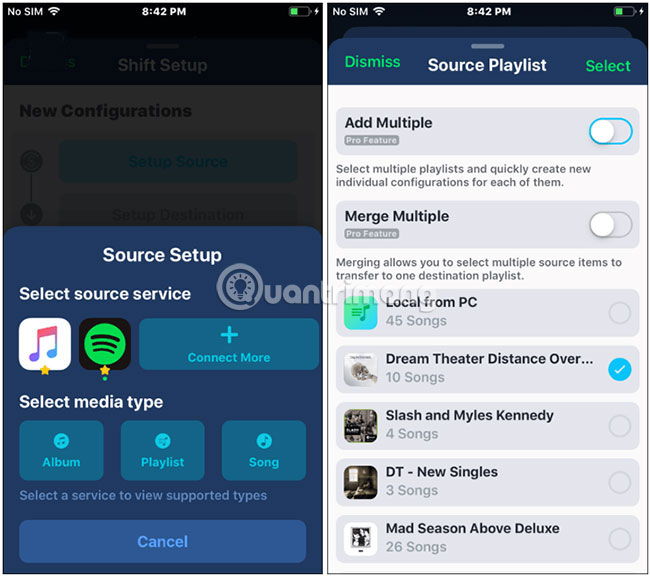
Assuming you're looking to switch to Apple Music because you have an iPhone or iPad, we'll first look at a free iOS app called SongShift. Just download SongShift to your iPhone, iPad, or iPod touch and launch it. Tap the Setup Source button.
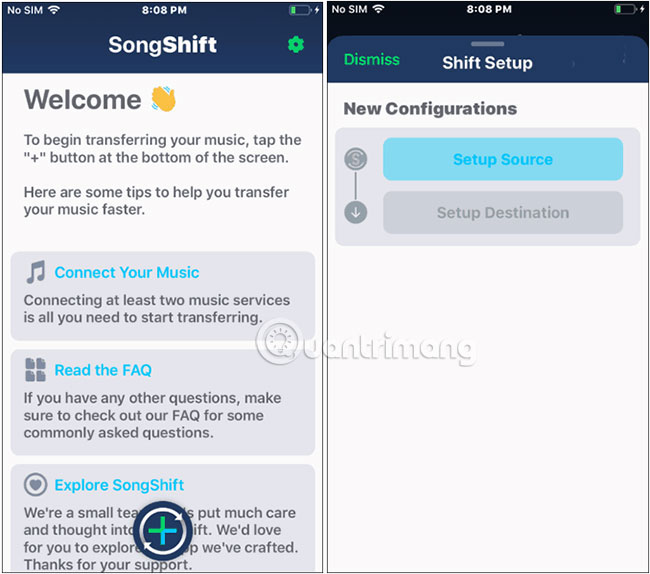
Next, select Spotify and enter your login information, then select Apple Music and sign in there. Note that You need to enable the Apple iCloud Music app in Settings to connect it to SongShift. Once both services are connected, tap the Dismiss button to close the screen.
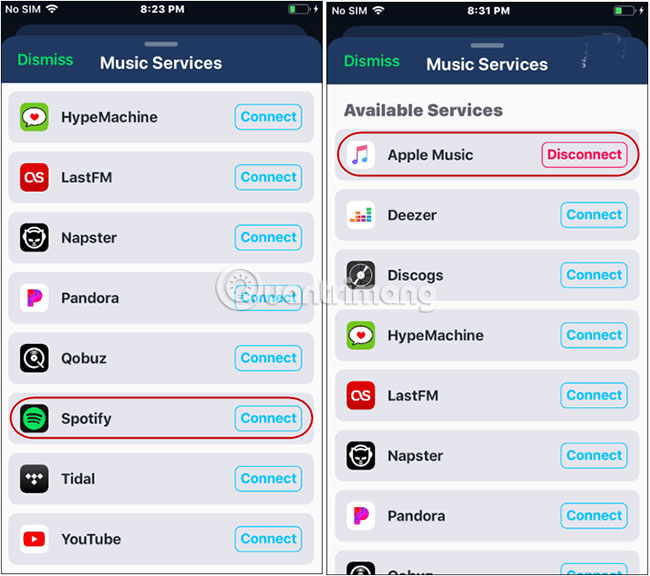
Then go back to the Setup Source section in the app, tap Spotify , and see to move an album, song, or playlist. Then select the item you want to move from your library and tap Select in the top right corner. In this case, it will move a playlist.
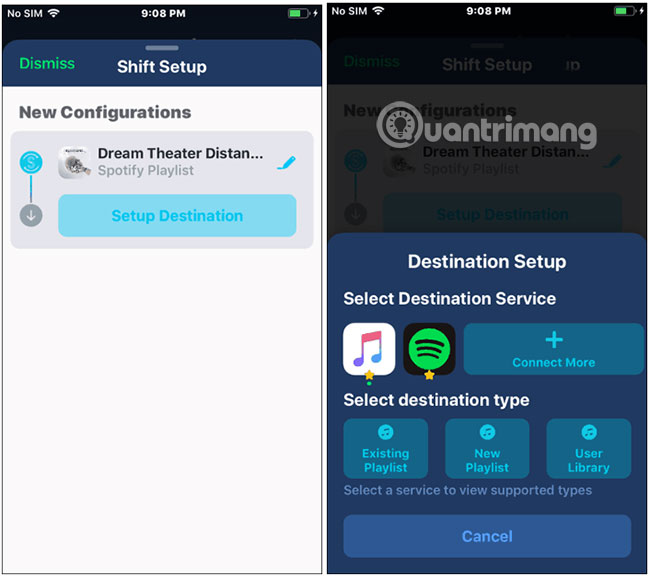
Next, tap the Setup Destination button. Then, select Apple Music and the item you want to move. Again, this example will move a playlist.
Then tap the I'm Finished button and the playlist from Spotify will be merged on Apple Music.
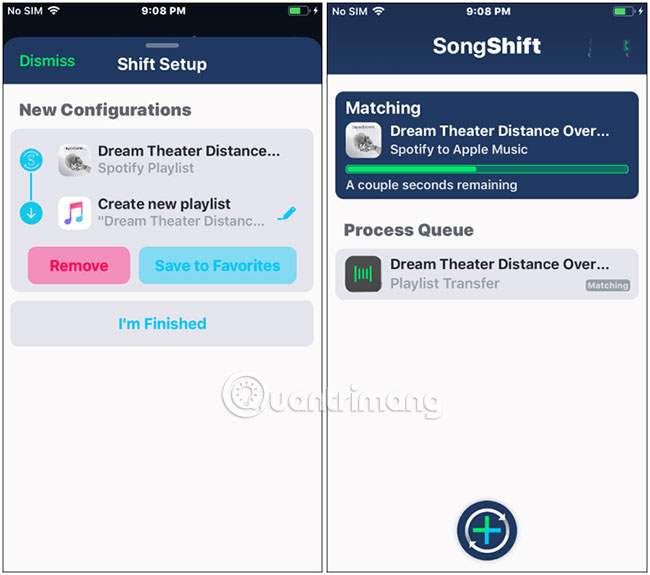
Important Note : to move multiple playlists at once, you'll need to purchase the Pro version of SongShift. At the time of writing, the Pro version costs $4.99. Still, if you're fine with moving them one by one, you can continue using the free version. Also, sometimes you cannot move a song because it is not in the Apple Music catalog.
Move Playlists with TuneMyMusic.com
Another free web-based tool for transferring music from Spotify to Apple Music (or vice versa) is TuneMyMusic.com. The main idea here is the same as the SongShift app. Select Spotify (or whatever service you're migrating to) and log in with your account credentials.
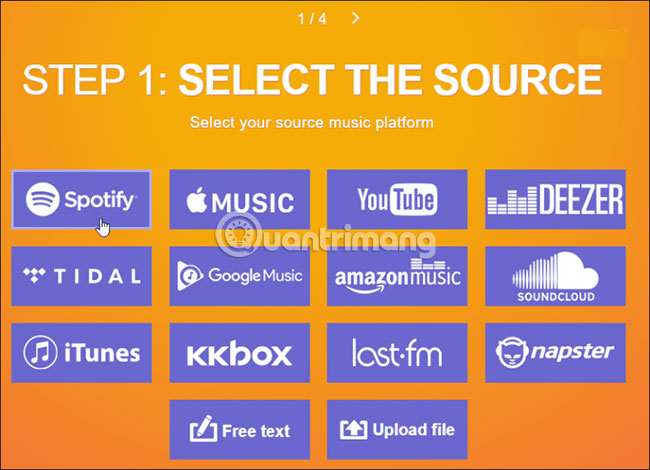
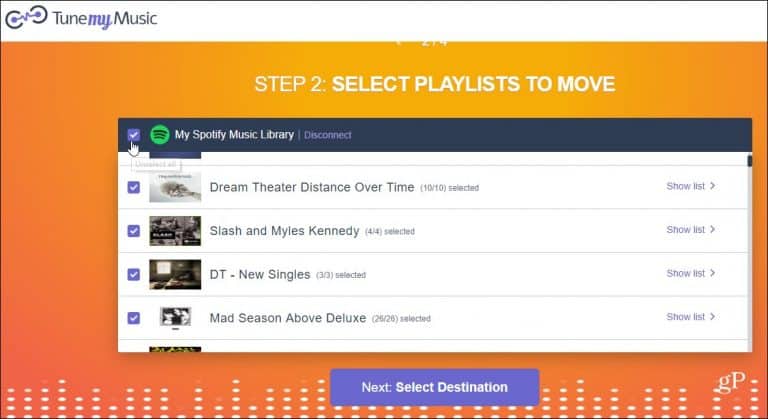
Next, you can see a link to the playlist you want to move. Or, choose Load from Spotify account. Then select the playlist(s) you want to move, and choose the Select Destination button.
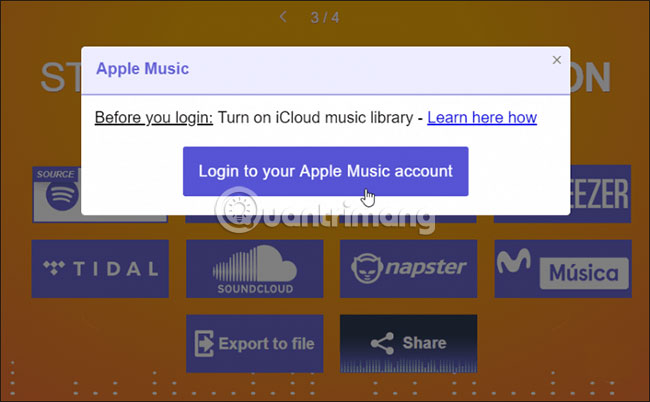
Select Apple Music (or another service) and sign in with your account information. If you have two-factor authentication turned on (and It is best to), you'll need to enter a security code sent to your device.
All done. You will see a progress screen while the playlist is transferred from Spotify to Apple Music.
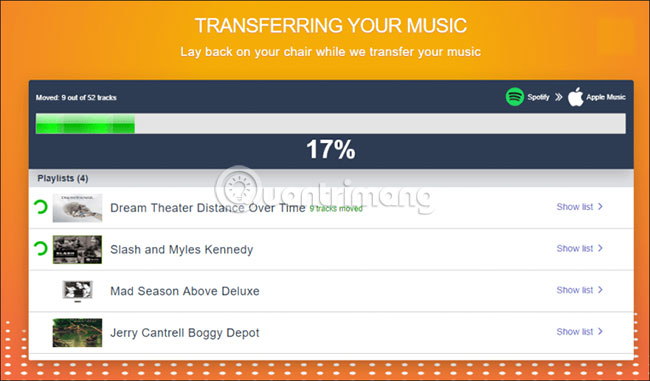
It is essential to mention here that TuneMyMusic.com lets you transfer multiple playlists at once. And you do not need to download an app.
You will find other ways to move your playlists between streaming music services. But the two options mentioned In this guide are the most reliable and simple to use. And the cool thing is that they support more platforms than just Spotify and Apple Music. You can transfer playlists from Google Music to Apple Music or YouTube Music to another service.
Good luck!
FAQ
What should I prepare before I transfer music library from spotify to apple music?
Review the requirements and options in the guide first. Having the correct device, app version, account access, or materials ready helps prevent avoidable errors.
How long does it take to transfer music library from spotify to apple music?
The time depends on the task and your setup. Most basic steps can be completed quickly, while downloads, updates, scans, or troubleshooting may take longer.
What should I do if the steps do not work?
Repeat the instructions in order, confirm that your software or device is supported, and check permissions, connectivity, and available updates before trying again.
Related Articles
 How to Transfer Music Playlists Between Spotify and Apple Music4 minutes read
 How to Transfer Spotify Interface to Vietnamese3 minutes read
 Compare Spotify and Apple Music: What to Know11 minutes read
 Why Is Apple Music AutoMix Better Than Spotify AI DJ?8 minutes read
 How to Listen to Offline Music on PC with Spotify5 minutes read
 5 Reasons Why It's Hard for Many People to Give up Spotify Despite Having6 minutes read
Reader Comments 0
Sign in with email or Google to join the discussion.