Table of Contents
Spotify Lets Users Enjoy Their Playlists by Playing Snake is easier to approach with a clear overview and reliable steps. This guide organizes the essential information, highlights practical details, and explains what to check along the way.
Key Takeaways
- Review a new way to enjoy spotify playlists.
- Explore spotify's snake game.
- Follow the recommended steps in order to avoid common mistakes with spotify lets users enjoy their playlists by playing snake.
A New Way to Enjoy Spotify Playlists
It's incredibly simple if you're one of the few people who hasn't played Snake. The game starts with a snake moving up, down, left, and right. Your job is to help the snake eat more, making it grow longer, by swiping in the right direction to reach its "food.".
The game ends when the snake crashes into itself. Depending on the version, crashing into a wall can end the game or the snake can wrap around the screen.
Spotify has created a Snake game with a musical twist. The game is called Eat this playlist, and it's built right into the app. Instead of leading the snake to food, you lead the snake to songs on your playlist! Oddly enough, the game is currently only available on iPhone and iPad.
Open the Spotify app and select any playlist if you have an iOS or iPadOS device and want to 'eat' a playlist. You can use your own playlists, playlists created by other users, or Spotify's auto-generated playlists like Discover Weekly or On Repeat. You can quickly find Spotify-generated playlists by going to the Search tab at the bottom, then tapping Made For You under the Browse all heading.
Once you've selected your playlist, tap the three horizontal dots, scroll all the way down, and select Eat your playlist from the menu.
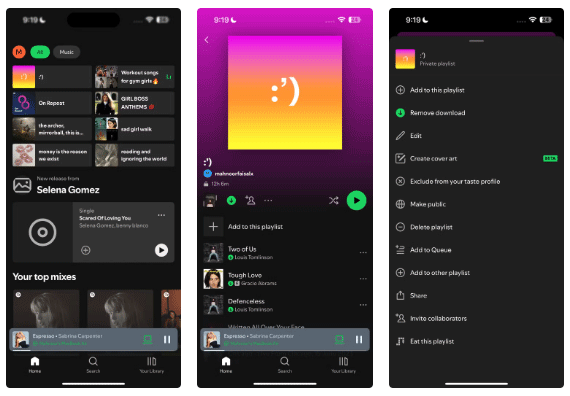
Spotify's Snake Game
You'll be taken straight to Spotify's Snake game. The game starts with a triangular "snake," and you'll see a track from your playlist represented by a small square with an album cover. You can help the snake reach it by swiping up, down, left, or right—when the snake "eats" the track, it becomes part of its tail, making the snake grow longer.
The game ends when your musical snake crashes into itself or into a wall.
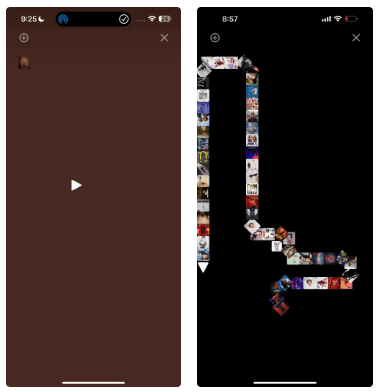
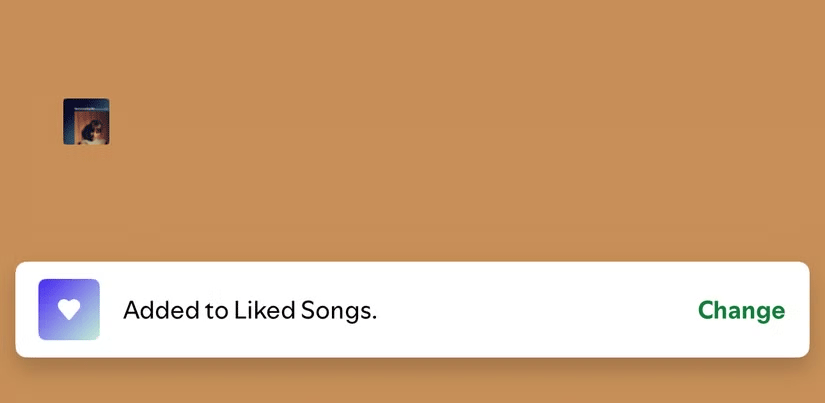
The background changes based on the album art, and the track that's currently serving as the snake's "food" will play in the background, giving you a fun preview of what your playlist will be about. Tap the plus (+) icon in the top left corner to add it to Liked Songs if you're playing a different playlist than yours and hear a song you like. You can save the song to another playlist if you tap Change when the Added to Liked Songs notification appears.
The playlist will start over if the playlist is relatively short and you manage to finish all the tracks. Just tap Play Again or follow the same steps to try a different playlist if you want to play it again. Spotify even keeps track of your highest score, so once you get the hang of it, you can try to beat your own record!

It's surprising how many people don't know this game has been on Spotify for so long. Plus, it's not just nostalgic; it's strangely addictive.
Final Thoughts
The most reliable way to handle spotify lets users enjoy their playlists by playing snake is to follow the process in order, verify each important setting, and test the result before moving on. Use the guidance above as a practical reference, then adjust the details for your device, software version, or specific goal.
FAQ
What should I know first about Spotify Lets Users Enjoy Their Playlists by Playing Snake?
Whether you're nostalgic or not, the iconic Snake game that came pre-installed on old Nokia phones is hard to forget.
How do I get the best results with Spotify Lets Users Enjoy Their Playlists by Playing Snake?
Use current software or equipment, follow the steps in order, review the recommended settings, and test one change at a time so you can identify what improves the result.
What should I do if Spotify Lets Users Enjoy Their Playlists by Playing Snake doesn't work as expected?
Check compatibility, permissions, connectivity, and version-specific settings. Restart the relevant device or app, then repeat the process carefully before trying a more advanced fix.
Related Articles
 How to Play Spotify's Hidden Snake Game6 minutes read
 Spotify Launches AI Feature That Recommends Personalized Playlists3 minutes read
 How to Merge Playlists on Spotify6 minutes read
 How to Create a Random Playlist on Spotify4 minutes read
 5 Ways to Create Unique Spotify Playlists: Best Options Compared9 minutes read
 How to Sync Spotify and Apple Music Playlists for Free6 minutes read
Reader Comments 0
Sign in with email or Google to join the discussion.