Table of Contents
This practical guide explains how to stop Windows from asking you to remove your GPU. Follow the steps in order, review the requirements first, and use the troubleshooting notes when a setting or option does not work as expected.
What is the "Eject GPU" option in Windows?
This option appears when Windows mistakenly treats your computer's GPU as removable. This is actually an option for external GPU enclosures or hot-plug-enabled slots. The problem occurs when Windows starts treating regular PCIe lanes or soldered GPUs as removable.
This error typically occurs on laptops with dual GPUs and computers with built-in eGPU support or computers with BIOSes that have hot-plug options. Since Windows device manager relies on information from the device's ACPI firmware, it can mistake a hot-swap device for a removable device, like a USB.
This option is not an error; it actually works, and you should not click it. If you click it, one of the following will happen depending on your computer configuration:
- The screen will turn off and you will hear the device disconnect sound. After a while, it will turn back on.
- The dedicated GPU will turn off and the computer will run on the integrated GPU. You will need to reboot if you need to run heavier programs.
- The screen will go black and not recover until you restart your computer.
If you don't want to accidentally remove the GPU, it's best to disable this option.
Disable PCIe hot plug feature in BIOS
Most computers that display this option will also have a hot plug or hot swap option in the BIOS that you can disable to completely remove this option. If you don't use external devices like eGPUs or other external PCIe peripherals, you can safely disable this option in the BIOS.
Go into BIOS/UEFI and look for the Advanced option. Here, you'll need to look for the PCIe configuration, located under Onboard Devices or Chipset . You'll find entries for PCIe Slot Hot Plug (or Hot Swap), to manage each slot individually or apply changes to all slots. If the slots are listed individually, disable the option for the GPU; otherwise, disable the Hot Plug option entirely.
In the future, if you use a hot swappable device with your PC, you will have to restart your PC to detect it.
Using Registry Trick
You can also use a Registry trick to prevent Windows from treating your GPU as a removable device. Since Windows uses the PCI eject policy state to display the option to eject the GPU, you can set the GPU to a fixed hardware device to prevent this option from appearing.
Note : Please backup the Registry before making any changes, as incorrect changes can cause system corruption, data loss, and other problems.
First, you need to get your GPU device ID. Search for "device manager" in Windows Search and open Device Manager. Here, right-select your GPU and select Properties . Go to the Details tab, select Device instance path under Property and note down the value.
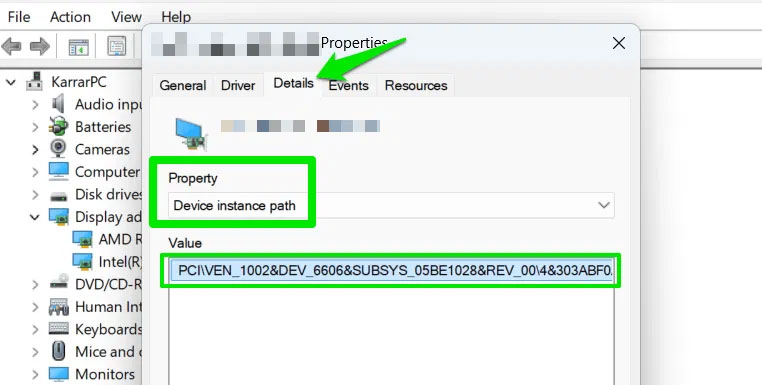
Then open Windows Registry using the search bar and navigate to the following location.
HKEY_LOCAL_MACHINESYSTEMCurrentControlSetEnumPCIIn the PCI key, open the GPU device instance ID noted above and select Device Parameters below.
Now, in the right pane, right-click and select New → DWORD (32-bit) Value . Name this value RemovalPolicyDefault , double-click it and set its value to 0 . Repeat the same steps to create another DWORD value, name it DeviceHackFlags and set its value to 20 .
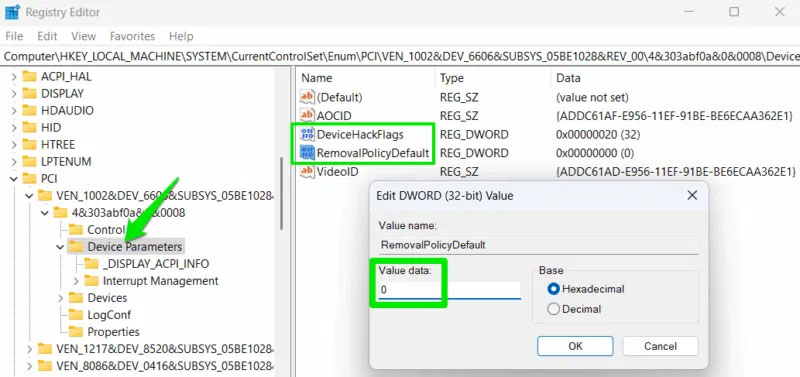
Restart your computer for the changes to take effect. This will prevent hot swapping on that particular PCIe port.
Nvidia GPU users can also modify an alternative Registry key to achieve the same result. Go to the following location in the Registry:
HKEY_LOCAL_MACHINESYSTEMCurrentControlSetServicesnvlddmkmIn the right panel, set the value of SurpriseRemovalSupport to 0 . If this value does not exist, you can create a new DWORD value and name it SurpriseRemovalSupport.
While Windows has many quirks, this particular issue is largely due to the way specific settings handle hot plugging and provide information to Windows. Since this bug affects users on specific devices and is not a Windows bug, it is unlikely that future Windows updates will fix it.
FAQ
What is the "Eject GPU" option in Windows?
This option appears when Windows mistakenly treats your computer's GPU as removable. This is actually an option for external GPU enclosures or hot-plug-enabled slots. The problem occurs when Windows starts treating regular PCIe lanes or soldered GPUs as removable.
What should you know about disable PCIe hot plug feature in BIOS?
Most computers that display this option will also have a hot plug or hot swap option in the BIOS that you can disable to completely remove this option. If you don't use external devices like eGPUs or other external PCIe peripherals, you can safely disable this option in the BIOS.
What should you know about using Registry Trick?
You can also use a Registry trick to prevent Windows from treating your GPU as a removable device. Since Windows uses the PCI eject policy state to display the option to eject the GPU, you can set the GPU to a fixed hardware device to prevent this option from appearing.
Related Articles
 How Does Windows Stop Adding '- Shortcut' to the File Name2 minutes read
 How to Fix STOP 0x00000004 in Windows4 minutes read
 7 Old Windows Apps You Need to Stop Using Right Now6 minutes read
 Microsoft Will Remove the PDF Reader Application on Windows 103 minutes read
 How to Delete Ransomware Creates A.boot File13 minutes read
 How to Fix STOP Error 0x0000008E4 minutes read
Reader Comments 0
Sign in with email or Google to join the discussion.