Table of Contents
ChatGPT has recently been updated with many new features to support your usage. And now you can share chat conversations on ChatGPT with others via a link.
You can share a ChatGPT conversation by opening the chat's share menu, reviewing the preview, and creating a link. Treat that link as accessible to anyone who receives it unless the interface explicitly shows a narrower workspace or invite-only permission.
Check the conversation before sharing
- Remove names, email addresses, account numbers, credentials, private files, customer data, and confidential work details.
- Open every source link and verify important claims; sharing a polished answer does not make it accurate.
- Check whether the preview includes earlier prompts or responses you did not intend to disclose.
- Do not share a conversation that contains copyrighted or licensed material you are not allowed to redistribute.
- If the content is for a controlled audience, use an approved document or workspace with explicit access permissions instead of a broadly shareable link.
Manage or revoke shared links
After creating the link, open it in a private browsing window to see what an unauthenticated viewer can access. Keep a record of links used for work. When a link is no longer needed, remove it from ChatGPT's shared-link or data-control settings if that control is available on your account. Product menus and sharing options can differ by surface and workspace policy.
Copying selected text into a document gives you more control over what is included, but you must preserve context, sources, and any necessary attribution. Re-read the pasted version before sending it.
Related TipsMake guides: useful ChatGPT features, using Google Drive files with ChatGPT, and ChatGPT versus Microsoft Copilot.
Whether you use the website or the app, you can share your ChatGPT conversations with colleagues or friends by creating a reviewed share link. You can also copy the text and paste the entire conversation into a document.
Share the link to the ChatGPT conversation from the website
You can share your ChatGPT conversations with others by sending them a link. They can view the conversation even if they don't have a ChatGPT account. You can share the link via the website and the Android or iOS app. Users with an account can continue the conversation using the shared link.
The shared conversation will not include names or any prompts you add after sharing the link to protect your privacy. It's important to note that ChatGPT does not allow users to share conversations containing images they have uploaded.
1. Log in to your ChatGPT account from any browser.
2. Go to the side panel and click the three dots next to the conversation you want to share.
3. Click on Share.
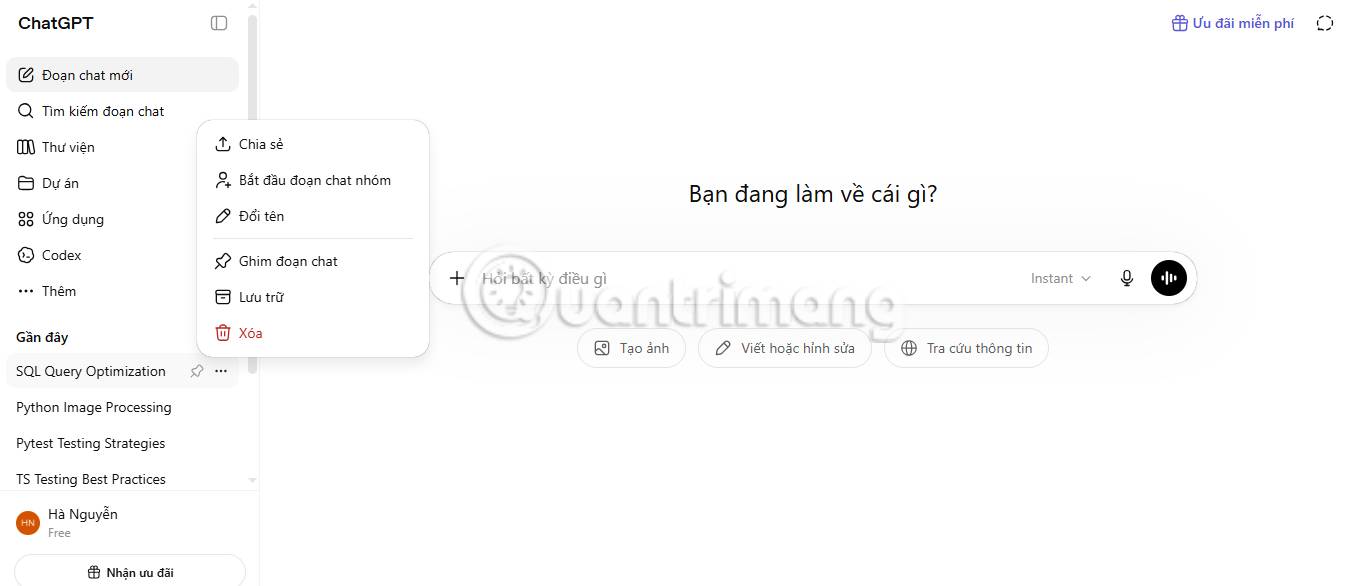
4. Click on Copy link to get the chat link.
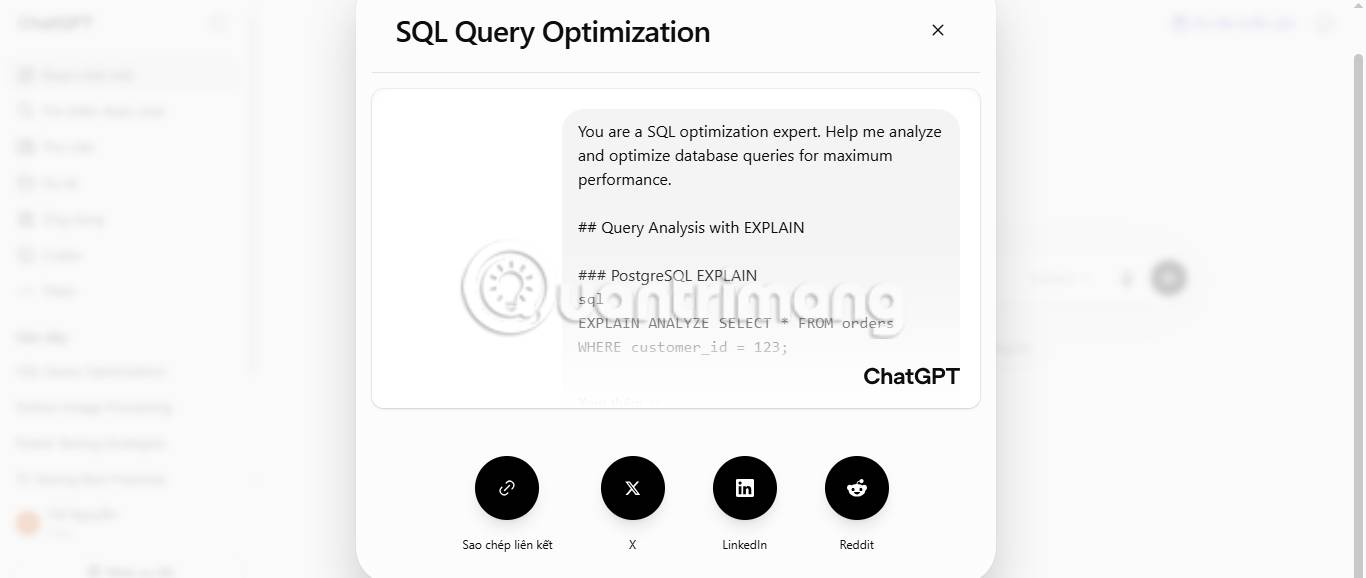
5. You can also share the link directly via Reddit, X, LinkedIn, or Facebook.
Note: Deleting the original ChatGPT conversation will delete the shared link. Similarly, ChatGPT will delete all your shared links if you delete your account.
You can also prevent users from accessing shared links by deleting them. Here's how to manage your shared conversations:
1. Access the ChatGPT website.
2. Log in to your account.
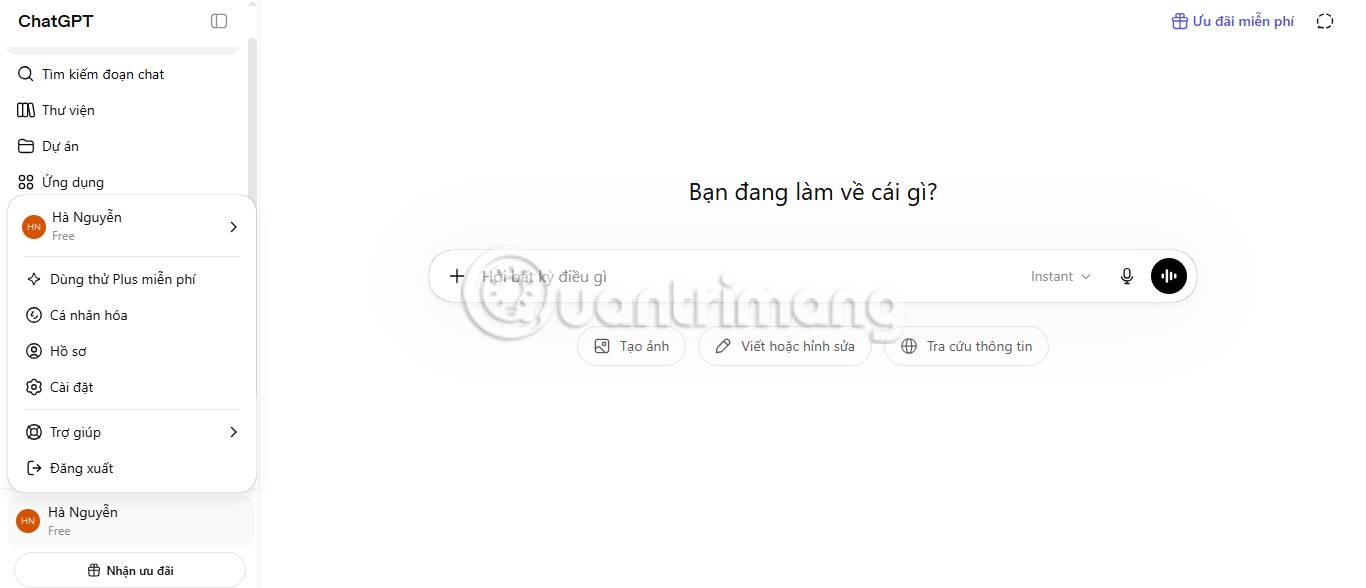
3. Click on your profile icon at the top.
4. Click on Settings.
5. Click on Data Control.
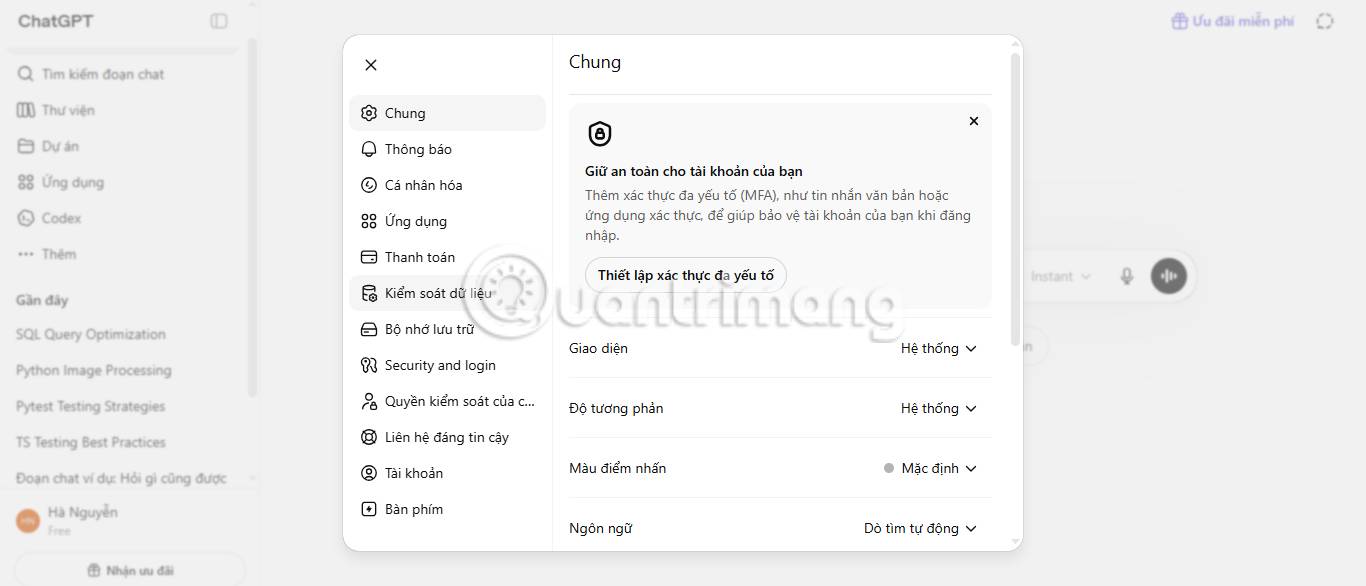
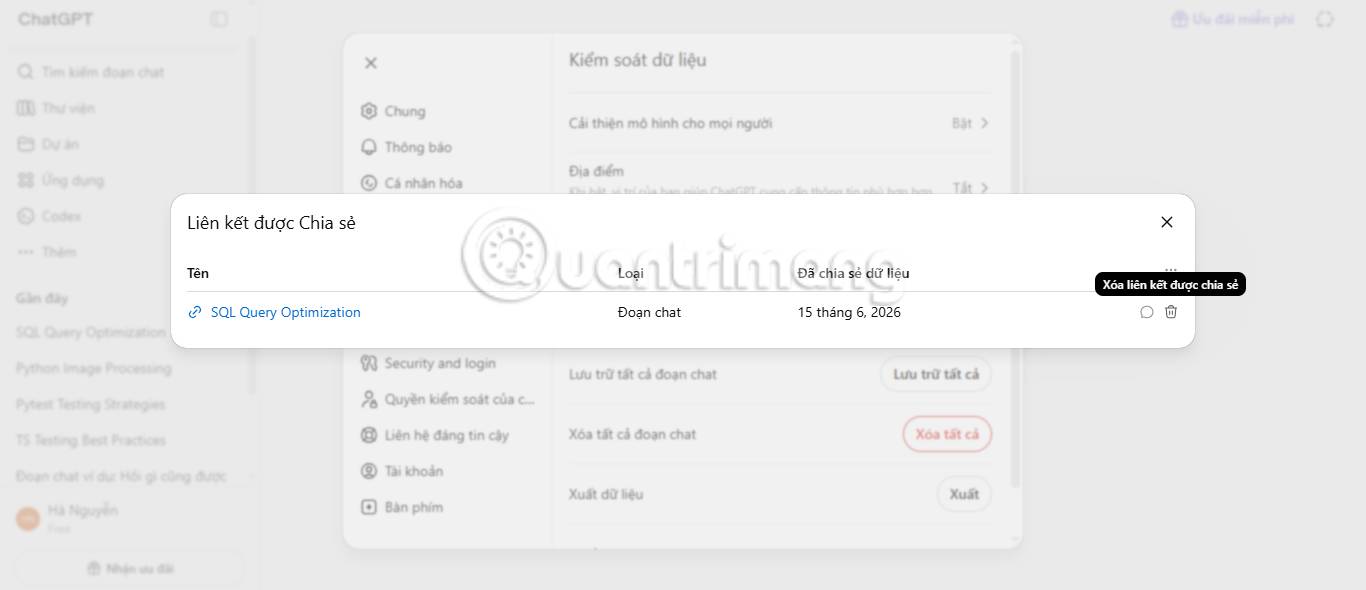
6. Click the Manage button next to Shared Link.
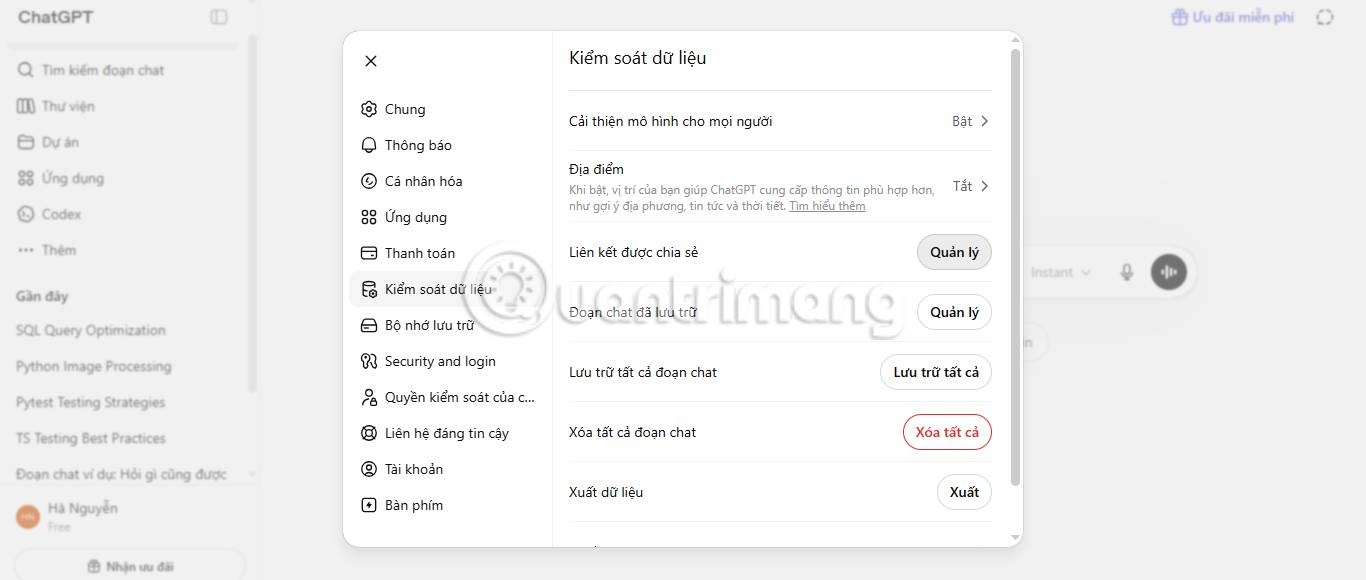
7. Click the trash can icon to delete the link to the shared conversation.
Share the link to your ChatGPT conversation from the mobile app
You can share chat links with others through the ChatGPT app on Android or iOS.
Note: Although the following screenshots are from an iPhone, the steps are similar for the Android app.
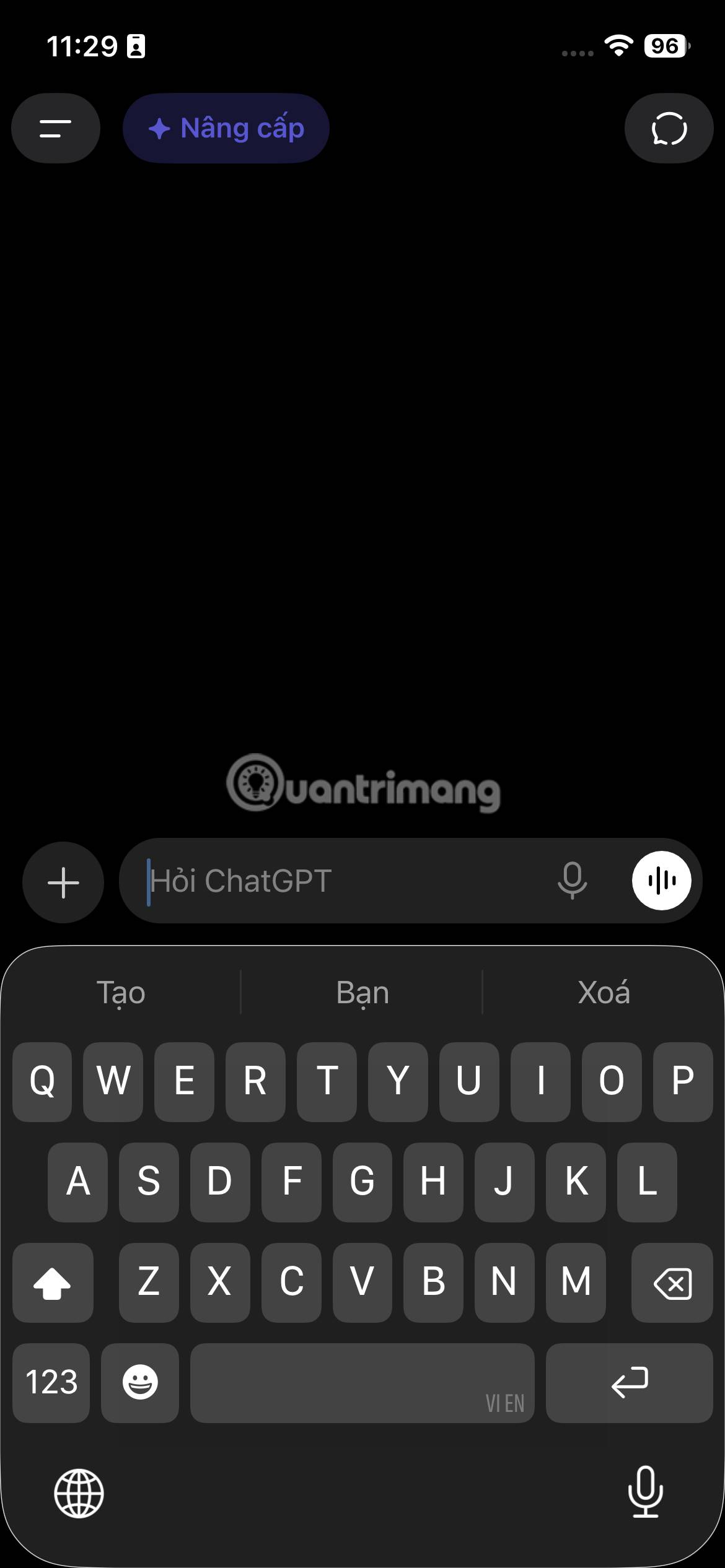
1. Launch the ChatGPT application.
2. Log in to your account.
3. Click on the menu icon.
4. Choose a conversation.
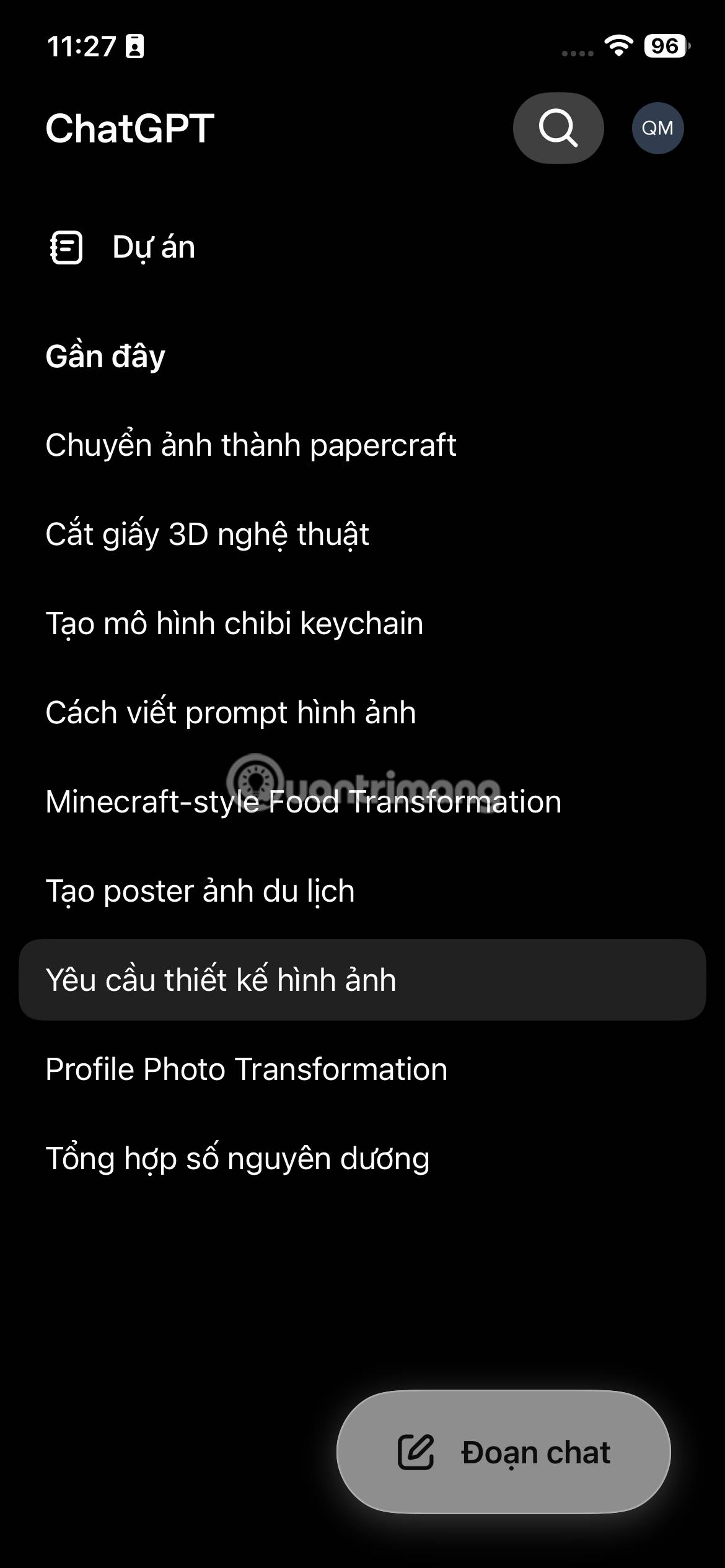
5. Click on the three-dot menu icon.
6. Click on Share.
7. Click on Share link.
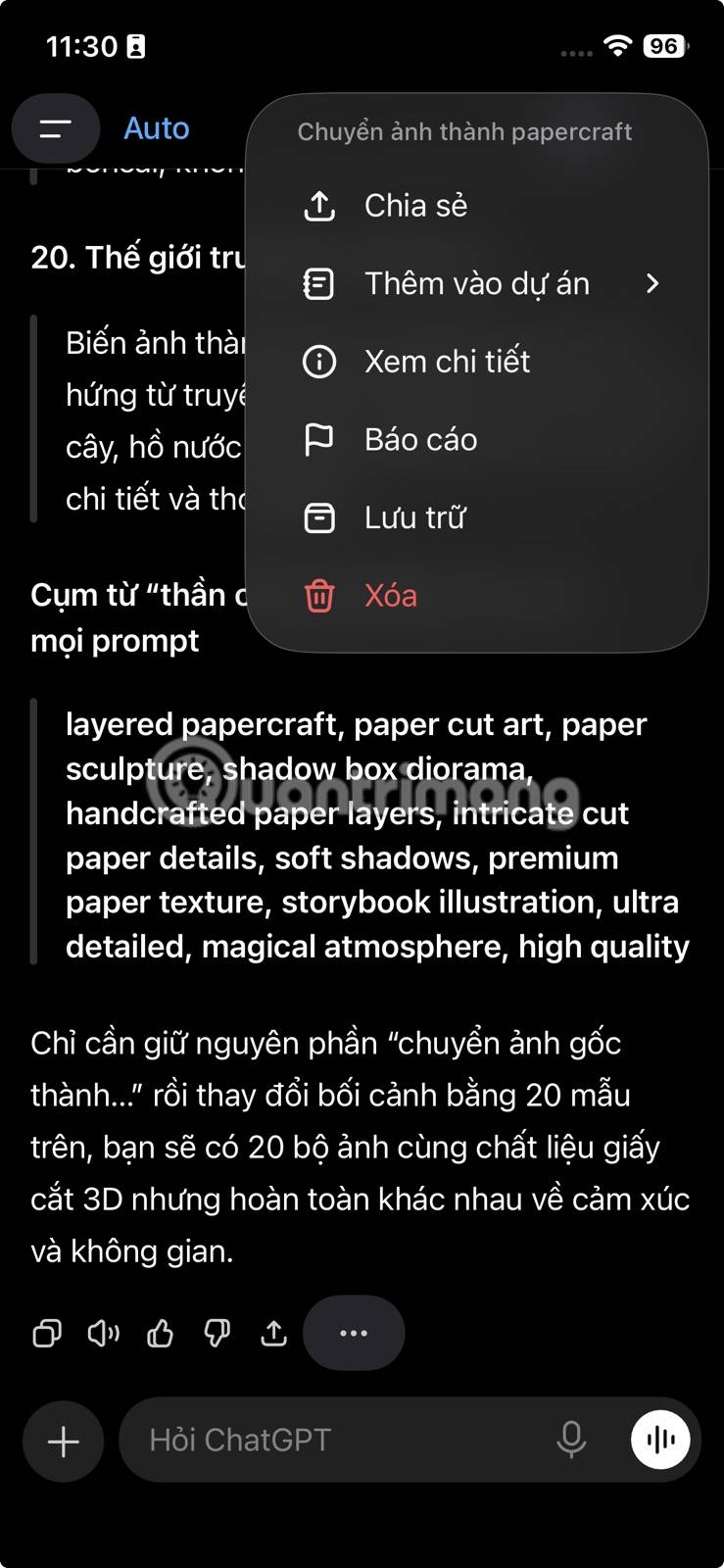
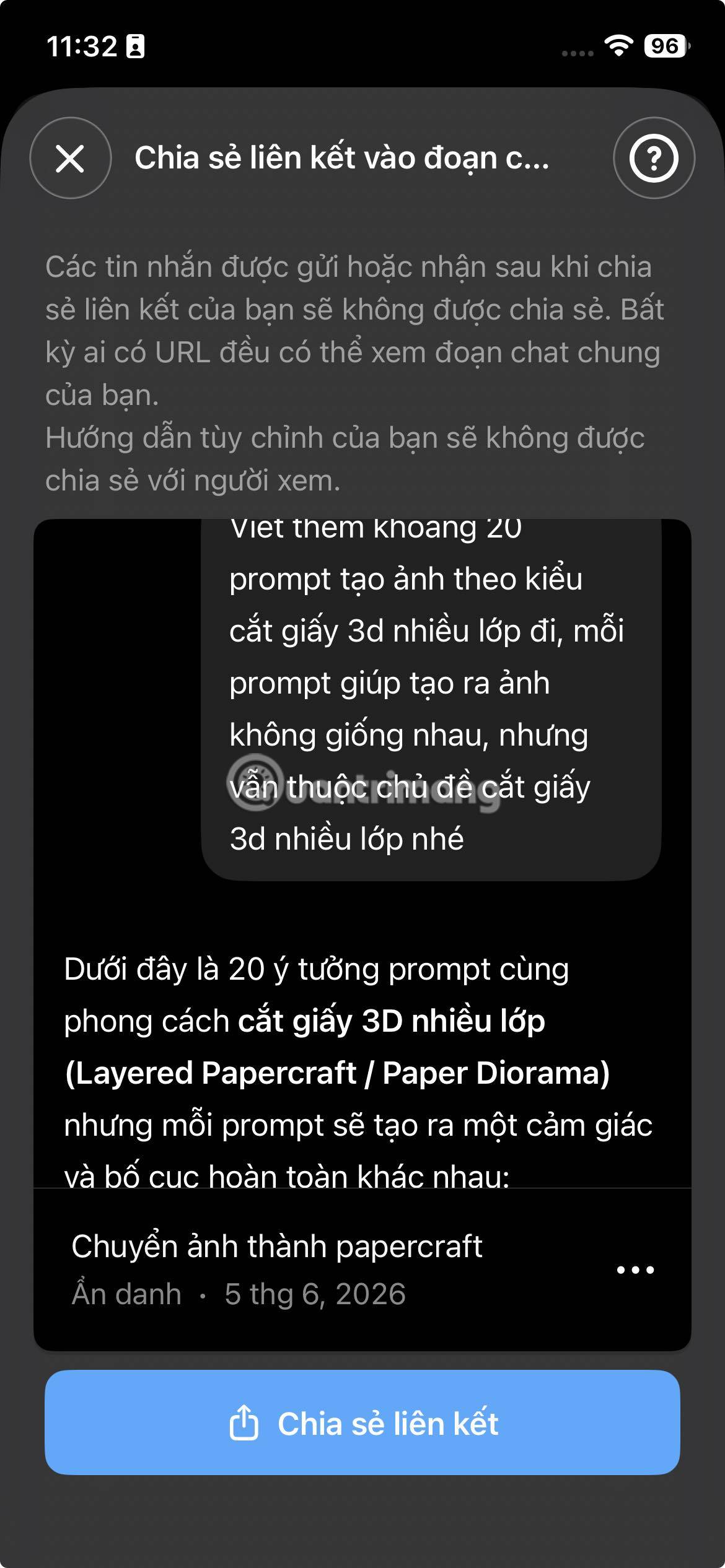
4. You can share the link via email, text message, notes app, or social media.
Share selected text instead
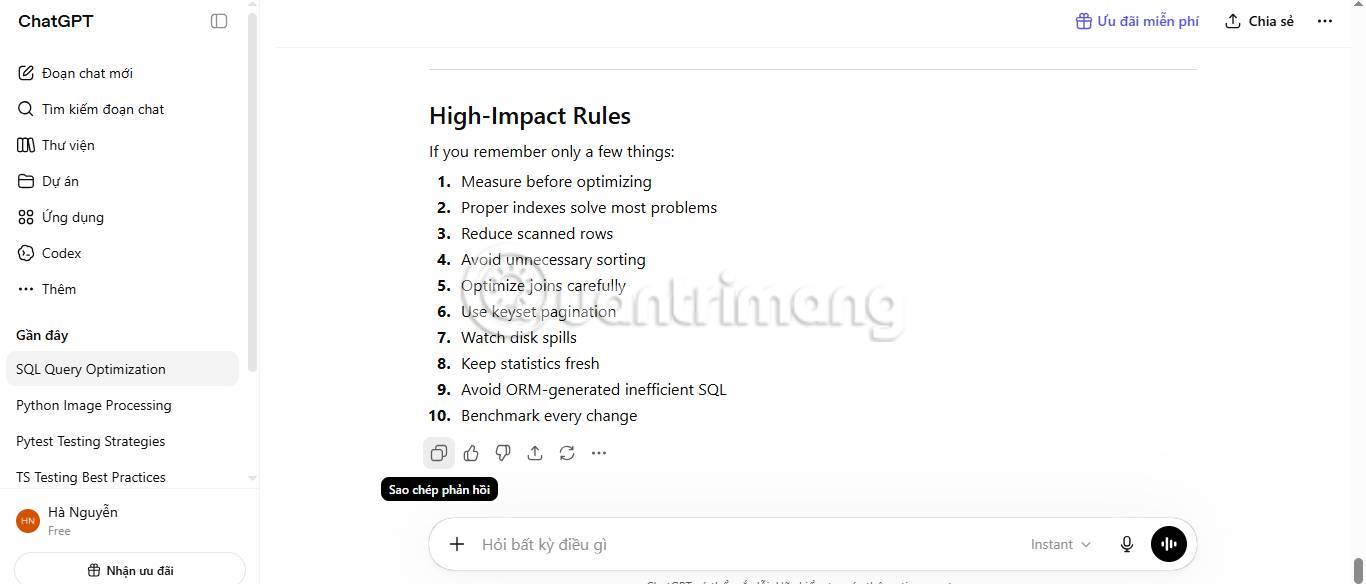
Although you can't directly save conversations to your device, you can copy and paste them into documents, messages, or emails.
1. Access the ChatGPT website.
2. Log in to your account.
3. Select a conversation from the sidebar.
4. Click the copy icon at the bottom.
5. If you want to copy a portion of the content, select the text, right-click on the highlighted section, and click Copy.
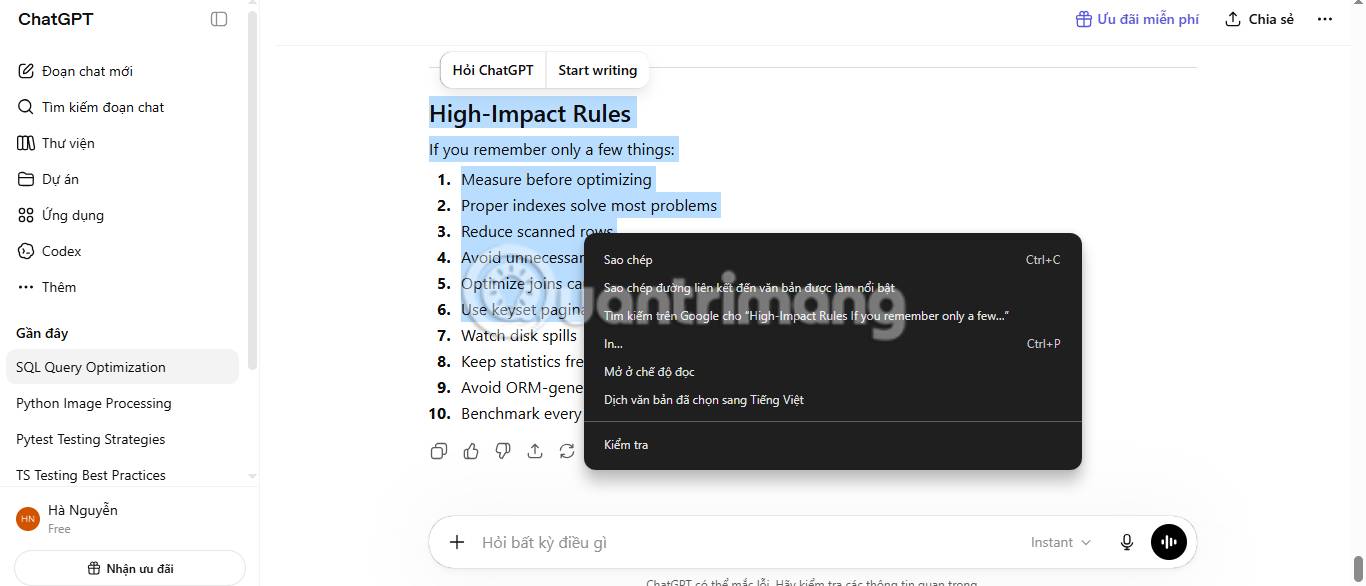
6. Alternatively, you can copy text using the keyboard shortcut Ctrl + C.
7. Paste the content into a document.
Related Articles
 What Is ChatGPT Plus? How to Register ChatGPT Plus in Vietnam11 minutes read
 Instructions to Delete All ChatGPT Chat History on Phone, Computer2 minutes read
 How to Change Chat Box Color on ChatGPT3 minutes read
 ChatGPT Launches Group Chat Feature: Supporting Smart Collaboration With4 minutes read
 How to Block ChatGPT Conversations from Appearing in Google Search2 minutes read
 Learn About ChatGPT-4o: Features, Benefits and How to Use It: Complete Guide7 minutes read
Reader Comments 0
Sign in with email or Google to join the discussion.