Table of Contents
Learn how to remove AI features and unnecessary programs from your browser with clear steps.
Just the Browser is an open-source tool that removes unnecessary ads, AI chatbots, and tracking data, giving you a fast and private way to browse the web. It doesn't require you to switch to a specialized, unsupported browser version. Instead, it forces your current mainstream browser to function properly.
Install and set up Just the Browser
One of the best things about this utility is that it supports all major operating systems. It uses a script to automate the process, so you don't need to manually edit registry files or system folders.
On Windows, this tool uses a PowerShell script to apply registry changes. Simply right-click the Start button and select Terminal (Admin) . Then, copy the following installation command, paste it into your Terminal, and press Enter .
& ([scriptblock]::Create((irm "https://raw.githubusercontent.com/corbindavenport/just-the-browser/main/main.ps1")))The script will launch a simple menu.
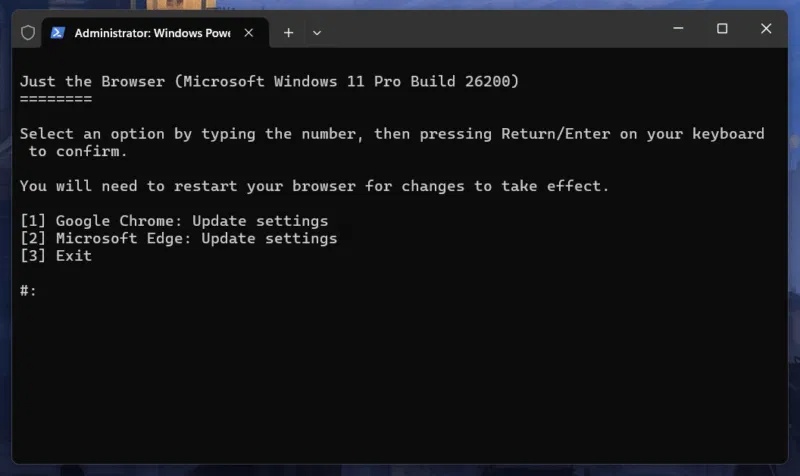
Enter the number corresponding to the browser you want to clean (for example, 1 for Chrome, 2 for Edge) and press Enter .
Mac and Linux users can also use Terminal to download and run the setup script. Simply open your chosen terminal emulator and run the following command:
/bin/bash -c "$(curl -fsSL https://raw.githubusercontent.com/corbindavenport/just-the-browser/main/main.sh)"The script will detect the browsers you have installed (Chrome, Firefox, or Chromium). Select your browser from the list, and the script will copy the necessary JSON policy files to the correct directory.
Once the script is complete, the changes usually take effect immediately. You just need to restart your browser (completely exit and reopen it). When you open Chrome or Edge the next time, you might see the message "Managed by your organization". This is great! It means the policies are working and the tool is successfully blocking unnecessary software.
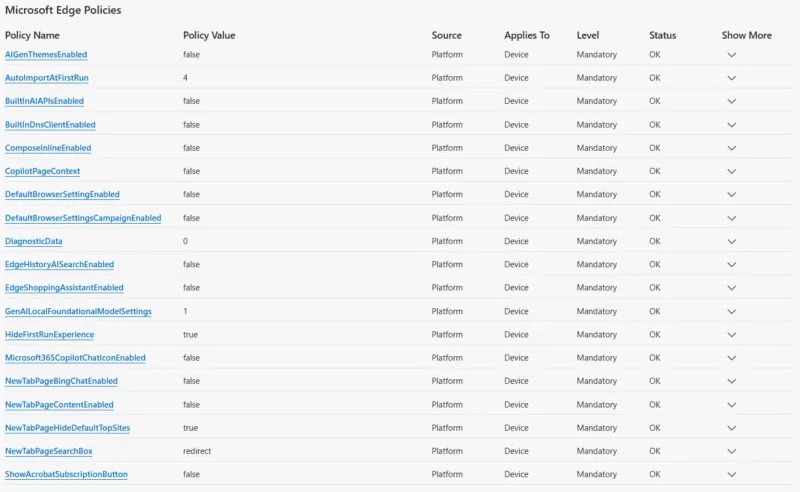
Additionally, you can verify which policies are active in Firefox by typing about: policies into the address bar, while Chrome and Edge users should access chrome://policy/ or edge://policy/. You will see a complete list of applied settings.
Uninstall it from your browser
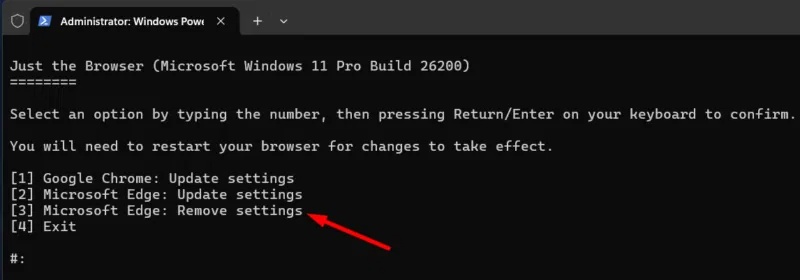
If you later want to uninstall Just the Browser, run the installation script again in the same way as you did when installing in PowerShell. A menu will appear with options to update and uninstall for a specific browser. From there, select the Remove Settings option and press Enter ; your browser will return to its default state.
Some drawbacks of Just the Browser
Just the Browser relies on the enterprise settings in Chrome, Edge, and Firefox, so the cleanup only works as long as those policies remain in place and function in the same way. If the browser vendor changes or removes them in future updates, those configuration files may need to be adjusted. The setup process also requires admin access, which can be problematic on company or school-managed computers where policy changes are restricted.
Furthermore, the policies implemented do not remove AI features from Google Search; they only affect browser software. It's also designed specifically for the desktop platform, so if you primarily browse the web on mobile devices, you will still see the AI features and other content there.
This tool is perfect for those who don't want to change browsers but want to remove unnecessary services from their current favorite browser. However, if you want to try a browser with similar functionality, you can try Vivaldi, SeaMonkey, Waterfox, or LibreWolf.
Final Thoughts
Use this guide as a practical checklist for how to remove ai features and unnecessary programs from your browser. Work through the steps in order, verify each result, and adjust the options to match your needs.
FAQ
What do you need before following this How to Remove AI Features and Unnecessary Programs from Your Browser guide?
Review the required tools, accounts, settings, or materials mentioned in the article. Learn how to remove AI features and unnecessary programs from your browser with clear steps.
What are the main steps for how to remove ai features and unnecessary programs from your browser?
Follow the sections in order, especially Install and set up Just the Browser, Uninstall it from your browser, Some drawbacks of Just the Browser. Complete each step before continuing and verify the result as you go.
What should you do if the process does not work as expected?
Recheck the prerequisites, update the relevant app or service, review the settings, and repeat the step that caused the issue. Use any troubleshooting notes included in the guide.
Related Articles
 12 Programs and Windows Applications Are Not Required You Should11 minutes read
 16 Unnecessary Windows Programs and Applications You Should18 minutes read
 How to Remove All Available Applications on Windows 10?3 minutes read
 Remove 'Root' Programs That Haven't Been Uninstalled Completely2 minutes read
 Remove Completely Navigation Yeabd66. Cc in Browsers9 minutes read
 5 Windows Apps You Should Uninstall Immediately8 minutes read
Reader Comments 0
Sign in with email or Google to join the discussion.