Table of Contents
Learn how to fix a faulty Google play store app recommendation algorithm with clear steps.
Block specific activities that affect recommendations on the Play Store
By default, Google learns from your activity on the Play Store, including searches and apps opened. All of this is recorded in Google My Activity along with other data stored by Google. If you want to delete a specific activity, simply remove it from My Activity.
In the Play Store app, tap your profile icon and select Personalization in Play . Tap Play History here, and you'll see all your activity. Each activity has an X button next to it that you can tap to permanently delete. Once deleted, Google will forget that it happened, so it won't affect your recommendations.
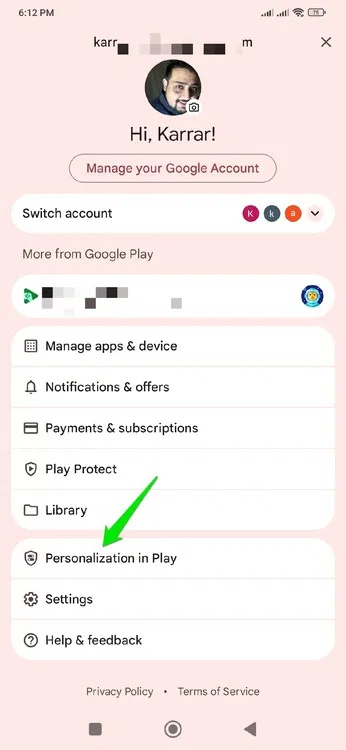
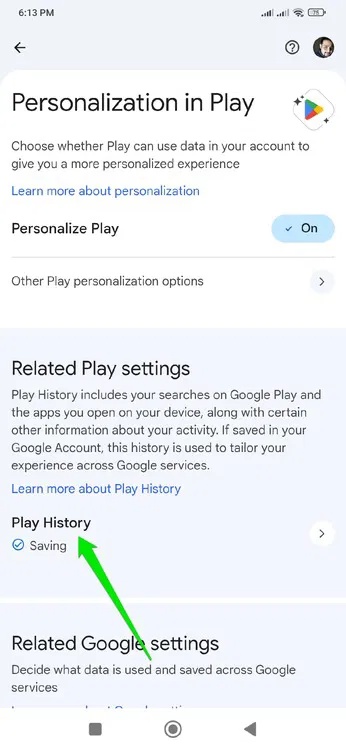
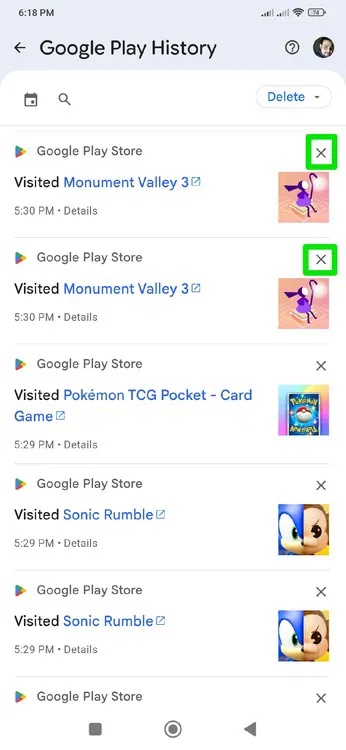
Deleting activities one by one is a bit cumbersome. Therefore, you should only delete all activities that occurred on that day that are not related. To do this, click the Delete drop-down menu to select the option to delete activities based on a specific time period.
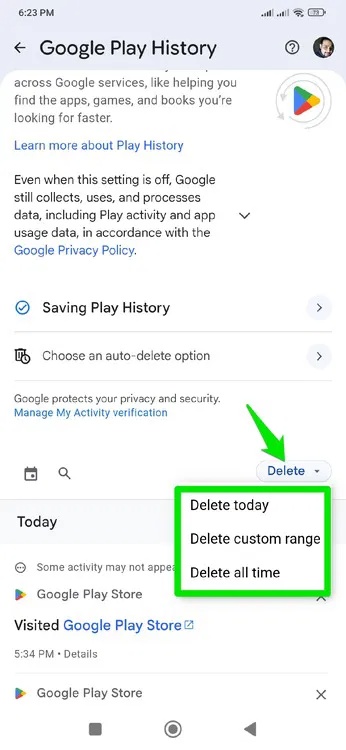
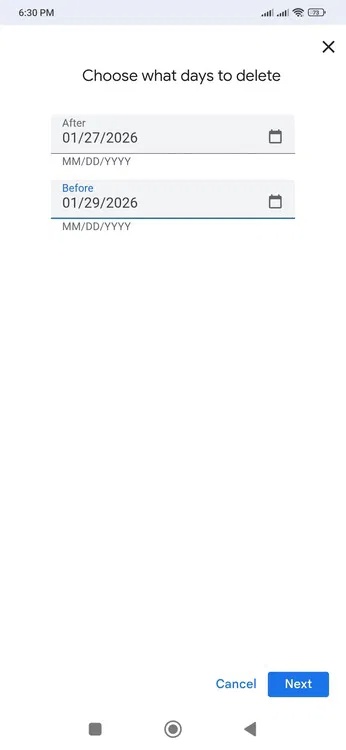
Alternatively, you can also access myactivity.google.com and switch to Play History to manage your Play Store activity.
Blocking specific apps affects Play Store recommendations
The Google Play Store also uses apps you've installed and previously installed to generate recommendations. This means your past activity—even from years ago—can influence the Play Store's recommendation algorithm. If you don't want installed apps to affect your recommendations, follow the steps below to disable them:
Open Personalization in Play and tap on the Other Play Personalization options. Here, tap on Manage under Your Play content , and you will see all the apps/games you have ever installed.
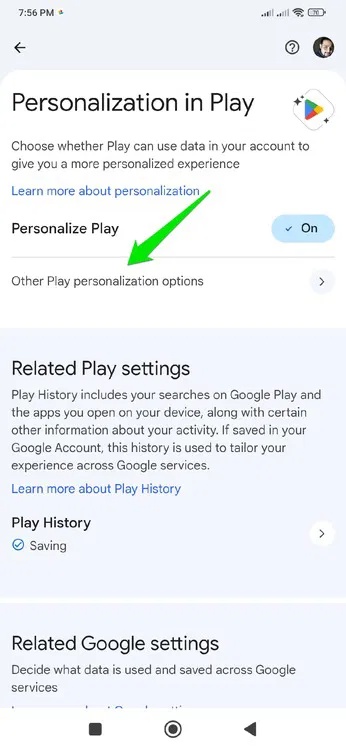
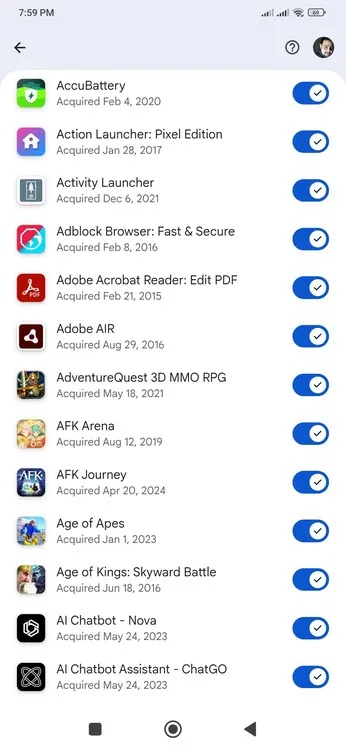
Simply tap the toggle switch next to the app you don't want to use for personalization, and that app will not be included in app suggestions.
Completely reset the Google Play Store recommendation algorithm
If you're tired of the Google Play Store's terrible suggestions and believe it's broken beyond repair, you can also perform a complete reset. This should be a last resort, as it will erase all your Play Store data with no way to undo the changes. This involves several steps, so follow them in order:
Delete your Google Play Store activity history
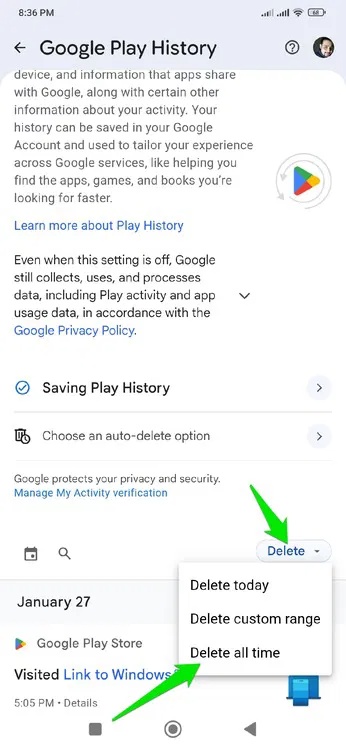
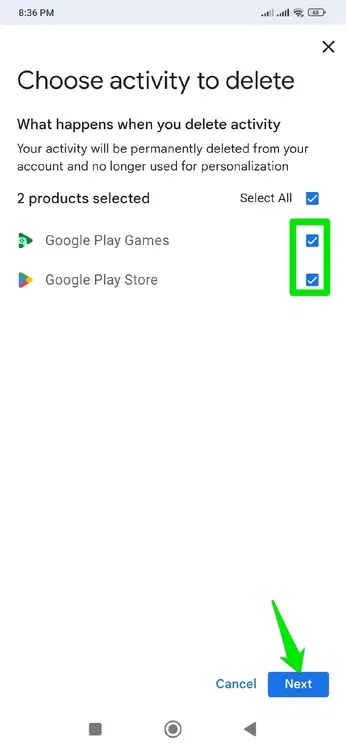
First, delete all activity history that directly affects your real-time recommendations. Reopen Play History , as you did above, and select Delete → Delete all time . Make sure both Google Play Store and Google Play Games are selected and press Next . Then you can preview your data and press Delete to remove it.
Delete history of uninstalled apps
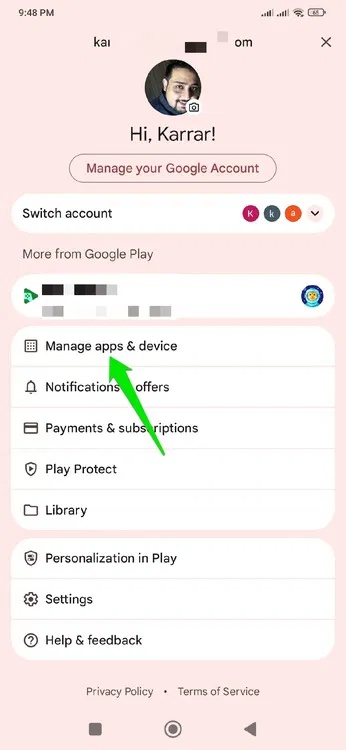
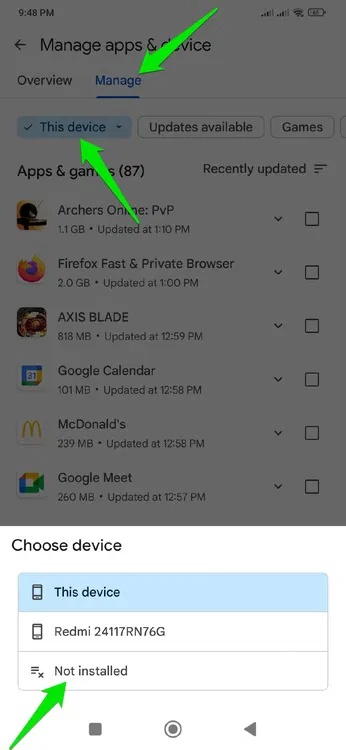
Because Google keeps records of all the apps you've ever owned, you'll need to clear your uninstalled app history to prevent personalization through them. Tap your profile icon and select Manage apps & device . Here, go to the Manage tab and select This device → Not installed .
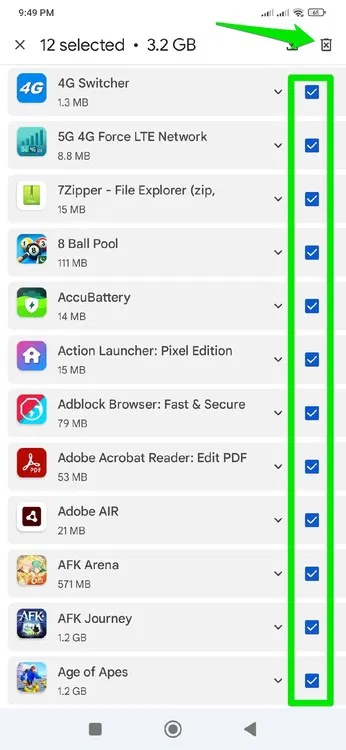
You will see all the uninstalled apps. Select the checkbox next to each item here and then tap the Delete icon in the upper right corner to remove them all.
Uninstall installed apps and games
In the "For You" section of the Play Store, Google sometimes directly asks you about your game and app preferences. If Google has already asked you about them and you've provided your preferences, you'll need to delete them to completely reset your settings.
Tap your profile icon and select Settings . In the General section, open Interests and tap both Remove game interests and Remove app interests to delete them.
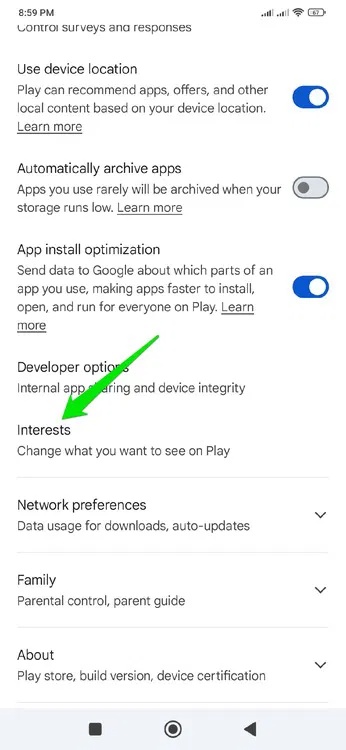
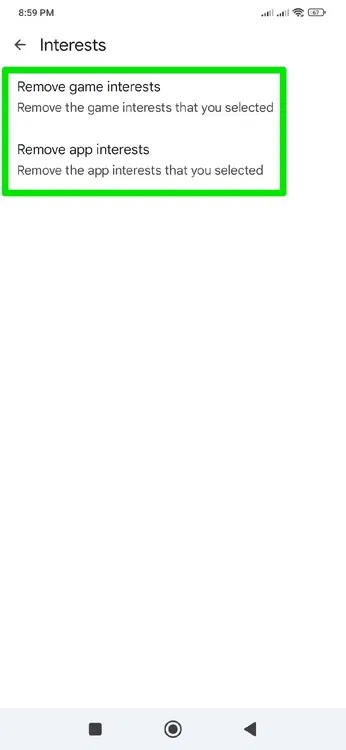
While this step is sufficient to reset Google Play Store's personalization algorithm, you should also clear your Play Store data and uninstall any updates. This ensures your changes are applied immediately and no local data affects your recommendations.
These steps will ensure the Google Play Store displays apps and games relevant to you and make it easier for you to discover new apps. If you're still having trouble finding suitable apps and games on the Play Store, try these Google Play search tips.
Final Thoughts
Use this guide as a practical checklist for how to fix a faulty google play store app recommendation algorithm. Work through the steps in order, verify each result, and adjust the options to match your needs.
FAQ
What do you need before following this How to Fix a Faulty Google Play Store App Recommendation Algorithm guide?
Review the required tools, accounts, settings, or materials mentioned in the article. Learn how to fix a faulty Google play store app recommendation algorithm with clear steps.
What are the main steps for how to fix a faulty google play store app recommendation algorithm?
Follow the sections in order, especially Block specific activities that affect recommendations on the Play Store, Blocking specific apps affects Play Store recommendations, Completely reset the Google Play Store recommendation algorithm. Complete each step before continuing and verify the result as you go.
What should you do if the process does not work as expected?
Recheck the prerequisites, update the relevant app or service, review the settings, and repeat the step that caused the issue. Use any troubleshooting notes included in the guide.
Related Articles
 The Simple Way to Fix Google Play Store Errors Often Encountered7 minutes read
 What to Do When Google Play Store Is Not Working?10 minutes read
 Download Google Play 24.2.15-166 minutes read
 Google Play Store Releases Updated 'Good' Application Suggestions3 minutes read
 How to Download CH Play and Install Google Play on the Phone7 minutes read
 The Top Google Play Store Alternatives: Expert Selection Guide11 minutes read
Reader Comments 0
Sign in with email or Google to join the discussion.