Table of Contents
With the screenshot feature on Samsung A12, A13, and A23, users don't need supporting applications to save ongoing activities and important information on the screen and share them with other users via social media.
Guide to easily taking screenshots on Samsung A12, A13, and A23
How to take a screenshot on Samsung A12, A13, A23 without using an app.
1. Use the physical screenshot button on Samsung A12, A13, and A23 devices.
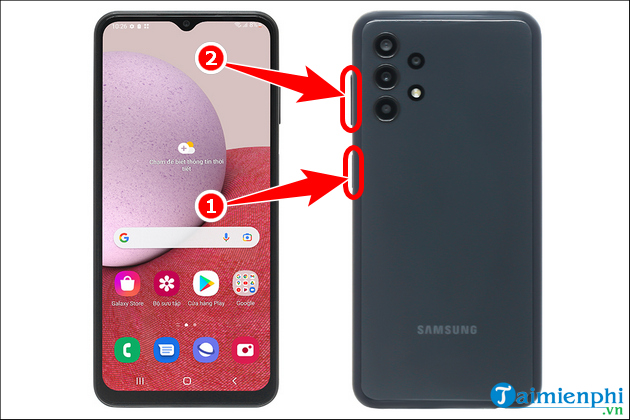
This method is quite simple and used on many different phone models, especially the Samsung A12, A13, and A23. You just need to press both the Power button and the Volume Down button simultaneously . When the screen flashes, it means you have successfully taken a screenshot.
2. Take a screenshot on Samsung A12, A13, and A23 using the swipe gesture.
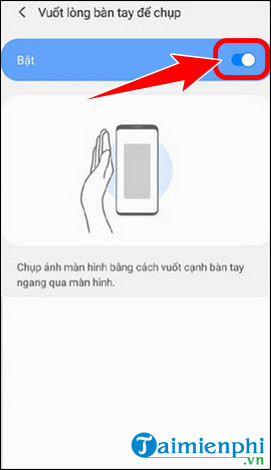
Another way to take a screenshot on a Samsung A12, A13, or A23 phone is to use the palm swipe gesture. However, this method requires you to activate this feature first.
Step 1
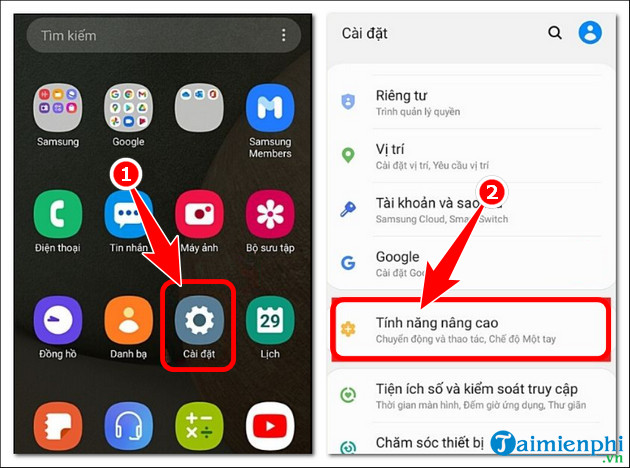
Click to open Settings => Advanced features .
Step 2
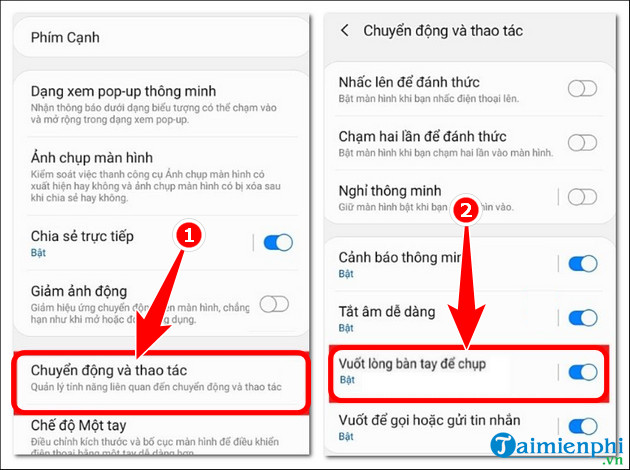
Tap Convert and manipulate => select Palm swipe to take a picture .
Step 3
Toggle the "Swipe palm to take a picture" button .
3. Activate the virtual Home button to take screenshots on Samsung A12, A13, and A23.
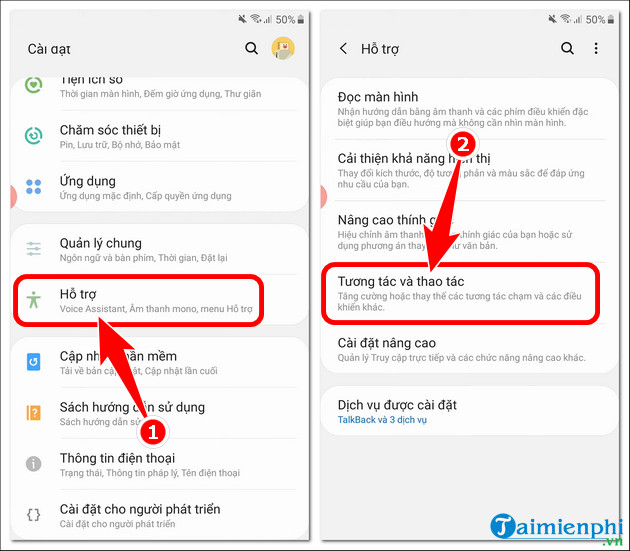
Almost all Samsung models integrate a virtual Home button or Assistive Menu, allowing users to perform complex operations without needing the physical Home button. Similarly, you need to activate the virtual Home button to take screenshots on Samsung A12, A13, and A23.
Step 1: Open Settings => select Accessibility => Interaction and gestures .
Step 2
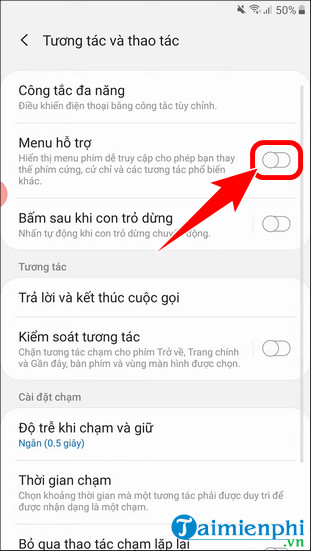
Toggle the Assistive Menu on .
Step 3
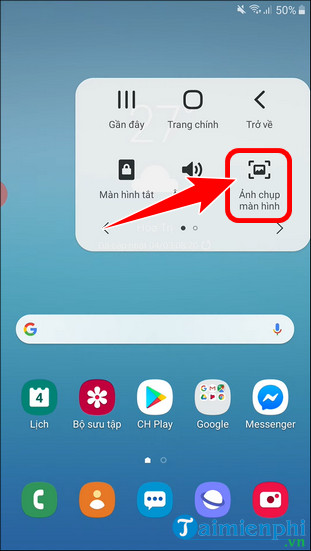
After completion , the virtual Home button will appear as shown below. Press the virtual Home button => press the left arrow .
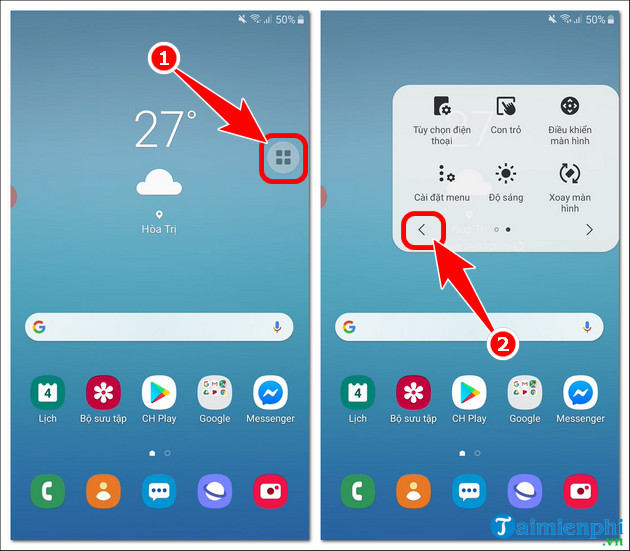
- Select Screenshot .
4. Use Bixby Voice Assistant to take a screenshot on Samsung A12, A13, A23.
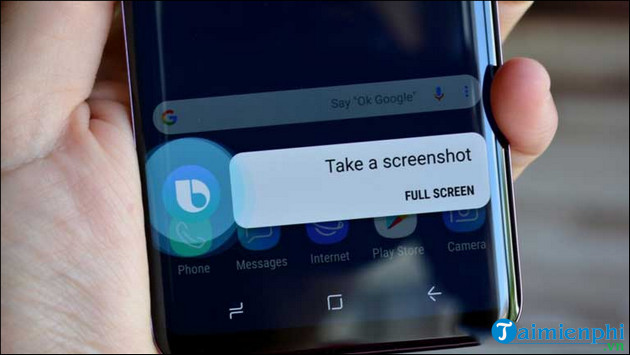
Those who have used Samsung phones for a long time are already familiar with the Bixby virtual assistant, which helps users perform basic operations using voice commands, especially taking screenshots on the Samsung A12, A13, and A23. You just need to say " Hey Bixby " to activate the virtual assistant and then say the command " Take a Screenshot " and the information on the screen will be immediately saved as an image.
5. Samsung A12, A13, A23 long screenshot capture (page scrolling)
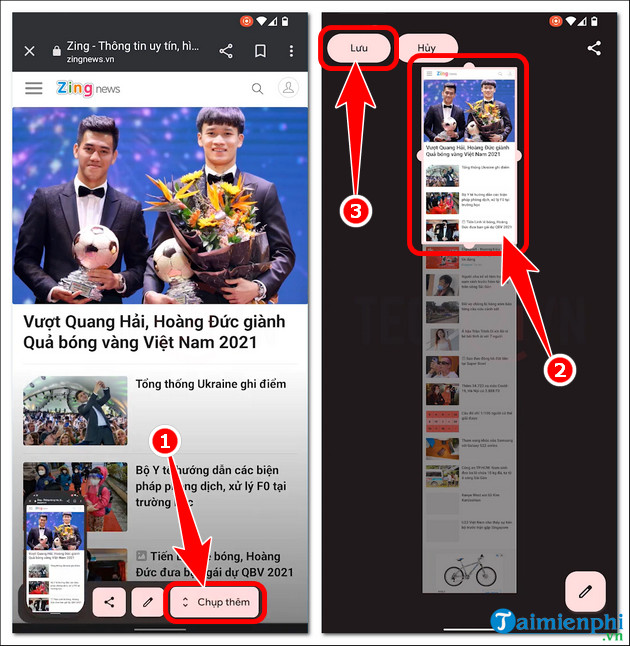
In addition to the methods above, Samsung A12, A13, and A23 phones, after upgrading to Android 9 Pie, will integrate a feature for taking long screenshots with scrolling.
The steps are quite simple; users just need to perform the same actions as with the physical buttons => select "Capture More" => Adjust aspect ratio => press "Save " .
Above are the complete steps to take screenshots on Samsung A12, A13, and A23 without using any supporting applications. Additionally, you can also use these methods to effectively and quickly capture screenshots on your Samsung A21s , saving and sharing important information with other users.
Related Articles
 How to Change Samsung Screenshot Format: Step-by-Step Guide2 minutes read
 How to Take a Screenshot on a Samsung Tablet: Practical Guide9 minutes read
 3 Ways to Take a Screenshot on a Samsung A21s Phone4 minutes read
 How to Disable the Screenshot Toolbar on Samsung Galaxy S203 minutes read
 How to Screenshot on a Samsung Tablet8 minutes read
 How to Take Photos of Samsung Galaxy Note 7 Screen?5 minutes read
Reader Comments 0
Sign in with email or Google to join the discussion.