Table of Contents
To pair Bose Bluetooth headphones, charge them, place them in pairing mode using the model's Bluetooth or power control, then select their exact name in the phone or computer's Bluetooth settings. The LED and voice prompts differ by model, so use the supplied guide when the normal steps do not match.
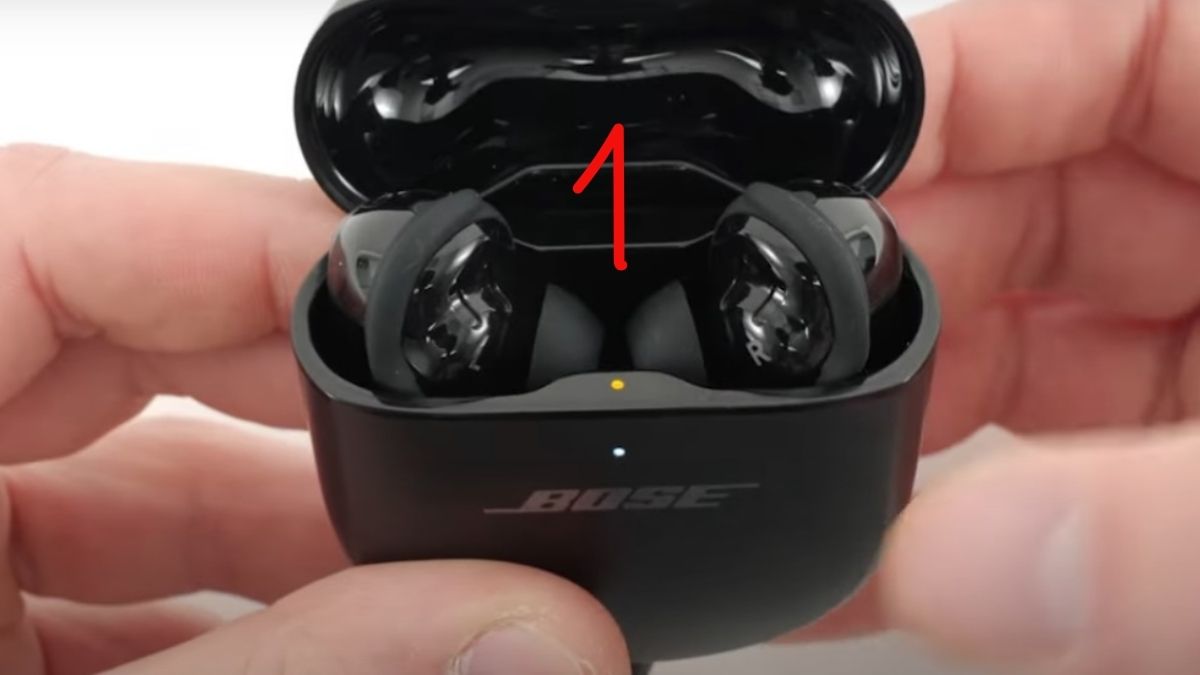
Put Bose headphones in pairing mode
- Turn the headphones on.
- Move or hold the Bluetooth/power control toward the Bluetooth symbol, or press the documented Bluetooth button.
- Release when the status light blinks blue or a voice prompt reports that the headphones are ready to connect.
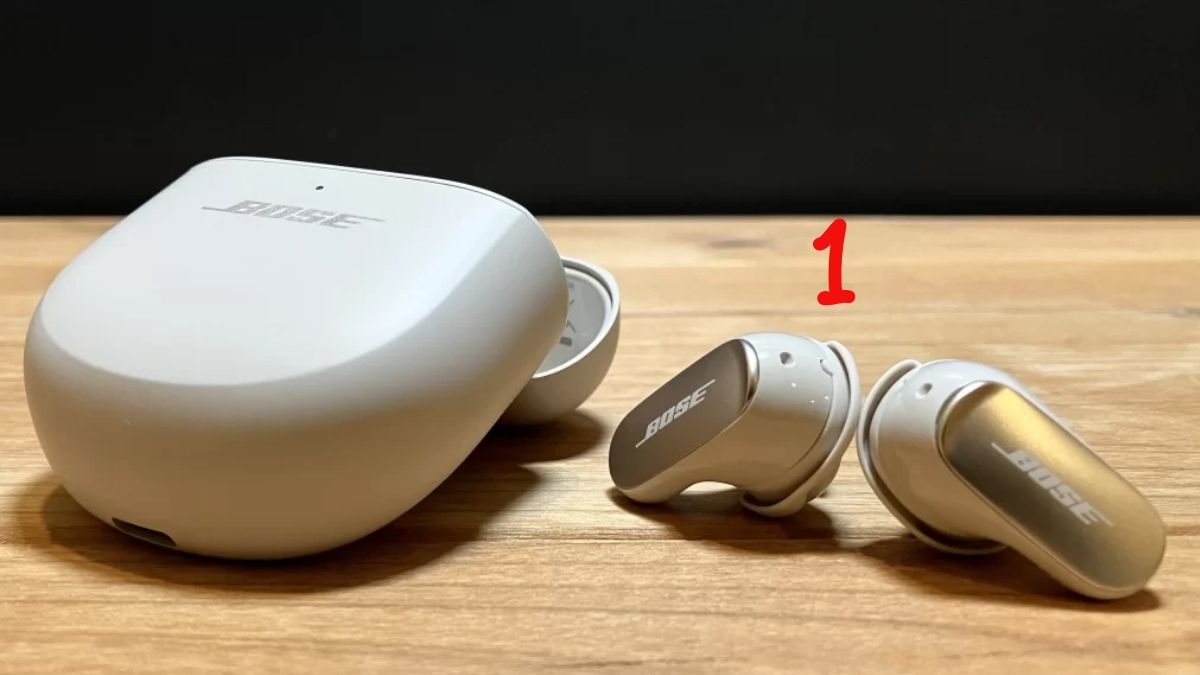
For Bose earbuds, opening the case may start pairing the first time; later pairing may require holding the case button. Do not guess a reset sequence for another model.
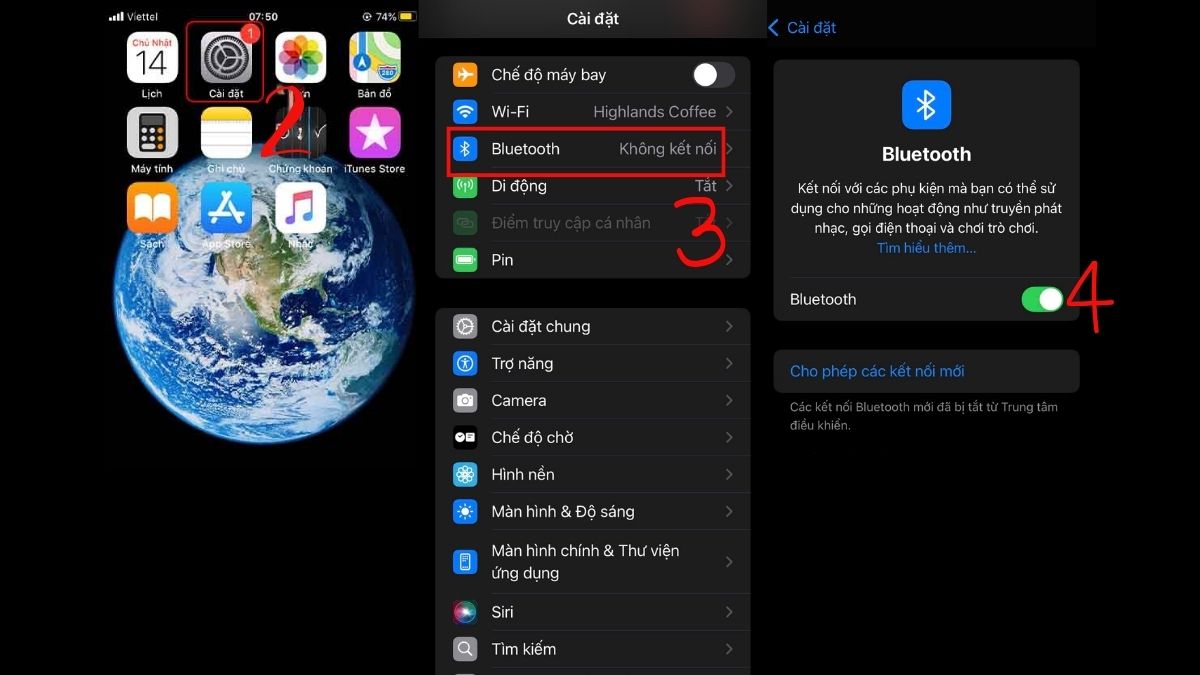
Connect to iPhone or iPad
- Open Settings > Bluetooth and turn Bluetooth on.
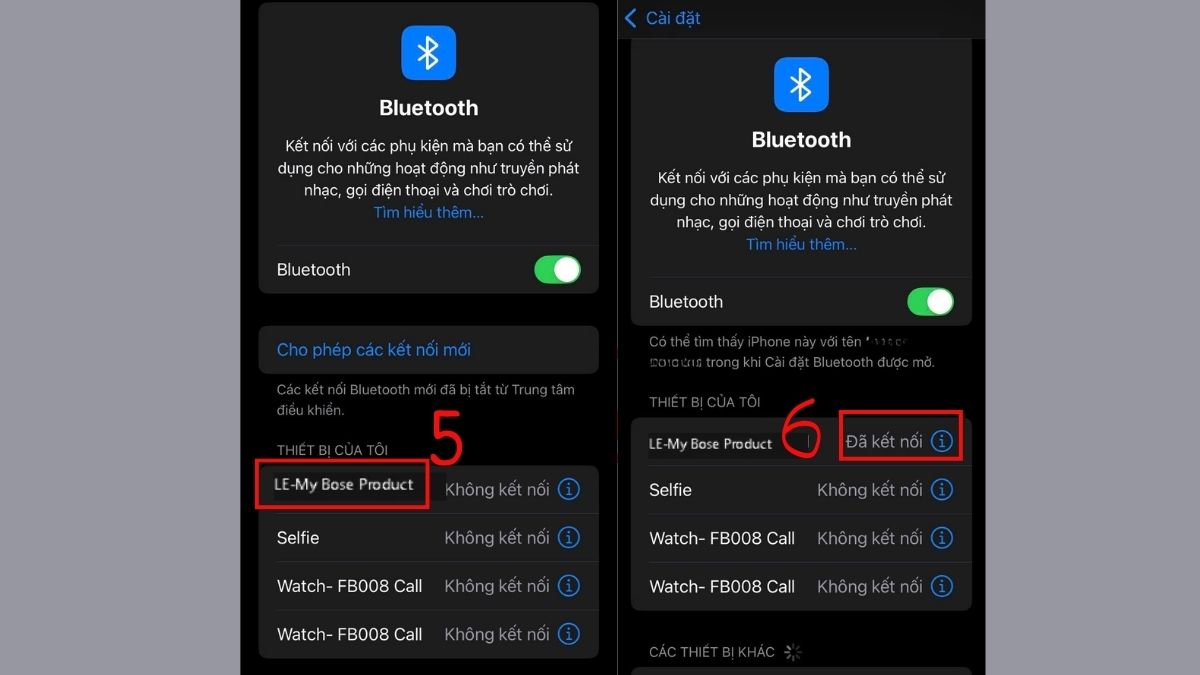
- Under Other Devices, select the Bose model name.
- Wait for it to move to My Devices as Connected.
- Play audio and confirm the Bose device is selected in Control Center.
The official Bose app can provide setup, firmware, control customization, and product-specific help for supported models. Install it only from the App Store.
Connect to Android
- Open Settings > Connected devices or Bluetooth; names vary by manufacturer.
- Select Pair new device.
- Choose the Bose headphones and approve the prompt.
- Select them as the media-audio output if required.
Install the official Bose app from Google Play only if the model supports it and you want its additional controls.
Connect to Windows 11
- Open Settings > Bluetooth & devices and turn Bluetooth on.
- Select Add device > Bluetooth.
- Choose the Bose model and wait for Connected.
- Open Sound settings and choose the headphones as Output and, when needed, Input.
If separate stereo and hands-free entries appear on older Bluetooth stacks, the microphone mode can reduce playback quality because it uses a call profile.
Connect to a Mac
- Open System Settings > Bluetooth.
- Find the Bose headphones under Nearby Devices and choose Connect.
- Open Sound settings and select them for output; select the microphone separately if needed.
If the headphones do not appear
- Confirm the blue pairing indication rather than ordinary power-on state.
- Disconnect or disable Bluetooth on a phone that reconnects automatically.
- Remove the old Bose entry from the new device and pair again.
- Charge both the headphones and earbud case.
- Restart the host device and keep the headphones nearby.
- Use the Bose app or support page for the exact model's connection list and reset steps.
Connected but no sound
Increase volume on both devices, select the Bose output, pause audio on another multipoint-connected device, and close an app that has exclusive audio control. For calls, confirm both speaker and microphone selections in the meeting app.
Multipoint and switching devices
Some Bose models can maintain connections to two devices, while others use a remembered device list but connect differently. Multipoint availability and controls are model-specific. If audio keeps switching unexpectedly, disconnect the unused source or manage connections in the Bose app.
Devices without Bluetooth
A compatible cable can work with Bose models that include an analog input, though microphone and controls may be limited. A USB Bluetooth adapter can add PC Bluetooth, but game consoles and TVs may require a transmitter that supports their output and the desired audio profile. See Bluetooth headphone pairing fixes and how to connect Bluetooth headphones to a TV.
Related Articles
 How to Connect Bluetooth Headphones to Your Phone, Laptop, or PC8 minutes read
 5 Best Bluetooth Headphones Of 20265 minutes read
 The Best Bluetooth Headphones of 20235 minutes read
 How to Connect Your Phone to a Bluetooth Headset: Complete Guide7 minutes read
 The Simplest Way to Connect Bluetooth Headphones to Android10 minutes read
 Steps to Connect Windows Computer Bluetooth with Speakers6 minutes read
Reader Comments 0
Sign in with email or Google to join the discussion.