If you're a Mac user, you can play and view AVI videos using QuickTime for Mac, which is built into the operating system (located in the Applications folder). This multimedia software allows users to easily record their Macbook screen and play audio and video files. After recording your Macbook screen with QuickTime for Mac, simply double-click the video file to open and view it.
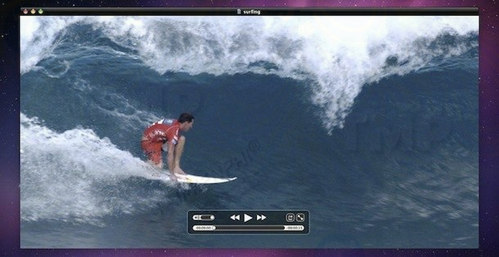
Newer versions of QuickTime Player on Mac OS X support a wider range of video file formats and video codecs, including most AVI formats.
However, if QuickTime Player still can't play AVI videos on your Mac, the problem might lie with the video codec. You might then receive an error message on your screen:
'The document 'movie.avi' could not be opened. The movie is not in a format that QuickTime Player understands.' Followed with some fine print 'You may need to install additional software to open this type of file'.
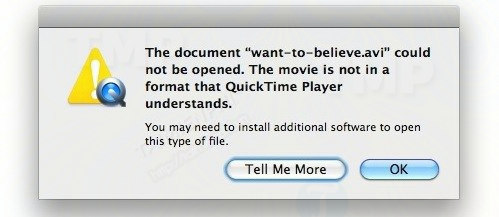
Sometimes, the AVI video might have no sound, or the video might not play at all. In these cases, you'll most likely need to download and install a special codec on your Mac to be able to watch the AVI video.
This also happens with DIVX video file formats, but more commonly with AVI video files. Don't worry, TipsMake will guide you on how to watch AVI videos on your Mac.
How to play and view AVI videos and DivX codec on a Mac
In any case, the best solution for playing AVI videos on a Mac is to use the free VLC application.
VLC supports a wide range of codecs and can play almost all AVI video files with an AVI codec directly on a Mac. This even includes DIVX or other video file formats and codecs.
Download and install VLC for Mac here: Download VLC for Mac
VLC is a free, multi-platform compatible tool that can play almost any video format other than AVI, such as divx, mpeg4, mkv, etc. In addition, VLC also supports subtitles for AVI videos and other video files.

Alternatively, if you still want to use QuickTime Player but are using an older version, you might consider using Perian to play AVI videos on your Mac. Perian works as a plug-in, supports QuickTime Player, and has many built-in codecs, allowing it to play almost all video formats, including AVI.
Step 1 : If QuickTime Player is open, close and exit the application.
Step 2: Download and install Perian.
Download and install Perian for Mac here: Download Perian for Mac
Step 3 : Open the AVI video file in QuickTime Player again.
From now on, you can play and view AVI videos on your Mac using QuickTime Player. Additionally, you can convert AVI videos to MOV, but you'll still need Perian for this.
There are many software programs available on Windows that support watching movies in various formats; you can find suitable software here: Top movie players of 2017
If you're looking for a solution to play AVI videos on your Mac or to play DIVX videos, VLC might be a good choice, but Perian will do a better job. Good luck!
Related Articles
 Frame View in SQL8 minutes read
 How to Play Videos from Android to TV Via Chromecast Using VLC4 minutes read
 How to Turn Off Autoplay Videos on Google Play Store3 minutes read
 How to View Videos on Facebook: Step-by-Step Guide3 minutes read
 How to Play Two Videos at the Same Time Using VLC Media Player: Practical Guide6 minutes read
 How to Set up Google Daydream5 minutes read
Reader Comments 0
Sign in with email or Google to join the discussion.