Table of Contents
Many people who love Dark Mode and can't stand light mode have come up with a simple solution to enable Dark Mode everywhere.
Dark Mode has moved from a peripheral setting to a mainstream toggle over the past few years, but it's still not fully supported everywhere. While the OS-level Dark Mode setting covers almost all apps and system menus, the web is a different story.
Many sites don't support Dark Mode by default, offer poor dark mode, or are inconsistent with it. Many people who prefer Dark Mode and can't stand light mode have created a simple solution to enable Dark Mode everywhere. This is easier on the eyes and makes everyday use more consistent — plus, you can save battery with Dark Mode.
The Basics: Changing Device Settings
The first step to enabling Dark Mode on as many websites as possible is to make sure your operating system is set to Dark Mode. While this may seem obvious, it's important because many websites follow your system settings when deciding whether to display light or dark mode.
On Windows 11, go to Settings > Personalization > Colors And set Choose your mode To Dark . On macOS, click the Apple Menu, then select System Settings > Appearance > Dark .
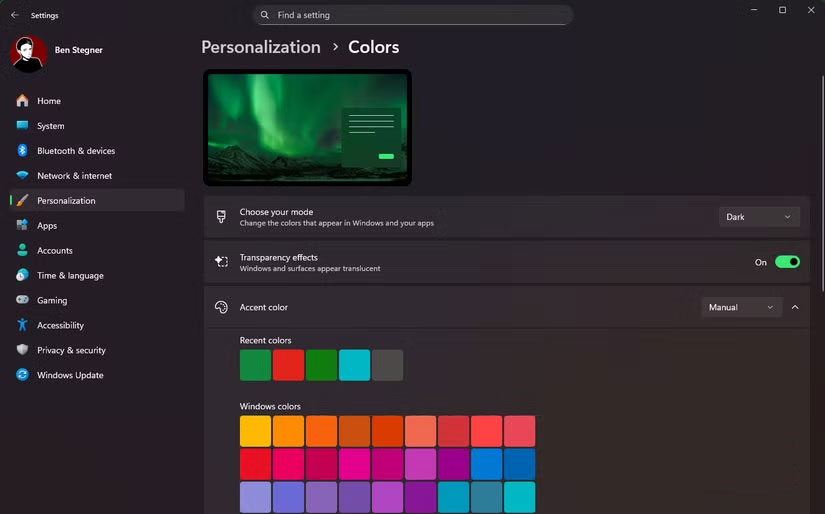
For iPhone, go to Settings > Display & Brightness And select Dark . On Android, the location will vary by device; if you don't find this option under Settings > Display , type "dark" into the Settings menu search bar to be taken to the right place.
Once you've done this, sites that support Dark Mode will change to match your system preferences. For sites that don't have Dark Mode, you'll need to take the next steps.
Desktop: Dark Reader
Dark Reader has been a staple browser extension for many people for a long time. As the name suggests, its purpose is to enable Dark Mode on all websites. Don't worry that the extension needs permission to access every website you visit; the tool's privacy policy clearly states that it doesn't collect any data. Dark Reader is free and ad-free.
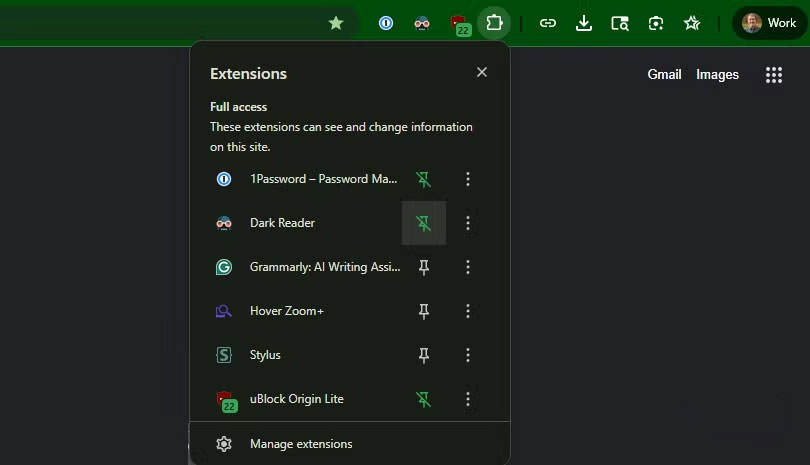
After installing Dark Reader, all websites will immediately switch to Dark Mode. While you don't need to modify anything for it to work, there are a few settings and considerations to keep in mind for a better experience.
Note : Dark Reader will not work on protected browser pages (like the Chrome Web Store).
Dark Reader Configuration
Click on the extension to reveal its options. The top left button lets you disable Dark Reader for the current site, while the top right button lets you disable it completely.
The gear below the site button lets you choose whether to enable inverted mode by default; there's also a useful Detect dark theme Option, which will disable Dark Reader when the site is already in Dark Mode. Enabling Dark Reader on a site that's already in Dark Mode can result in blurry images, so it's worth double-checking.
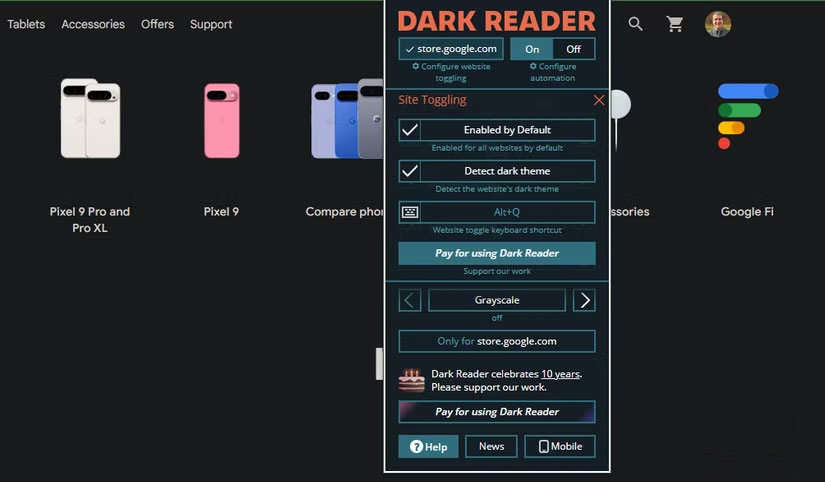
We recommend using the shortcut settings option to enable the extension on the current webpage. Since some websites have issues with Dark Mode, it can be useful to be able to quickly see the unedited version of the webpage. Additionally, if you suspect that something on the page isn't displaying properly with the dark filter enabled, temporarily disabling Dark Reader should help resolve the issue.
The Configure automation Link on the right-hand page lets you set Dark Reader to activate on a schedule, in case you don't want Dark Mode on all the time. Options include during certain hours, between sunset and sunrise in your location, and when the device is set to Dark Mode.
Mobile: Brave
While Dark Reader is also available for iPhone, it costs $5 and only supports Safari. If you rarely use Safari, switch to another browser for Dark Mode on your phone: Brave.
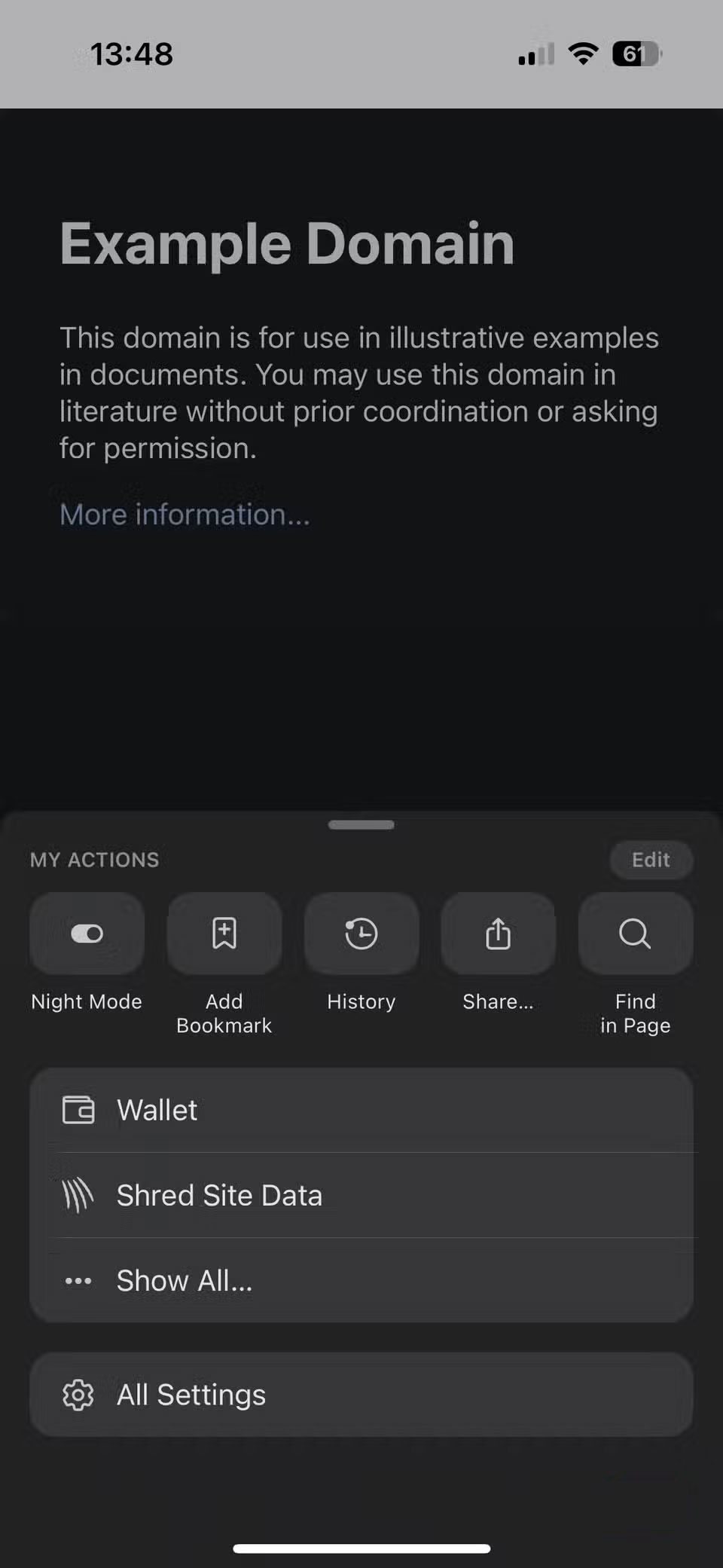
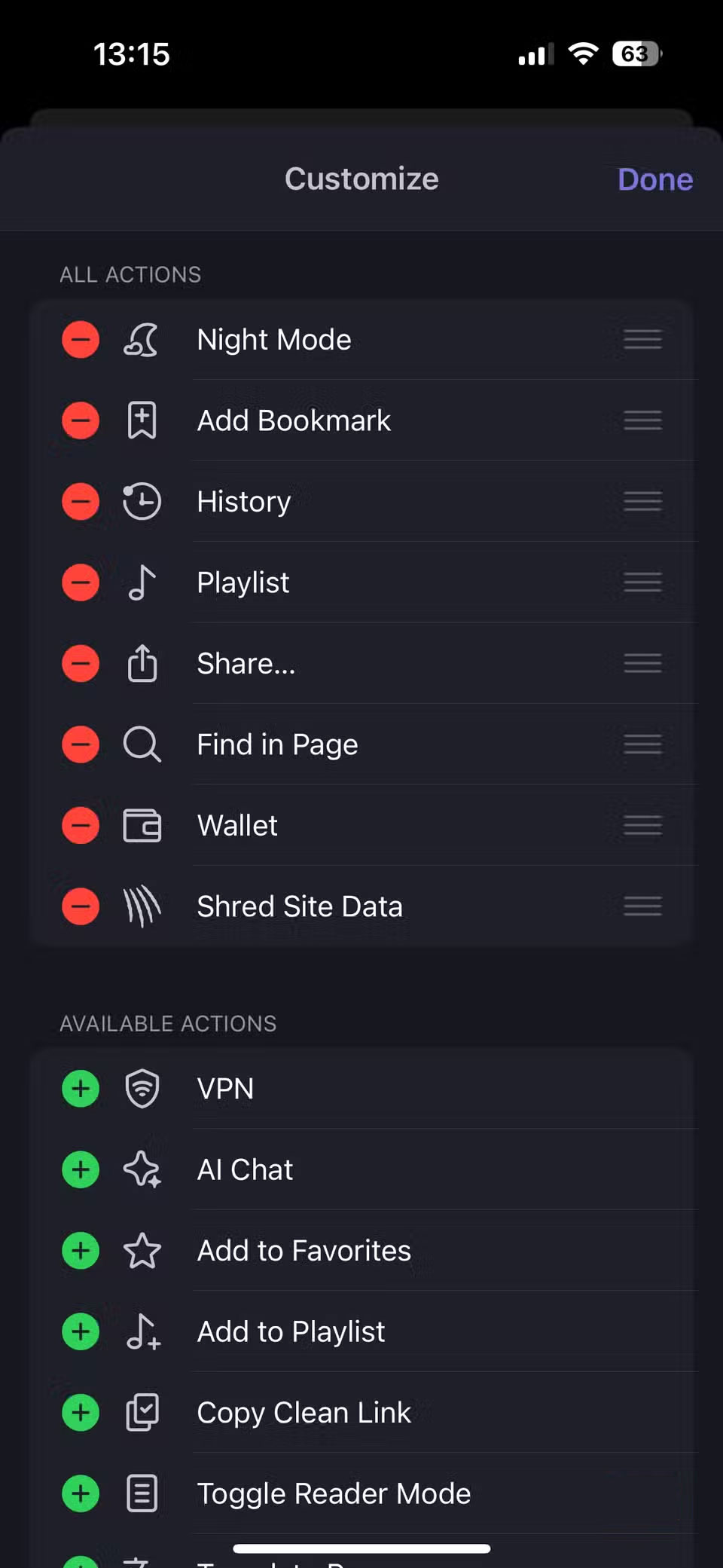
Brave has a simple toggle to enable Dark Mode across the entire browser; it offers a similar experience to Dark Reader with fewer customization options. To access it, tap the three-dot menu in the lower right corner, select Show all , and enable Night Mode . For easier access, tap Edit To the right of My Actions , then drag Night Mode To the top.
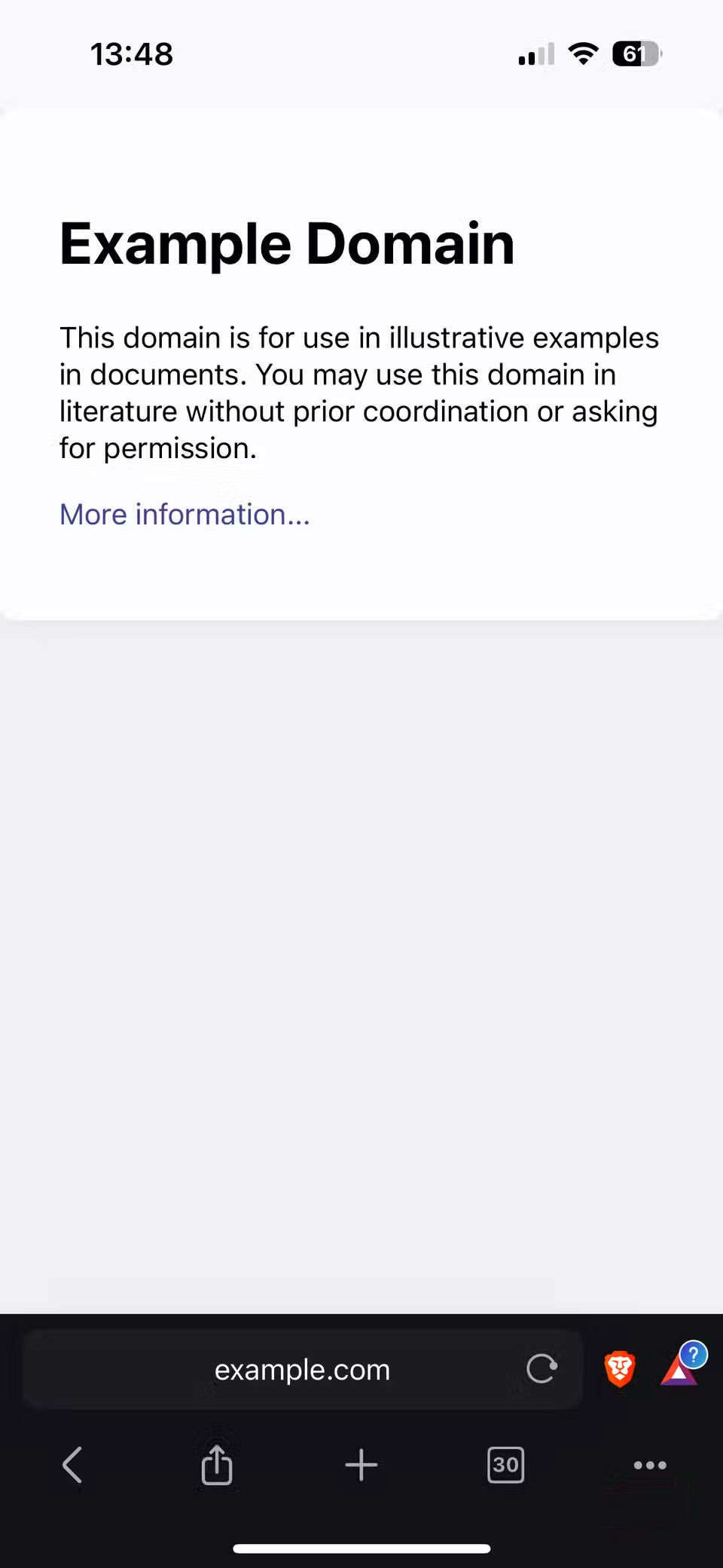
Similar to Dark Reader, you may occasionally encounter issues with Brave inverting a site that already has a dark background, or inverting causes some elements to disappear. Turn off Dark Mode to test if you're unsure.
Brave is a great browser; its built-in ad blocker makes websites look better.
Dark Mode Everywhere
With a simple but powerful browser extension and a solid mobile browser, you can use Dark Mode on just about any website you can think of. Most of the time, the interface looks great using these methods. Occasionally, you'll find a site that doesn't play nicely with Dark Mode filters, but those are usually sites you visit regularly.
This is a great method for anyone who loves Dark Mode, whether for style reasons or to avoid eye strain when using the device for long periods of time.
FAQ
What should you know about switch entire website to dark mode on desktop and mobile?
In practical terms, many people who love Dark Mode and can't stand light mode have come up with a simple solution to enable Dark Mode everywhere.
Why does switch entire website to dark mode on desktop and mobile matter?
The article highlights that brave has a simple toggle to enable Dark Mode across the entire browser; it offers a similar experience to Dark Reader with fewer customization options.
What is the main takeaway?
The main takeaway is that dark Mode Everywhere With a simple but powerful browser extension and a solid mobile browser, you can use Dark Mode on just about any website you can think of.
Related Articles
 Experience the Main Dark Mode on Android 9 Pie3 minutes read
 Dark Reader - a Free Utility That Turns Any Website into Dark Mode, Inviting the Experience4 minutes read
 How to Schedule Automatic Light/Dark Mode Switching in Windows 115 minutes read
 How to Activate Dark Mode on Windows 10?4 minutes read
 How to Enable Dark Mode in Ubuntu 20.04 LTS5 minutes read
 How to Enable Dark Mode in Microsoft Office on Android3 minutes read
Reader Comments 0
Sign in with email or Google to join the discussion.