Table of Contents
WinToUSB can apply a Windows image to an external drive so a compatible computer can boot and run Windows from that drive. This creates a portable operating-system workspace, which is different from a USB installer used to install Windows on an internal disk.
This is a third-party workflow. Microsoft's built-in Windows To Go feature was removed from Windows 10 version 2004 onward, as documented in its feature overview. A third-party creation tool does not make every Windows version, host computer or license suitable for portable use.
Prepare the drive, image and license
- Back up the external drive. Creation may repartition or format it.
- Use a Windows image from Microsoft or another authorized source.
- Check the tool's current Windows-version, architecture and edition support.
- Use a reliable external drive and connection with enough capacity for Windows, applications, updates and free working space. Old 16 GB or 14 GB figures are not general requirements for current Windows.
- Confirm that your Windows license permits the intended use, especially across several computers.
A suitable external SSD is usually a more practical workspace than a slow USB flash drive, but performance and boot compatibility still need testing. Windows 7 and 8-era support in an old tool interface is not a recommendation to use those systems for everyday online work.
Choose the partition scheme for the target firmware
Do not automatically convert every external disk to MBR. Choose a layout supported by the tool and the computers you intend to boot. Hasleo's portable UEFI guide describes GPT-for-UEFI and supported dual-mode options.
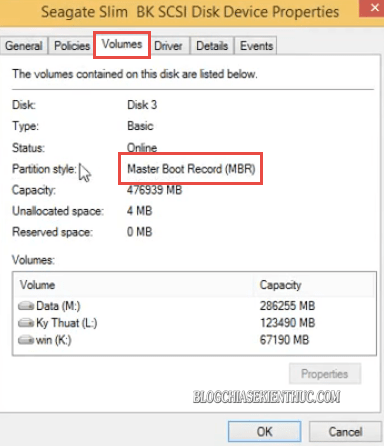
Identify the destination by model and capacity. “Primary” describes a partition category, not whether a disk is external. A partition labeled GPT can also be an internal disk. See UEFI and legacy boot-media concepts before choosing settings.
Create the portable workspace
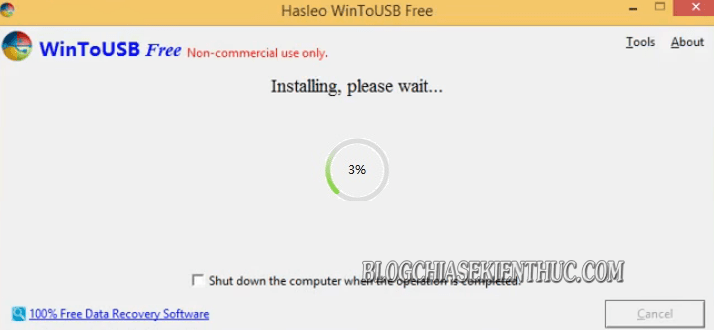
The following images show an older WinToUSB interface. Use the current vendor instructions for exact controls and edition restrictions.
- Open the trusted WinToUSB installation and choose the portable Windows or Windows To Go workflow.
- Read any startup or compatibility message before continuing.
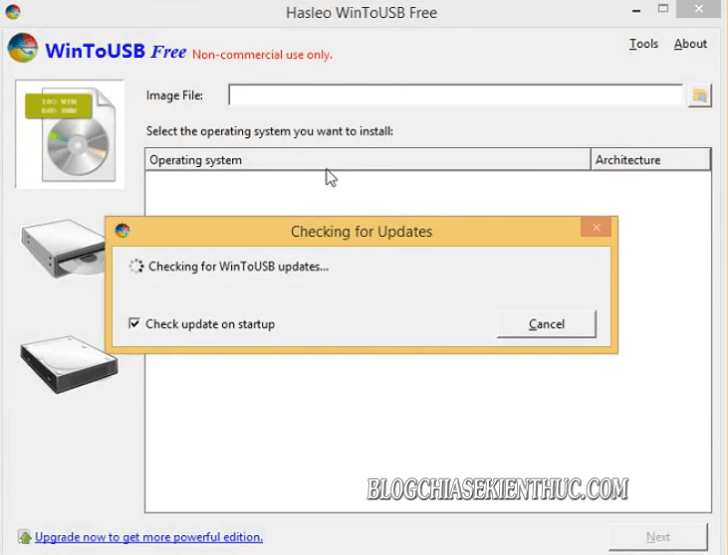
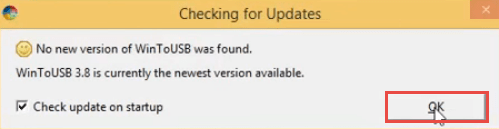
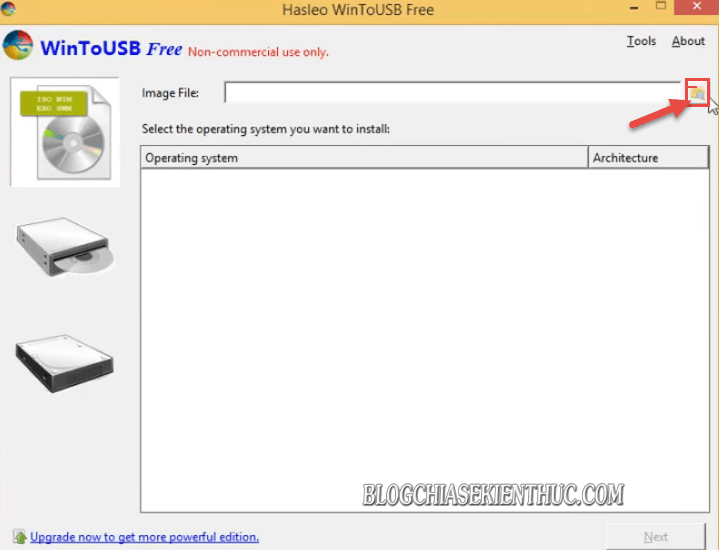
Select the Windows ISO or supported source image. Confirm that it contains the edition and architecture you intend to use.
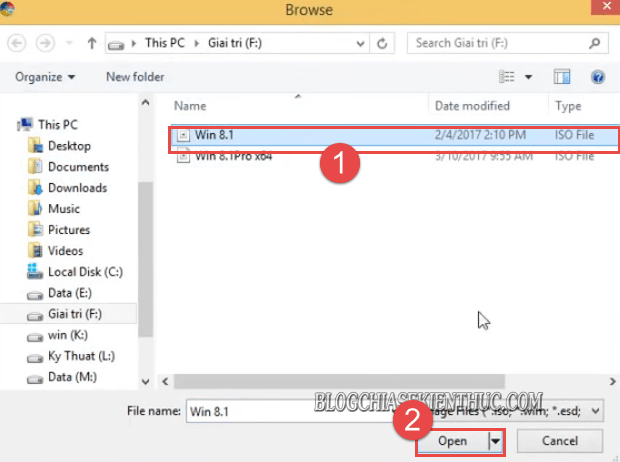
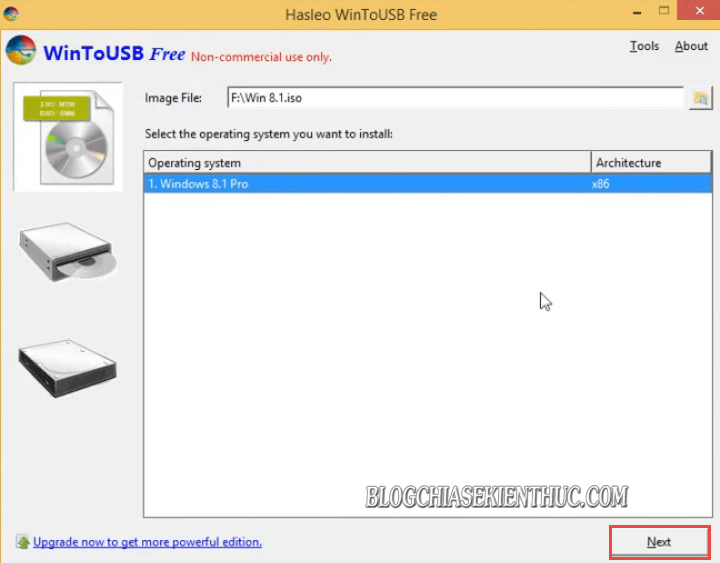
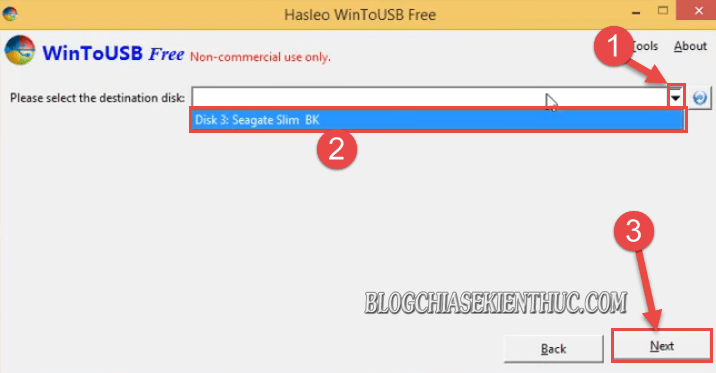
Choose the external destination disk. Review the partition scheme, installation mode and any formatting warning. If the operation will erase data you need, cancel and back it up or use another drive.
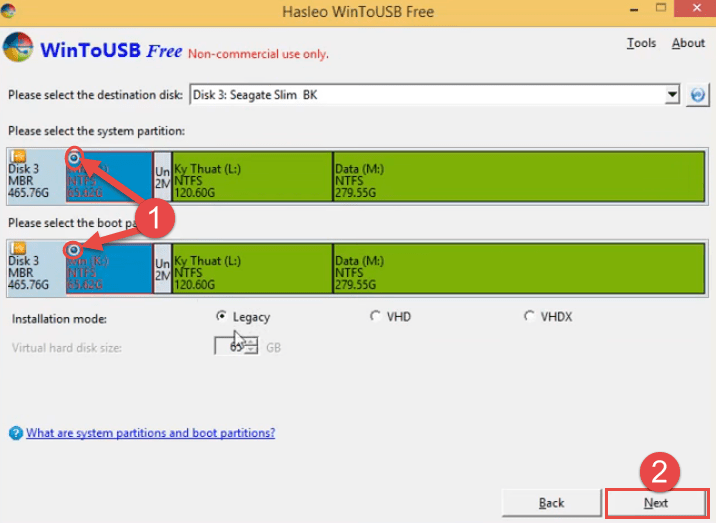
Older workflows can ask separately for a system partition and a Windows boot partition. The system partition holds startup files; the Windows partition holds the operating system. Their filesystems and layout depend on the chosen firmware scheme. Use the vendor's documented layout rather than copying old minimum sizes.
Start the operation only after checking the source, destination and erase scope. Wait until it completes; time depends on the image, device and connection.
Boot and test
- Restart a compatible computer and open its one-time boot menu.
- Select the external drive in the intended firmware mode.
- Complete Windows' first-start setup, then check drivers, network access and activation.
- Shut down completely before disconnecting the operating-system drive.
Test each intended host separately. Moving between computers can expose driver, firmware and activation differences. Do not assume your familiar desktop will work on any borrowed computer merely by plugging in the drive.
For a related creation approach, see portable Windows with Rufus, while reviewing its compatibility limitations. Keep backups separate from the portable drive: carrying the operating system and all files on one device also creates a single point of loss.
Related Articles
 7 best external hard drives
 Pros and cons of using an external hard drive for PS4
 5 External Hard Drives for Different Backup and Storage Needs
 Causes and ways to fix external hard drive slow on Windows 10
 How to fix an external hard drive error is not displayed on the Mac
 6 Tips for Using External Hard Drives on Mac
Reader Comments 0
Sign in with email or Google to join the discussion.