Table of Contents
The best external hard drive is the one that matches where you will use it. A powered desktop drive offers high capacity at a lower cost per terabyte, while a portable drive is easier to carry. A rugged model adds protection for travel, and an external SSD is the better choice when speed, silence, or resistance to movement matters more than maximum capacity.
The five hard drives below address different needs rather than forming a universal ranking. Capacities, included cables, formatting, and warranties can vary by region and model number, so confirm the exact product before ordering.
Quick comparison
| Drive | Best fit | Power | Main tradeoff |
|---|---|---|---|
| SanDisk Professional G-DRIVE | Large creative or desktop archives | AC adapter | Not pocket-portable |
| LaCie Mobile Drive | Portable everyday storage | USB bus power | HDD speed and shock sensitivity |
| WD My Book | Managed desktop backups | AC adapter | Requires desk space and power |
| WD Elements Desktop | Simple high-capacity expansion | AC adapter | Fewer bundled management features |
| ADATA HD710 Pro | Travel and harsher environments | USB bus power | Bulkier than a standard portable drive |
1. SanDisk Professional G-DRIVE: high-capacity desktop storage
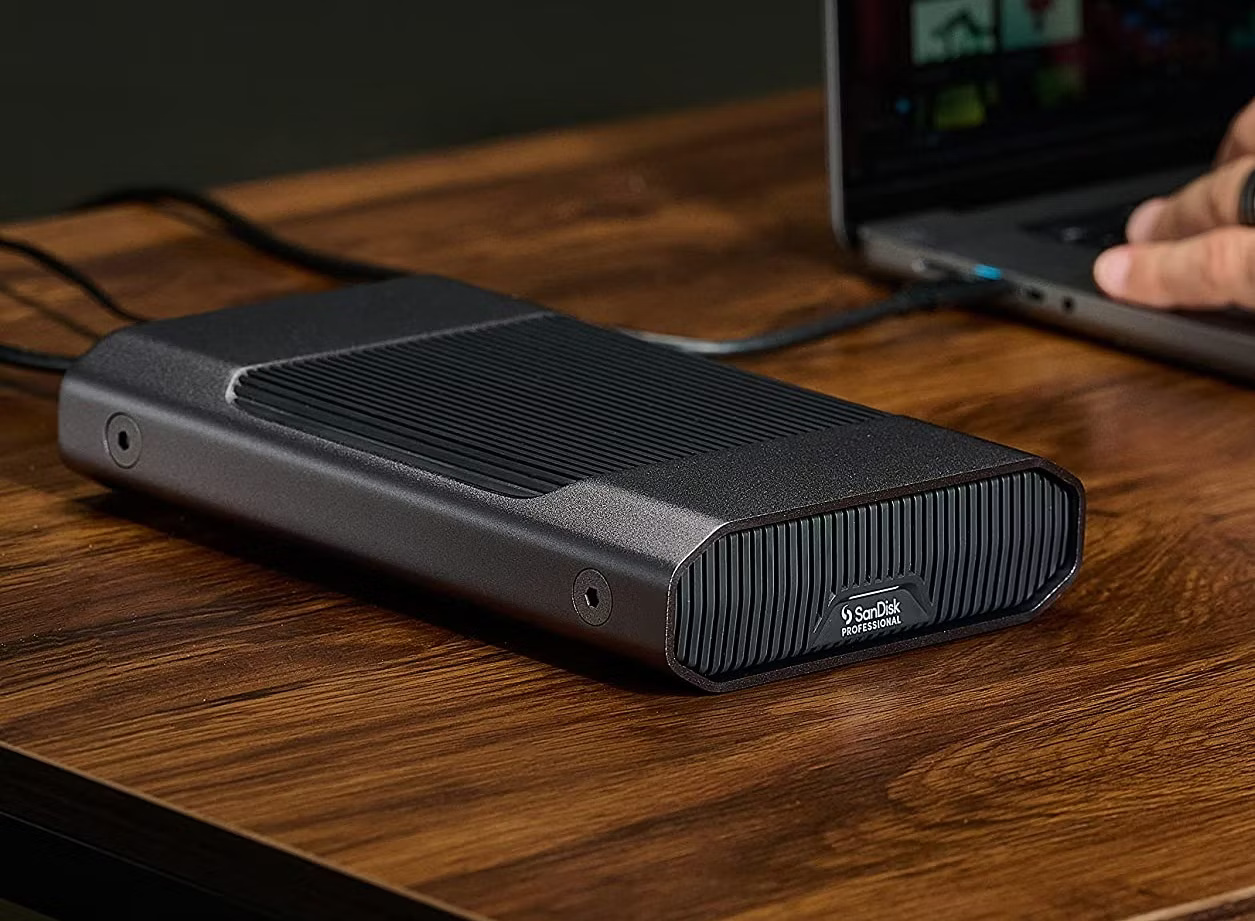
The G-DRIVE is a desktop external HDD aimed at large photo, video, and project archives. Current versions use a USB-C 10Gbps interface and an enterprise-class 7200RPM drive in a stackable aluminum enclosure. Transfer performance depends on capacity and workload; selected high-capacity versions are rated for sequential read and write speeds around 280MB/s.
It requires external power, so it is better suited to a workstation than daily commuting. It is formatted for macOS on some models and may need reformatting for Windows. Reformatting erases the drive, so verify the file system before copying data.
Choose it if: you need a large desktop archive and regularly move sizable media files. Look elsewhere if: you want a lightweight drive that runs only from a laptop’s USB port.
2. LaCie Mobile Drive: portable everyday storage
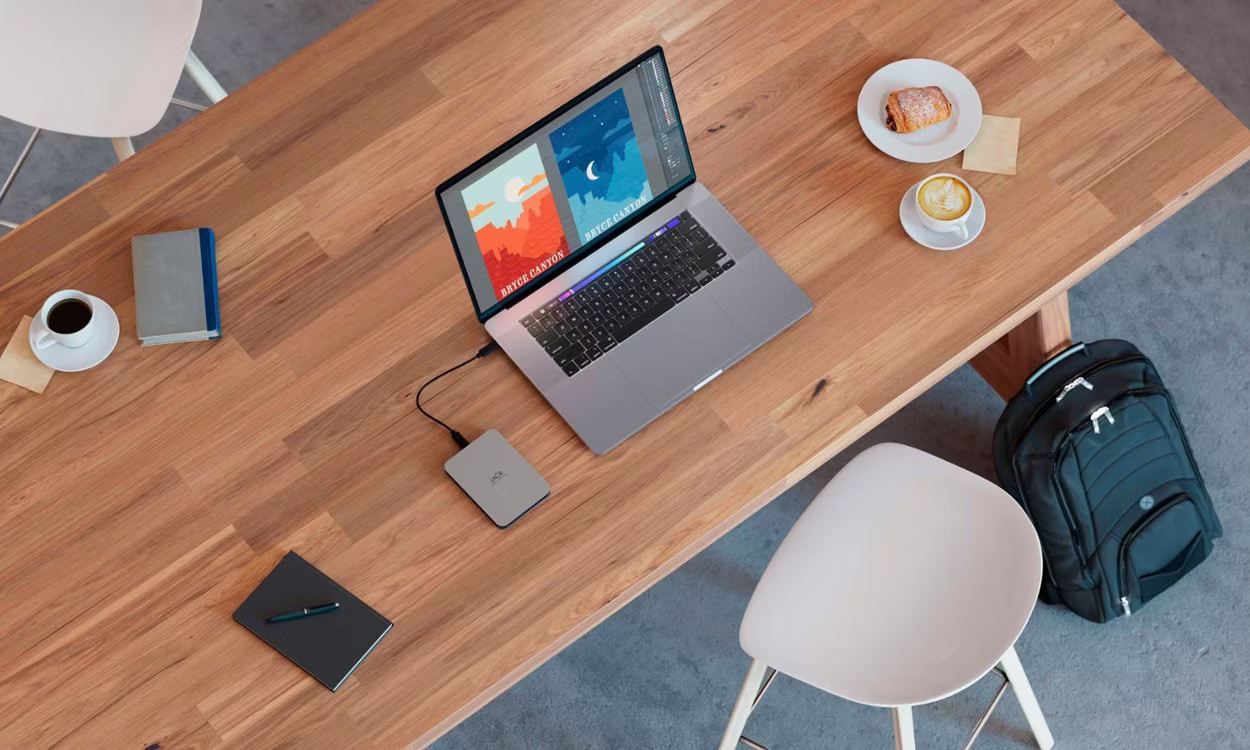
LaCie’s Mobile Drive line combines a compact aluminum design with USB-C connectivity and bus-powered operation. It is appropriate for carrying documents, photos, and working copies between compatible computers without packing a separate power adapter.
It remains a mechanical hard drive. Real-world transfer rates will be much lower than the theoretical speed printed for the USB interface, and the drive should not be moved, dropped, or disconnected while writing data. LaCie Toolkit can assist with supported backup and mirroring workflows, but software availability and features should be checked for your operating system.
Choose it if: portability and simple USB-C connection matter more than maximum speed. If you edit large files directly from portable storage, compare it with an SSD; this overview of SATA and NVMe SSD types explains why solid-state storage behaves differently.
3. WD My Book: desktop backups with management features
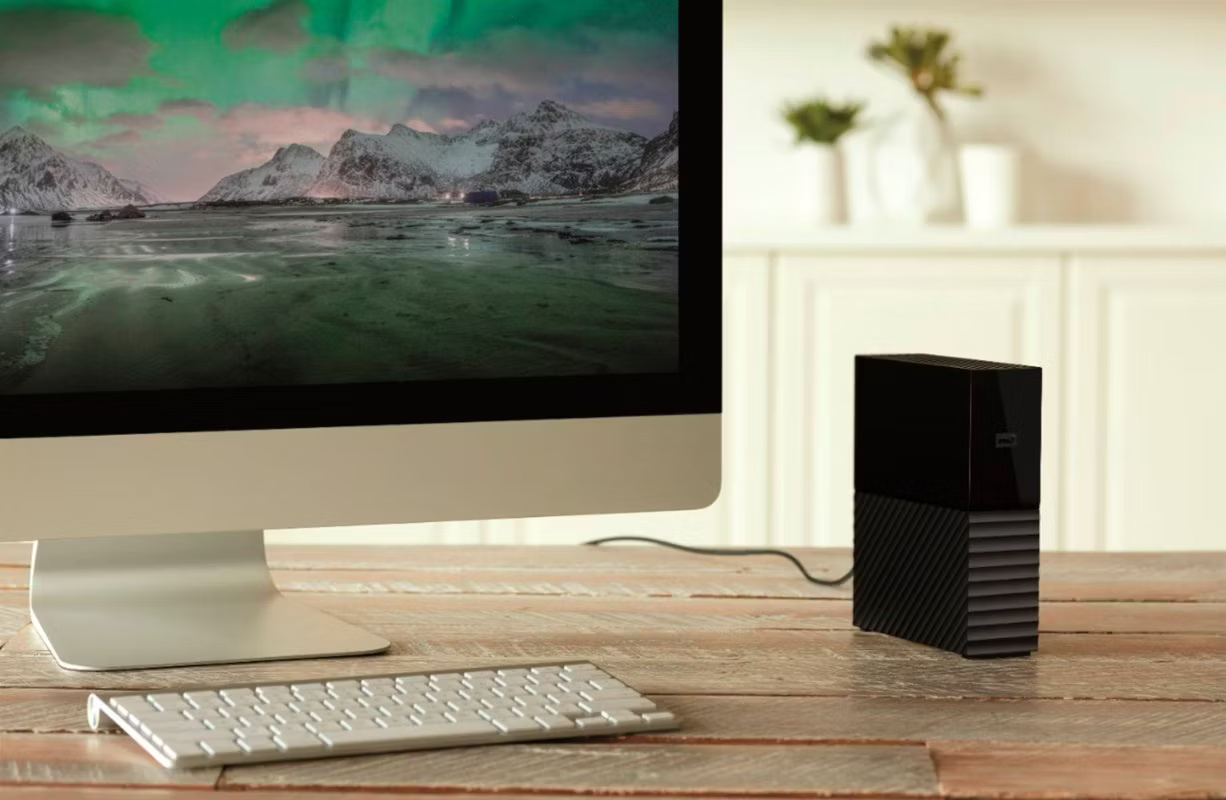
WD My Book is designed for high-capacity desktop storage and scheduled computer backups. Current single-drive versions reach into the mid-20TB range, while My Book Duo uses two drives and offers larger total capacities with configurable storage modes.
The My Book line includes device-management and backup software on supported systems, and some versions support hardware encryption. Encryption is useful only when the password and recovery information are managed carefully: losing the credential can make the stored data inaccessible.
Choose it if: you want a powered desktop drive with bundled management tools. Do not confuse a two-drive enclosure with a complete backup. Mirroring can protect against one drive failure, but it will not protect against deletion, malware, theft, or damage to the enclosure.
4. WD Elements Desktop: straightforward capacity expansion
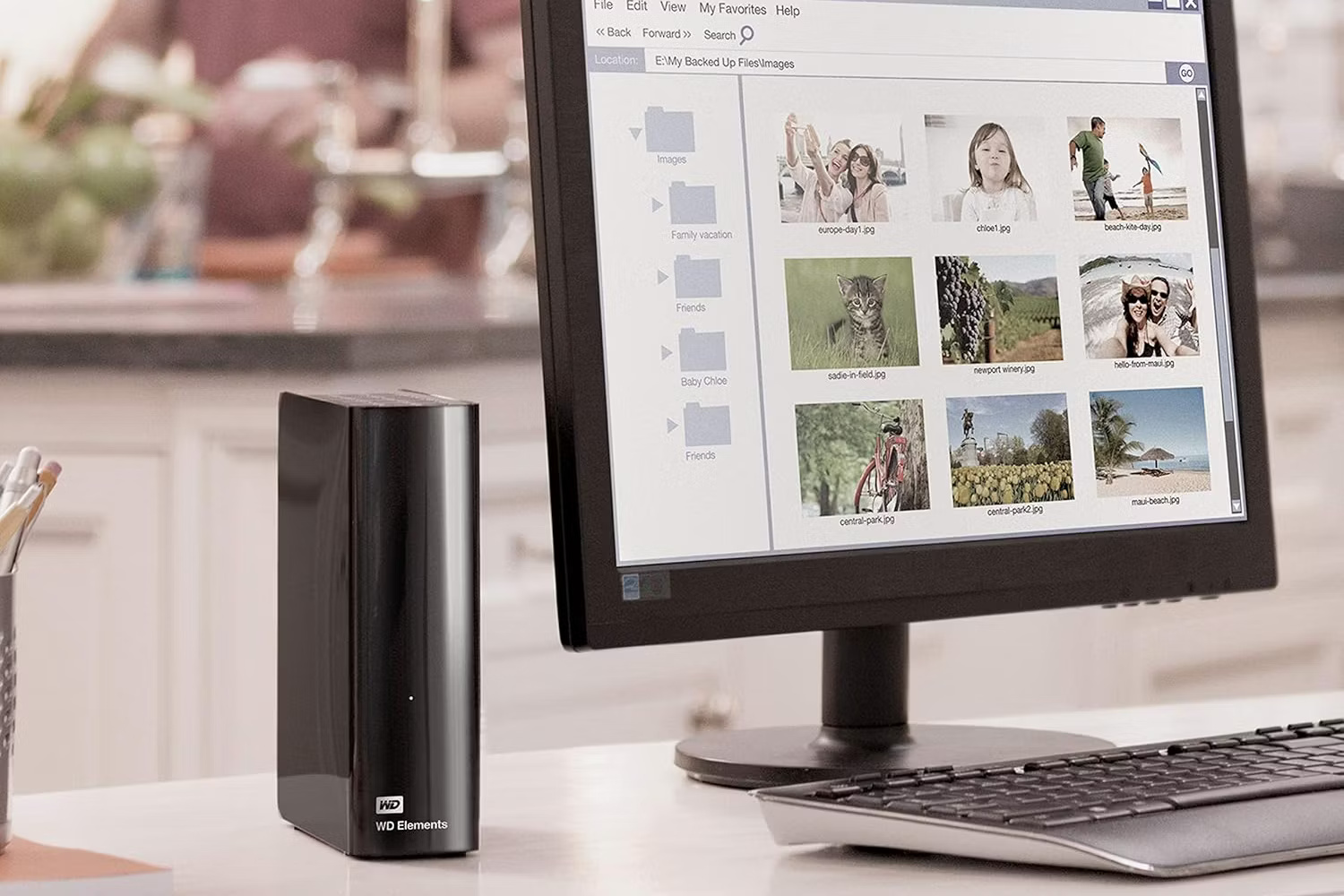
WD Elements Desktop is the simpler alternative for users who mainly want additional space. It connects through USB and uses an AC adapter, with current capacity choices extending into the mid-20TB range. It is suitable for large local archives, secondary media storage, and backup jobs handled by operating-system or third-party software.
Check the file system on the exact model. A drive prepared for Windows may require reformatting for full macOS use, and a cross-platform workflow may call for a different format. Back up any existing files before changing partitions or file systems. If you are considering multiple volumes, review the advantages and limitations of drive partitioning first.
Choose it if: you prefer a no-frills desktop HDD and will manage backup software yourself. My Book is the better comparison when bundled backup or security features are important.
5. ADATA HD710 Pro: a rugged portable HDD
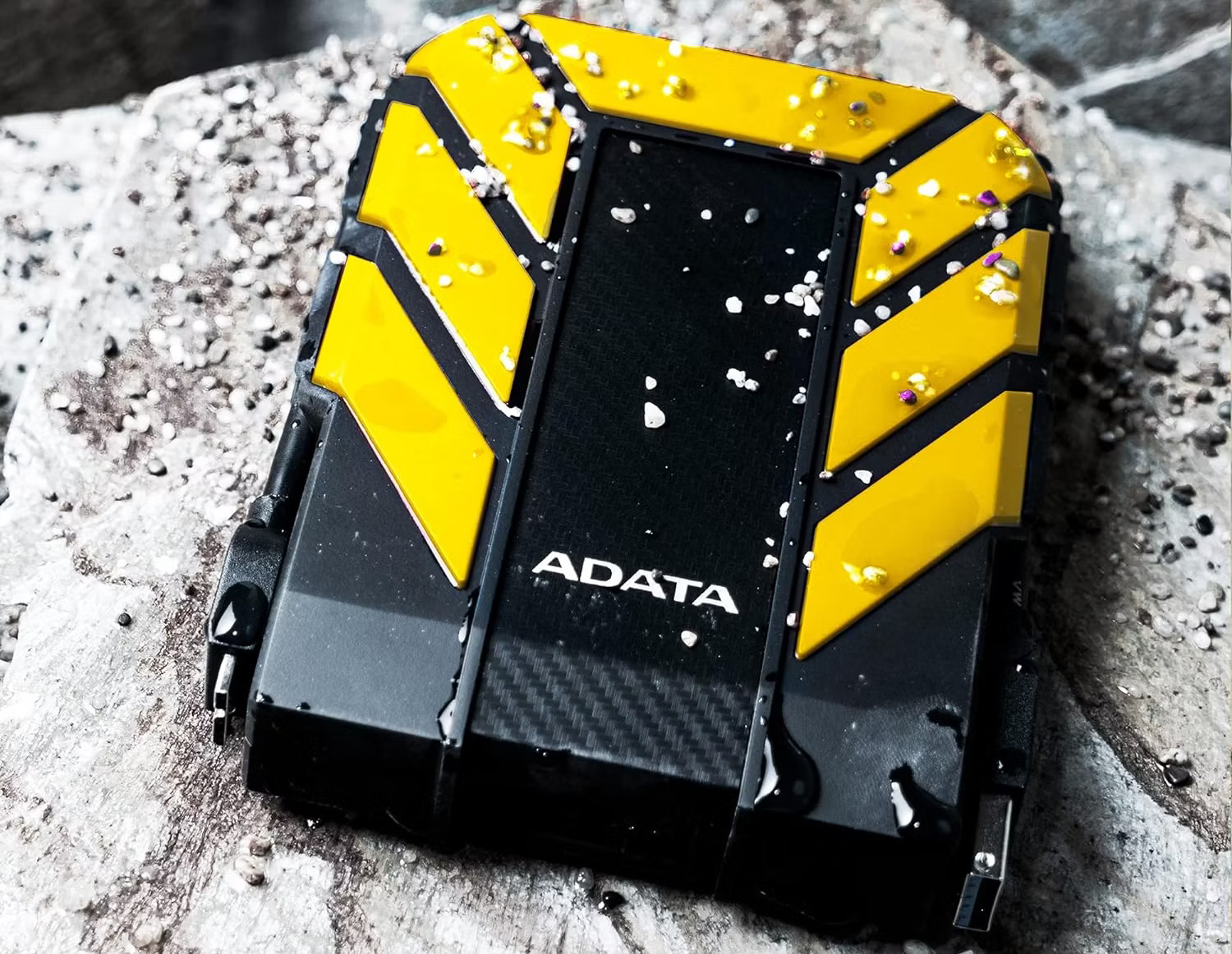
The HD710 Pro adds a silicone exterior, shock-absorbing construction, a covered USB port, and a shock sensor that can pause drive activity after a strong impact. ADATA rates the enclosure to IP68 conditions when the port cover is correctly closed and states that it can withstand immersion to a depth of two meters for up to 60 minutes under specified test conditions.
Those ratings do not make the drive indestructible. Water resistance can decline with damage or an improperly sealed cover, and a mechanical HDD is still vulnerable while operating. Keep another copy of irreplaceable files rather than treating the rugged case as a backup strategy.
Choose it if: you often work outdoors or carry a drive in luggage. Choose a rugged SSD instead if frequent movement during use is unavoidable and your budget permits.
How to choose the right external drive
- Capacity: buy enough room for current data, expected growth, and multiple backup versions.
- HDD or SSD: HDDs offer more capacity per dollar; SSDs are faster, quieter, and have no moving parts.
- Desktop or portable: desktop units need an outlet; portable drives draw power from USB.
- Connector: check the ports and included cables for every computer you will use.
- File system: confirm Windows, macOS, or cross-platform compatibility before formatting.
- Durability: use a padded case and safely eject the drive, even when it is marketed as rugged.
- Warranty: compare coverage for the precise model and region.
Use an external drive as part of a backup plan
One external drive should not hold the only copy of valuable files. A practical approach keeps the working data plus at least two backup copies, with one copy stored away from the computer. Disconnecting a backup drive when it is not in use can also reduce exposure to some malware and power events.
If a drive begins clicking, disconnecting, slowing dramatically, or reporting errors, stop writing new data to it. Recovery attempts can overwrite files or stress failing hardware; review a safer workflow before using hard-drive data recovery tools.
Related Articles
 The Best External Hard Drives for 20205 minutes read
 7 Best External Hard Drives9 minutes read
 8 Other Uses of External Hard Drives/NAS Besides File Storage7 minutes read
 Experience Gold When Choosing to Buy an External Hard Drive8 minutes read
 5 Best External Hard Drives of 2024: Features, Uses, and6 minutes read
 Capacity: Top 10 External Hard Drives5 minutes read
Reader Comments 0
Sign in with email or Google to join the discussion.