Table of Contents
Windows 10 Fall Creators Update is version 1709, released in 2017 and no longer supported. Home and Pro servicing ended in April 2019; the last Enterprise, Education, and IoT Enterprise 1709 servicing ended in October 2020. Do not install it as the everyday operating system on an internet-connected PC.
Use a current release for normal computing
For a compatible PC, obtain Windows 11 from the official Microsoft download page. If you must reinstall Windows 10 on already licensed hardware, use Microsoft's current Windows 10 media page and review its end-of-support warning. Microsoft documents version 1709's expired servicing on the Windows 10 1709 lifecycle page.
When an archived 1709 image may still be justified
A museum system, software-compatibility lab, forensic reproduction, or disconnected legacy appliance may require the exact release. Use a legally licensed, authentic image from an authorized archive. Run it in an isolated virtual machine or segmented network, take a snapshot, and do not use the obsolete system for email, browsing, credentials, or personal data.
Prepare the installation safely
- Back up the target PC and verify the backup.
- Record the correct Windows edition and product key or digital-license status.
- Keep storage, chipset, display, and network drivers from the hardware manufacturer.
- Use a blank USB drive; creating media erases it.
- For a lab, preserve the ISO's source and checksum with the project record.
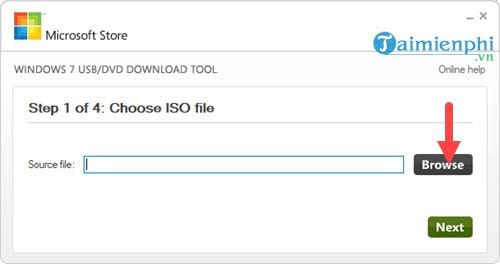
The screenshots below use the obsolete Windows 7 USB/DVD Download Tool. For supported Windows media, prefer Microsoft's current Media Creation Tool. TipsMake's bootable USB guide explains modern UEFI/GPT and legacy BIOS/MBR choices.
Historical USB creation sequence
In the old tool, Browse selected the archived ISO.
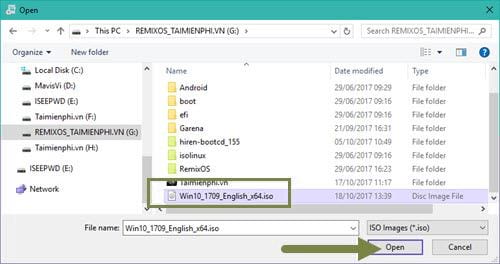
Selecting Open loaded the chosen image.
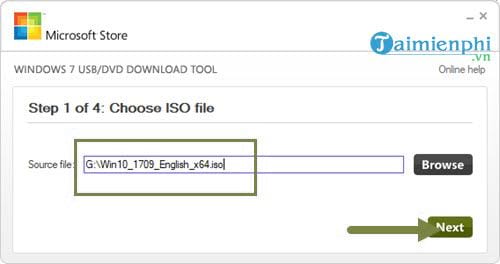
Next continued to the media type.
USB device selected flash media rather than DVD.
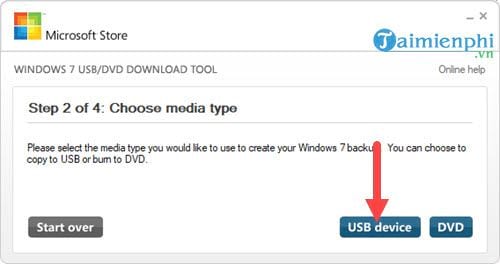
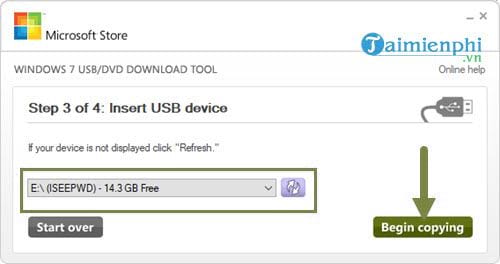
Select the USB drive by its exact capacity and drive letter. Disconnect other removable drives, then choose Begin copying.
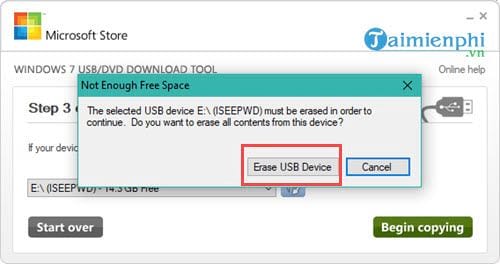
The next confirmation permanently erases that USB drive.
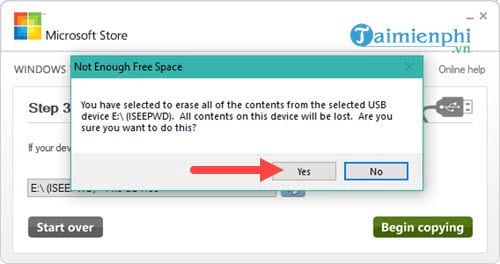
Confirm only after checking the target again.
Wait for copying and verification to finish; duration depends on the USB drive and computer.
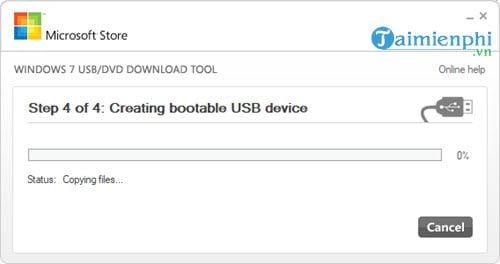
Close the tool only after it reports completion, then eject the media safely.
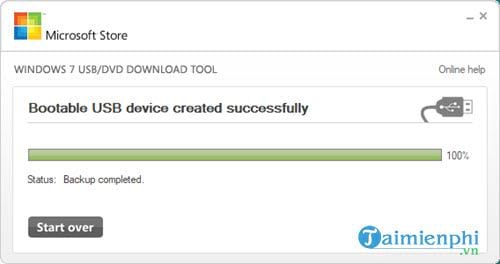
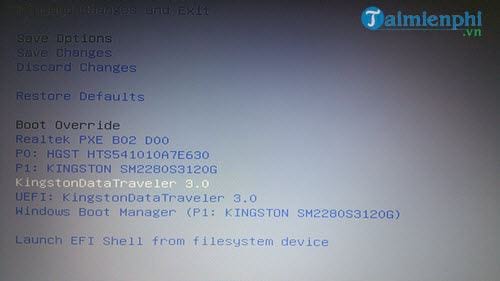
Boot the isolated test system
Use the PC's one-time boot menu to select the USB. Prefer this to changing the permanent boot order. The key varies by manufacturer; selecting the wrong firmware mode can create partition-style conflicts.
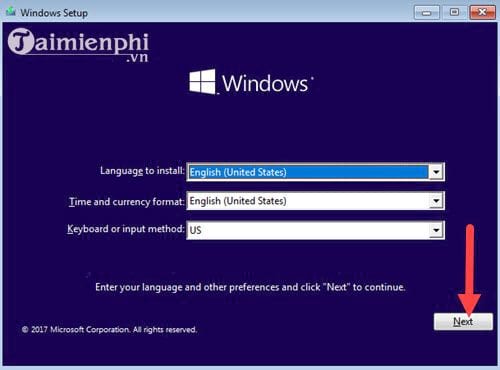
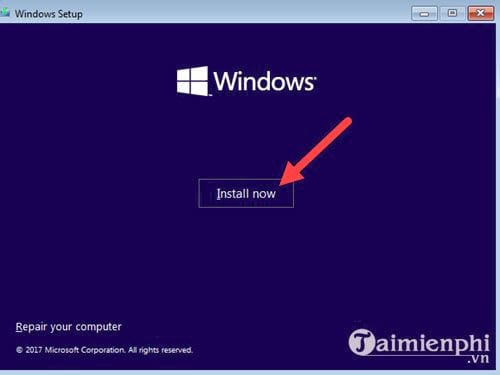
At Windows Setup, confirm language, time format, and keyboard, then select Next.
Select Install now.
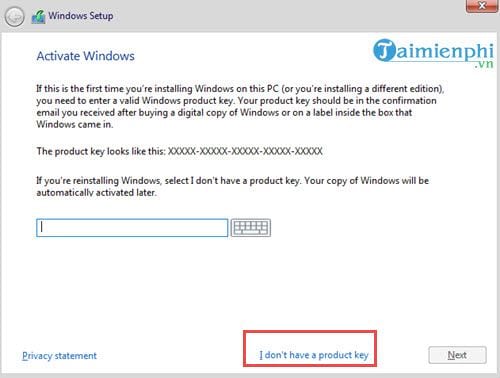
License and edition choices
Selecting I don't have a product key is appropriate only when the device has a matching digital license or you will activate later with a valid license. It is not a promise of a permanently licensed trial.
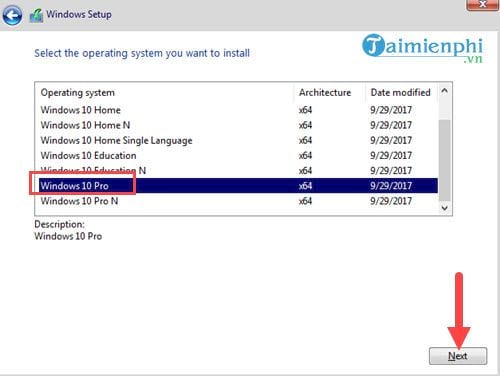
Choose the edition that matches the license—usually Home or Pro. Do not select Pro merely because it lists more features; a Home license will not activate Pro.
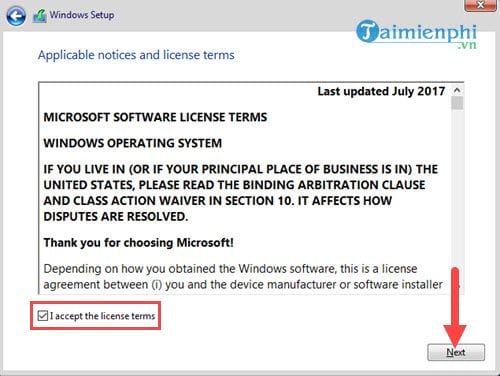
Read the license terms and accept them only if they apply to this installation.
Upgrade versus clean installation
The installer offers Upgrade and Custom, but their use is not interchangeable.
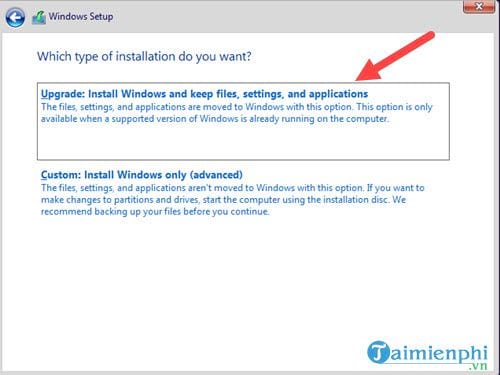
- Upgrade: preserves supported files and apps only when Setup is launched from within a compatible running Windows installation. Do not boot from USB for a normal in-place upgrade.
- Custom: performs a new installation. Selecting, deleting, or formatting a partition can permanently erase data.
For a clean lab install, identify the target disk by size and layout. Stop if you cannot distinguish it from a data drive.
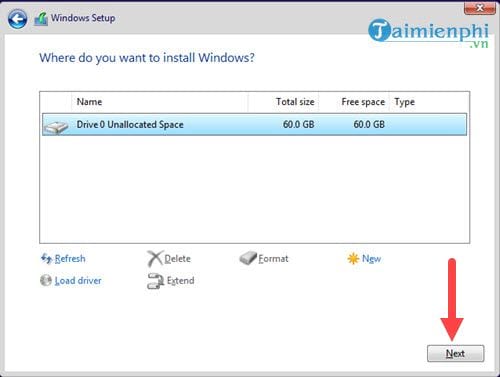
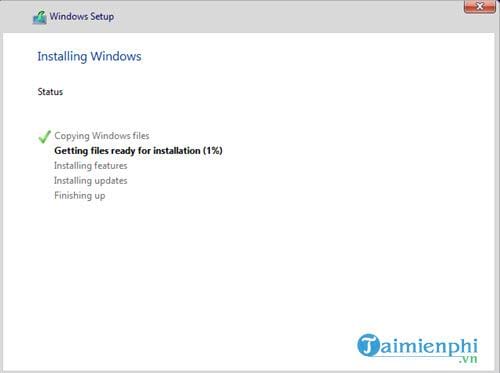
After selection, Setup copies files and restarts several times. Do not remove power or force a shutdown.
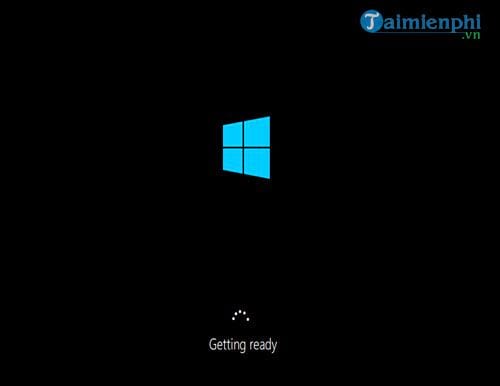
The Windows logo may appear during restarts; allow Setup to continue and avoid booting from the USB again when the internal drive takes over.
Complete the historical out-of-box setup
Select the actual region and keyboard layout; the original screenshot used Vietnam only as an example.

Choose personal or organization setup according to who owns and manages the device.
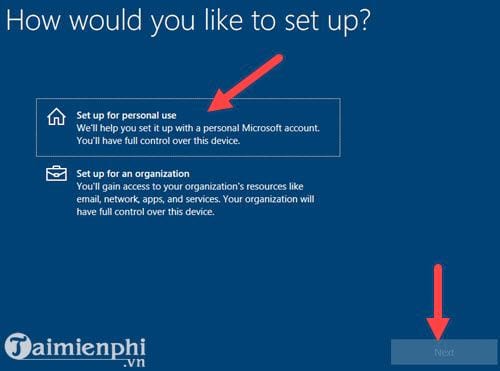
Version 1709 offered account choices that differ from current Windows releases. Use the account type required by the isolated lab and its policy.
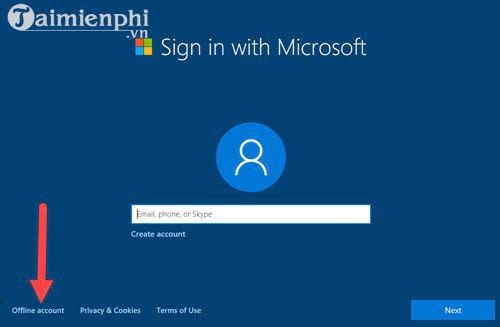
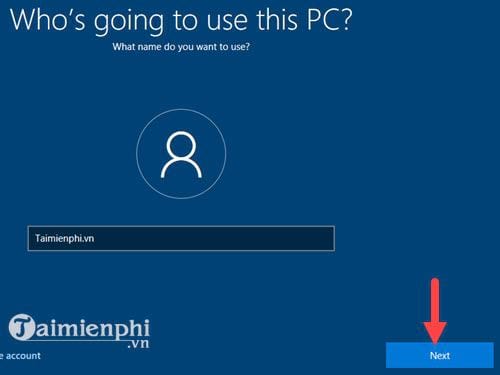
Create the account name and a strong password; do not reuse credentials from a current system.
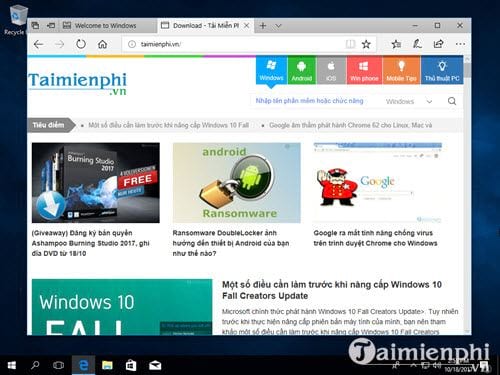
When the desktop appears, installation is complete but the obsolete system is not secure for normal online use.
After installation in a lab
- Keep the VM or machine offline or behind strict segmentation.
- Install only the archived drivers and application versions required for the test.
- Disable shared clipboard, shared folders, USB passthrough, and host integration unless the experiment needs them.
- Take a clean snapshot before introducing samples or untrusted files.
- Never use the legacy image as a shortcut around Windows 11 requirements.
For supported installation and recovery options, use TipsMake's Windows installation and recovery collection.
Related Articles
 How to Recover Passwords on Windows 10 Fall Creators Update4 minutes read
 Instructions to Uninstall Windows 10 Fall Creators Update2 minutes read
 Finally Windows 10 Autumn Creators Update Will Be Named Windows 10 Fall Creators Update3 minutes read
 How to Download Windows 10 Fall Creators Update Via Insider5 minutes read
 How to Reset Windows 10 Fall Creators Update5 minutes read
 7 New Features in Windows 10 Fall Creators Update7 minutes read
Reader Comments 0
Sign in with email or Google to join the discussion.