Table of Contents
Download the current TeamViewer 15 Full Client from TeamViewer rather than an old version-numbered mirror. On 64-bit Windows, use the 64-bit build; use the 32-bit build only for 32-bit Windows or a specific compatibility need. Run the installer, verify its publisher, select the standard installation, accept the displayed terms, and finish setup.
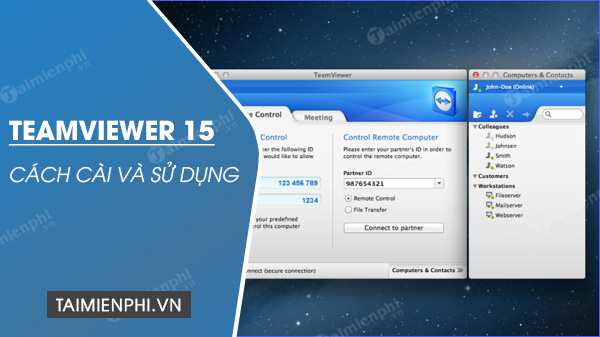
Before downloading TeamViewer 15
“TeamViewer 15” is a maintained major release, not one fixed installer. A file labeled 15.52.4, as in the original version of this guide, is no longer the current build. Use the official Windows download page so you receive the latest available maintenance and security updates.
- Choose the Full Client if this computer will start outgoing connections.
- Use QuickSupport for a one-time incoming support session without a full install.
- Use Host only for a computer that an authorized account must manage through unattended access.
- Do not run the 32-bit and 64-bit full clients side by side. TeamViewer states that one must be uninstalled before switching to the other.
Install TeamViewer 15 on Windows
- Download the Full Client that matches Windows. TeamViewer recommends the 64-bit client for 64-bit systems; a 32-bit system requires the 32-bit client.
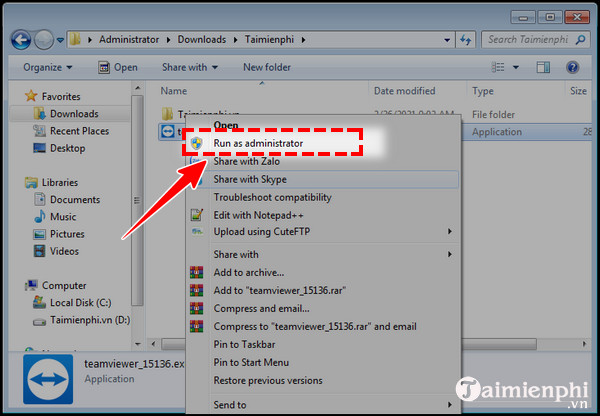
- Open the downloaded TeamViewer_Setup.exe. In the Windows security warning, confirm that the publisher is TeamViewer Germany GmbH. You normally do not need to right-click and choose Run as administrator unless your setup or administrator specifically requires it.
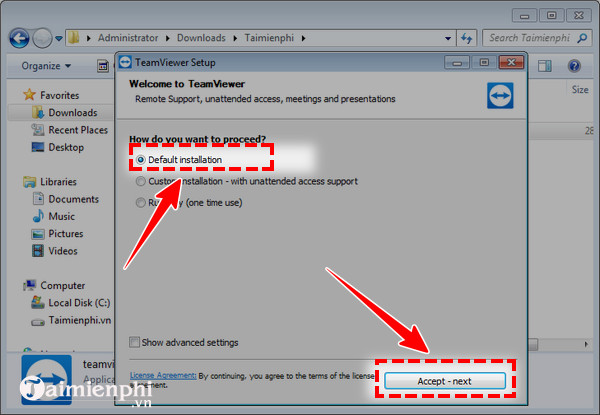
- Select Default Installation, then choose Accept—Next. Read the current labels carefully because the installer may look different from this older screenshot.
- When setup displays the EULA and data-processing agreement, review them, select the acceptance checkbox if you agree, and choose Continue.
Some older installers ask whether you want a business trial, personal use, or to use an existing license. Select the answer that accurately describes your use. A free personal-use option does not cover commercial work, and reinstalling does not change licensing.
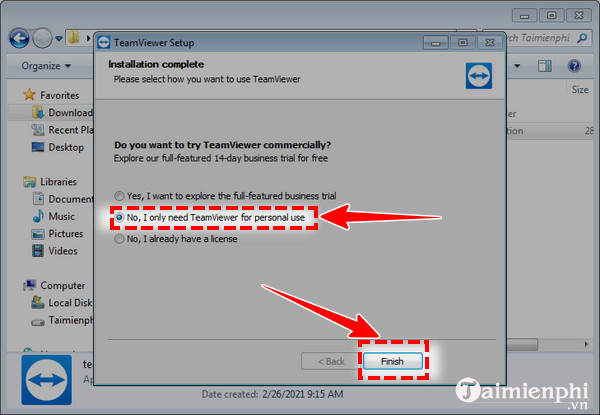
- Finish the setup and launch TeamViewer. Dismiss an introductory panel only after reading any current security or account-verification notice.
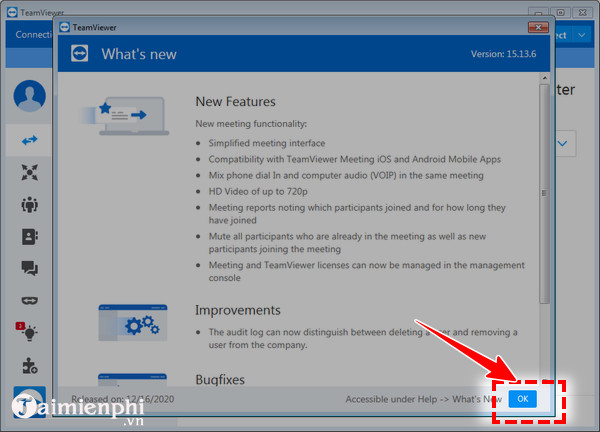
The current TeamViewer Remote interface may not match the older Classic interface below. Look for Remote Support, a session link or code, a TeamViewer ID, or saved devices, depending on the client and account.
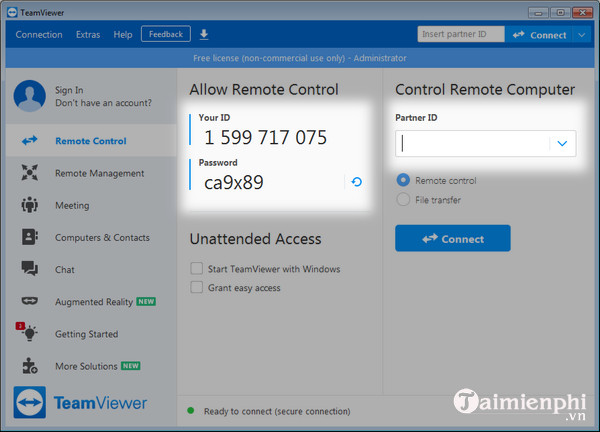
Start an attended connection
- Open TeamViewer on both computers. The remote person should be present and expecting the session.
- Use the current Remote Support workflow to create or join a session, or enter the remote computer's TeamViewer ID where the client offers ID-based connections.
- Enter the one-time password shown on the remote computer, or wait for the remote user to approve the request.
- Confirm that the displayed partner is the person or device you intended to reach.
- Disconnect from the session toolbar when the task is complete.
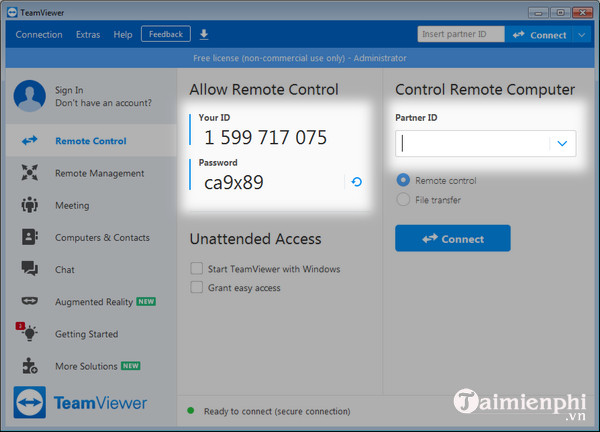
A TeamViewer ID identifies the device; it is not a secret password. Do not rely on claims that the ID is always nine digits or the random password is always four digits, because format and authentication options vary across client generations and settings. The password or session code must remain private.
Do not set a permanent password casually
A permanent or personal password turns an occasional support tool into a form of unattended access. Configure it only on a computer you own or administer, use a unique strong password, restrict access to approved accounts, and enable two-factor authentication. For a one-time support call, use a random password or session code and manual acceptance instead.
Never give remote access to an unexpected caller claiming to represent a bank, retailer, government agency, or software company. If the remote user opens unrelated files or asks you to move money, end the session immediately.
If TeamViewer 15 does not work
- The installer will not run: download a fresh copy from TeamViewer and verify the publisher. On a managed PC, ask the administrator rather than bypassing security policy.
- A newer build is offered: install the latest TeamViewer 15 maintenance release. Both endpoints do not normally need the exact same patch number, but an outdated client can create compatibility and security problems.
- You cannot make outgoing connections: sign in with a verified TeamViewer account if the current client requires it. See how to create and secure a TeamViewer account.
- The wrong architecture is installed: uninstall the existing full client before changing from 32-bit to 64-bit. Keep settings if you need to preserve the device ID, as described by TeamViewer.
- You only need temporary help: close the full installer and use QuickSupport.
TeamViewer's installation documentation is the source of truth when a current button label differs from these screenshots. For the connection itself, follow our detailed guide to using TeamViewer for remote control.
Related Articles
 How to Control a Computer Remotely Using Teamviewer4 minutes read
 How to Use Teamviewer10 minutes read
 How to Install TeamViewer on a PC or Phone That Supports Remote PC Connection6 minutes read
 Detecting Security on TeamViewer Allows Hackers to Steal the System3 minutes read
 How to Installing and Using Teamviewer: Step-by-Step Guide3 minutes read
 Instructions for Installing Teamviewer to Control Remote Computers7 minutes read
Reader Comments 0
Sign in with email or Google to join the discussion.