Table of Contents
Learn how to install Hyper-V on Windows Server 2019 with practical instructions, useful tips, and troubleshooting guidance for common issues.
Hyper-V is a Microsoft product used for hardware virtualization. In today's article, let's explore how to install Hyper-V on Windows Server 2019!
Installing Hyper-V on Windows Server 2019
System requirements:
- 64-bit computers and CPUs with Intel XD bit (Execute Disable bit) or AMD NX bit (No-Execute bit) functionality.
- Enable the Intel XD bit or AMD NX bit feature in the BIOS settings.
In the CUI settings, configure the following.
1. Run PowerShell with administrator privileges and install Hyper-V.
Windows PowerShell Copyright (C) Microsoft Corporation. All rights reserved. # install Hyper-V with admin tools PS C:UsersAdministrator> Install-WindowsFeature Hyper-V -IncludeManagementTools Success Restart Needed Exit Code Feature Result ------- -------------- --------- -------------- True Yes SuccessRest. {Hyper-V, Windows PowerShell for Hyper-V . WARNING: You must restart this server to finish the installation process. # restart computer to apply changes PS C:UsersAdministrator> Restart-Computer -Force In the GUI settings, configure it as follows.
2. Run Server Manager and click Add roles and features .
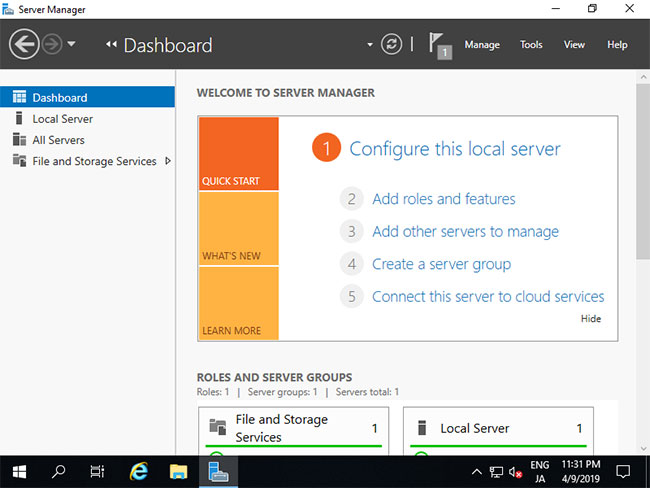
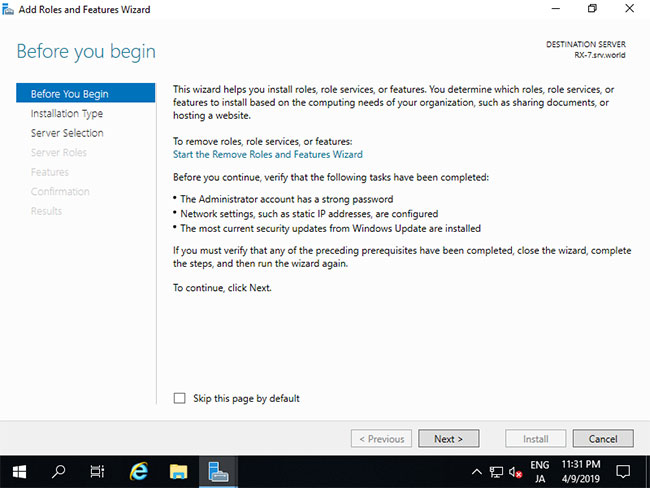
3. Click Next.
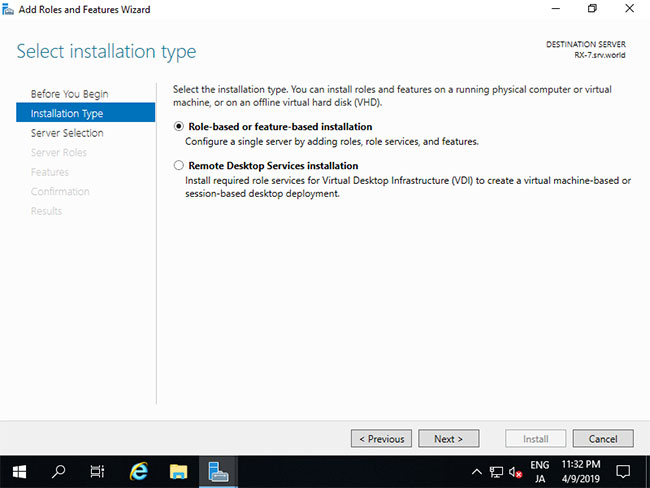
4. Select Role-based or feature-based installation .
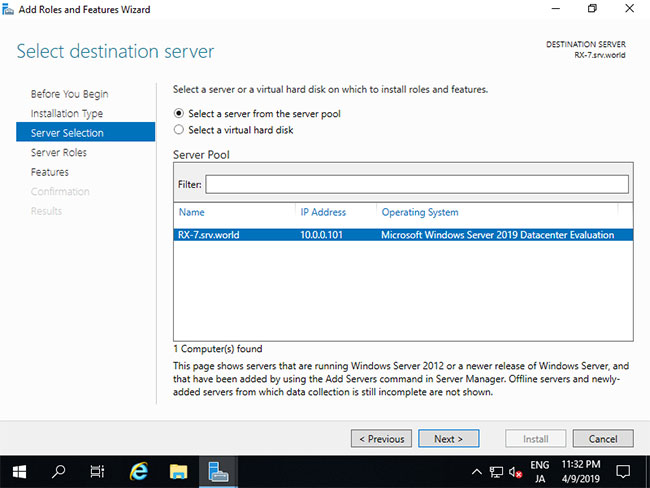
5. Select the host you want to add the services to.
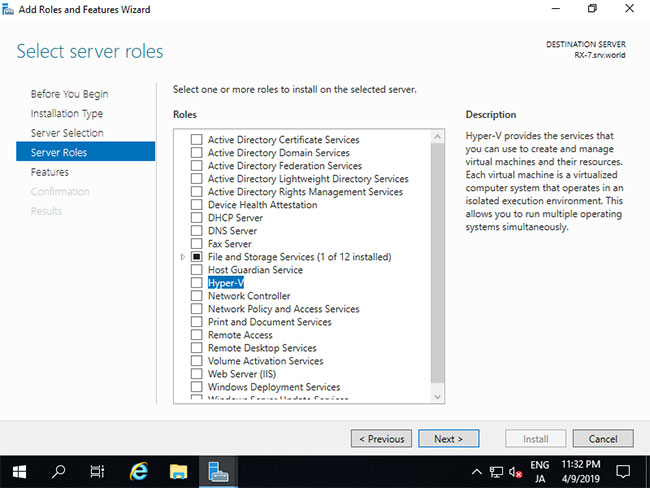
6. Check the Hyper-V box.
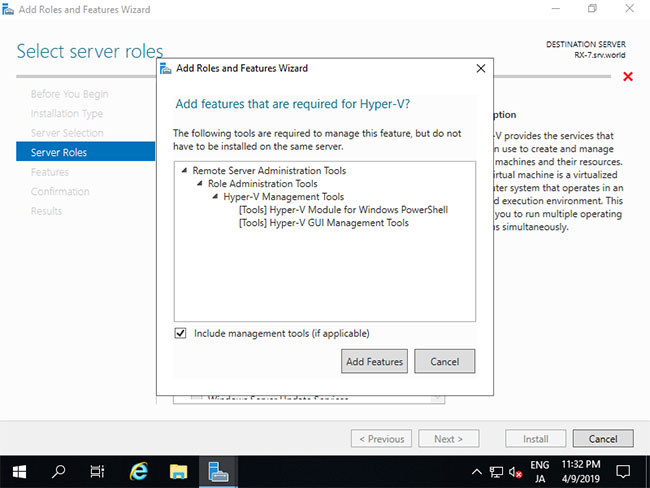
7. Additional features are required to add Hyper-V. Click the Add Features button and proceed to Next .
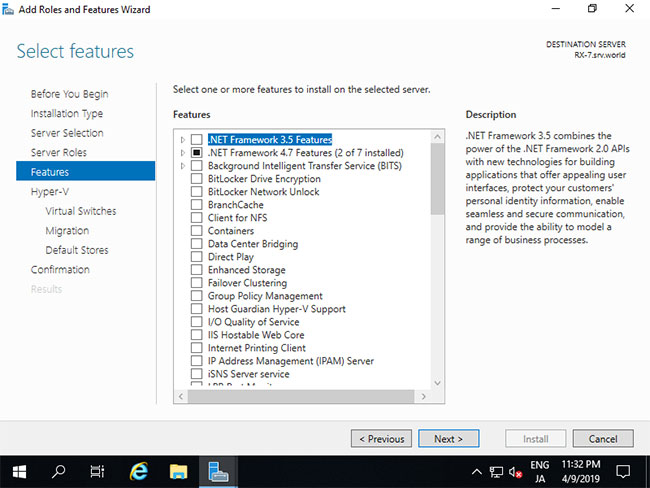
8. Click the Next button.
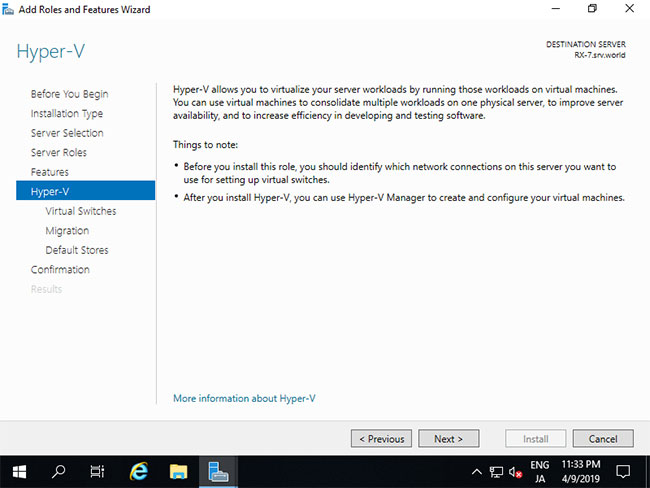
9. Click the Next button.
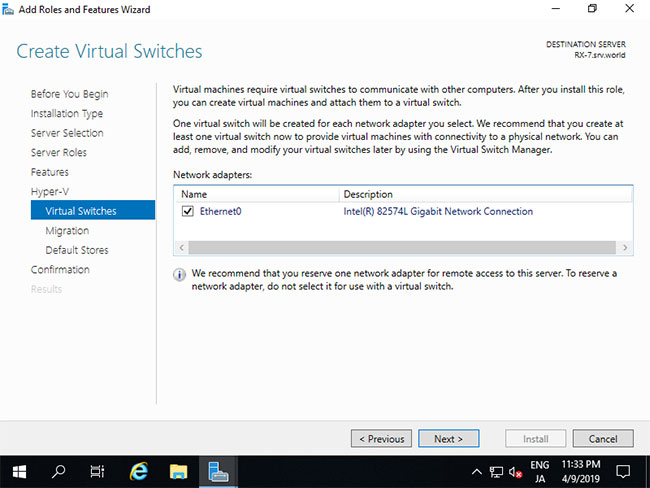
10. This section is for creating Virtual Switches. Choose a network adapter for it.
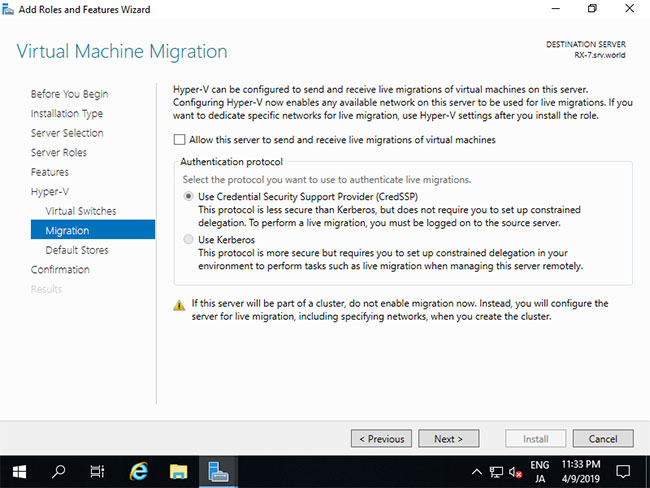
11. This is the Virtual Machines Migration section. In this example, keep the default options and continue by clicking Next.
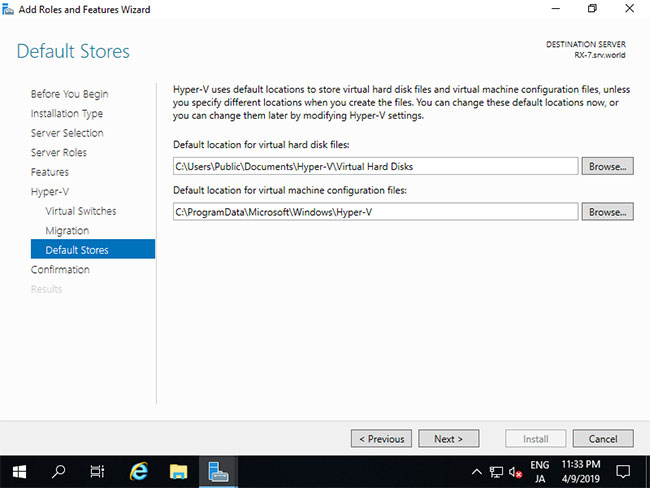
12. This section specifies the configuration location of the virtual machine. In this example, keep the default option and continue by clicking Next .
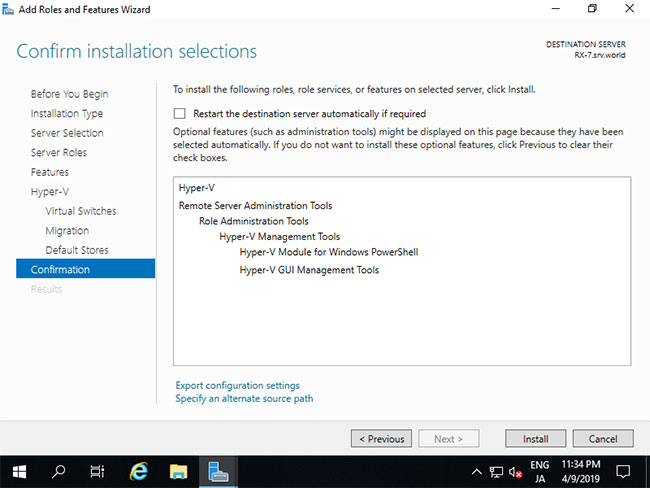
13. Click the Install button to begin the installation.
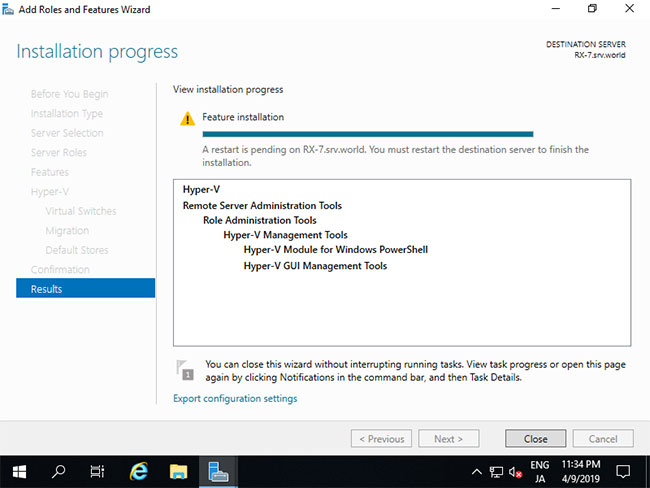
14. After the installation process is complete, click the Close button and restart your computer.
- How to install iSCSI Target on Windows Server 2019
Create a Virtual Machine
In the CUI configuration, set it up as follows:
1. Run PowerShell with administrator privileges and configure:
Windows PowerShell Copyright (C) Microsoft Corporation. All rights reserved. # confirm network adapter names PS C:UsersAdministrator> Get-NetAdapter Name InterfaceDescription ifIndex Status MacAddress LinkSpeed ---- -------------------- ------- ------ ---------- --------- Ethernet0 Intel(R) 82574L Gigabit Network Conn. 6 Up 00-0C-29-C7-54-1A 1 Gbps # create a virtul switch PS C:UsersAdministrator> New-VMSwitch -Name "Bridge01" -AllowManagementOS $True -NetAdapterName "Ethernet0" # confirm PS C:UsersAdministrator> Get-VMSwitch Name SwitchType NetAdapterInterfaceDescription ---- ---------- ------------------------------ Bridge01 External Intel(R) 82574L Gigabit Network Connection # create a directory for virtual machines PS C:UsersAdministrator> mkdir E:Virtual_Machine # set VM name and others PS C:UsersAdministrator> $ParentDir = 'E:Virtual_Machine' PS C:UsersAdministrator> $VMName = 'Win2k19' PS C:UsersAdministrator> $Switch = 'Bridge01' # create a virtual machine PS C:UsersAdministrator> New-VM -Name $VMName ` -MemoryStartupBytes 8GB ` -Generation 2 ` -NewVHDPath "$ParentDir$VMName$VMName.vhdx" ` -NewVHDSizeBytes 50GB ` -Path "$ParentDir$VMName" ` -SwitchName $Switch Name State CPUUsage(%) MemoryAssigned(M) Uptime Status Version ---- ----- ----------- ----------------- ------ ------ ------- Win2k19 Off 0 0 00:00:00 Operating normally 9.0 # change vCPU count PS C:UsersAdministrator> Set-VMProcessor $VMName -Count 4 # add SCSI controler PS C:UsersAdministrator> Add-VMScsiController -VMName $VMName # set install image PS C:UsersAdministrator> Add-VMDvdDrive -VMName $VMName ` -ControllerNumber 1 ` -ControllerLocation 0 ` -Path 'C:UsersAdministratorDocumentsWin2019_EN-US_190906-2324.rs5.iso' PS C:UsersAdministrator> $DVDDrive = Get-VMDvdDrive -VMName $VMName # set virtual DVD first boot device PS C:UsersAdministrator> Set-VMFirmware -VMName $VMName -FirstBootDevice $DVDDrive # start the virtual machine PS C:UsersAdministrator> Start-VM -Name $VMName # after this, refer to [13] to install OSIn the GUI configuration, set it up as follows.
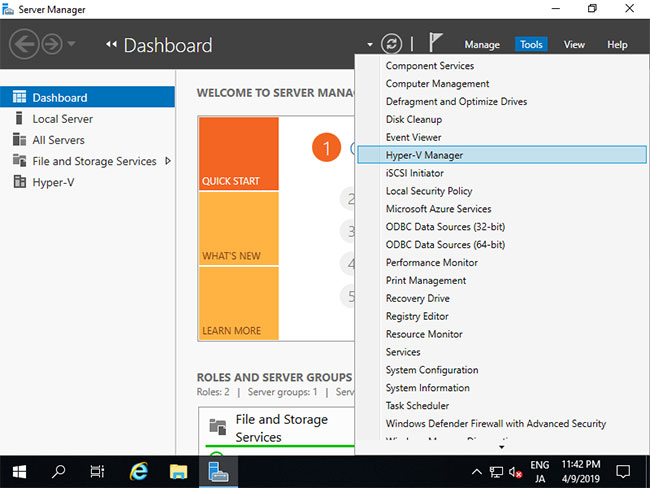
2. Run Server Manager and open Tools > Hyper-V Manager .
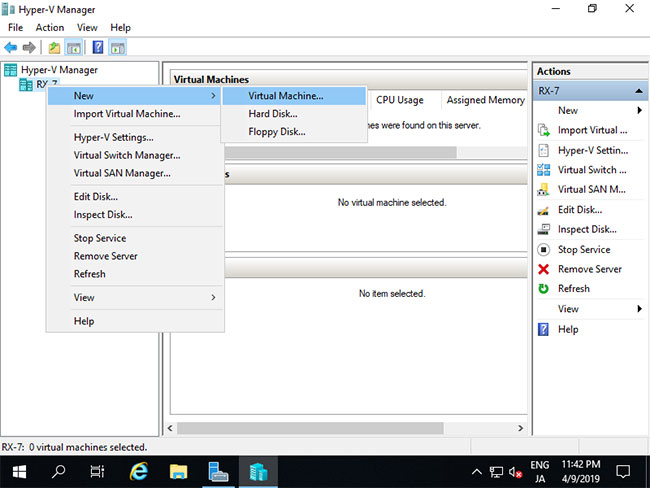
3. Select Hostname on the left and right-click on it to open the menu, then select New > Virtual Machine .
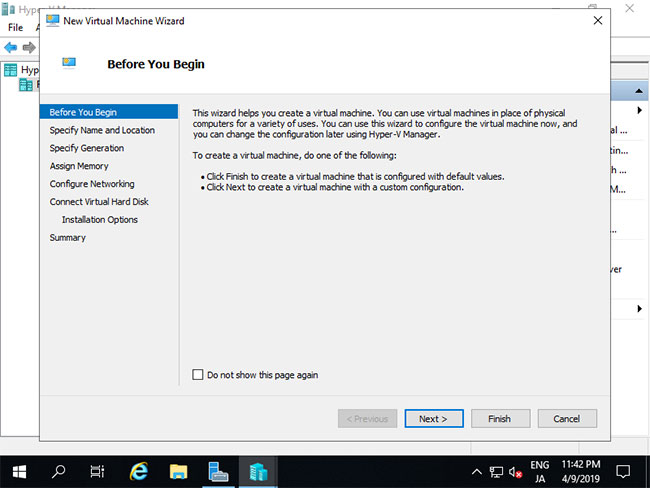
4. Click the Next button.
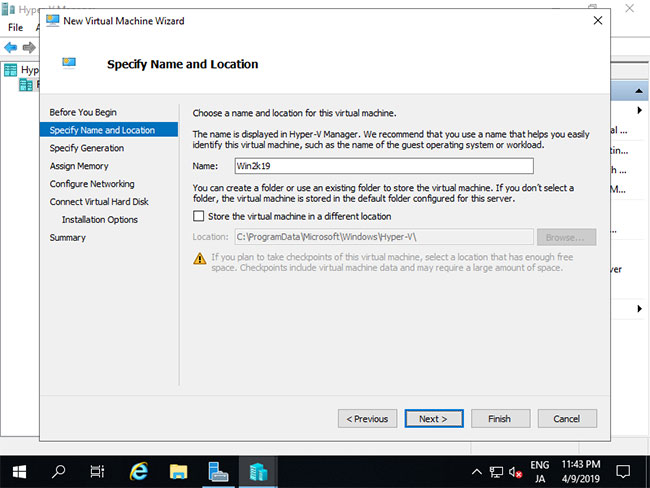
5. Enter a name for the virtual machine. Any name will do.
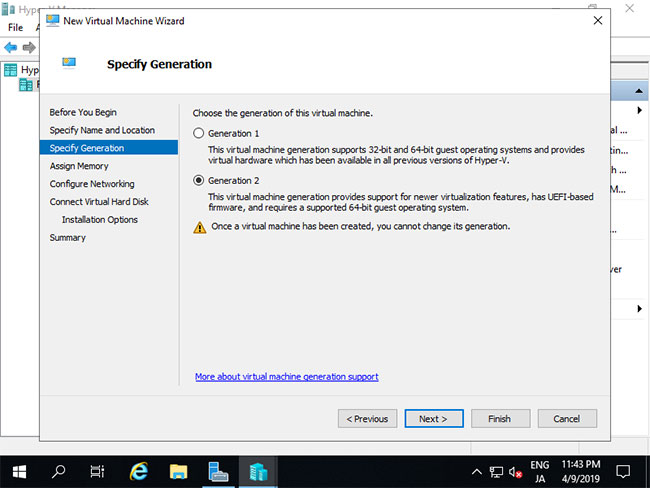
6. Specify the virtual machine generation. In this example, select Generation 2 .
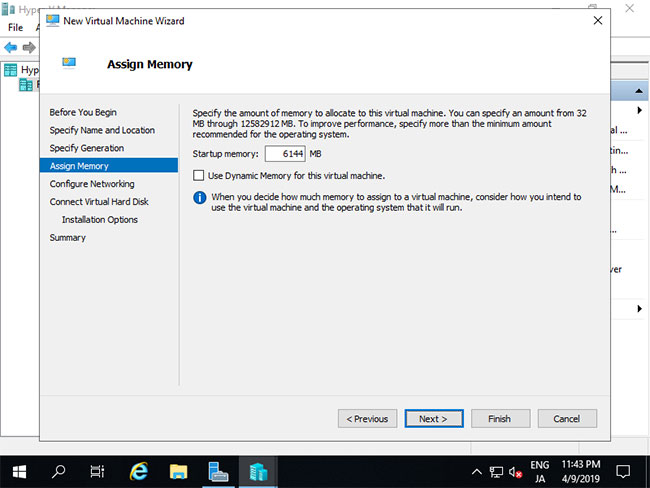
7. Allocate memory for the virtual machine.
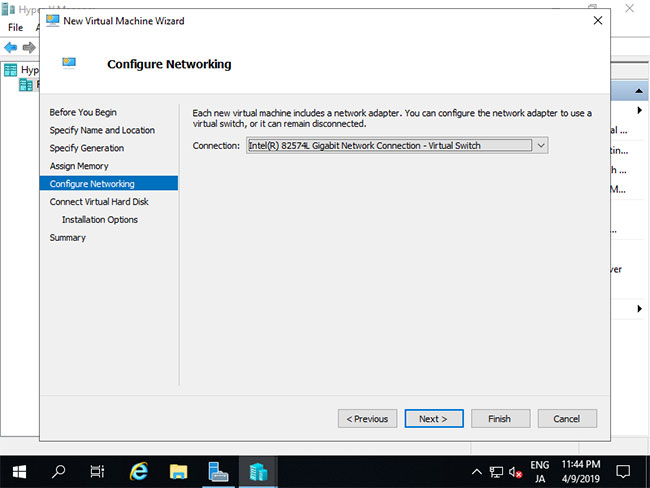
8. Select Virtual Switch to use the virtual machine's network connection.
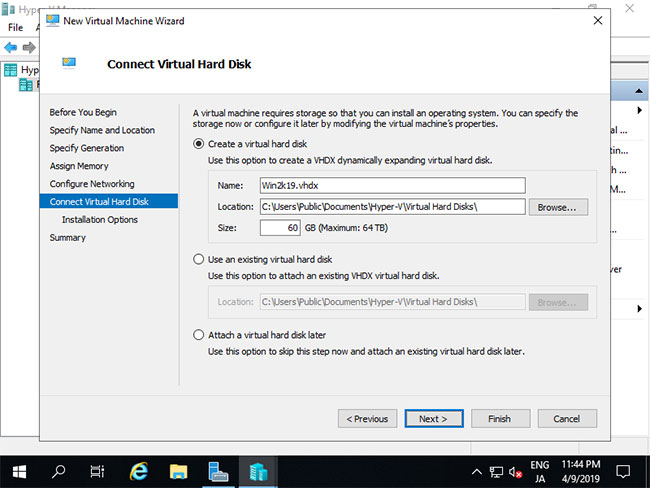
9. Configure the virtual hard drive. Set the parameters to your liking.
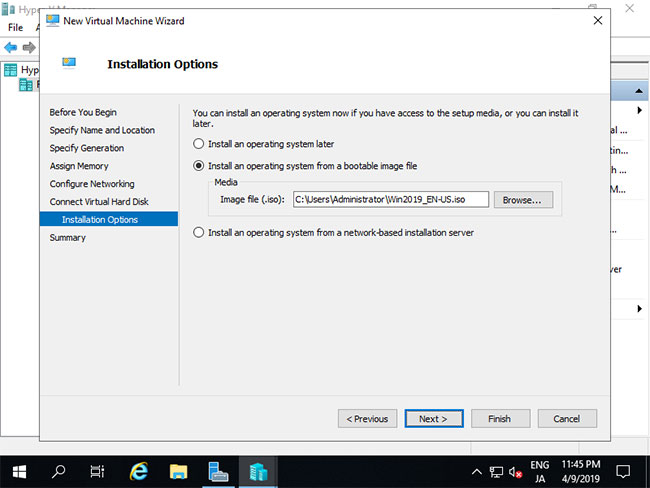
10. Choose the GuestOS installation source.
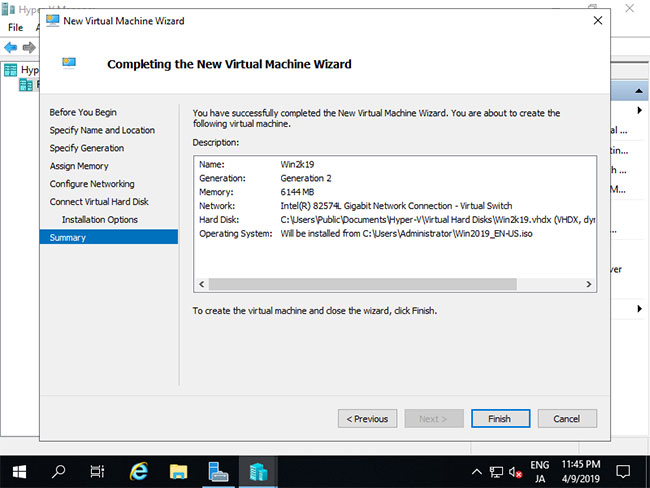
11. Click the Finish button if everything is OK.
12. The virtual machine has just been created. To start it, right-click on it and select Start.
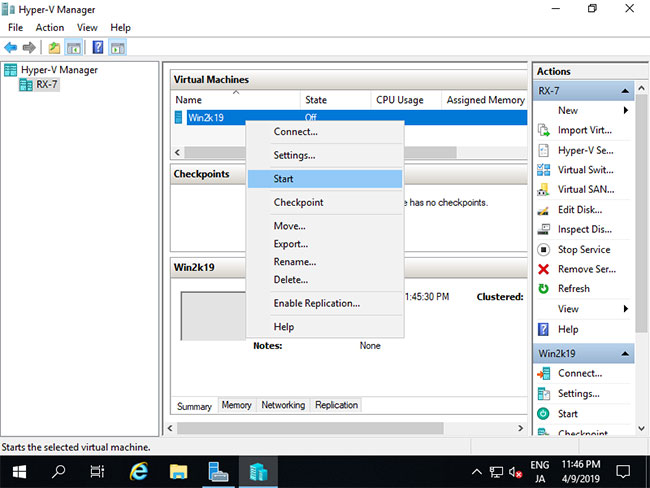
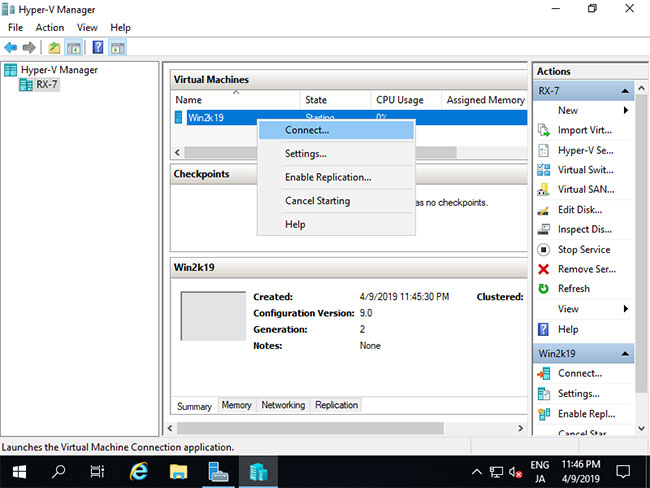
13. To connect to the virtual machine's control panel, right-click on it and select Connect .
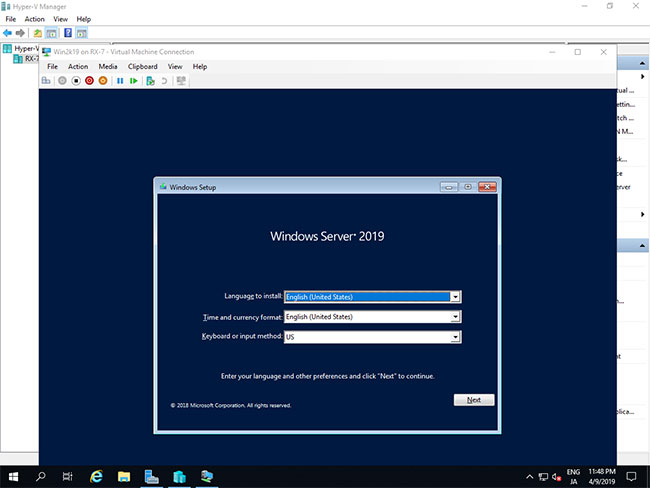
14. Install GuestOS following the standard procedure.
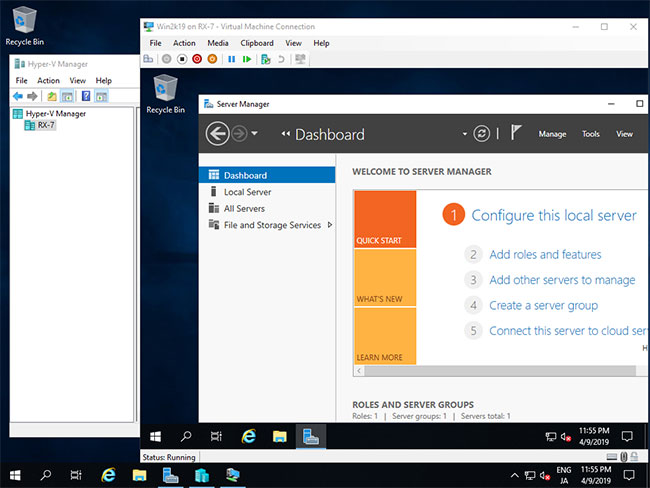
15. The installation process is complete and the Windows Server virtual machine is now running.
Good luck!
FAQ
What is the best way to install hyper-v on windows server 2019?
Learn how to install Hyper-V on Windows Server 2019 with practical instructions, useful tips, and troubleshooting guidance for common issues.
What should you prepare before you install hyper-v on windows server 2019?
Key takeaway: Learn how to install Hyper-V on Windows Server 2019 with practical instructions, useful tips, and troubleshooting guidance for common issues.
What common mistakes should you avoid?
Hyper-V is a Microsoft product used for hardware virtualization.
Related Articles
 Install Hyper-v Virtualization on Windows Server 2008 R22 minutes read
 How to Install Hyper-v in Windows Server 20122 minutes read
 Install and Configure Hyper-v Tools for Remote Management15 minutes read
 Install Windows Hyper-v Server 200819 minutes read
 Install Hyper-v: How to Installing Hyper-v2 minutes read
 How to Install Hyper Terminal in Ubuntu 20.045 minutes read
Reader Comments 0
Sign in with email or Google to join the discussion.