Table of Contents
Foxit PDF Reader is a free viewer for opening, printing, annotating, filling, and signing PDFs. Editing or advanced conversion may require a separate Foxit product or paid feature. Download the installer only from Foxit's verified site and review each option before installation.
Download the correct installer
- Open Foxit's official PDF Reader page.
- Choose the Windows download that matches your computer and organization policy.
- When the download finishes, verify that the publisher is Foxit before running the file.
Installer screens change between versions. The images below show a legacy setup wizard, so labels may differ in the current release.
Install Foxit PDF Reader
- Open the downloaded installer and select Next.
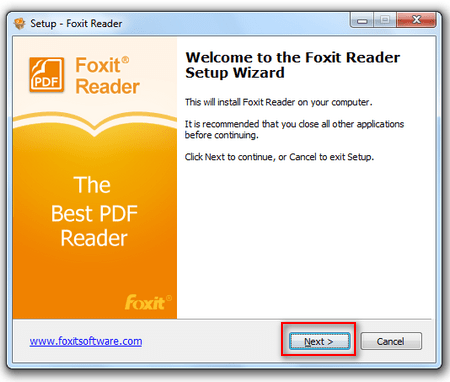
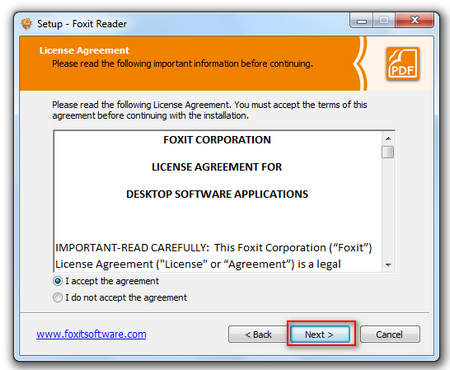
- Read the license agreement. Accept it only if the terms are suitable, then continue.
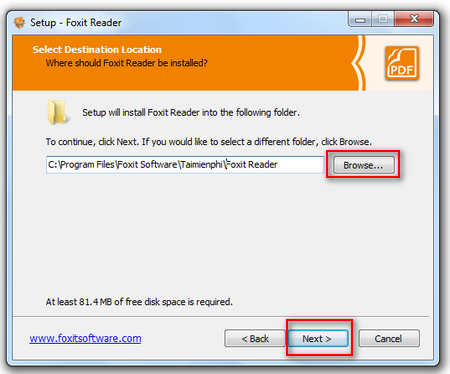
- Choose the installation folder. The default location is suitable for most users.
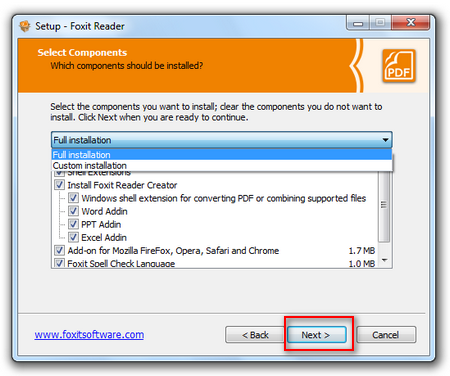
- Select a standard or custom installation. Use custom setup if you need to exclude optional components.
- Review shortcut and default-app options. Select Foxit as the default PDF reader only if you want double-clicked PDFs to open there.
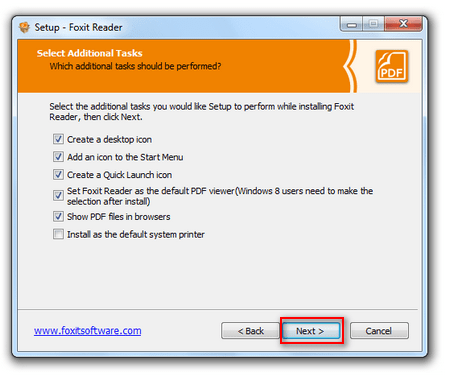
- Review the summary and select Install.
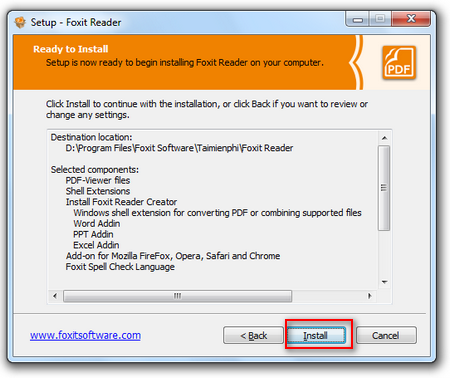
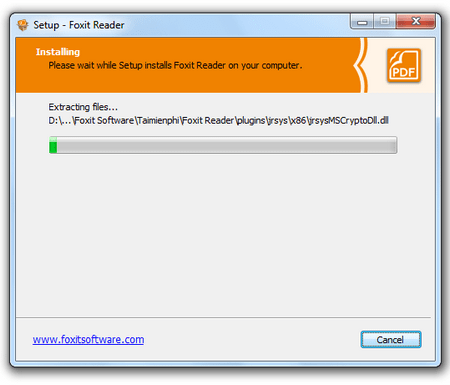
Wait while Windows installs the application.
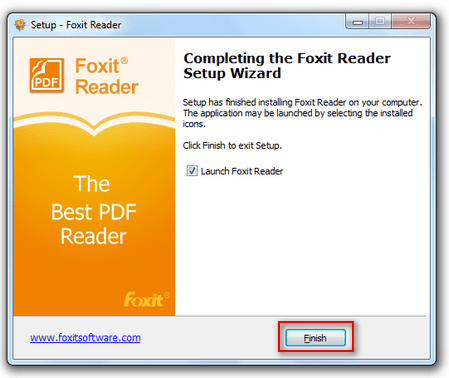
- Select Finish. Restart Windows only if the installer requests it.
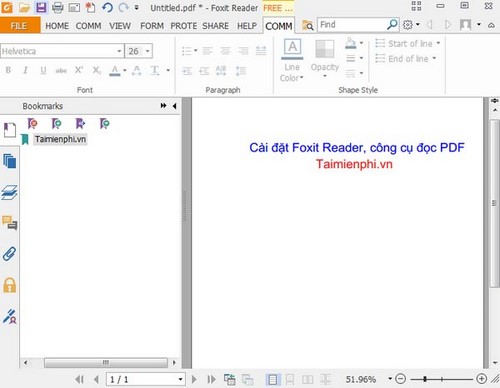
The Reader interface should now open.
Open a PDF
- In Foxit, select File > Open and choose the PDF.
- Or right-click a PDF in File Explorer and choose Open with > Foxit PDF Reader.
- To make it the default later, use Settings > Apps > Default apps and assign .pdf to Foxit.
TipsMake's PDF-opening guide covers default-app troubleshooting and alternatives on other devices.
Update and secure the reader
- Install Foxit updates promptly through the application's update command or your organization's software management.
- Do not disable Protected View, Safe Reading Mode, or related security controls merely to open an untrusted file.
- Be cautious with PDFs received unexpectedly; a document can contain links, forms, attachments, or active content.
- Do not grant administrator rights to Foxit for routine reading.
If installation fails
- Confirm that the installer finished downloading and is not 0 KB.
- Check that your Windows version and architecture are supported by the current Foxit release.
- Close older Foxit processes and retry once.
- On a managed computer, ask the administrator to install the approved package.
- If an earlier Foxit installation is damaged, uninstall it through Windows Settings, restart, and install a fresh official copy.
Know what Foxit Reader can and cannot do
Reader is designed primarily for viewing, commenting, forms, and signatures. For a short authorized passage, you can select and copy text; TipsMake explains that workflow in moving PDF content to Word with Foxit. A full PDF-to-DOCX conversion or OCR workflow may require Foxit's online converter, Foxit PDF Editor, or another approved tool.
If you prefer a different multi-platform reader with conversion and OCR features, compare the options in TipsMake's PDFgear overview.
Related Articles
 How to Install the Latest Version of Foxit Reader on Your4 minutes read
 How to Rotate PDF Files on Foxit Reader: How to Use Foxit Reader3 minutes read
 How to Install Vietnamese for Foxit Reader3 minutes read
 minutes read
 How to Set up Voice Text Reading Mode in Foxit Reader?2 minutes read
 Instructions on editing PDF files using Foxit PDF Reader13 minutes read
Reader Comments 0
Sign in with email or Google to join the discussion.