Table of Contents
Radio buttons (or selection buttons) make it easier for Excel users to view and navigate spreadsheets. Here's how to create selection buttons in Excel .

In Excel, you can use radio buttons to filter or record data entered by different users, and much more. While this feature can make your work easier, it's not available by default. This article will guide you on how to add select buttons to your Excel spreadsheet and customize them easily.
How to enable the radio button feature in Excel
The option to insert radio buttons in an Excel spreadsheet is part of the Developer tab. If this tab doesn't appear on the ribbon, follow the instructions below to enable it:
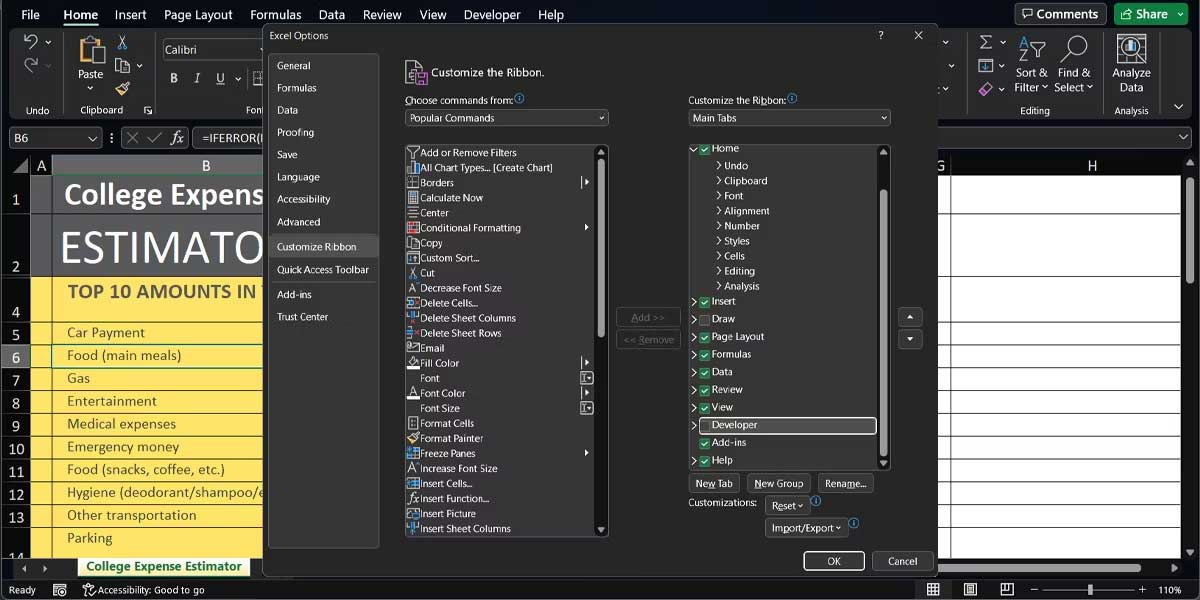
- Open the File menu and select Options . This will open the Excel Options window .
- From the right-hand panel, select Customize Ribbon .
- Set Customize Ribbon to Main Tabs .
- Enable Developer Options .
- Click OK to save the new settings.
How to insert radio buttons
Once you've enabled the Developer tab , you can now use several interactive controls to create professional Excel spreadsheets. To insert a radio button, select the Developer tab > Controls > Insert . Here, click Form Controls > select Option Button .
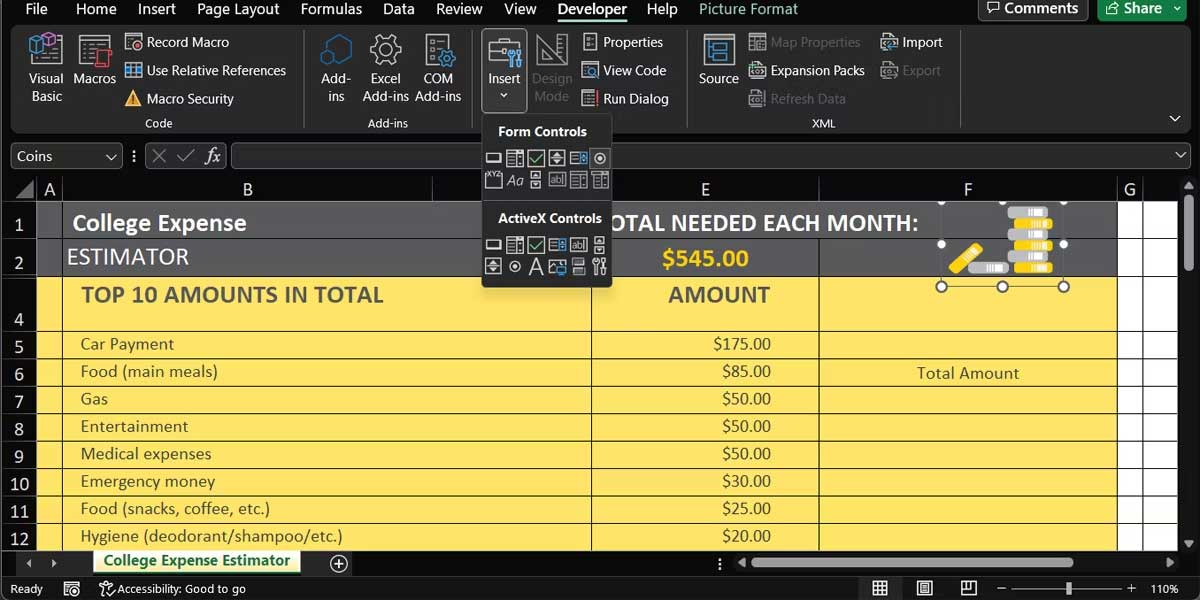
The cursor will now change to an icon +. Click anywhere in the spreadsheet to insert a select button. Currently, this button is not functional because you must link it to a cell.
How to link a select button to a cell
To link a select button to a cell, right-click on it and go to Format Control . Here, select the Control tab and use the Cell link field to link it to a cell.
Generally, you need two or more select buttons to control a spreadsheet. After adding multiple radio buttons, they will be linked to the same cell. When you select a different radio button, the linked cell will display a different value.
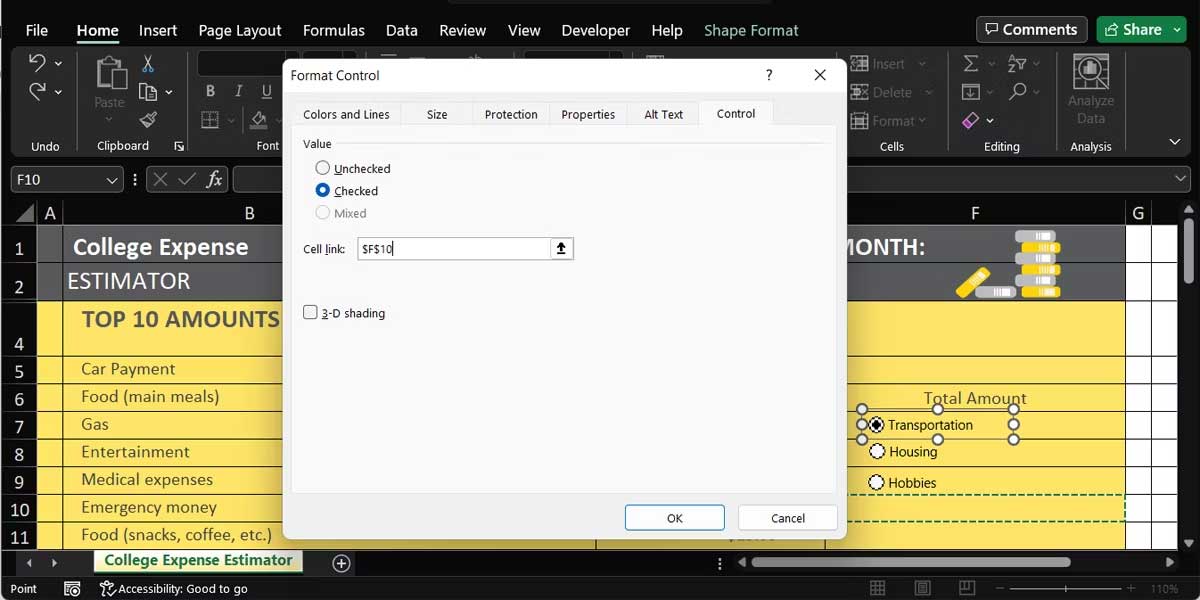
However, the selection buttons and linked cells have no real function unless you add a filter function to your spreadsheet.
How to customize radio buttons
After adding a radio button, you should customize it for easier use.
How to name selection buttons in Excel
If you've inserted multiple select buttons in your spreadsheet, you should rename them for easier identification. To do this, right-click the radio button and select Edit Text .
If you want to make the selection buttons really stand out, you can apply colors and borders. Right-click on one of the selection buttons, go to Format Control , and open the Colors and lines tab .
How to reposition a selection button in Excel
As you continue editing the spreadsheet, the selection button may move around and end up between two rows or columns. To prevent the button from moving across the worksheet, right-click the radio button, then go to Format Control . Here, open the Properties tab , check Move but don't size with the cells, and click OK .
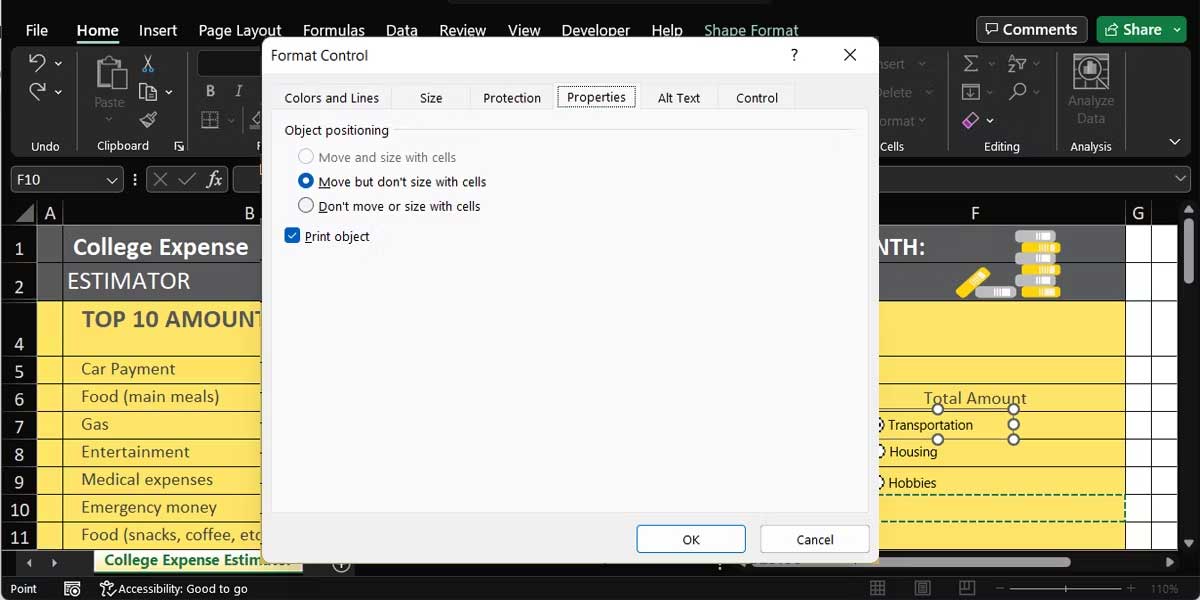
If you want the radio button to be the same size as its cell, press and hold Alt while you resize it.
How to remove radio buttons in Excel
To remove a selection from a spreadsheet, click on it and press Delete . This feature works well if you're working on a smaller spreadsheet with several inserted objects.
However, if you're working with a large spreadsheet with many objects, the selection buttons might be obscured by other objects. Therefore, you might have difficulty finding them. In this case, select the Home tab > go to Editing > Find & Select > Selection Pane .
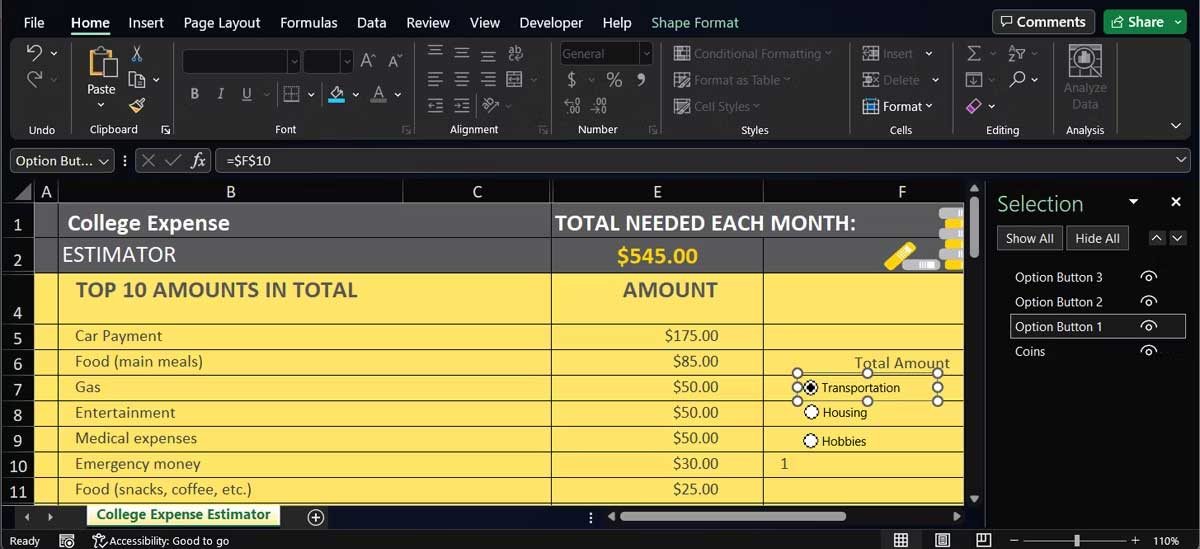
This action will show all inserted objects so you can quickly find and delete the radio button you want to remove.
Above is the simplest way to create a select button in Excel . Hopefully, this article is helpful to you.
Related Articles
 How to Insert, Add up and Down Buttons in Excel3 minutes read
 Excel Selection Pane: a Great Tool You Shouldn't Miss: Explained5 minutes read
 How to Insert a Word Document into an Excel File4 minutes read
 How to Insert Watermark, Logo Sink into Excel5 minutes read
 How to Insert a Batch Image into Excel Box: Insert Images into Excel7 minutes read
 How to Insert Page Numbers in Excel: Create Excel Page Numbers5 minutes read
Reader Comments 0
Sign in with email or Google to join the discussion.