Table of Contents
When you frequently share your laptop with others, you can hide specific processes from appearing in Task Manager.
If you frequently share your laptop with others, you can hide specific processes from appearing in Task Manager. You can hide a specific process, or hide multiple background processes on your computer. Here's how to hide background processes on Windows 11.
How to Hide Specific Processes on Windows 11
Step 1:
Open Registry Editor On your computer and access the path below.
HKEY_LOCAL_MACHINESOFTWAREMicrosoftWindows NTCurrentVersionImage File Execution Options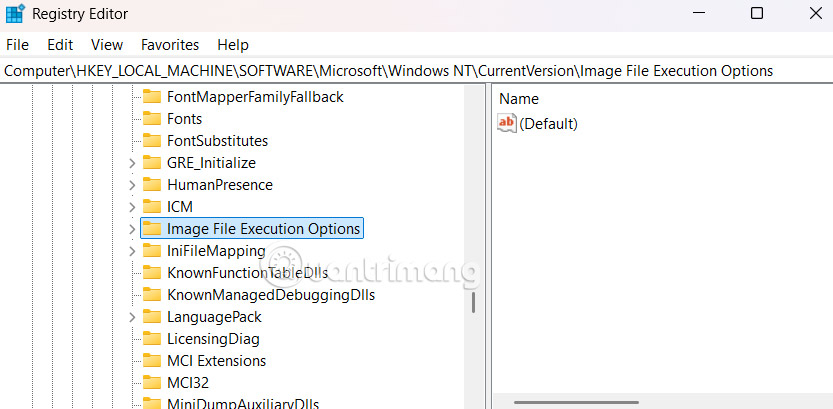
Step 2:
Right- Click Image File Execution Options and select New > Key .
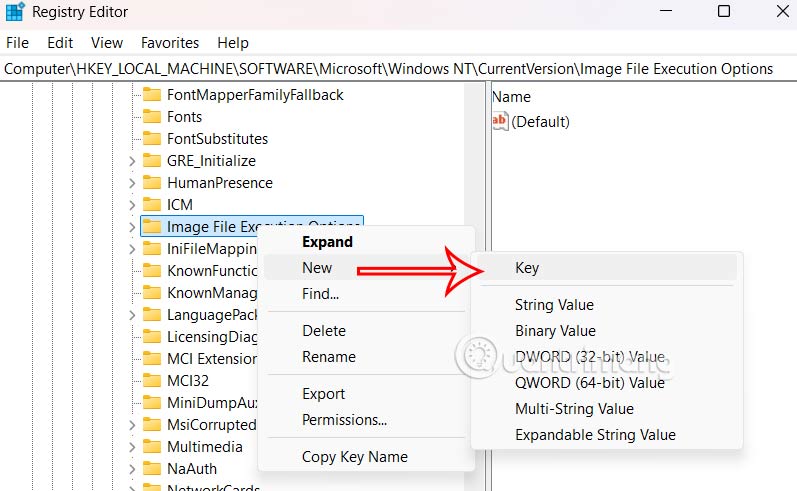
Now you Name the key The Process you want to hide As shown.
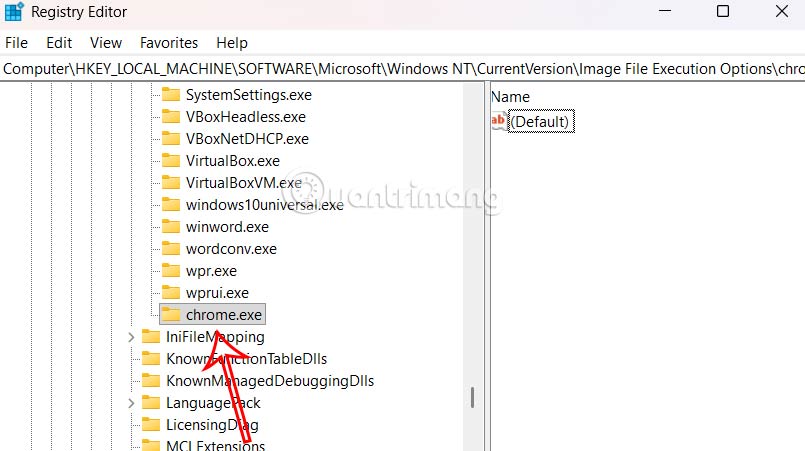
Step 3:
Continue looking at the interface next to you, Right-click and select New > String Value And name it Debugger.
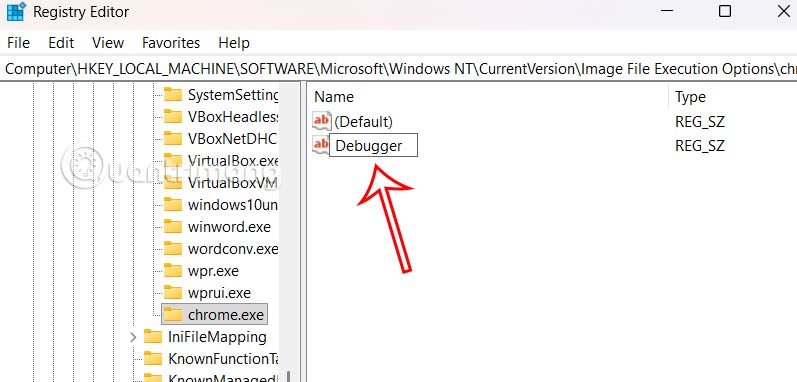
Double click On Debugger And enter the value as below.
C:WindowsSystem32systray.exeFinally Click OK and restart your computer To apply.
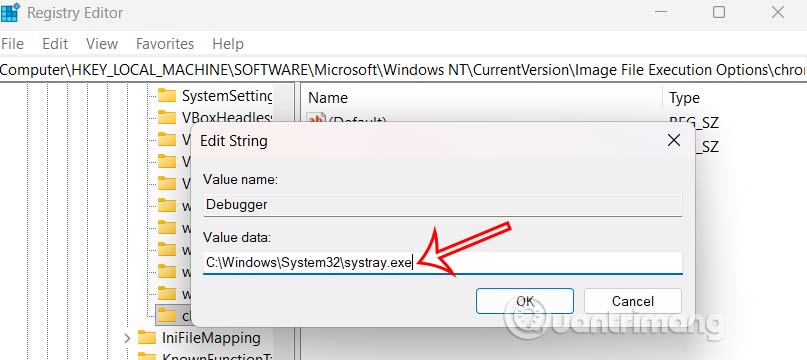
The process you hid will no longer appear in Task Manager, but it will still run in the background.
How to hide multiple background processes on Windows 11
Step 1:
You also open Registry Editor then access the path below.
HKEY_LOCAL_MACHINESOFTWAREMicrosoftWindows NTCurrentVersionImage File Execution OptionsNext, Right-click on Image File Execution Options And select New > Key And Name it Hideprocesses .
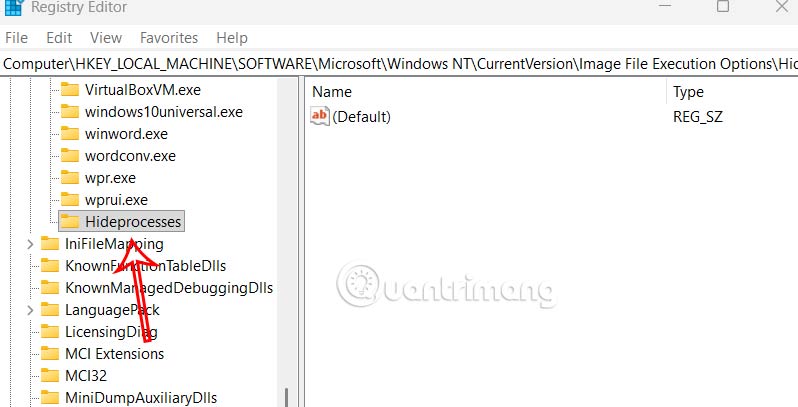
Step 2:
You look at the interface next to it, Right-click and select New > String Value And Name it Debugger .
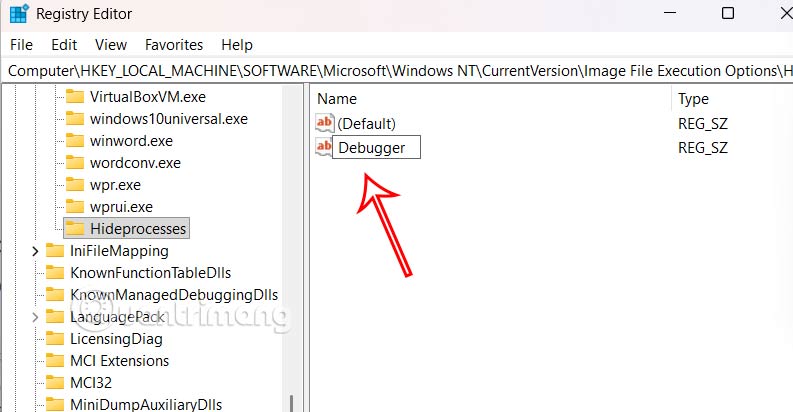
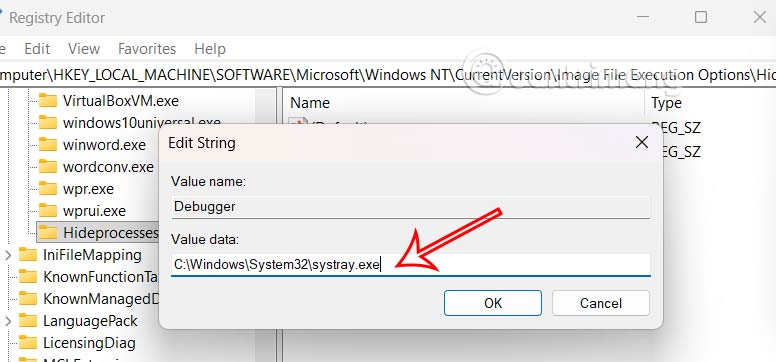
Then you fill in the path below into the interface as shown.
C:WindowsSystem32systray.exeThen you create a new string value in the HideProcesses key. Name each value the name of the process you want to hide, such as chrome.exe, Spotify.exe,.
FAQ
How do you hide background processes in Windows 11: step-by-step guide?
In practical terms, if you frequently share your laptop with others, you can hide specific processes from appearing in Task Manager.
What should you check before getting started?
Review the requirements, compatible device or software version, and any warnings described in the guide before making changes.
What should you do if the steps do not work?
Repeat the steps in order, confirm that your app or system is up to date, and review the troubleshooting details provided above.
Related Articles
 Fix Windows Error: Complete Guide8 minutes read
 How to Enable Background Process Limit to Make Your Old Android Phone Run Faster Instantly9 minutes read
 How to Use Media Lock to Hide Files on Windows 103 minutes read
 Background Blur (Blur Background) When Calling Video on Skype3 minutes read
 Microsoft Edge: Complete Guide6 minutes read
 How to Hide Any Specific Drive in Windows: Step-by-Step Guide3 minutes read
Reader Comments 0
Sign in with email or Google to join the discussion.