Table of Contents
Learn how to enable background process limit to make your old Android phone run faster with clear steps.
When it launched in 2015, the OnePlus X was priced at just $249, and its specifications were commensurate: a Snapdragon 801 CPU and only 3GB of RAM.
Low RAM prevents Android from effectively balancing cached system files and idle applications. However, you can fix this through a hidden setting in Developer Options that forces the system to manage RAM more aggressively. If your older device has less than 4GB of RAM, this simple trick can significantly boost performance and keep your phone usable.
Learn about Background Process Limit
Force your phone to use RAM more efficiently
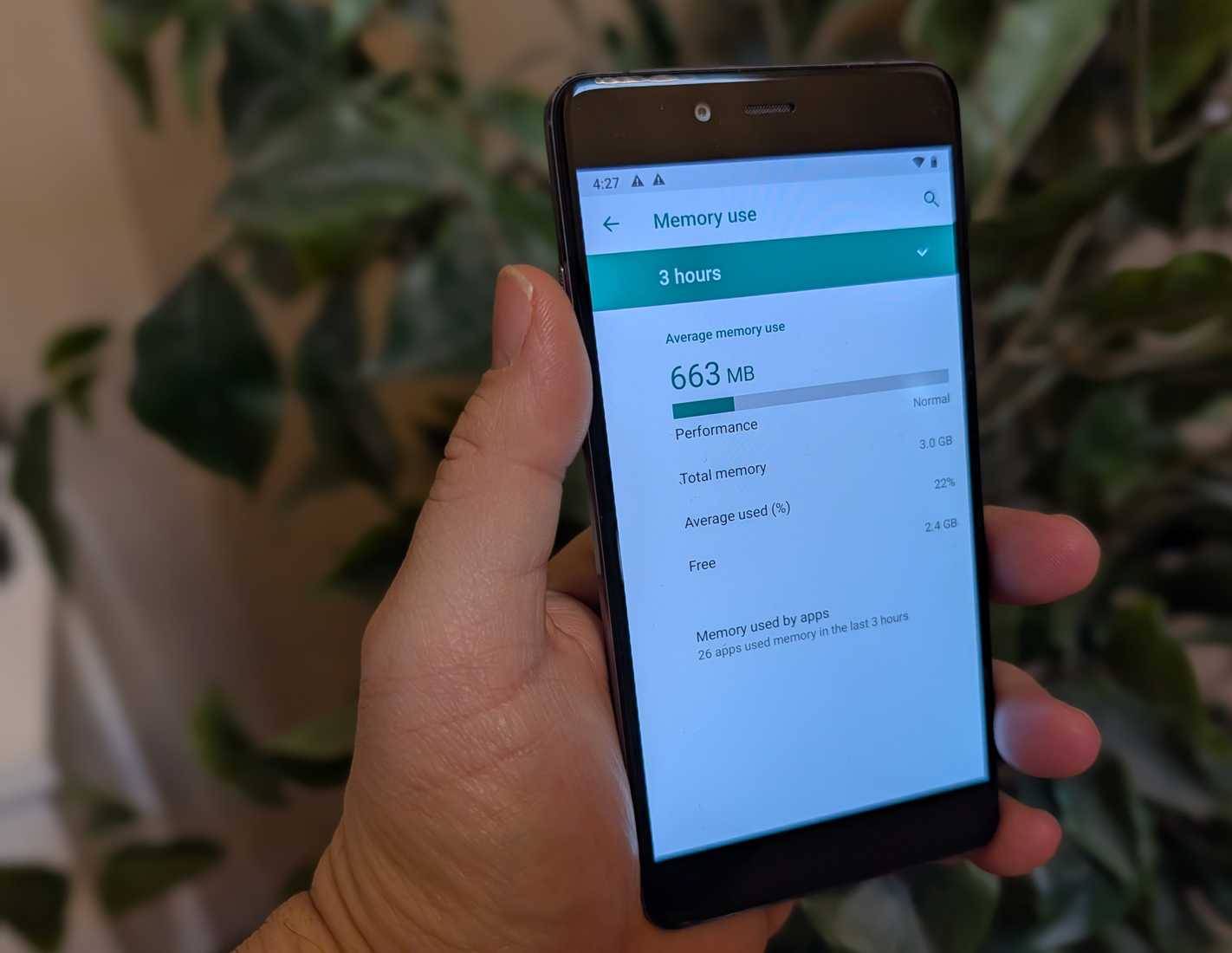
When your phone has low RAM, which often happens on the OnePlus X, it has to choose which app to close to make space for the next app you want to open. This is no longer a concern on modern phones, like the OnePlus 13.
By setting Background Process Limit, you are instructing your phone to run only 1 to 4 processes at a time.
Additionally, older chipsets, like the Snapdragon 801 in the OnePlus X, are less efficient than newer processors. This means they might be running small background tasks (like syncing data or refreshing ads) even when you're not using the app. This uses precious CPU cycles and can unnecessarily slow down the phone.
Finally, when your phone runs out of RAM, it will start using swap space (just like a computer). This is when the system temporarily uses a portion of your storage as virtual RAM. This isn't ideal because memory, especially on older phones, is much slower than RAM. We want to keep RAM free for apps by limiting background processes on older phones.
How to enable Background Process Limit
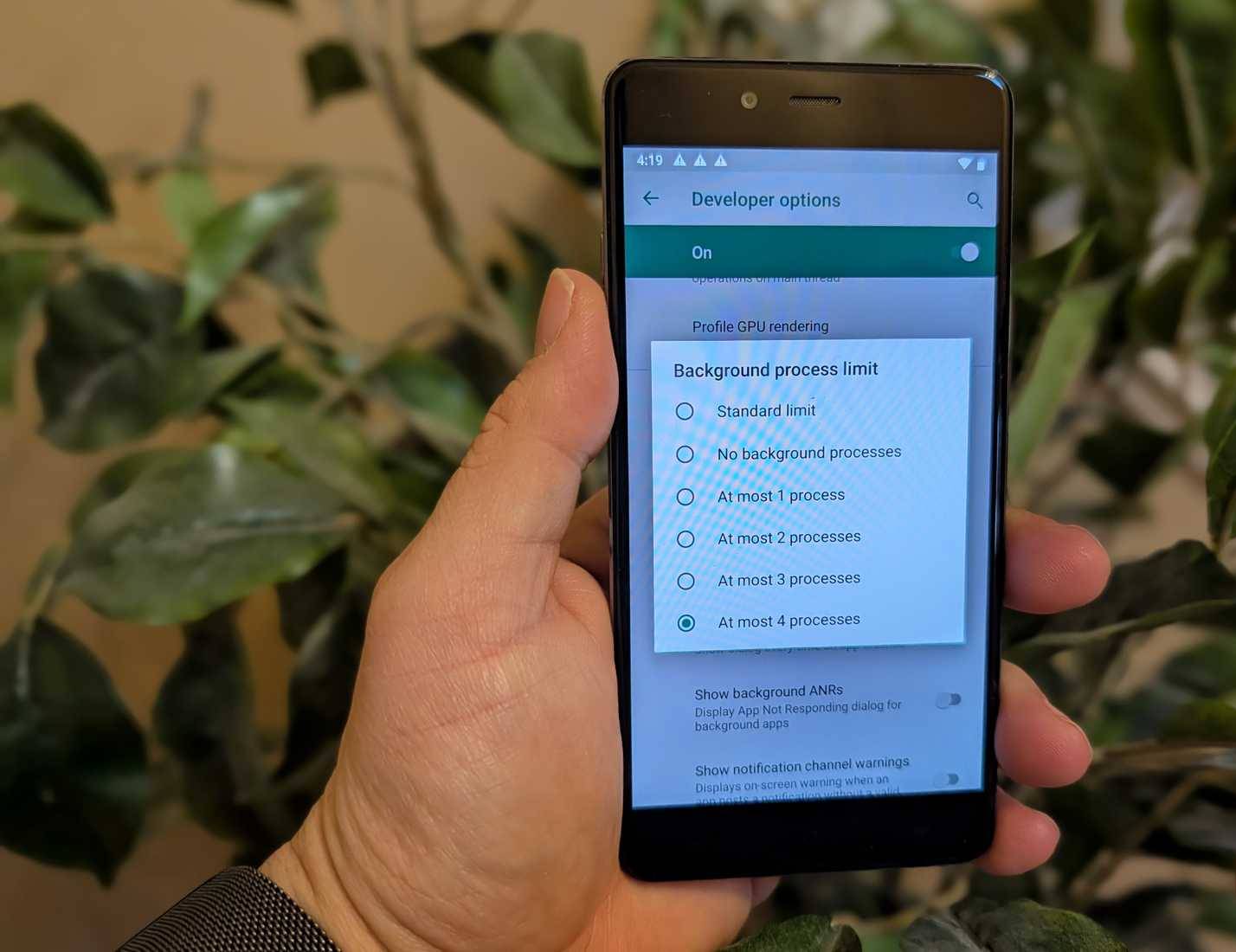
The Background Process Limit setting is located in the Developer Options menu, which is hidden by default. Follow these steps to access it:
- Enable Developer Options by going to Settings > About . Tap Build Number repeatedly until the message "You are now a developer" appears.
- Open the new Developer Options menu (usually located under System ), scroll down to the Apps section, and click on Background process limit .
What to choose here depends on your device (you can easily find out how much RAM your phone has if you're not sure):
- For phones with 2GB of RAM, select 2 or 3 processes.
- For phones with 3GB of RAM, select 4 processes.
- For phones with 4GB of RAM or more, no settings need to be changed.
Disadvantages of Background Process Limit
Some applications may not function correctly
There are downsides to making this change, especially if you frequently use more applications than the allowed process limit. If you force a limit of 3 processes (for example) but have recently used 5 applications, 2 of those applications will be removed from RAM. They will have to reload from scratch when reopened, which consumes a lot of CPU power and is much slower than simply restarting the application from RAM. This is why constantly forcing applications to close after use is a bad idea.
Not only that, you might miss notifications from apps that have been turned off. So again, carefully consider how you use this setting and experiment to find the right balance. You can accurately monitor your free RAM by going to the Memory section in Developer Options .
Another good option to help save RAM on older devices is to use the "Lite" versions of certain apps. For example, you can use Facebook Lite, Instagram Lite, and TikTok Lite. There are even options like Opera Mini for RAM-efficient web browsing. These Lite apps not only use less RAM because they are less graphically demanding, but they also use less data. Not all apps offer them, but you should look for your favorites.
Other benefits: Reduced battery and data usage
Older devices not only have less RAM but also less efficient chipsets and modems. This often results in generally poorer battery life compared to a modern phone performing the same tasks. By limiting background processes on older phones, you prevent apps from going into hibernation and thus consuming battery and data even when you're not using them – instead, they are completely shut down. Leaving apps running when you're not using them leads to poorer performance and shorter battery life, which is really unacceptable on an older device like the OnePlus X.
One final note: This article encourages you to experiment with different values for Background Process Limit to find the right number based on your usage. You might think you're using 4 applications, but in reality, you might only be using 3. By setting the limit to 3 instead of 4, the system will be more proactive in closing processes, so you can actually use RAM for what you need.
Final Thoughts
Use this guide as a practical checklist for how to enable background process limit to make your old android phone run faster instantly. Work through the steps in order, verify each result, and adjust the options to match your needs.
FAQ
What do you need before following this How to Enable Background Process Limit to Make Your Old Android Phone Run Faster Instantly guide?
Review the required tools, accounts, settings, or materials mentioned in the article. Learn how to enable background process limit to make your old Android phone run faster with clear steps.
What are the main steps for how to enable background process limit to make your old android phone run faster instantly?
Follow the sections in order, especially Learn about Background Process Limit, Force your phone to use RAM more efficiently, How to enable Background Process Limit. Complete each step before continuing and verify the result as you go.
What should you do if the process does not work as expected?
Recheck the prerequisites, update the relevant app or service, review the settings, and repeat the step that caused the issue. Use any troubleshooting notes included in the guide.
Related Articles
 How to Turn Off Applications Running in the Background on Android Saves6 minutes read
 7 Quick Settings Tiles on Android That Make Your Phone More Useful6 minutes read
 Things That Can Make You Look Older Than Your Actual Age5 minutes read
 Small Tips for Adding Background Music When Opening Apps on Android6 minutes read
 6 Smart Ways to Use Your Old Android Phone: Practical Guide7 minutes read
 8 Settings to Make Your Samsung Phone Run Faster9 minutes read
Reader Comments 0
Sign in with email or Google to join the discussion.