Table of Contents
The "Missing shell dll cshell.dll" error when playing Crossfire on Windows 10 is often caused by some antivirus software mistakenly identifying the cshell.dll file as a harmful file and deleting it immediately after the update is extracted. The game then reports that it cannot launch due to the missing file. The solution is simple: just disable your antivirus during the update or instruct your antivirus software to declare "cshell.dll" as a safe file. Follow the detailed steps below.
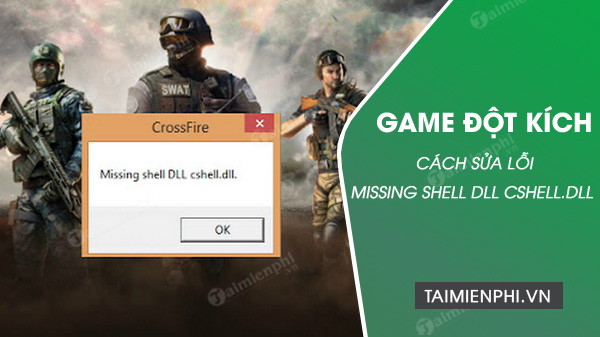
Guide to fixing the "Missing shell dll cshell.dll" error in Crossfire on Windows 10
How to fix the "Missing shell dll cshell.dll" error when playing Counter-Strike on Windows 10
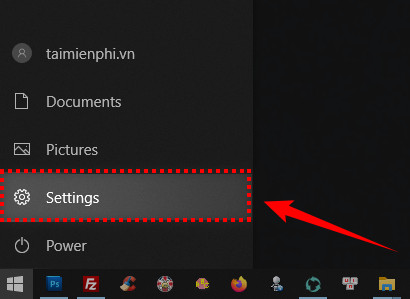
Step 1 : Click the Start menu and select Settings (gear icon).
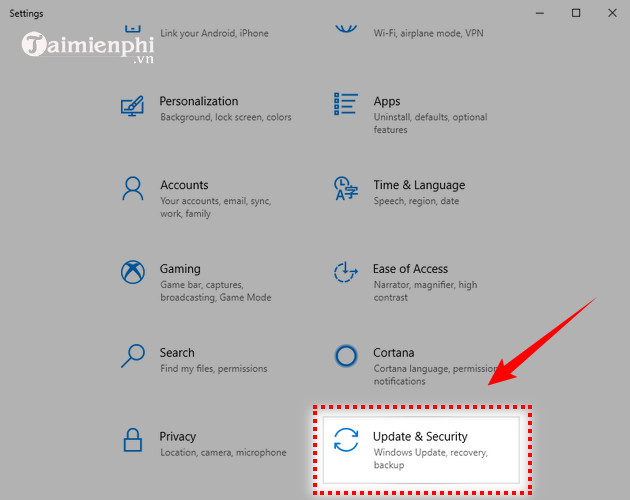
Step 2 : In the Settings window, click on Update & Security.
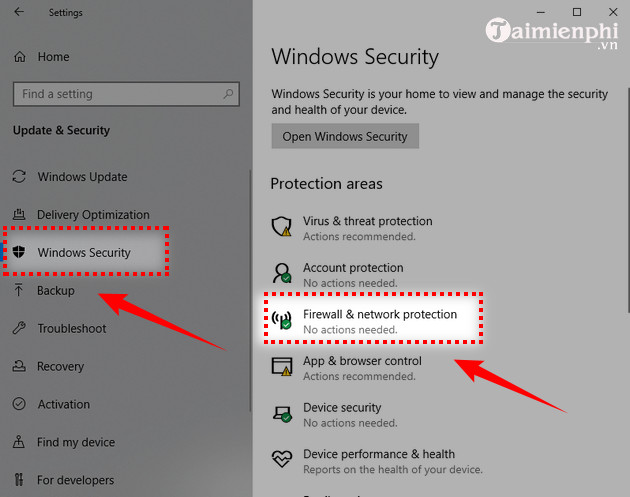
Step 3 : The Update & Security windowwill appear. Click on Windows Security and select Firewall & network protection.
Step 4 : Click on the Virus & threat protection option.
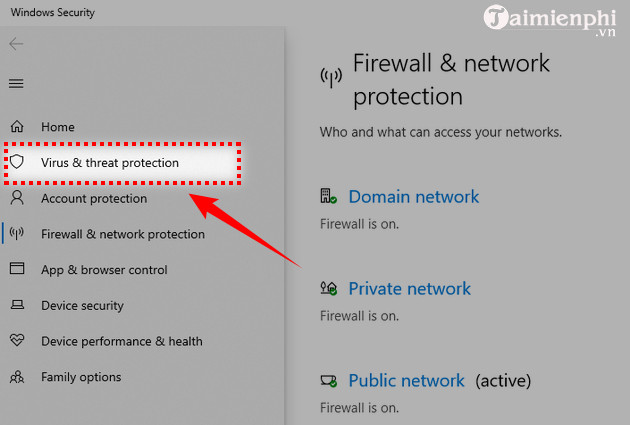
Step 5 : Scroll down and select Virus & threat protection settings .
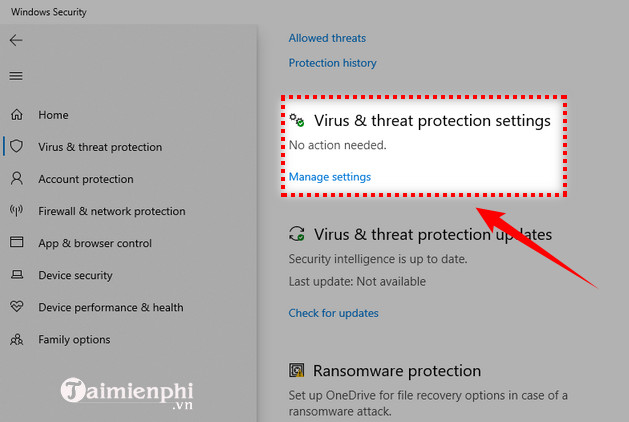
Step 6 : Click on Add or remove exclusions .
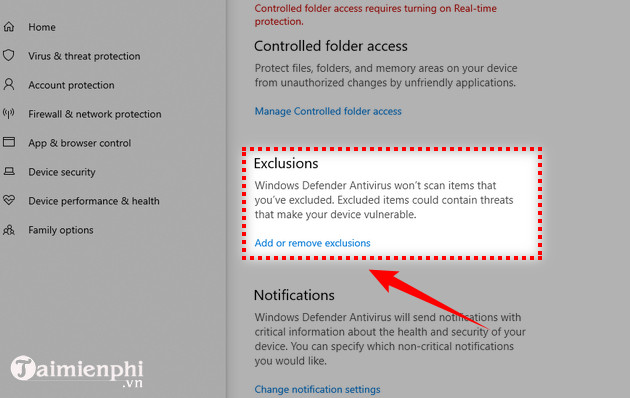
Step 7 : Scroll down and click on " Add an exclusion ", then select Folder to add the VTC game folder.
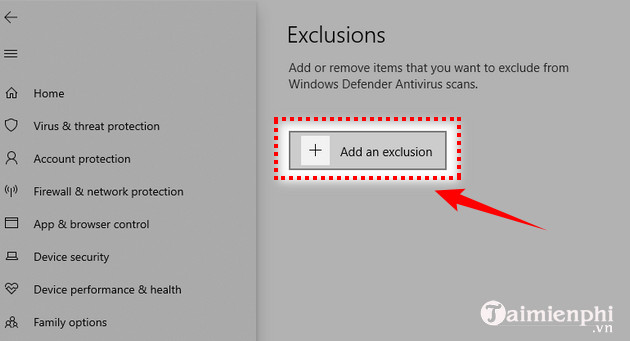
Step 8 : Click to select the VTC game folder and choose Select Folder.
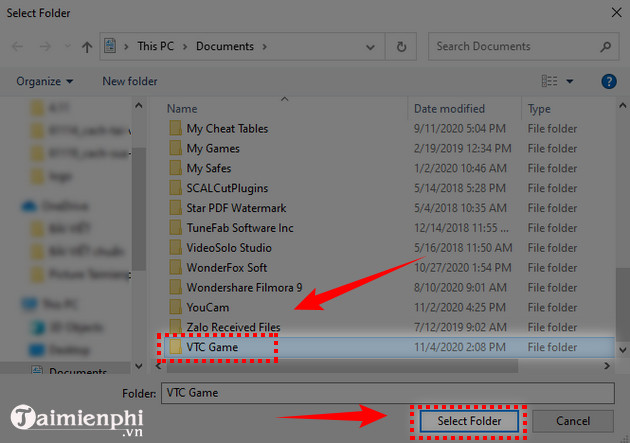
After successfully adding VTC Game, you can now avoid being blocked by Windows antivirus software.
Above is a guide on how to fix the "Missing shell dll cshell.dll" error when playing Crossfire on Windows 10. Additionally, during gameplay, some situations may occur, such as forgetting your game login password. However, you can rest assured because the publisher allows you to recover your Crossfire password ; the process is also very simple.
Related Articles
 CS 2 Configuration, Counter Strike 2 PC Playing Configuration5 minutes read
 Counter-Strike 2 Is Officially Available on Steam3 minutes read
 CS:GO 2 Information, Counter Strike 2 Information4 minutes read
 Counter Strike 2 Upgrade Points with CS GO: What to Know9 minutes read
 Counter-Strike 1. 6 Features New Zero-Day6 minutes read
 What You Need to Know About Dust2 Map5 minutes read
Reader Comments 0
Sign in with email or Google to join the discussion.