Table of Contents
Besides practicing diligently to become a master in the MOBA game League of Legends , you also need to set up the system or customize certain functions, minimizing errors to make the experience and the path to Platinum rank closer.

Useful customization options for League of Legends players.
Special League of Legends settings help gamers improve their skills.
1. Customize keyboard shortcuts to avoid accidental clicks.
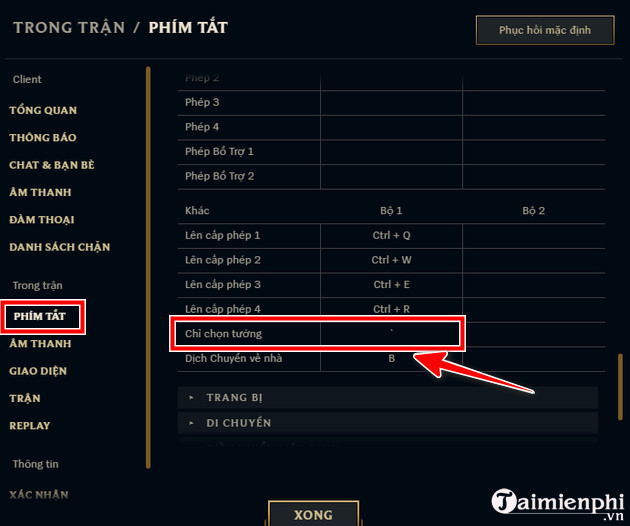
Have you ever accidentally used a skill or powerful attack on a monster unit by mistake, potentially leading to a counter-gank or instant death? To fix this, you need to adjust the skill settings in the shortcut key system below. After setting it up, you can only use skills on enemy champions.
- Customize => Shortcuts => Skills and Summoner Spells => Select only champions.
2. Set up better offensive moves.
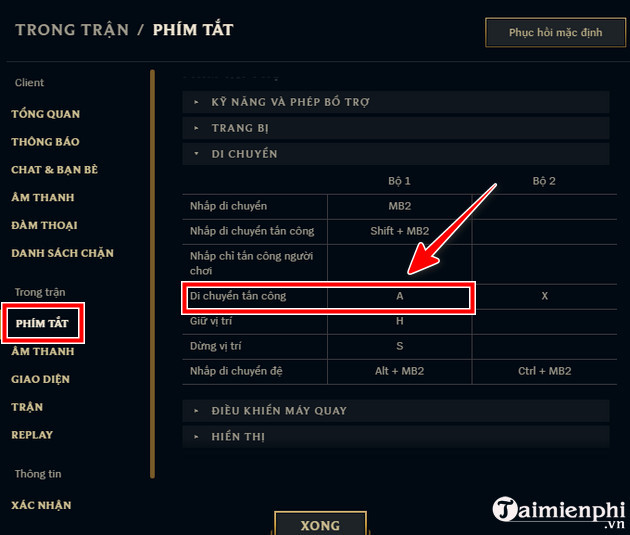
For those who frequently choose AD or Marksman champions, this particular League of Legends setup is extremely important, as it helps you deal more damage or maintain a safer distance from your opponents. First, you need to go to Shortcuts => Movement => Attack Movement and then set the key that you find most convenient to use; here, tipsmake uses the shortcut key A.
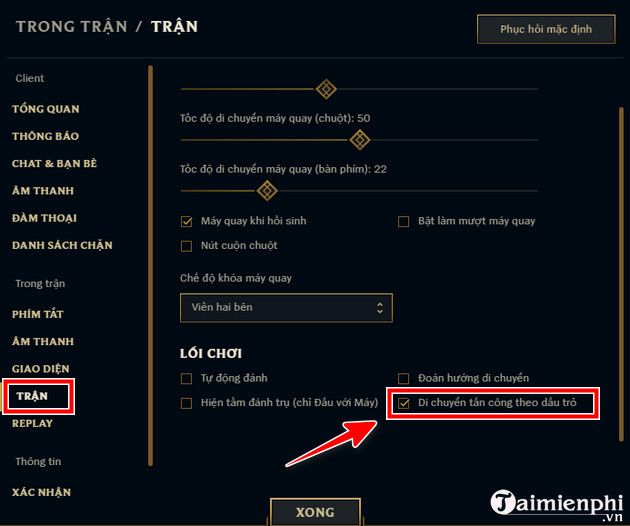
Next, go to the Battle section located just below, navigate to Gameplay , and check the "Select Attack Movement" box . With this setting, you can attack enemies near your mouse cursor, avoiding attacking the nearest monster or enemy to your character.
3. Set priorities after making a purchase.
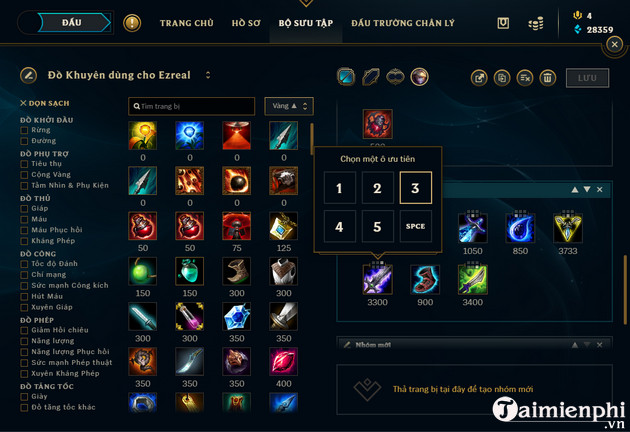
This feature was added by Riot Games a long time ago, but very few people know about it. It allows you to set the location of items after making a purchase. Usually, when buying any item, they will appear in order from left to right, and players have to reset the shortcut key again.
- To set it up: Select Collection => Item Set => New Item Set. Select the champion you want to set up => Create .
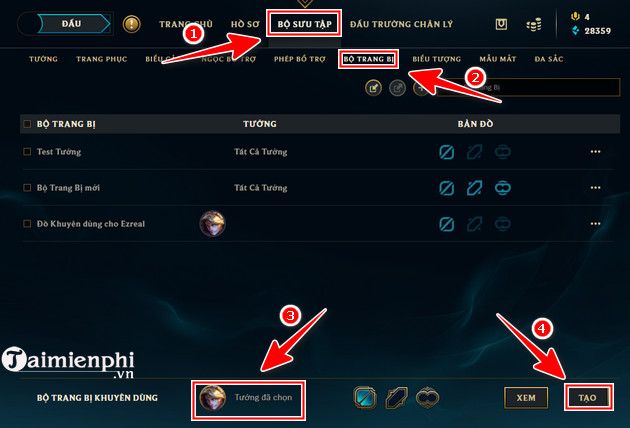
- Then you select the equipment, click on it, and set its priority placement after purchasing them. Each champion has a different way of using items, and user habits also have a significant impact.
Above is tipsmake's guide on how to set up League of Legends; it helps you improve your skills and save a lot of effort. Version 9.23 was recently updated, and details of the League of Legends 10.6 update are compiled here.
Related Articles
 League of Legends: Top 4 Useful but Neglected Equipment in the Game7 minutes read
 How to Adjust Full and Minimize League of Legends Screen3 minutes read
 League of Legends Server Maintenance Period for Version 25.207 minutes read
 Top 5 Strongest Generals of the Upper Road in League of Legends 9. 66 minutes read
 League of Legends: 4 Generals Who Gained the Most Power in Version 9. 56 minutes read
 Want to Improve Your MMR in League of Legends? Here's How7 minutes read
Reader Comments 0
Sign in with email or Google to join the discussion.