Table of Contents
This practical guide explains how to fix Google play services battery drain on Android. Follow the steps in order, review the requirements first, and use the troubleshooting notes when a setting or option does not work as expected.
- Why does my phone battery run out quickly even when fully charged?
- Common mistakes when charging your phone
1. Delete apps you don't use often
Since Google Play Services is not the real culprit here, but rather other apps that communicate with Google Play Services and their features, such as location access, Wi-Fi, data, or running in the background, it is important to evaluate whether you are constantly using the apps that are shown to be consuming the most.
If you're not sure whether you can trust the battery stats provided by your phone, you can also check out a third-party app like AccuBattery that's designed to show accurate battery usage information. Pay attention to the apps that appear in the list, as they're the ones that are using the most battery on your device.
Now, if the apps you rarely use are among the ones that consume the most battery, you should consider deleting them from your device. You can reinstall them after a while and the problem will not recur.
2. Check background restrictions
Go through the remaining apps on your phone and turn off background activities for those that aren't essential to your daily routine.
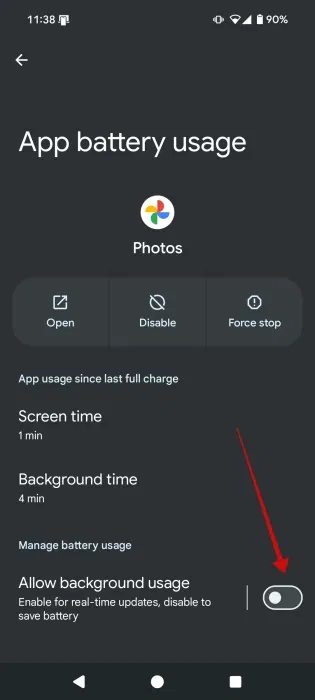
Navigate to Settings -> Battery -> Battery usage and select an app.
On the app screen, turn off Allow background usage at the bottom.
3. Clear cache and data
A simple thing to try is to clear the Google Play Services cache, which may have become overloaded with unnecessary information.
Go to Settings -> Apps -> See all apps -> Google Play Services .
Find the Storage & cache option and tap on it.
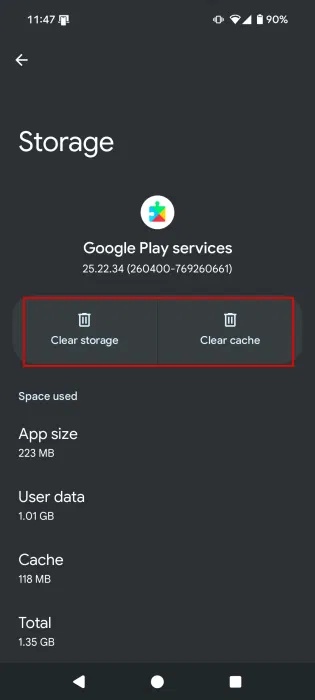
Click the Clear cache button at the top.
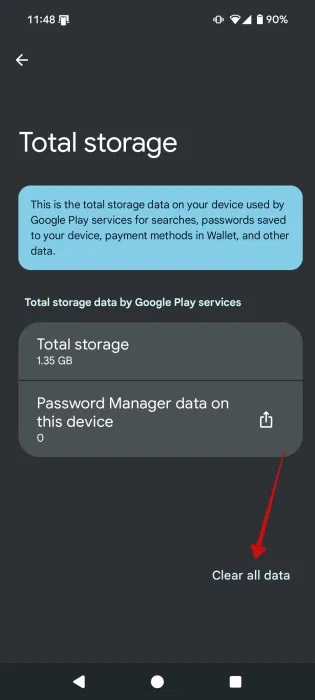
If you're still experiencing battery drain, a more drastic step is to clear the cache for Google Play Services. Tap the Clear all data button on the next screen to complete the process.
4. Turn off auto sync
If you have more than one account connected to Google Play Services, that could explain the battery drain issue. Since Google Play Services is constantly checking for new emails, notifications, app security scans, etc., it is constantly running in the background. So it takes up even more memory.
Tip : Go to Settings -> Apps -> Google Play Services -> All services to check the full range of all Google Play Services on your phone.
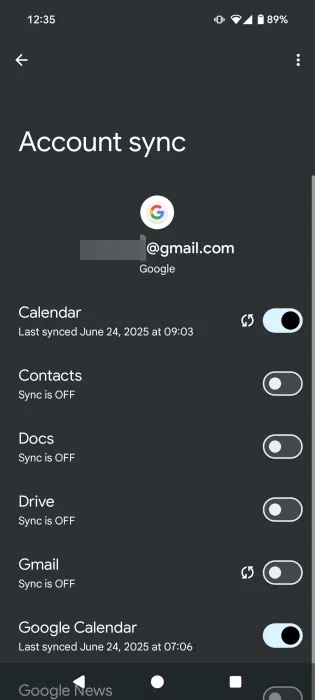
You can fix this by turning off auto-sync for various accounts, such as your email as well as third-party apps like WhatsApp. Your Google account, in particular, manages sync for many apps.
Go to Settings -> Passwords, passkeys & accounts , then tap each account to see if syncing is on or off. Depending on your phone model, the section you're looking for may just say Accounts . Tap a specific account.
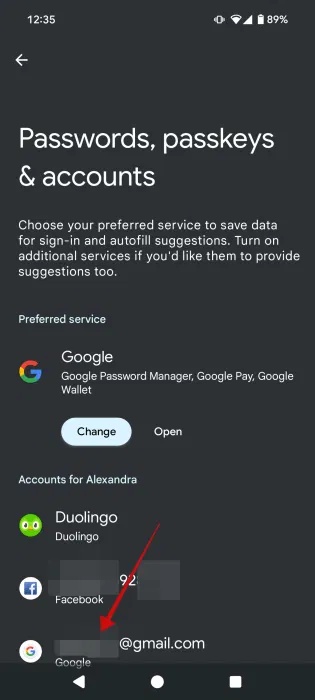
For Google accounts, you will see Account sync enabled by default. Tap on it.
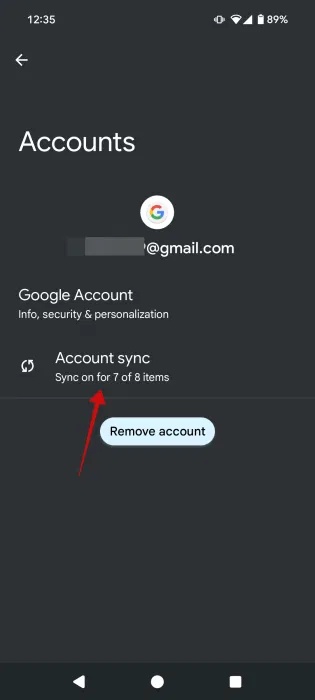
Disable any services you don't want to sync on this account. For example, you can disable Gmail sync for a Google account that you don't really use much and just keep as a backup.
5. Resolve any sync errors
Whenever Google Play Services tries to sync data and can't, you'll get sync errors. These errors can also be the reason you're charging your phone more often than usual. Take a look at your contacts, calendar, and Gmail account to see if you can spot any errors. Try removing any emojis you might have on any of your contacts, as Google doesn't like that.
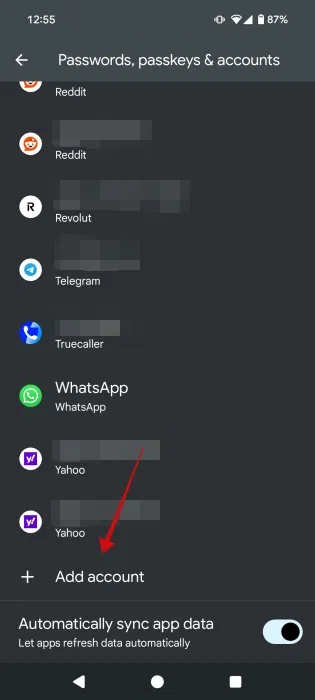
You can also try removing and re-adding the account to try and fix those sync errors. To do that, go to Settings -> Passwords, passkeys & accounts -> Add account (the option is at the very bottom).
Turning off mobile data in your device settings for more than 1 minute may also help, but remember to turn it back on.
6. Turn off location sync
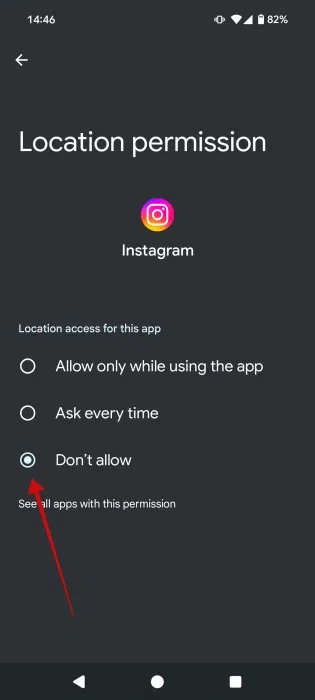
There are a lot of apps that will request your location. The problem is that when they do, the request goes through Google Play Services, which then uses your GPS to relay that information. So you may want to turn off location sharing for certain apps.
Open the app that requests your location on your phone.
Then go to Settings -> Apps and find that app. Select Permissions .
Tap Location from the app permissions list.
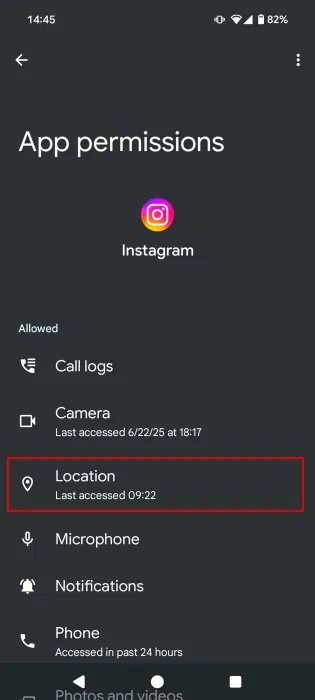
Switch the option to Don't allow to help you cut down on Play Services' battery usage.
7. Uninstall Google Play Services updates
This may sound a little strange, but sometimes updates cause bugs. For this reason, if you're experiencing battery drain due to Google Play Services, you can try uninstalling updates for the service.
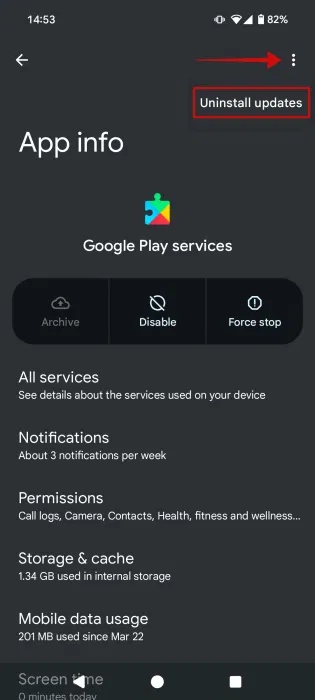
Go to Settings -> Apps -> Google Play Services .
Tap the three dots in the upper right corner. Select Uninstall updates .
Restart your phone to see if that makes a difference.
8. Install an older version of Google Play Services
Sometimes, the latest version of Google Play Services can contain bugs. If you notice your battery draining faster after updating Google Play Services, you may need to roll back to a previous version of Google Play Services (at least until the latest version fixes the bug).
Follow the above tip to uninstall the update, then go to APK Mirror and search for Google Play Services. Alternatively, use any of these safe sites to download APKs.
Scroll down and tap on a Services version that's one or two versions ahead of the latest (ignore beta versions). Also, make sure you select the standard Google Play Services option, not Google Play Services for Android TV, AR, etc.
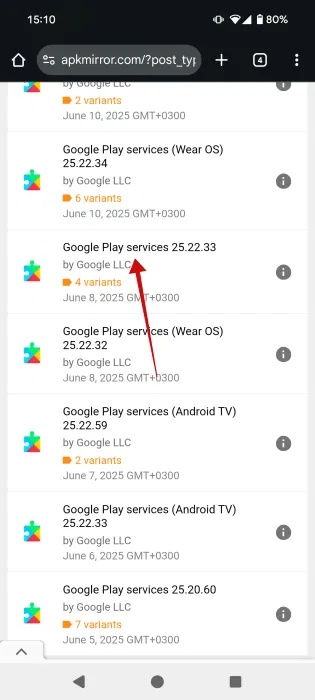
You'll see that there are dozens of variants to choose from. To download the right variant, you'll need to know three things: Your phone's SoC architecture, your phone's screen DPI, and your Android version.
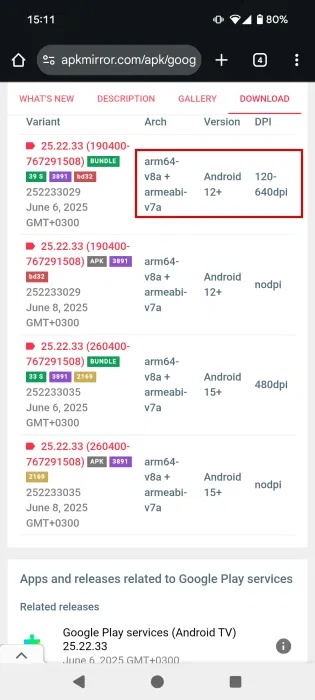
You can find your Android version by going to Settings -> About phone .
For the DPI of your phone screen, you will need to download a third-party app like DPI Checker.
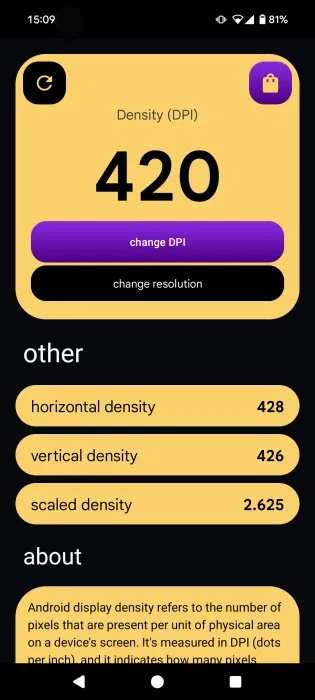
Knowing these two details should be enough to get you the right version, but if you want to make sure you're getting the right one, open Google on your phone and type in "[phone model] specs" and check if the SoC is 64-bit (arm64) or 32-bit (armeabi). However, most APK versions are compatible with both.
9. Update Android OS
Finally, you may want to make sure you've updated to the latest version of Android available for your device. You'll get a notification on your device when a software update is available for your phone, but you can also check manually by going to Settings -> System -> System updates .
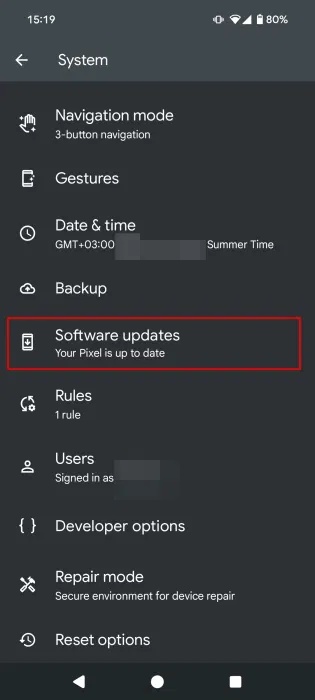
If an update is available, install it. The update may contain bug fixes for Google Play Services.
Bonus Tip: Turn on Battery Saver
If your battery life is still not up to par, you may need to enable the built-in Battery Saver option on your phone (if available) and see if that helps.
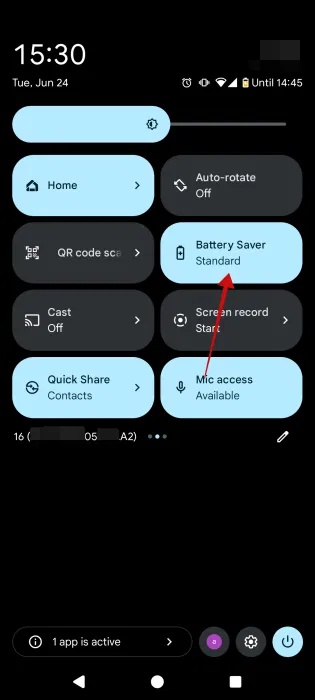
On Pixel devices, there is a Battery Saver tile in the Quick Settings menu, which we can easily enable by tapping on it.
See also:
- What to do when Google Play Store is not working?
- 4 simple ways to fix common Google Play Store errors
- Decode all errors appearing on Google Play and how to fix them (Part 3)
- Phone battery not charging or charging slowly, here's how to fix it
FAQ
What should you know about 1. Delete apps you don't use often?
Since Google Play Services is not the real culprit here, but rather other apps that communicate with Google Play Services and their features, such as location access, Wi-Fi, data, or running in the background, it is important to evaluate whether you are constantly using the apps that are shown to be consuming the most.
What should you know about 2. Check background restrictions?
Go through the remaining apps on your phone and turn off background activities for those that aren't essential to your daily routine.
What should you know about 3. Clear cache and data?
A simple thing to try is to clear the Google Play Services cache, which may have become overloaded with unnecessary information.
What should you know about 4. Turn off auto sync?
If you have more than one account connected to Google Play Services, that could explain the battery drain issue. Since Google Play Services is constantly checking for new emails, notifications, app security scans, etc., it is constantly running in the background. So it takes up even more memory.
Related Articles
 How to Reduce Battery Consumption on Android Phones by Google Play6 minutes read
 Turn Off These 8 Samsung Settings to Stop Your Phone from Draining8 minutes read
 How to Download Google Play Store to Your PC3 minutes read
 How to Enable Battery Drain Notification on Xiaomi, Redmi and POCO2 minutes read
 Android Released New Features That Highlight Applications That Drain the Battery3 minutes read
 How to Fix iOS 17 Battery Drain Error: Step-by-Step Guide6 minutes read
Reader Comments 0
Sign in with email or Google to join the discussion.