Table of Contents
This practical guide walks through how to fix status_invalid_image_hash error on Microsoft, explains the main requirements, and highlights common issues that may appear along the way.
The first thing we need to know is that the error status_invalid_image_hash is caused by websites with high-resolution images. Most of them are saved in a hash format (hash) and when you download them using the Edge browser, the images are not hashed. So sometimes because it can't load, it causes conflicts and creates errors.
1. Update Microsoft Edge
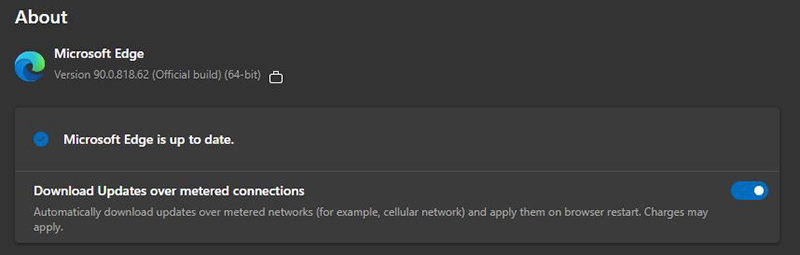
Microsoft Edge is Microsoft 's 'homegrown' browser, so it is regularly updated on both Windows and Macbook computers . The error status_invalid_image_hash may be because the build table on your machine is too old.
Please update in the following way: Start Microsoft Edge > Setting > About Microsoft Edge and update to the latest version.
Note: This tutorial was made on Microsoft Edge version 90.0.818.51 (Official build) (64-bit) and English language. Later versions may change the way.
2. Use Compatibility Mode
This is a small trick that can be applied on Windows 10 .
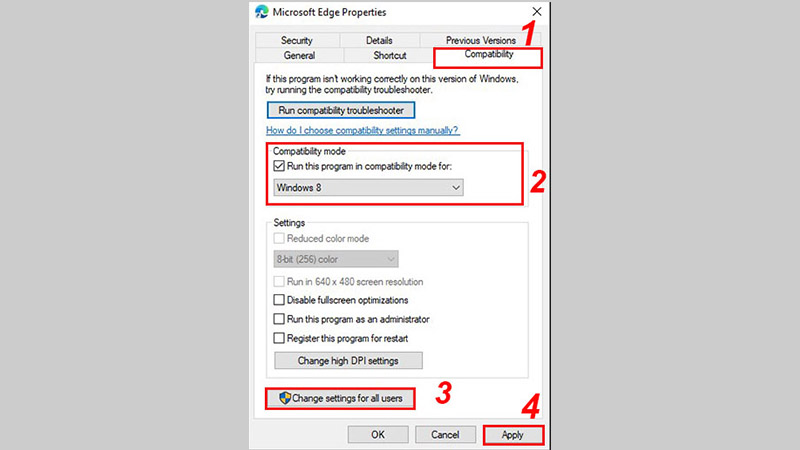
Step 1: Right-click on the Microsoft Edge icon and select Properties.
Step 2: Click on the Compatibility tab.
Step 3: Check the option Run this program in compatibility and then select Windows 8.
Step 4: Click on the Change settings for all users line, and then select Apply.
Step 5: Close the dialog box and restart the Edge browser.
3. Use the '–no-sandbox' command
Using the '–no-sandbox' command is also a solution. However, Keep in mind that doing this way makes your browser vulnerable to hackers.
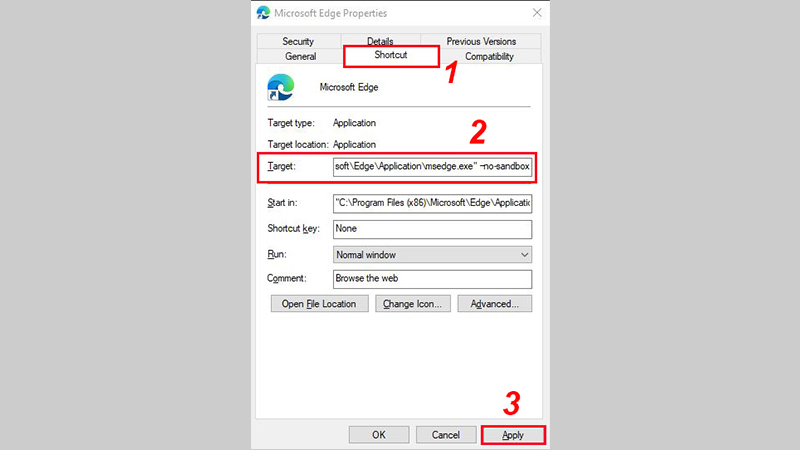
Step 1: Right-click on the Microsoft Edge icon and select Properties.
Step 2: Click on the Shortcut tab.
Step 3: In the Target box, enter the command line '–no-sandbox' (in addition to the quotes).
Note: Make sure to add a space between the .exe of the path with the first '–' in your statement.
Step 4: Select Apply, close the dialog box and restart Edge browser.
If the above two methods still do not solve the error, then go to the next method
4. Disable Extensions
Microsoft Edge is built on the foundation of Chromium by Google , so it is fully compatible with the extension of Google Chrome . However, due to not being regularly updated, these utilities are no longer suitable for Edge and an error occurs.
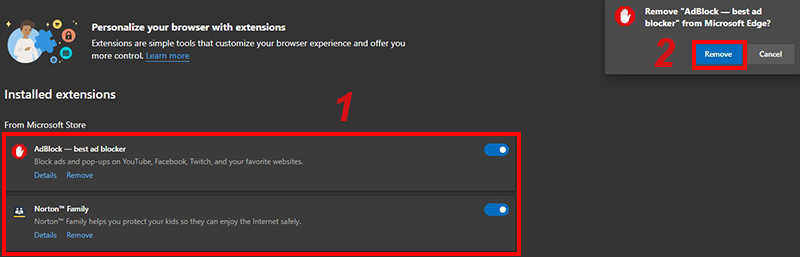
If you have installed too many extensions by mistake and can't figure out which one is faulty, the best way is to disable them all. Then turn on the utilities you need to use.
Step 1: Click on the '.' menu on the Edge home screen.
Step 2: Go to the Extensions menu and select Remove on the extensions.
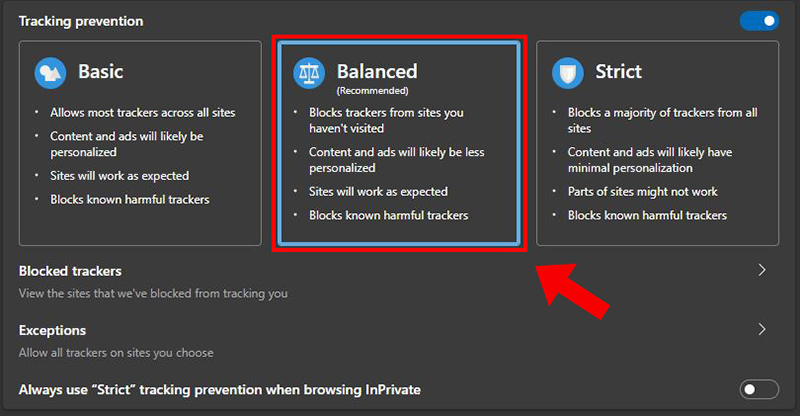
5. Switch Tracking Prevention to Balanced
Websites use trackers to collect information about your browsing. This information is used to improve websites, showing you content such as ads tailored to you. Some trackers even collect and send your information to websites that you have not visited. To work around this problem Microsoft has provided a default tracking prevention option to block trackers, harmful content, and ads.
This setting is set to 'Balance' by default, but if you've switched to 'Prevent' it may affect some of the websites you visit.
How To: Open Microsoft Edge browser > Settings > Privacy, search, and services > Balanced.
6. Use InPrivate Browsing Mode
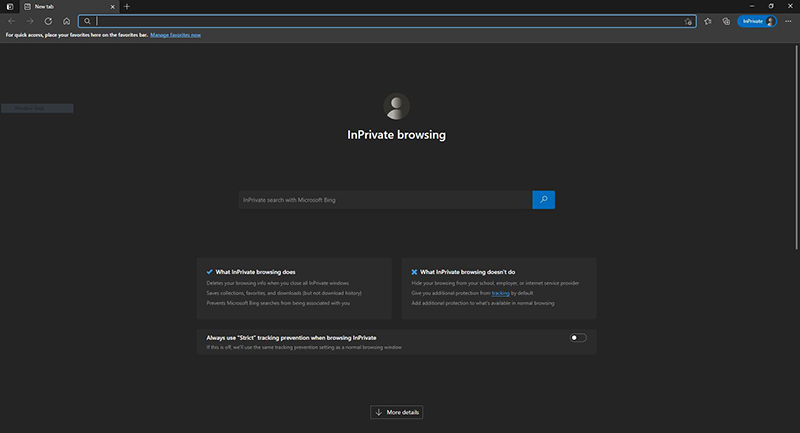
If you're still getting the status_invalid_image_hash error on certain websites, try enabling private browsing using Ctrl + Shift + N, or going to the '.' menu on the desktop. Edge main > New InPrivate windows. Then use it normally.
7. Clear data and cache
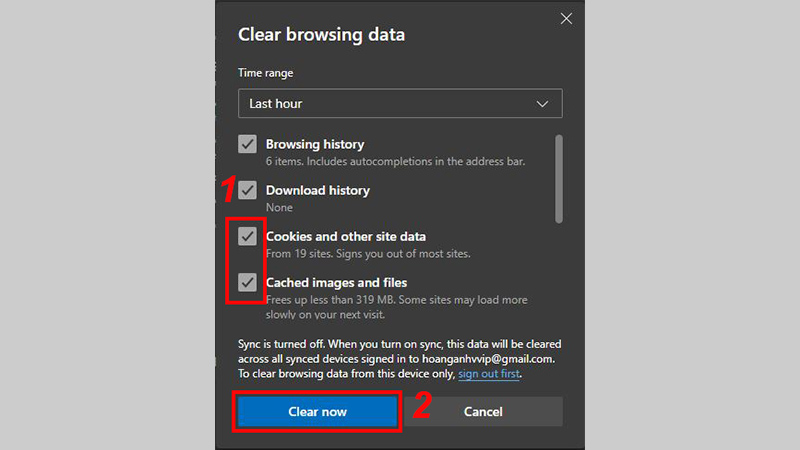
Excessive browsing data can cause conflicts with other Tabs on your computer, try clearing them in the following way:
Step 1: Click on the '.' menu on the Edge home screen.
Step 2: Select Settings then Privacy, search, and services.
Step 3: In the Clear Browsing data section, select Choose What to Clear.
Step 4: Select the box Cookies and other site data and Cached images and files in the Clear browsing data dialog box and then click Clear now.
Step 5: Restart Edge browser.
8. Uninstall and reinstall Microsoft Edge
If you've tried all of the above, but still can't fix the status_invalid_image_hash error, try uninstalling and reinstalling Microsoft Edge.
So the above article helped you know how to fix status_invalid_image_hash error on Microsoft Edge, hope it helps you. Hope you are succesful.
Key Takeaways
Use the information above as a practical reference for how to fix status_invalid_image_hash error on Microsoft. Review each step carefully, confirm any requirements, and choose the option that best fits your situation.
FAQ
What does this guide explain about Fix Status_invalid_image_hash Error on Microsoft?
It explains the main concepts, practical considerations, and useful steps related to fix status_invalid_image_hash error on Microsoft without requiring advanced knowledge.
Who can benefit from learning about Fix Status_invalid_image_hash Error on Microsoft?
This information is useful for readers who want a clear overview, practical guidance, and reliable steps related to fix status_invalid_image_hash error on Microsoft.
What should I check before applying this information?
Review the requirements, confirm that your device, software, or situation matches the instructions, and back up important data before making major changes.
Related Articles
 How to Fix 'Can't Reach This Page' Error on Microsoft Edge6 minutes read
 Why Shouldn't You Trust Microsoft Edge's VPN: Key Reasons Explained7 minutes read
 6 Cool Microsoft Edge Features You Shouldn't Miss: Practical Guide6 minutes read
 Instructions for Restoring Microsoft Edge on Windows 104 minutes read
 How to Make Microsoft Edge Distract-Free, Without Any Add-ons7 minutes read
 How to Color PDF Documents on Microsoft Edge: Microsoft Edge PDF3 minutes read
Reader Comments 0
Sign in with email or Google to join the discussion.