Table of Contents
If Lightshot will not capture on Windows, first check whether the application is running and whether another screenshot tool owns its shortcut. If capture works but saving or uploading fails, troubleshoot that specific operation instead of changing unrelated system settings.
1. Restart Lightshot normally
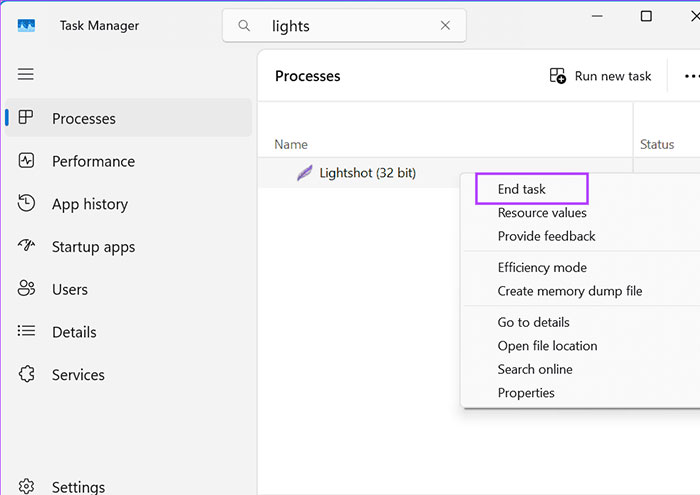
Look for Lightshot in the notification area and try starting a capture from its icon. If it is unresponsive, press Ctrl + Shift + Esc, select Lightshot in Task Manager, and end only that application's task. Reopen it from Start and test on an ordinary desktop window.
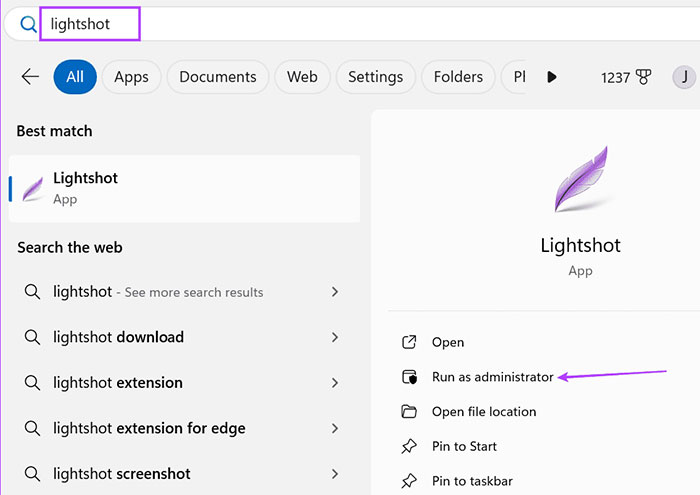
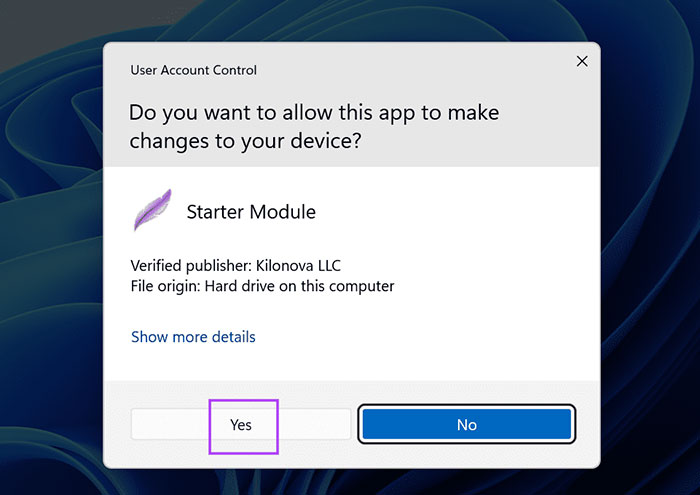
If capture fails only over an application running with elevated privileges, an administrator-mode test may help identify a permissions mismatch. Use it only for a trusted installation and that specific test; administrator access is not a general requirement for screenshots.
2. Resolve Print Screen conflicts
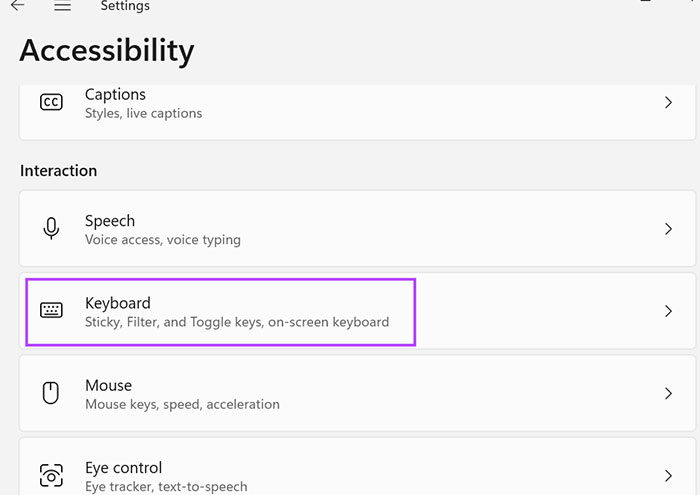
If Lightshot works from its tray icon but not from the keyboard, inspect the shortcut. In Windows 11, open Settings > Accessibility > Keyboard.
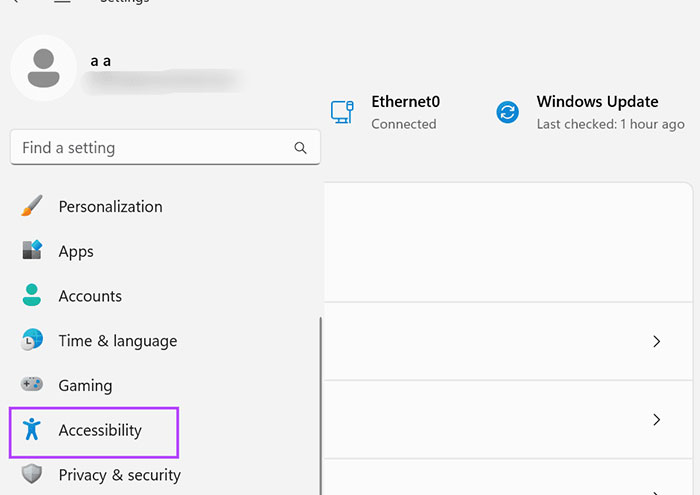
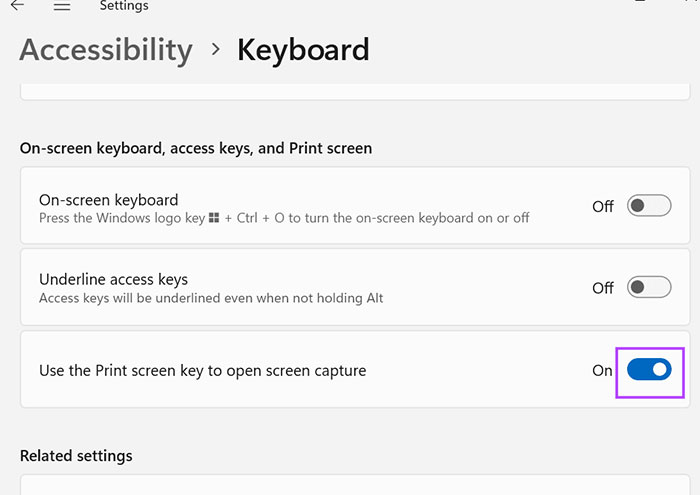
Review Use the Print screen key to open screen capture. Turn it off if you want Lightshot to handle that key, or leave it on and choose another Lightshot shortcut.
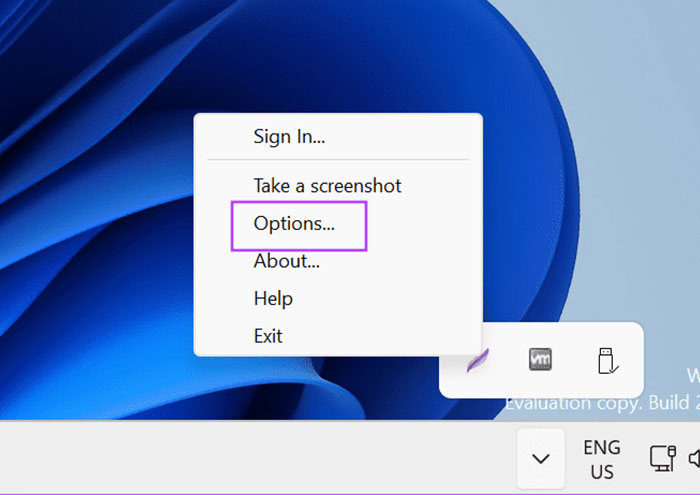
Right-click Lightshot's tray icon, open Options, and select the Hotkeys tab.
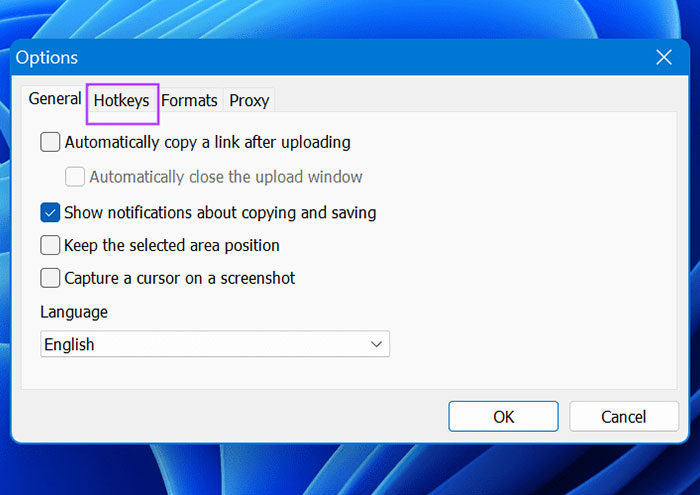
Enable the general capture hotkey and assign an unused key combination. Confirm with OK, then test. Temporarily close other capture apps if they compete for the same key.
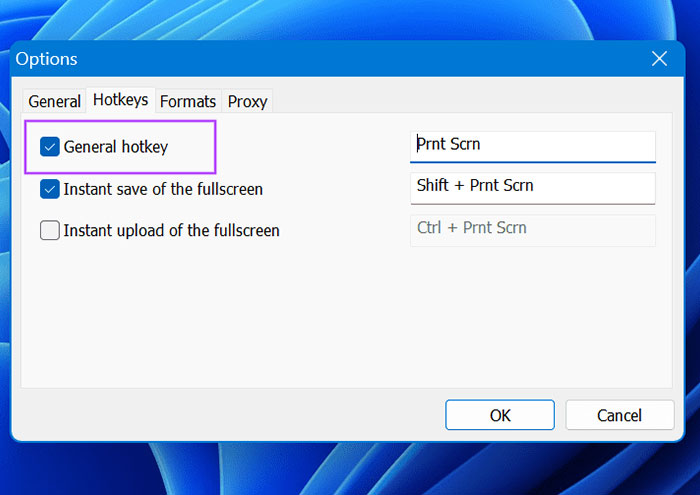
For a built-in alternative, use Windows + Shift + S. Its save behavior is separate; see changing the screenshot folder.
3. Separate capture, clipboard, save, and upload problems
Try a small, non-sensitive capture. Test copying it to another app, then saving it to a folder you own. If local capture works but upload does not, investigate the connection or service rather than changing GPU settings.
Uploading shares the image with an external service. Do not upload private information as a troubleshooting test. The official hotkey reference distinguishes copy, save, and upload actions.
4. Investigate graphics settings only for display-related symptoms
For a black image or failures limited to a particular display or graphics application, test a normal desktop window and check your graphics driver. On some older dual-GPU laptops, NVIDIA Control Panel exposes a preferred-processor setting.
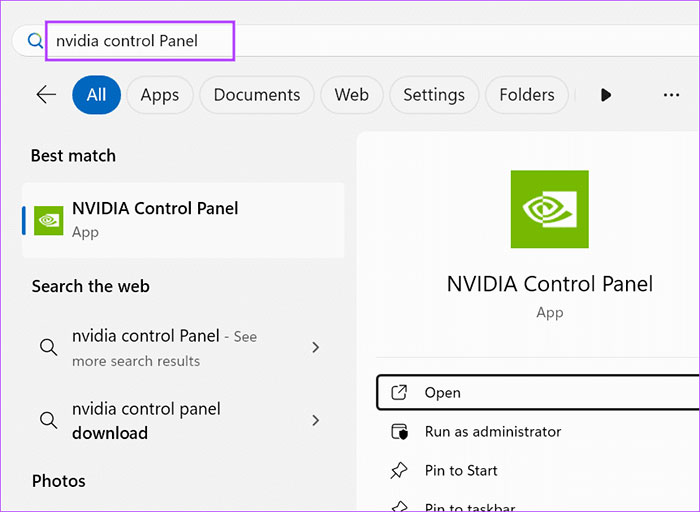
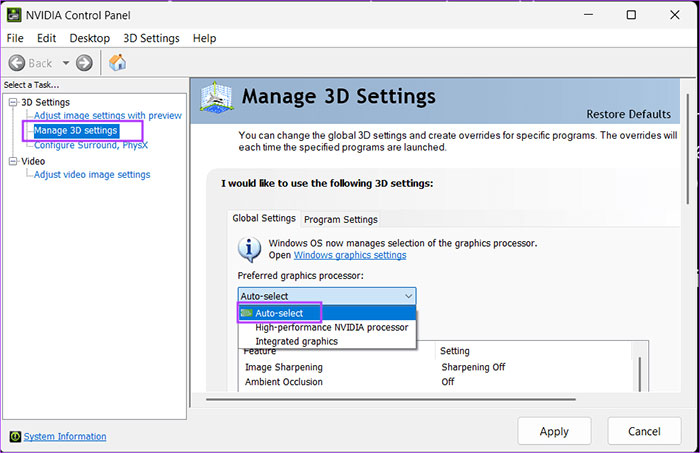
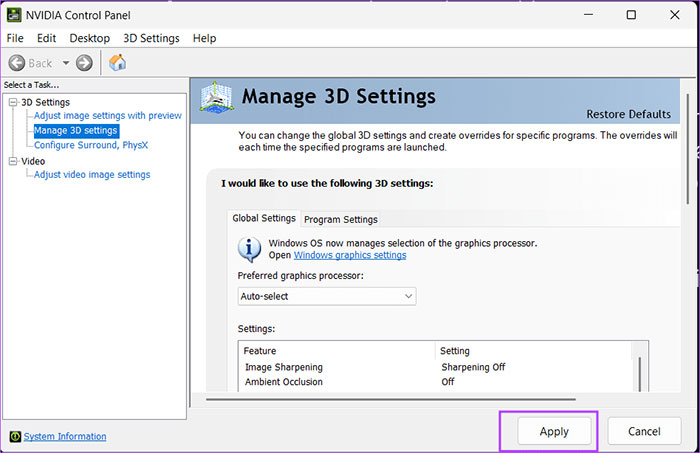
The screenshots show that older interface. Do not change global GPU settings merely because the controls exist. If you recently forced a processor choice, record the setting and test the appropriate default. Modern systems may manage this in Windows Graphics settings instead.
5. Check updates without assuming they caused the fault
Install available Lightshot fixes and check Windows Update. Note the app version, Windows build, and when the symptom began. A recent update is a clue, not proof of causation.
The older screenshots below show the update-removal interface. Uninstalling the newest update is not a routine Lightshot fix.
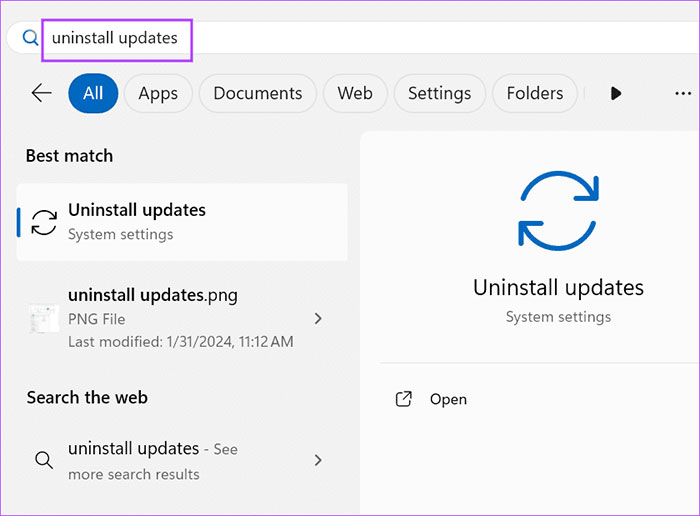
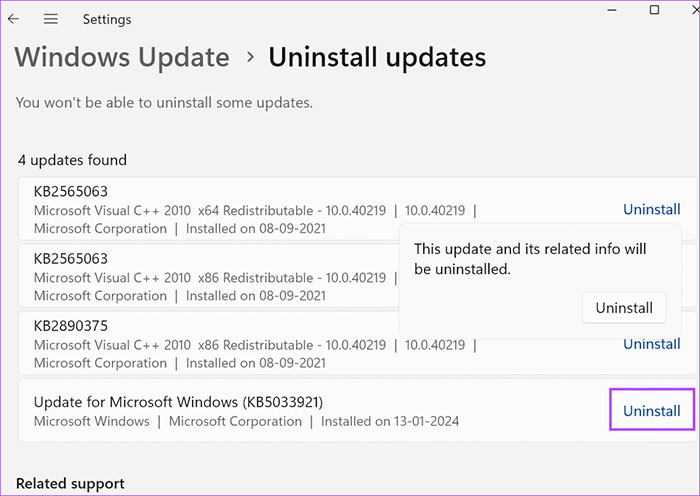
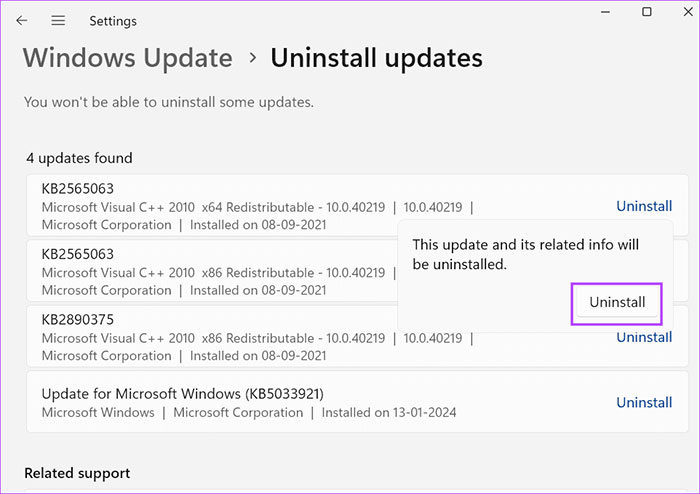
Only consider rollback when a specific update has been linked to the problem and the relevant support guidance recommends it. Removing a security update can remove protections. Review Microsoft's guidance and keep a recovery plan.
For driver work, use the PC or GPU manufacturer's supported package. A BIOS update is not a normal first response to a screenshot shortcut problem.
6. Reinstall from the developer if needed
If Lightshot still crashes or fails to launch, record your shortcuts, then uninstall it through Windows Apps settings or appwiz.cpl.
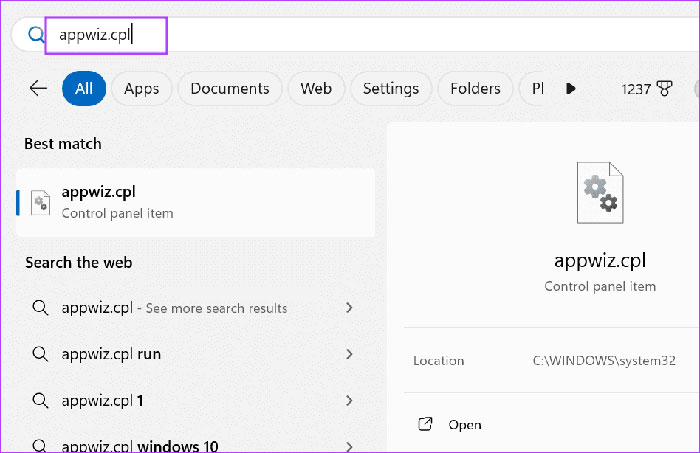
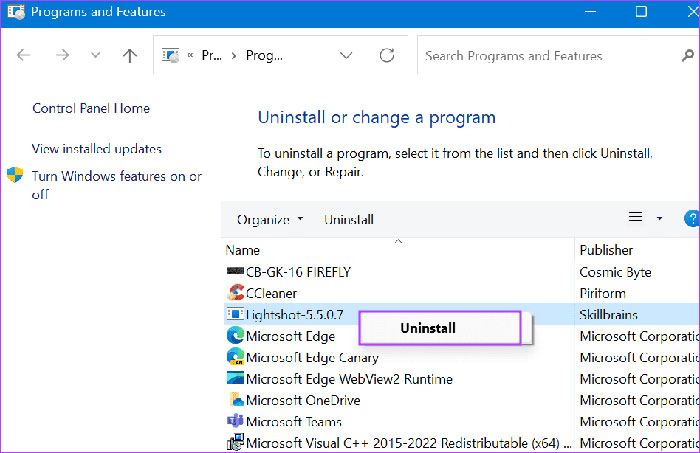
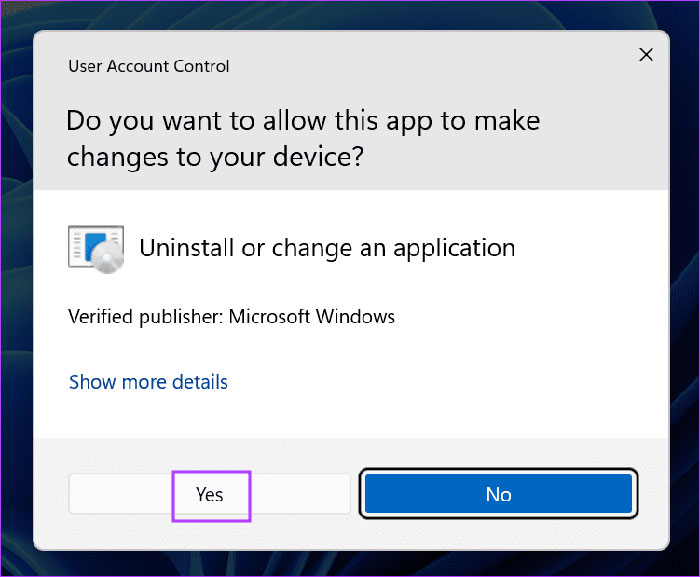
Check that any confirmation refers to the intended application. Download the replacement from the developer's official site, install it, and test normally before changing other settings.
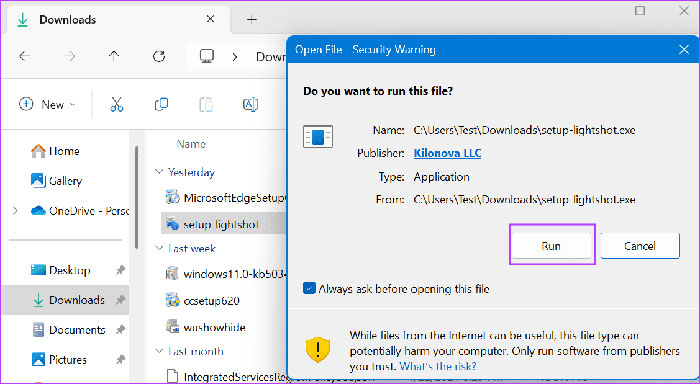
7. Report a reproducible problem
If reinstalling does not help, report the Windows version, Lightshot build, affected display or app, exact symptom, and tests already completed. Exclude private screenshots and credentials. For general system slowdowns beyond Lightshot, see our Windows 11 troubleshooting guide.
Related Articles
 How to Take Photos with Lightshot Screen6 minutes read
 How to Fix Character Map Not Working on Windows6 minutes read
 How to Fix Windows 11 Taskbar Not Working8 minutes read
 How to Fix Tab Key Not Working on Windows9 minutes read
 How to Fix Micro Not Working on Windows 107 minutes read
 Fix Alt + Tab Not Working in Windows 104 minutes read
Reader Comments 0
Sign in with email or Google to join the discussion.