Table of Contents
Messenger can send a photo to Meta AI and apply text-based edits such as adding an object, removing a distraction, or replacing a background. The current official workflow starts in the Meta AI chat, although some app versions also show Edit with AI when you open a photo. Availability depends on account, country, language, device, and rollout.
Edit a photo in Meta AI
1. Open Meta AI and select a photo
In the Messenger mobile app, tap Meta AI at the bottom, then tap the camera button and choose a photo from your device. If you instead see Edit with AI after opening a photo in a conversation, you can use that shortcut.
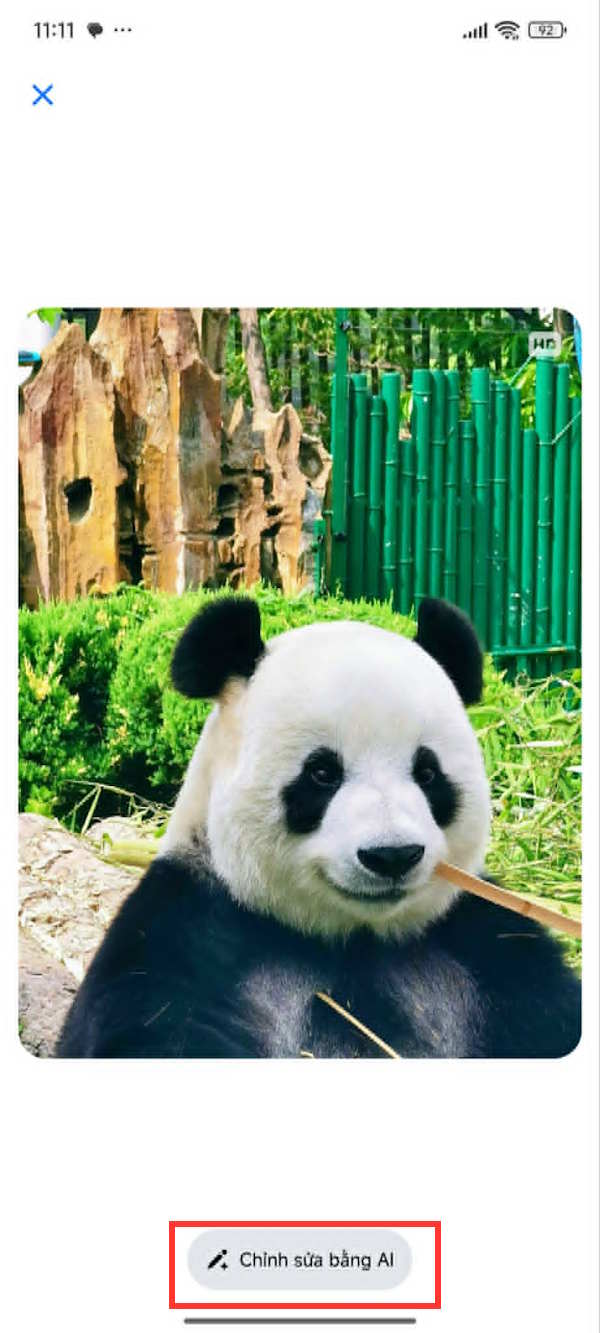
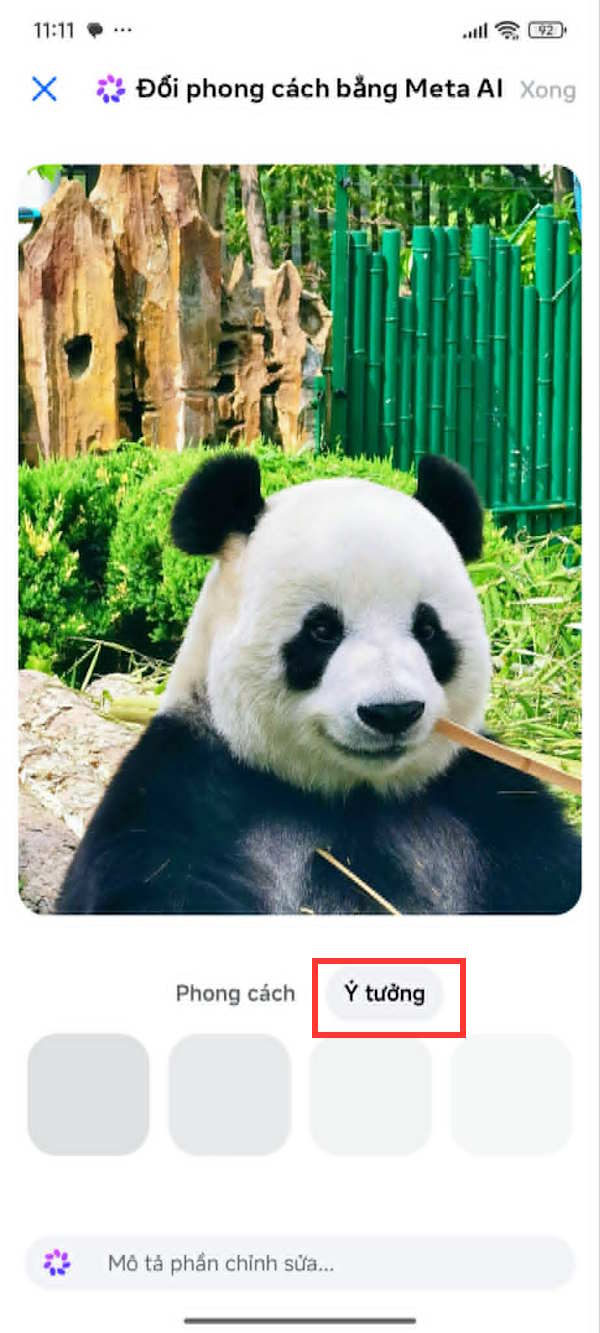
2. Choose an edit or write a prompt
The editor may show ideas such as Add, Remove, and Change. Select the closest action, then describe the result. Prompts work best when they identify the subject, position, and desired appearance.
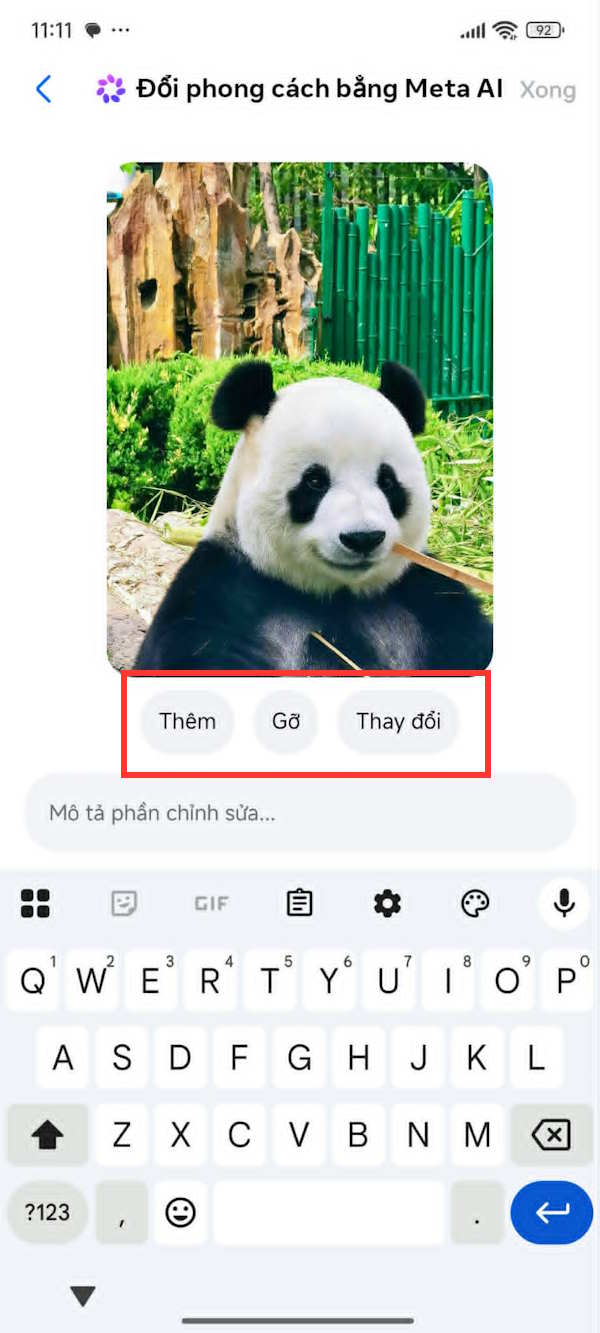
3. Add an object
Describe what should be added and where it belongs. For example, “Add a small red backpack on the chair at the left.” Submit the prompt and inspect whether the new object fits the lighting, scale, and perspective.
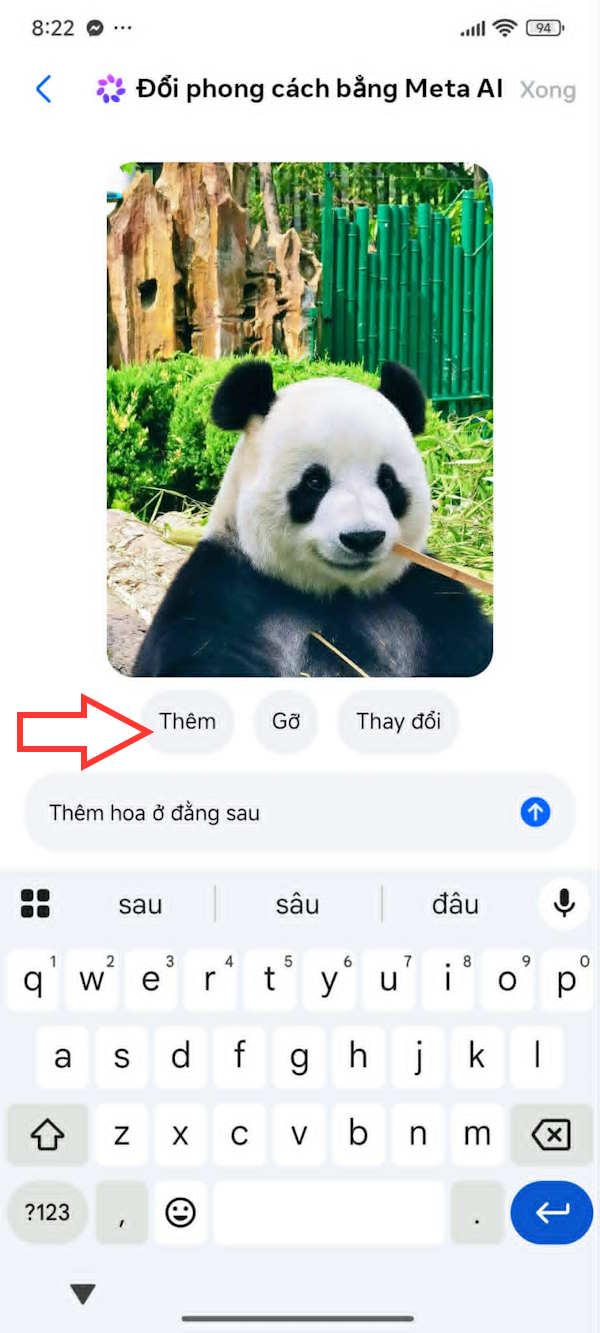
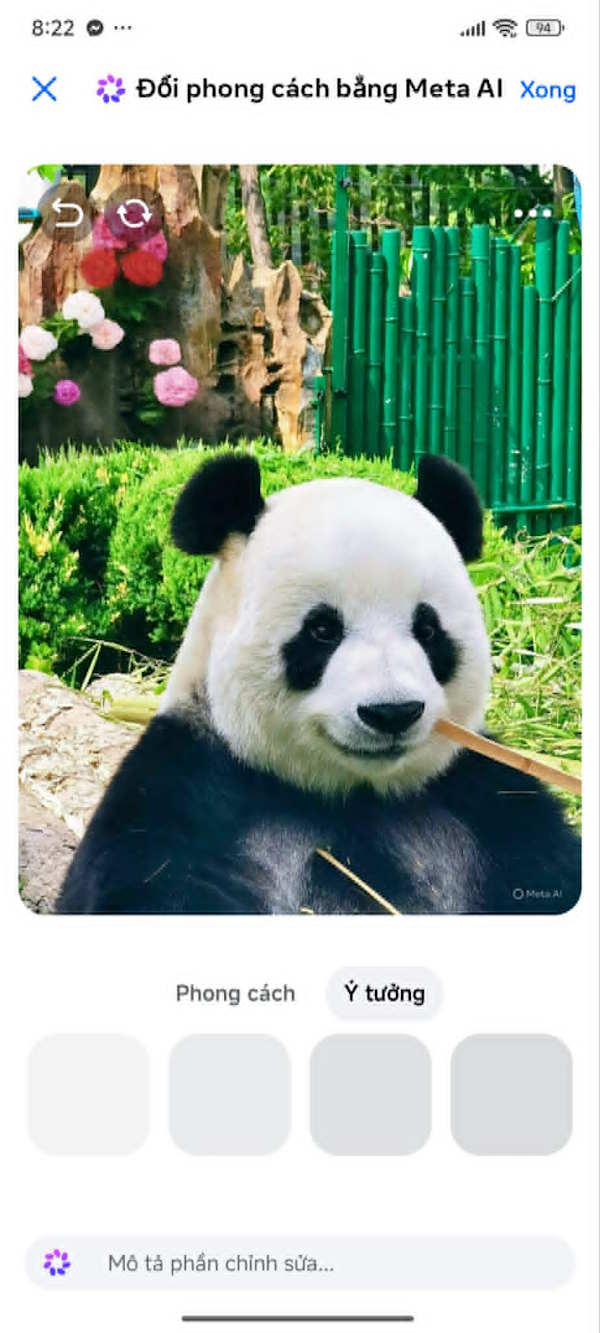
4. Remove an unwanted detail
Name the object and its location, such as “Remove the sign behind the person and reconstruct the wall.” Avoid vague requests like “clean this up,” which leave too much for the model to guess.
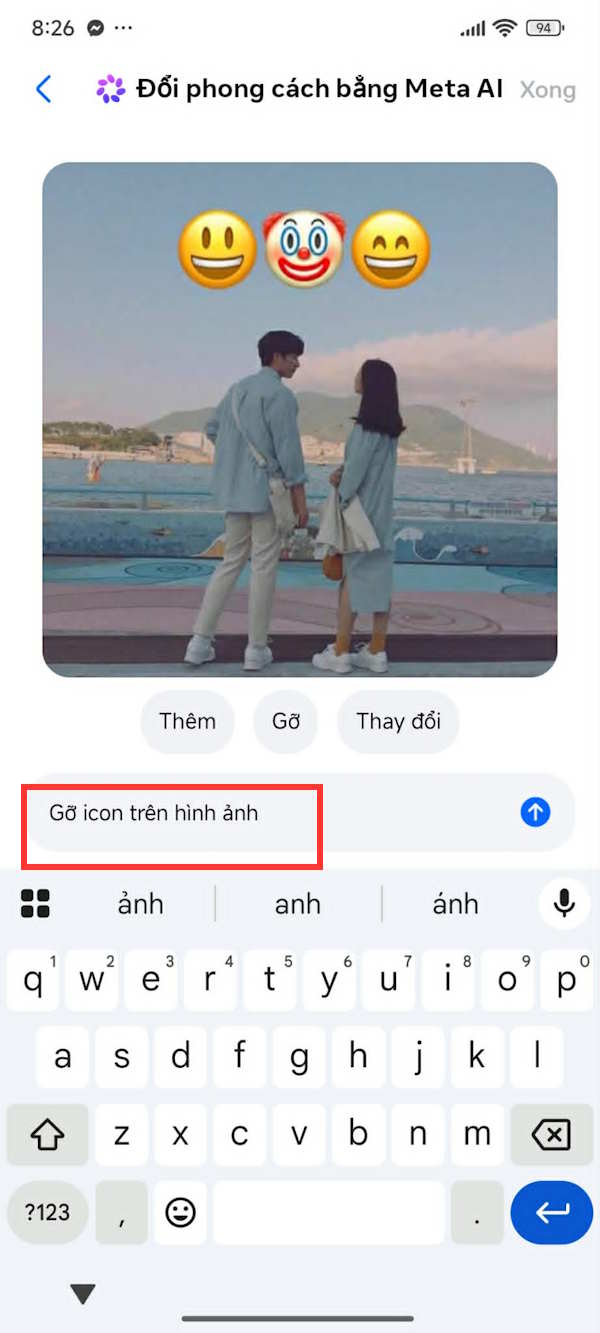
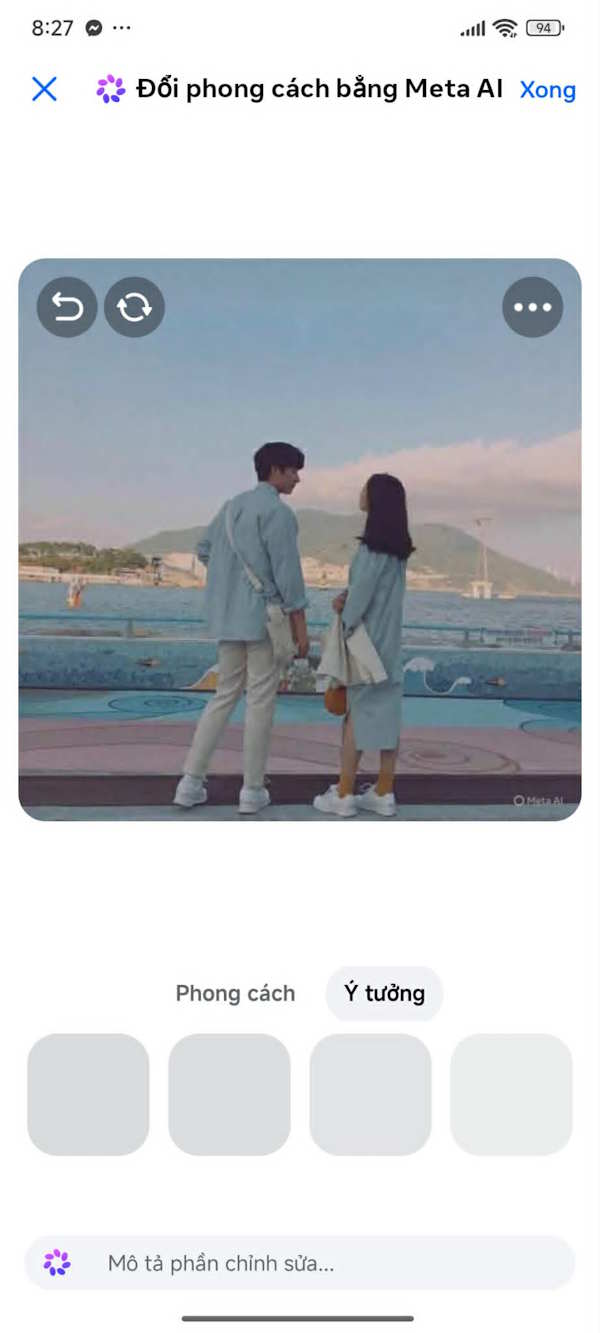
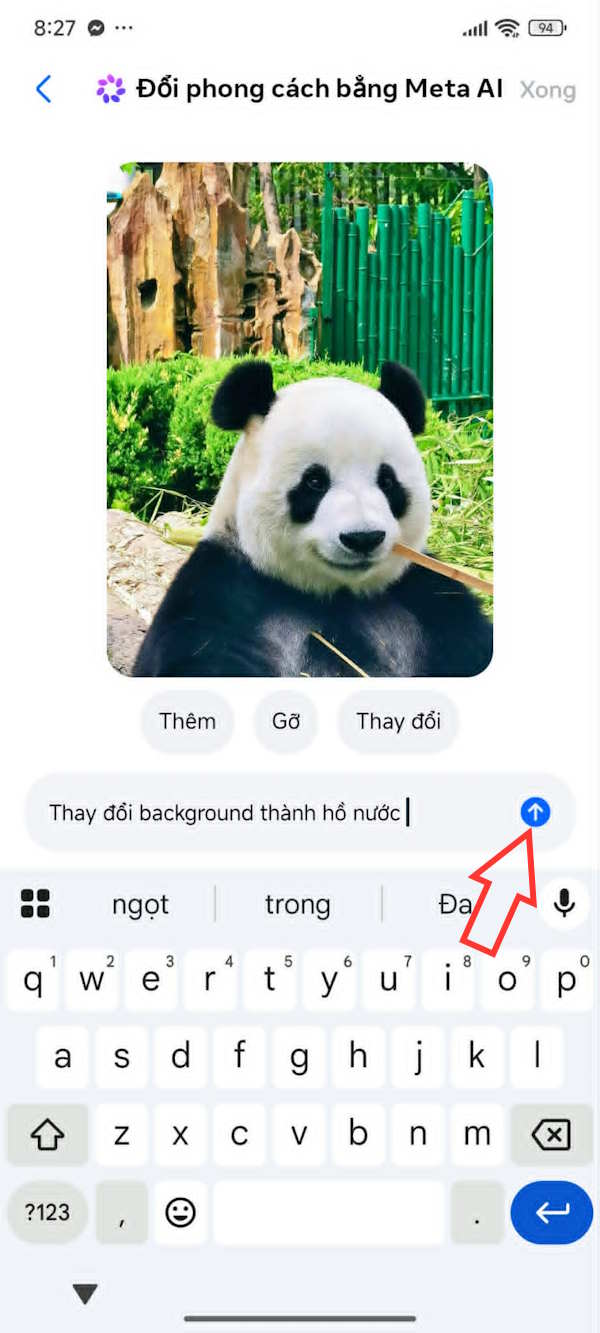
5. Change the background or another element
Choose Change and specify both the target and replacement: “Replace the office background with a quiet library, keeping the person and clothing unchanged.” If the result alters the face or other important details, ask Meta AI to restore them or generate another version.
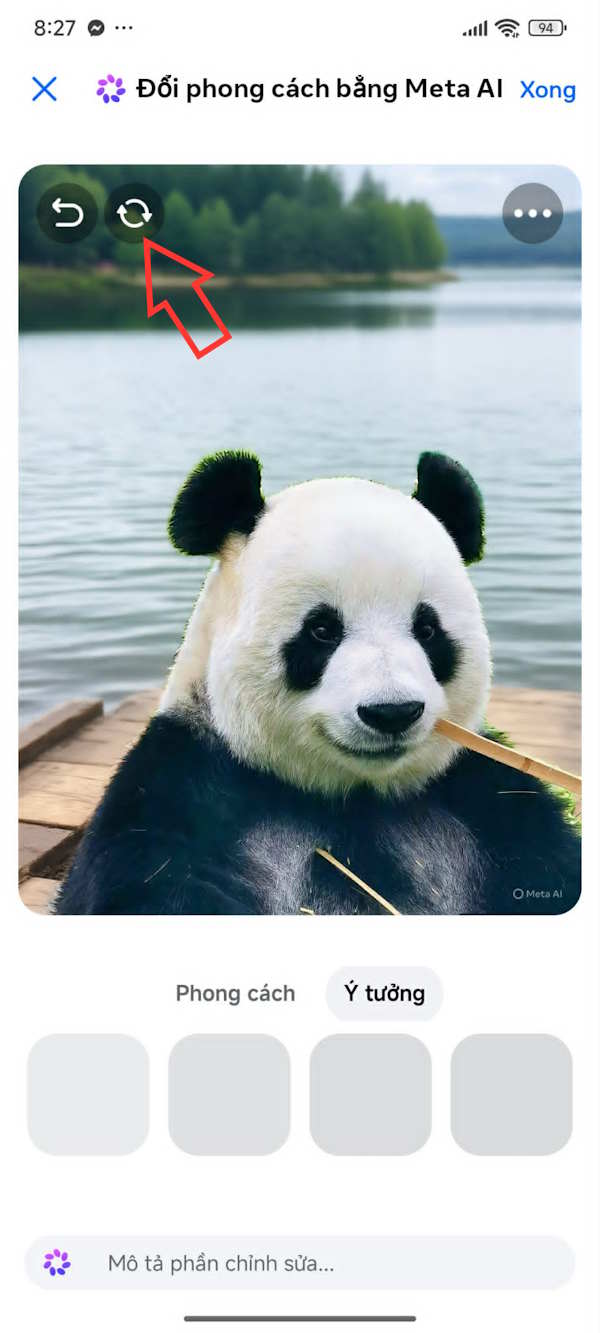
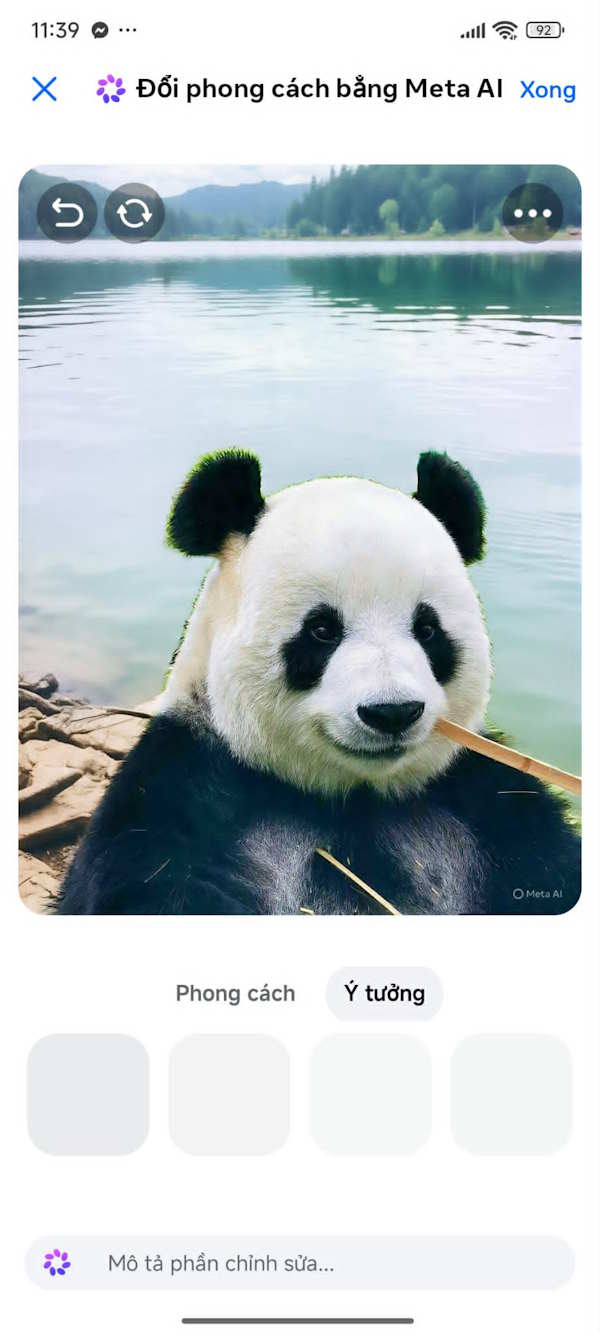
6. Save the result
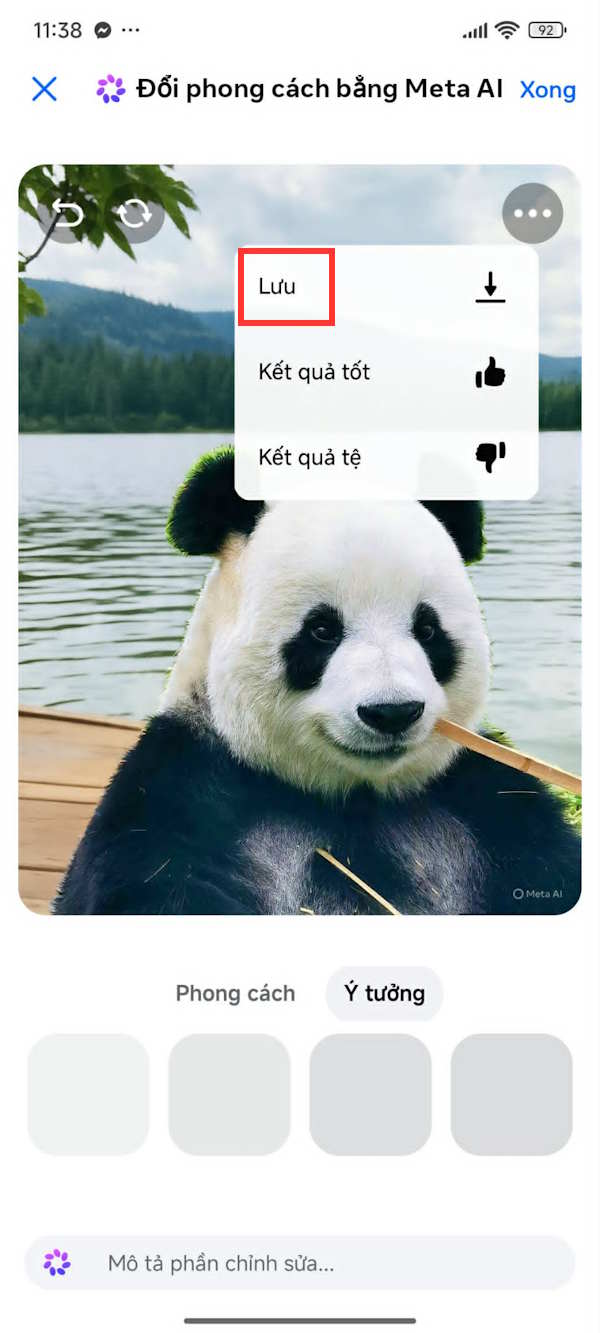
When the image looks right, open the three-dot menu and choose Save or the download option displayed in your app. Save a copy so the original remains available for comparison.
Write prompts that produce cleaner edits
- Identify one change at a time.
- Name the object and its position in the frame.
- Say what must remain unchanged, especially faces, text, and clothing.
- Describe lighting, perspective, and style only when they matter.
- Use follow-up prompts to correct a specific defect instead of restarting with a much longer request.
Limitations to expect
Generative editing reconstructs pixels; it does not reveal what was truly hidden behind a removed object. Results may distort hands, faces, logos, reflections, small text, or repeated patterns. Zoom in before sharing, particularly when the image will be used for a profile, listing, announcement, or professional document.
Do not present a materially altered image as documentary evidence. Ask permission before editing another person's likeness, and avoid using the tool for identification documents, medical images, private records, or deceptive impersonation.
If Edit with AI is missing
- Update Messenger from the official app store.
- Open the dedicated Meta AI chat and use its camera button.
- Confirm that Meta AI is available for the account and region.
- Restart the app and check photo permissions in the phone's settings.
- Try a standard JPEG or PNG if the selected file format is unsupported.
Meta's Messenger help page for editing images reflects the current official entry point. For a non-AI Messenger customization, see how to create a snowfall effect in Messenger.
Related Articles
 Take a Picture of 'Selfie' Style Painting on Facebook Messenger5 minutes read
 How to Edit Facebook Messenger Messages4 minutes read
 Have You Tried Sending GIF Images of Faces on Facebook Messenger?6 minutes read
 How to Send HD Images on Facebook Messenger4 minutes read
 How to Post GIF in Messenger Notes2 minutes read
 How to Take Valentine Photos on Facebook Messenger4 minutes read
Reader Comments 0
Sign in with email or Google to join the discussion.