Table of Contents
Microsoft Copilot Studio test sets let you run repeatable questions or conversations against an agent and score the responses. You can edit a saved test set to change its name, evaluation methods, cases, user profile, and connections. Because an evaluation can access the same knowledge and tools as the selected account, review permissions before running it.
Edit the test set name and evaluation methods
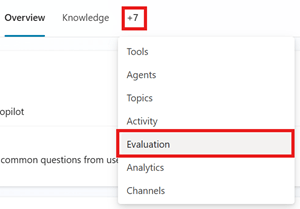
- Open the agent in Copilot Studio and go to Evaluation.
- Select the test set you want to change.
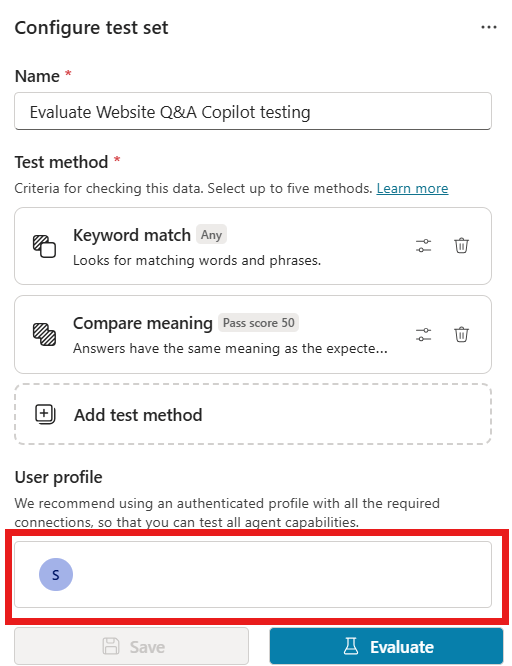
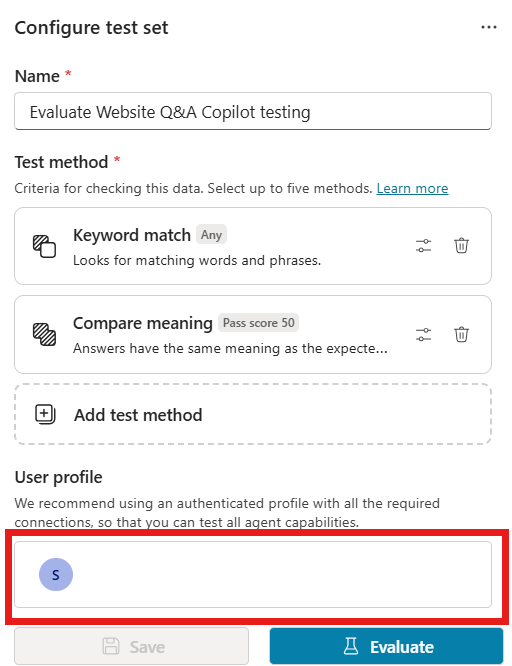
- In the Configure test set pane, edit the name if necessary.
- Select Add test method to add scoring methods, or open an existing method to change or remove it.
- Configure any required pass score, expected answer, keyword, tool, or custom criteria.
- Select Save.
Choose an evaluation method
| Method | What it checks | Typical configuration |
|---|---|---|
| General quality | Relevance, groundedness, completeness, and abstention | No expected answer required |
| Compare meaning | Whether the response conveys the meaning of the expected answer | Expected answer and pass score |
| Tool use | Whether the agent used an expected tool or topic | Expected capabilities |
| Keyword match | Whether required words or phrases appear | Expected keywords; any or all |
| Text similarity | How closely wording resembles the expected answer | Expected answer and pass score |
| Exact match | Whether the answer exactly matches the reference | Expected answer |
| Custom | Whether the response meets criteria you define | Instructions and pass labels |
Use exact match only for deterministic outputs such as a fixed identifier. Compare meaning is generally more suitable when several phrasings can be correct. General quality is useful when no single reference answer exists, but its model-based score should still be reviewed against important cases.
Edit individual test cases
- Open the test set from the Evaluation page.
- Select the question or conversation to edit.
- For a single-response case, change the Question and complete the expected-answer, keyword, or capability fields required by the selected methods.
- For a conversation case, open the conversation editor and change the user messages or reference responses.
- Select Apply for the case, then save the entire test set.
A test set can be useful only if its cases represent real behavior. Include normal requests, ambiguous questions, permission boundaries, unsupported topics, and failure conditions. Correct an obsolete expected answer before using the set to judge a new agent version.
Manage the user profile and connections
The selected user profile determines the account context used during evaluation. It can affect which knowledge sources and tools the agent can access.
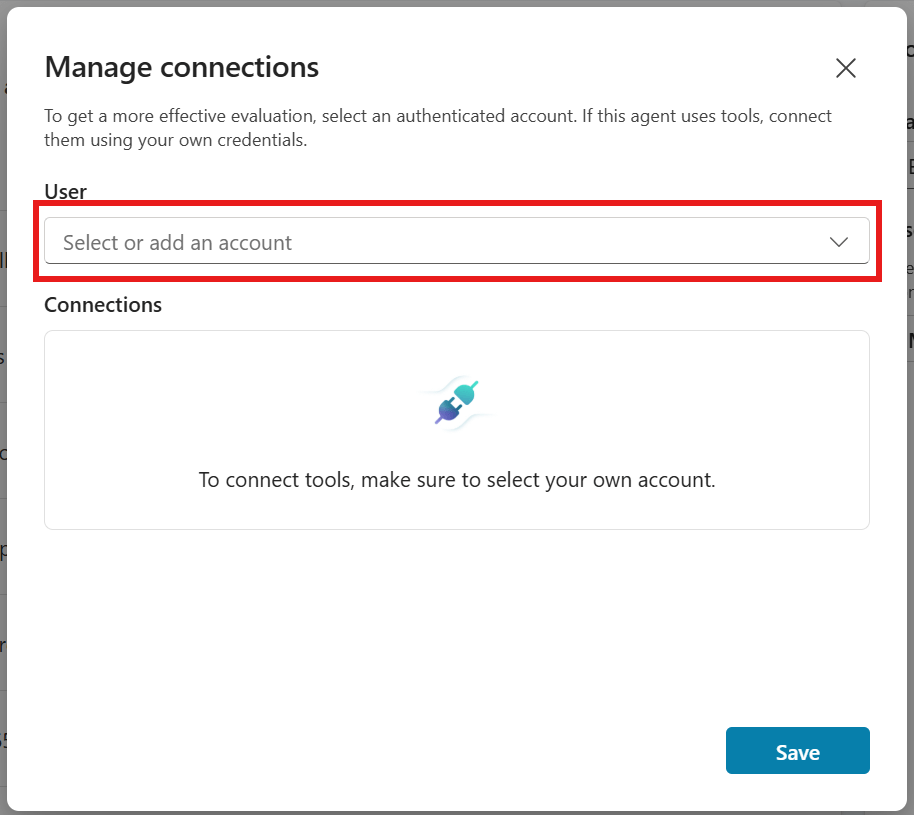
- Open the test set and select Manage or Manage profile beside User profile.
- Select an existing account or choose Add an account and sign in.
- Open any connection showing a warning.
- Select a working connection, try Reconnect, or choose Create new connection.
- When all required connections show as working, select Save.
- After the profile dialog closes, save the test set again.
Security implications
Copilot Studio may use the connected account to reach knowledge and tools while it creates cases or runs an evaluation. Generated questions and stored test cases can therefore include information available to that account. Makers who can access the agent may also be able to see its test sets.
- Use a dedicated test account with the least privileges required.
- Do not use a highly privileged personal account simply to avoid connection errors.
- Verify that every test profile is permitted to see the data returned in its cases.
- Remove sensitive generated cases that are not needed for evaluation.
Using an account different from the connector-authenticated account is available only in supported scenarios and may be a preview feature. If a run reports that the account cannot connect to tools, select an account with a valid tool connection or repair the connection instead of broadening permissions indiscriminately.
Delete a test set or result
Deleting a test set removes the reusable cases and configuration. Deleting a result removes one recorded run but leaves the test set available.
- Go to the agent's Evaluation page.
- To delete a test set, open the three-dot menu on its card, or open the set and use the menu in the Configure test set pane, then select Delete.
- To delete a run, find it under Recent results, open its three-dot menu, and choose Delete test. You can also open the result and delete it from the Evaluation summary menu.
Export results that must be retained before deletion. Microsoft currently keeps Copilot Studio test results in the product for 89 days, so export the CSV if the record is needed longer.
Check the test set before the next run
- Confirm that names and expected answers match the current agent behavior.
- Use the least privileged profile that accurately represents the target user.
- Resolve all connection warnings.
- Remove duplicate or obsolete cases.
- Run the same set before and after an agent change to make the comparison meaningful.
Microsoft's current documentation covers editing and deleting test sets, editing test cases, and choosing evaluation methods.
Related Articles
 How to Write a Test Plan: Step-by-Step Guide8 minutes read
 IQ Test, IQ Test, IQ Test, Intelligence Test3 minutes read
 What Is APN and How to Change the APN?9 minutes read
 Edit Test Cases in the Test Toolkit5 minutes read
 Fixes the Issue Where Details from Copilot Are Not Working: Explained4 minutes read
 Test Keyboard Online, Test Key Online with the Following 54 minutes read
Reader Comments 0
Sign in with email or Google to join the discussion.