Table of Contents
To check your internet connection, run a speed test and record its download, upload, and latency results. The same method works for VNPT, FPT, Viettel, and other providers. A test measures the connection to a particular server at that moment; it does not identify your exact subscription package.
Prepare for a useful comparison
- Pause large downloads, cloud backups, and streaming on your devices.
- For a baseline of the internet line, connect a capable computer to the router by Ethernet when possible.
- For a Wi-Fi test, record where you are and repeat near the router as well as in the problem room.
- Note whether a VPN or proxy is active. Compare without it only when doing so is appropriate for your network.
- Repeat tests at different times, including when you actually experience slow service. There is no universally correct hour such as 10 PM.
Run a browser speed test
Open your chosen speed-test service and start the test. The older Speedtest screenshots below show the GO control, a test in progress, and the final results. Start with a nearby server for a local baseline, then use another server if you need to compare routes.
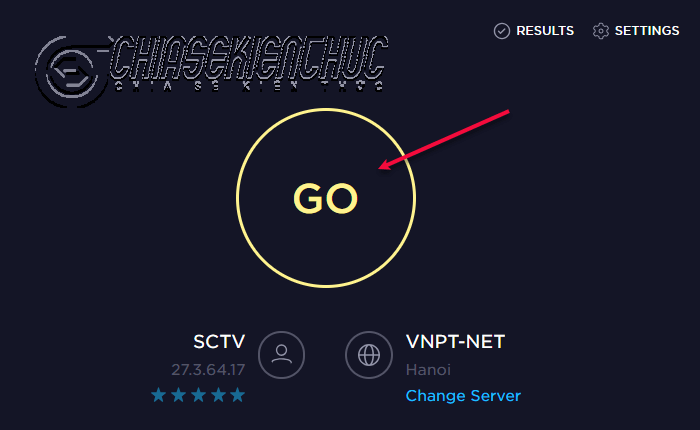
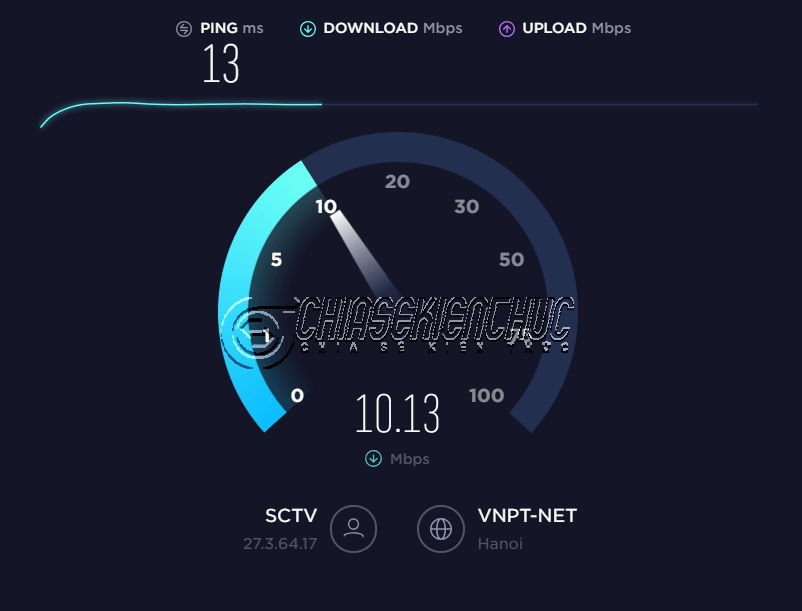
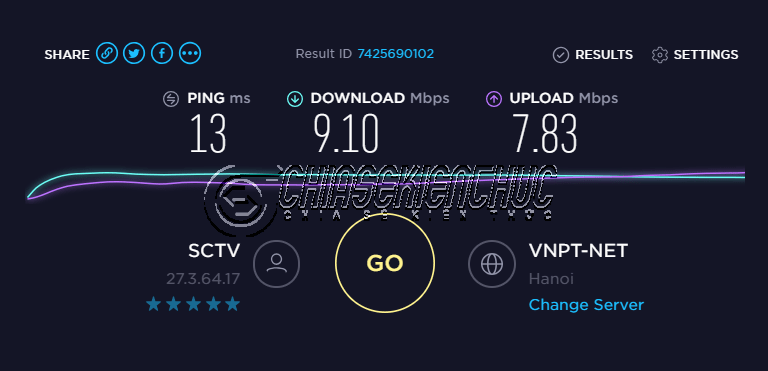
In Vietnam, VNNIC’s internet-speed measurement service provides browser testing and the i-Speed mobile app. It reports download, upload, ping, and jitter. Use the service’s official links when installing an app.
Record the date, time, server, connection type, and results. Use the same server and conditions for a before-and-after comparison, then test a second server if a result seems unusual. A distant server is not necessarily “inaccurate”; it measures a different route that may have different limits.
Understand the measurements
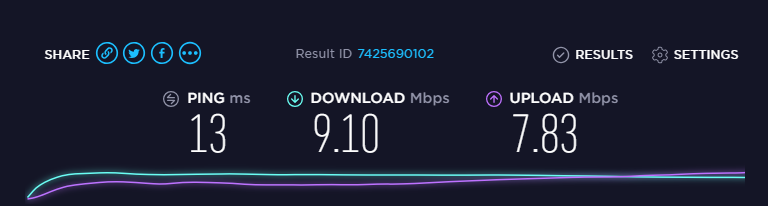
| Metric | Meaning | What it helps assess |
|---|---|---|
| Download, Mbps | Rate of data received from the test server | Downloads and incoming media |
| Upload, Mbps | Rate of data sent to the test server | Backups, file sharing, and outgoing video |
| Ping or latency, ms | Response delay for the measured path | Responsiveness in calls and interactive applications |
| Jitter, ms | Variation in delay | Consistency of real-time communication |
Higher throughput and lower delay are generally desirable, but compare results for the task you care about. A fast download result does not rule out upload congestion or unstable Wi-Fi. Fiber connections also do not necessarily have equal download and upload speeds; that depends on the plan.
Convert Mbps to MB/s correctly
Mbps means megabits per second. MB/s means megabytes per second. There are eight bits in a byte, so divide Mbps by eight to obtain the corresponding decimal MB/s rate.
- 100 Mbps ÷ 8 = 12.5 MB/s.
- 12.29 Mbps ÷ 8 = approximately 1.54 MB/s.
- 10 MB/s × 8 = 80 Mbps.
These are unit conversions, not promises about an individual download. Protocol overhead, the source server, storage, and other traffic can reduce file-transfer speed. Some software uses binary units such as MiB/s, which are not identical to decimal MB/s. See Mbps and its relationship to MBps for more context.
Use a file download as a secondary check
A download manager such as IDM shows the speed of a particular transfer. It can help reveal whether one source is slow, but it cannot reliably tell you which internet plan you bought. Use a legitimate file from a source that permits the download, and note the displayed unit before comparing it with a speed test.
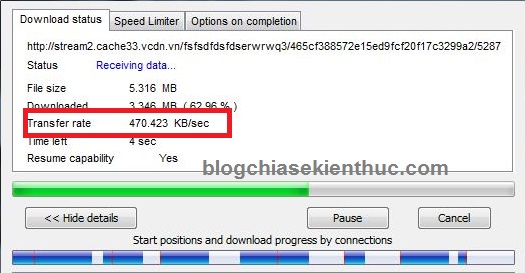
Check your ISP account, bill, or contract for the actual package and any stated upload or international-bandwidth terms. Do not infer a “5 Mbps plan” or a specific connection technology from one measured transfer.
Test on a phone or with another service
A mobile browser or the service’s official app can measure the phone’s current connection. Confirm whether it is using Wi-Fi or mobile data before testing. Speed tests transfer data, so consider any mobile allowance.
For a Wi-Fi comparison, use the same phone, server, and location before and after a change. Do not compare a phone’s cellular result with a computer’s wired result as if they measured the same connection.
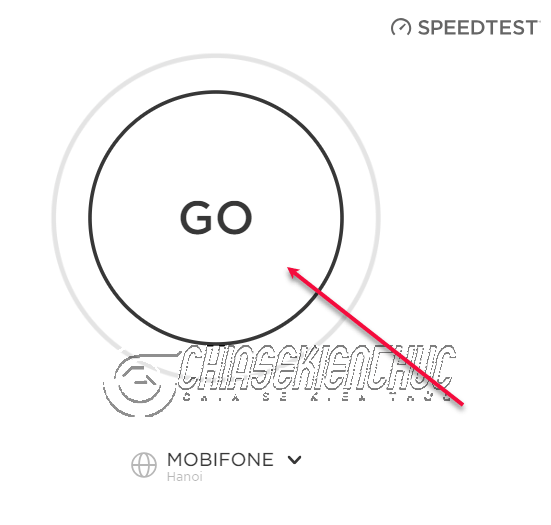
A second test service can help check an outlier, but changing both service and server at once makes direct comparison less precise. The PC upload and download testing guide gives another overview of the process.
What to do with consistently low results
If Ethernet performs well but Wi-Fi does not, investigate wireless coverage and the device connection. If several devices are slow on Ethernet too, check for background traffic, router or port limitations, and repeat the test at different times.
Send your provider a small set of recorded results with the server names, times, and connection conditions. That is more useful for troubleshooting than a single screenshot or an assumption that every slow download is caused by the ISP.
Related Articles
 Checking Internet speed, Wifi FPT, VNPT network, Viettel does not need software
 How to check Internet package network FPT, VNPT, Viettel are using
 Measuring the speed of Viettel, VNPT and FPT using Speed Of Me
 How to Test Internet and Wi-Fi Speed Accurately
 How to check Internet speed with cmd command
 What is Viettel Sim Internet? Offers of Viettel Internet sim
Reader Comments 0
Sign in with email or Google to join the discussion.